Category: Evernote

  • Which Digital Note-Taking Tool is Both Easy to Use and Efficient?

    Which Digital Note-Taking Tool is Both Easy to Use and Efficient?

    OneNote is a digital note-taking tool.

    Do you still carry a notebook around?

    I know that I do. Writing your notes can slow the process down so that your mind has time to absorb the information.

    But typing notes on a laptop or a tablet is more efficient. And even when I hand-write notes, I copy them into a digital note taking tool later, or take a picture and add to the tool. A digital note-taking tool is great for organizing your notes and other information. It’s the best way to search and find notes.

    Evernote is the most popular digital note-taking tool.

    It runs on all platforms and syncs between your devices. You can read more about Evernote here: Use Evernote for a New Level of Organization.

    Microsoft’s OneNote 2016 has become a fierce competitor to Evernote.

    It has many of the same features as Evernote but it’s a better editor.

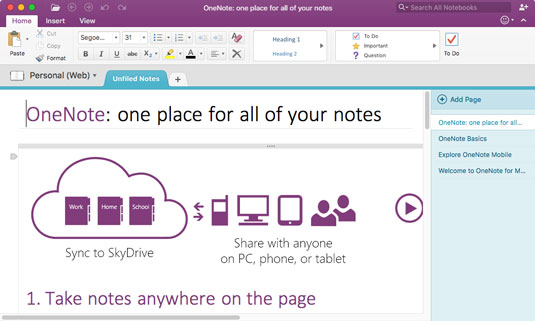
    Like Evernote, OneNote keeps the concept of “Notebooks”. OneNote has notebook “sections” with a tabbed interface. Each note in a section is a “page”.

    What I love about OneNote are the editing features and the templates.

    Here’s a screenshot of a “Project Overview” template. I can edit this template and save it as a custom template.
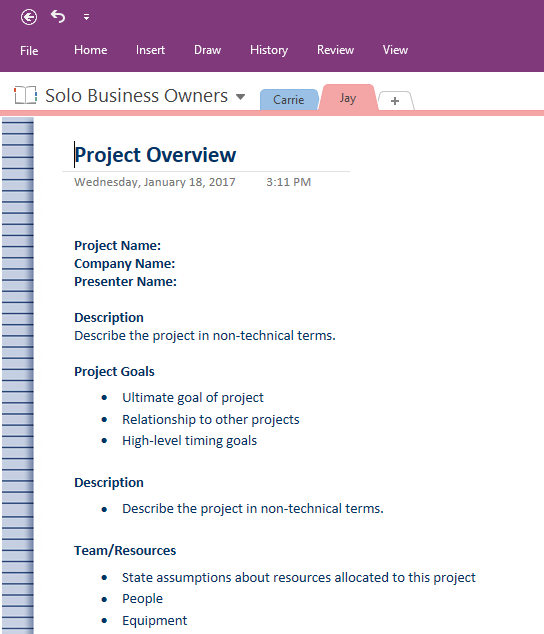
    Project template for digital note-taking


    Here’s a template for taking class notes:
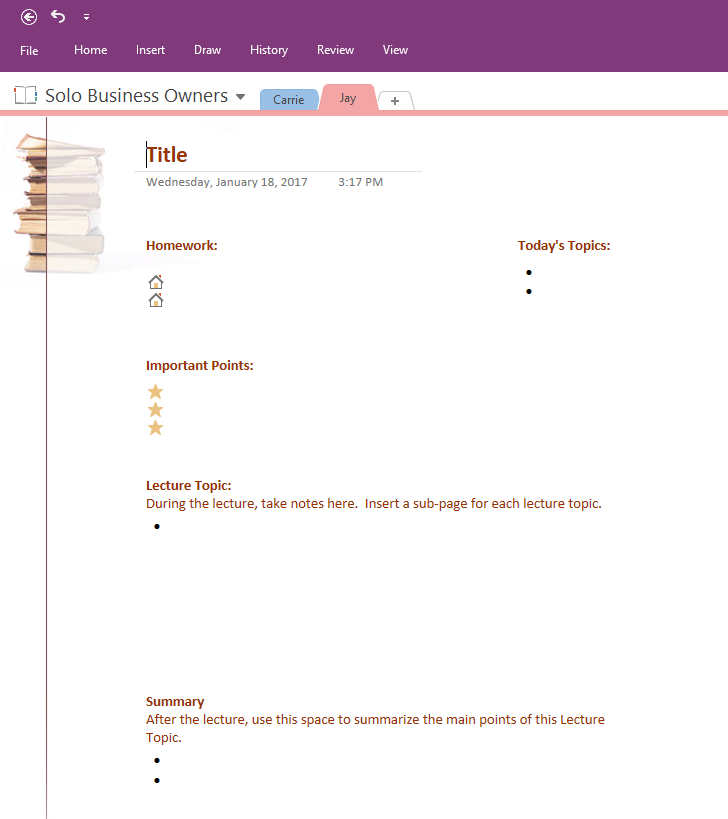
     

    Class notes template for digital note-taking


    OneNote syncs across platforms, allows you to attach files, clip web pages, and to send emails into notebooks, just like Evernote .

    If you have Windows 10, then you have a version of OneNote built in, but it’s a “light” version. I recommend downloading and installing the full-featured desktop version of OneNote 2016. It’s free!

    You can download it for PC and Mac here: https://www.onenote.com/download. You can also install the mobile apps on iOS/Android.

    So why choose Evernote?

    Evernote has a better visual interface, especially on the Mac, with the ability to create notebook “stacks”. Evernote also has better features at the premium, paid, level – such as searching within attached files and business card scanning. Evernote has a nice reminders feature at both the free and paid levels.


    SUBSCRIBE TO MY NEWSLETTER
    Get the “Controlling the Chaos” Newsletter and receive a free PDF download
    “Drowning in Email – A Lifeline for Communications Overload”
    * indicates required


  • How to Easily Save Emails from Gmail to Evernote

    How to Easily Save Emails from Gmail to Evernote

    I like to use Evernote to organize my client information, including email correspondence. I detail this here: 7 Tips to Manage Client Info.

    Forwarding Gmail to Evernote requires a paid account.

    If you don’t have a paid Evernote account, you can still copy and paste an email into an Evernote note. But there are better ways if you’re a Gmail user.

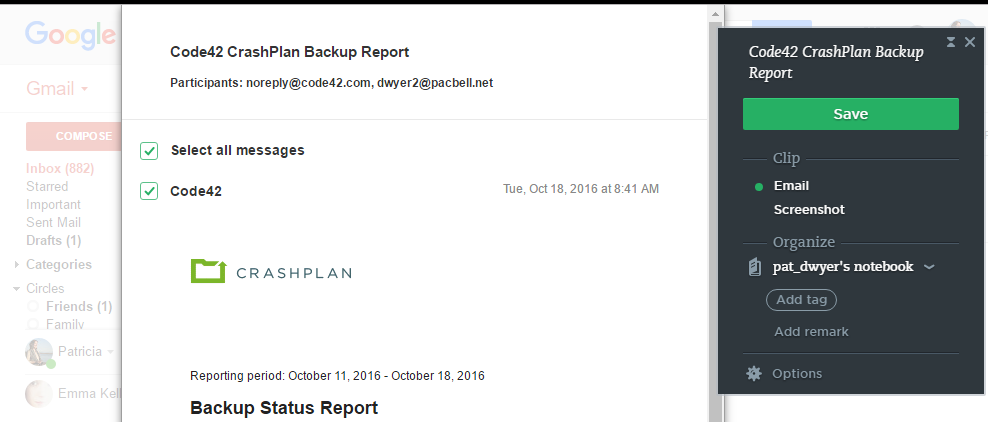
    Use the Chrome Evernote Web Clipper extension.

    Here’s how: open the email, click on the Web Clipper extension in your Chrome toolbar, then save the email to any Evernote notebook that you choose.

    Save Gmail to Evernote

    Use Zapier.

    Using this method you’ll be saving specific emails to a corresponding Evernote notebook automatically. You can read more about Zapier here: Easy Way to Sync Cloud Services.

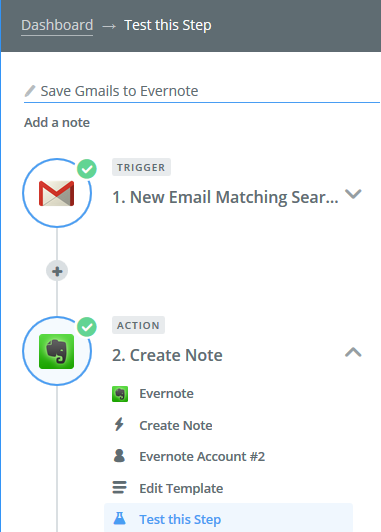
    1. Start by going to this webpage: Evernote/Gmail Integration. Log into your Zapier account (or create one).
    2. Select the Gmail trigger. You can select from “New Mail Matching Search”, which I use as an example below, “New Labeled Email”, “New Starred Email”, etc.
    3. Next, select the Evernote action. I use “Create Note” in my example.

    You will have to connect your Gmail account. And then set up the parameters for a Gmail search (or choose a label, or other criteria). Then connect your Evernote account and choose options for notebook, title, note content, tag, etc.

    Use Zapier to save Gmail to Evernote

    This example sets up a “zap” to search for email from a specific customer/client, then save it to an Evernote notebook.

    1. Select the Gmail trigger: “New Email Matching Search” and the Evernote trigger: “Create Note”.
    2. After connecting your Gmail account, type “from:<customer name>” in the Search String.
    3. Select the Evernote application and then “Create Note”.
    4. After connecting your Evernote account, choose a notebook. (Select “Subject” under Title, and select “Body Plain” under Content.)


    Get the “Controlling the Chaos” Newsletter and receive a free PDF download
    “Drowning in Email – A Lifeline for Communications Overload”
    * indicates required


  • 3 Easy Steps for More Organized Evernote Notes

    3 Easy Steps for More Organized Evernote Notes

    If you’re an avid Evernote user like me, you may find yourself with so many notes that you’re not sure what to do with them. If you’ve read my post here: Use Evernote for a New Level of Organization, you know how to use notebooks and tags for organized Evernote notes. But even with good organization, it’s just too easy to take a note during a meeting, during a conversation, or whenever you have a thought, and then have trouble knowing how to find it later.

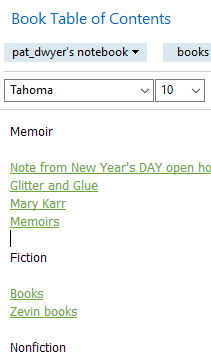
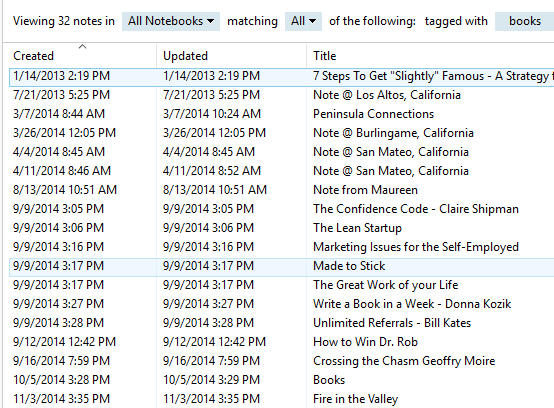
    My organized Evernote notes tagged "books"For example, whenever anyone recommends a book to me, I’ll make a note and I’ll tag it “books”. Makes sense, right? Whenever I’m looking for a new book to read, I can just open Evernote and look at everything tagged “books”. However, my list of “books” notes had gotten quite long, and I’m not consistent with titles. So when I looked at the list, I had to look at each note to see what kind of book it’s all about.

    I was not efficiently accessing my organized Evernote notes.

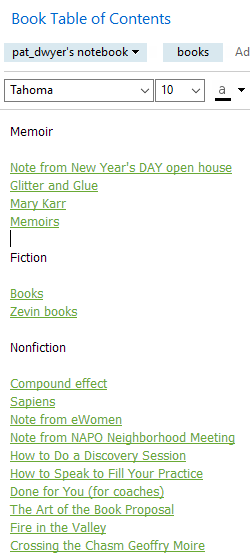
    Organized Evernote Notes Using Table of ContentsHere’s my solution:

    1. I created a new note that is a “Table of Contents” note. It contains links to all of my “books” notes.
    2. In my Book Table of Contacts note, I’ve added some simple organization in the form of  headers, “Memoirs”, “Fiction”, and “Non-fiction”.
    3. I’ve moved my notes links around to be under the corresponding headers.

    You can create an Evernote Table of Contents note a couple of different ways.

    The basic way is to create a new note, title it “XXX Table of Contents” and copy/paste the links of the relevant notes into it. (You can copy the link of a note by right-clicking the note and selecting “Copy Note Link”.)

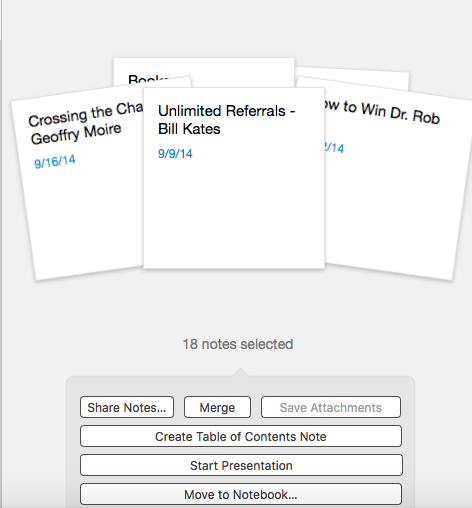
    A quick and easy way to create a new TOC note is to select the notes that you want to include. Evernote will then show you a couple of options when you do this, including “Create Table of Contents Note”.

    Organized Evernote Notes Using Table of Contents


    Rename the note, give it a tag, and edit it to add headers.

    Now you can see your organization at a glance and choose the note that you want to look at.

    Get the “Controlling the Chaos” Newsletter and receive a free PDF download
    “Drowning in Email – A Lifeline for Communications Overload”
    * indicates required


  • How to Simplify Daily Priorities Using Evernote

    How to Simplify Daily Priorities Using Evernote

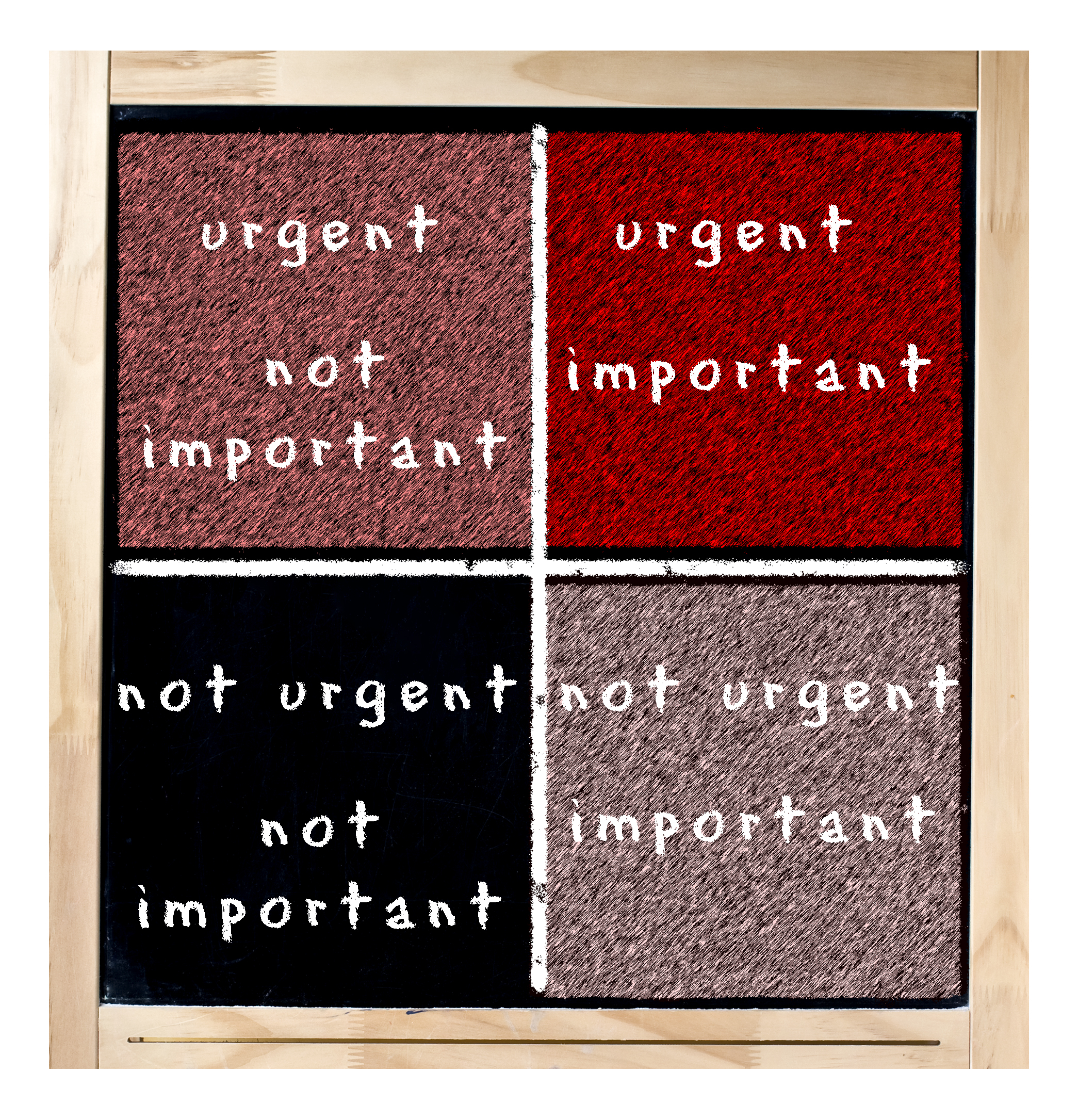
    Daily Priorities Using the Eisenhower Matrix

    In my blog post here: How to Prioritize Email, I wrote about prioritization methods for your inbox.

    Use your email daily priorities method with your Evernote to-do list as well

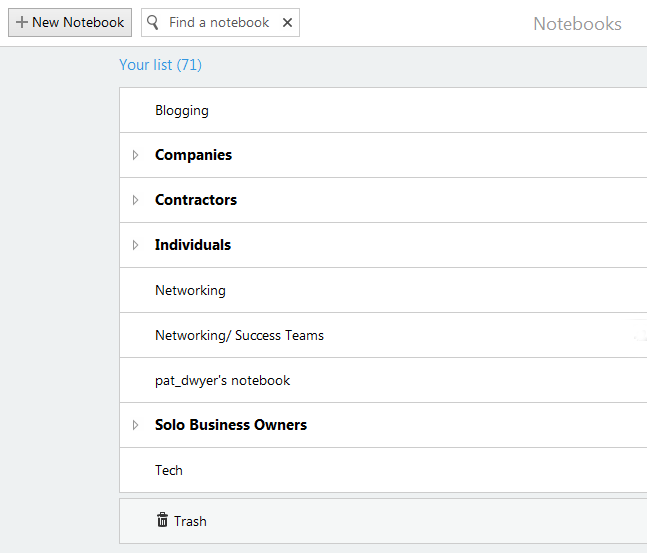
    Organize your tasks separately from your reference notes/emails in Evernote. You can do this by using Evernote notebooks. (Read about notebooks here: How to Organize Using Evernote Notebooks.)

    “Getting Things Done” (or GTD) is a popular productivity method. This was first made popular by David Allen’s book in 2001. The GTD system requires that you process your information through utilizing an “action management system”. The flow goes like this:

    1. Examine each item
    2. Is it actionable?
    3. If not,
      • trash it, or
      • move it to a “someday/maybe” list, or
      • move it to a reference list.
    4. If it is actionable, determine if it will take less than 2 minutes. If yes, take care of the action. If not, delegate it or schedule it for later.

    Use Evernote notebooks for both actionable and non-actionable lists

    Create an Evernote notebook for “Someday/Maybe” items and another one for “Reference”. You can also create notebooks for your items that you delegated or scheduled for later. Name the notebooks something like “Next Actions” and “Waiting For”. Use reminders to help you to schedule your actions.

    Use Evernote tags for daily priorities

    The next level of organization for your tasks in your “Next Actions” notebook is to assign priority tags. If you’re using the Eisenhower method, for example, your tags can be “A.UI” (Urgent and Important), “B.UNI” (Urgent, Not Important), “C.INU” (Important, Not Urgent), and “D.NINU (Not Important, Not Urgent). Sort your notes and emails in the notebook by priority tag.

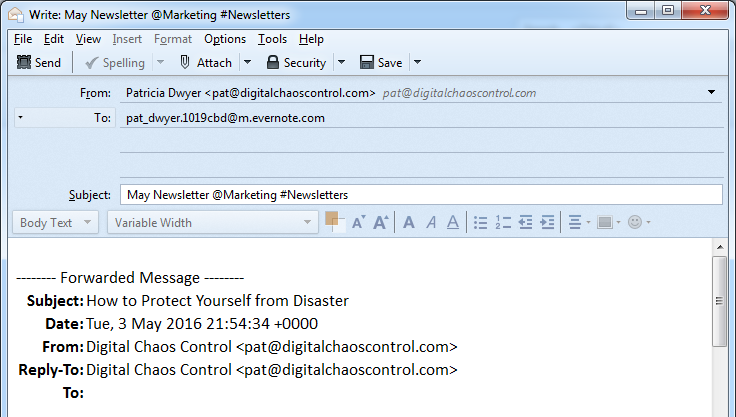
    I recommend that you integrate your email tasks with your Evernote to-do list. Integrating email with a task manager means that your daily priorities will then be in one place. If you have an Evernote Plus account, you can forward emails to one of your notebooks. You’ll do this by forwarding to your Evernote email address and appending “@<notebook name>” to the email title, followed by “#<priority tag>”.

    Have a routine

    Check your “Next Items” and “Waiting For” notebooks daily. Remove notes as you complete them, add new items, and update tags & reminders. You should also allocate time weekly to check your “Someday/Maybe” notebook.

    Get the “Controlling the Chaos” Newsletter and receive a free PDF download
    “Drowning in Email – A Lifeline for Communications Overload”
    * indicates required


  • How to Remain Productive

    How to Remain Productive

    Staying productive

    If you’re using the GTD (“Getting Things Done”) method to stay productive, as outlined in my Evernote blog here: How to Implement “GTD” in Evernote (or even if you’re not, but you do have task lists), you may find yourself with an ever-growing “Next Actions” list, and/or “Someday/Maybe” list. Having a to-do list that just keeps growing can feel discouraging and can affect your “perceived” productivity.

    There are many factors that can keep you from being productive.

    • Life happens – you have personal challenges going on
    • You take on new projects
    • Your day is not well structured
    • You have too many interruptions
    • You’re losing motivation

    If you’re losing motivation, then, by all means, take a break.

    “There’s strong evidence that disengagement, breaking away, can help recharge people cognitively,” says University of Toronto sociology professor Scott Schieman. Schieman is studying the relationship between work, health and stress among Canadians. “This is anecdotal, but if I’ve gone on vacation and I come back, the ideas flow and things really move along. By contrast, if I’m sitting at my desk trying to squeeze out the last bit of idea, it just doesn’t work.”

    If you have too many interruptions, then you need to find some uninterrupted time to work, preferably every day.

    Build the time into your schedule and work somewhere away from distractions if you can, which usually means away from the office. Jason Fried, a co-founder of Basecamp, said during a 2010 TED talk about the workplace: “You walk into the front door and it’s like a Cuisinart. Your day is just shredded to bits.” Jason calls the most frequent sources of interruptions in the workplace “M&Ms” – Managers and Meetings.

    Even working away from the office, you should take breaks. Use them to scan email, do some web surfing, stretch, and/or exercise.

    If you feel like you’re doing all that you can to keep up and your to-do list is still growing, then you should be taking more drastic measures. Your perceived productivity affects your morale can be affected by your perceived productivity, so cut that list down by delegating or deleting.

    Get the “Controlling the Chaos” Newsletter and receive a free PDF download
    “Drowning in Email – A Lifeline for Communications Overload”
    * indicates required


  • How to Use Evernote to Keep Email Organized

    How to Use Evernote to Keep Email Organized

    Evernote Organized Email

    Email can be difficult to deal with in an efficient and organized way.

    Keeping emails organized into folders can help you to find the right email conversation, as can using your email search tools. But email correspondence is just one part of the story. If you’re trying to put together the history of working with a client, for example, you’ll have to search separately for related client files and notes. It’s not difficult to do, but it does take time and your search may come up with lots of unrelated information.

    My previous blog post on email management here: 4 Steps to Becoming More Responsive can help. A better method may be to use a tool to keep email organized along with related information. Evernote is a great tool for this. (You can read more about using Evernote for managing client information here: 7 Tips to Manage Client Info.)

    Also, if you’re organizing a trip, you can keep the research, photos, itineraries, email correspondence, and receipts in one notebook. If you’re managing a project, you can keep the tasks, notes, and email correspondence in another notebook.

    How to save your emails to Evernote

    The most efficient way is to cc: your Evernote email address in your email correspondence. This will put those emails in your default Evernote notebook. You can leave them there and use search to find those emails later, or you can go into Evernote and move them into other notebooks. You can also add those emails later by forwarding to your Evernote email address.

    When you cc: or forward an email you can target a specific notebook by adding “@<notebook name>” to the end of the subject line. You can add tags by using #<tag> and reminders by using !<date>.

    Emailing to Evernote requires an Evernote Plus paid account. Evernote also has a free version, but you’ll have the extra step of copying your email, going to your Evernote app, creating a new note, and pasting the email into it.

    How to find your Evernote email address

    When you sign up for an Evernote Plus account, you get an associated email address (something like username.XXX@m.evernote.com). You can find the address by going to your account info under “Tools” in the PC or “Help” on the Mac.

    Get the “Controlling the Chaos” Newsletter and receive a free PDF download
    “Drowning in Email – A Lifeline for Communications Overload”
    * indicates required


  • 8 Tips to Manage Client Information Using Evernote

    8 Tips to Manage Client Information Using Evernote

    Evernote NotebooksIn my previous blog post about Using Evernote, I referred to using Evernote to manage client information.

    Evernote is a great tool for creating memos, checklists, and reminders about clients. It’s also a good way to keep your client information all in one place and keep it organized.

    Here’s how to use Evernote to manage your client information:

    1. For each client, create a new notebook.
    2.  

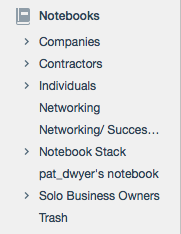
    3. Evernote notebooks can be “stacked”, meaning that you can create one level of hierarchy. I suggest a notebook stack for each type of client or type of work.
       
      For example, if you are an interior designer, you may have a notebook stack titled “Window Treatments”, another titled “Room Layouts”, etc.
    4.  

    5. Share the notebook with collaborators and/or clients.
    6.  

    7. As you work with the client, update notes or add new notes. If you have related documents and/or photos, you can add them to the note as attachments. 
    8.  

    9. Referenced web sites go into the notebook. Install the Evernote Web Clipper extension into your browser. This will allow you to “clip” the page, or an article on the page, and save it to your client notebook.
    10.  

    11. Email correspondence goes into the notebook. When you sign up for an Evernote Plus account, you get an associated email address (something like username.XXX@m.evernote.com). You can CC: your Evernote account on your client email correspondence or you can forward the email later. 
       
      If you add “@<notebook name>” to the email subject line, then Evernote will even put the email into the specified notebook.
    12.  

    13. Use tags to help find things. For example: If you want to track how your clients found you, you could tag your client notes with a “referred by:<>” tag. Evernote lists your tags on the sidebar.
    14.  

    15. Add reminders to notes so that you’ll remember to follow up with your clients.


    Using Evernote as a simple CRM (Customer Relationship Management) system.

    Here’s one method to do so:

    • Create a notebook stack for each month.
    • Create a notebook daily:
      • Use the Evernote mobile app to capture business cards or contact information for the day’s leads and opportunities.
      • Add notes for those leads and opportunities and reminders so that you’ll remember to follow up.

    Another method could be to create one notebook called “Leads” with contact information and reminders.

    Here’s a blog post from “101 Conversations” on this subject: How to Use Evernote as a Relationship Management Tool

    You can also use a dedicated CRM tool and integrate it with your Evernote client notes. I use Insightly for this, but there might be other CRM tools that integrate with Evernote as well.

    http://www.insightly.com

    Now you can have all of your client information – notes, files, photos, websites, emails in one place! And Evernote has great search and is continuing to improve it. You can search within your notes & emails and, if you are a Premium user, then you can search within documents.

    A note of caution: Keep in mind that Evernote is a cloud application. Anything on the Internet is only as secure as your password, so be sure to use strong passwords and to update them regularly.

    Get the “Controlling the Chaos” Newsletter and receive a free PDF download
    “Drowning in Email – A Lifeline for Communications Overload”
    * indicates required


  • Three reasons to use Evernote for Team Collaboration

    Three reasons to use Evernote for Team Collaboration

    Evernote for Business

    Evernote is a great organization system because you can organize your notes, documents, photos, and emails all in one place.

    As an Evernote user, you have the option of sharing notes and notebooks with others. But for true collaboration with team members that gives you a shared work space, admin controls, and more, you need the Evernote for Business plan.

    Your team members can add research notes, to-dos, points for follow-up, web clippings, etc. Members can initiate chat sessions for team discussions. (Work chat allows your team to cut back on email discussions, gets them chatting in real time, and helps to get them focused on the task at hand).

    Here are the advantages to using Evernote for team collaboration:

    • It’s a tool that is already well known.
    • The usage model is well understood.
    • You get to take advantage of Evernote’s organization and search features.

    Evernote for Business costs $12.50 per user per month. Start by setting up an account under your admin email. Then add a work domain. This allows employees in the same domain to be automatically added to your business account without approval.

    It’s a great tool for upfront research.

    Evernote isn’t a project management platform. You probably won’t be using it to create assignments, tasks, and schedules (although you can create checklists and reminders). You also won’t be using it to develop code. But it’s great for upfront work.

    You can gather requirements, document research, and communicate with team members.

    It’s also a great way to keep all project work in one place. You can use Evernote’s search function to find keywords, tags, documents, and emails.

    Get the “Controlling the Chaos” Newsletter and receive a free PDF download
    “Drowning in Email – A Lifeline for Communications Overload”
    * indicates required


  • How to Recharge Your Brain Like an Evernote Employee

    How to Recharge Your Brain Like an Evernote Employee

    Evernote Barista

    If you ever drive through Redwood City CA on Highway 101, you may notice the Evernote headquarters right beside the freeway.

    Redwood City is better known as an enterprise technology hub, home of Oracle headquarters and its spin-offs. (You’ll see the Oracle headquarters down the road with its distinctive buildings. But, unless you work with enterprise databases, you probably won’t get that flash of recognition that you experience when you see that elephant logo.)

    Evernote has only a few hundred employees at its Redwood City headquarters. The company has a unique corporate culture. As Alex Bernson writes on sprudge.com, a coffee culture blog, Evernote encourages informal mixing among its employees by offering barista training and enabling them to take a weekly shift in the lobby coffee bar. (Read the article here: A Different Kind of Coffee Break).

    “The response to Evernote’s unique coffee program has been quite positive, with many employees reporting that by taking a “break” to make coffee for their coworkers, they were able to clear their heads, using a different part of their brains to get creative juices flowing.”

    Evernote: Where Everybody Knows Your Name

    The article made me think of the old TV show “Cheers”. In that show, Sam Malone held out behind the bar and forged close connections with Boston locals.

    I think that this company approach to giving their employees a way to take a break and interact must work well, because they’ve created a great organizational tool for the rest of us.

    So perhaps we could all take a lesson from Evernote.

    Get out there, have coffee (or cocktails) with co-workers or others in your industry, and get your brain recharged.

    Get the “Controlling the Chaos” Newsletter and receive a free PDF download
    “Drowning in Email – A Lifeline for Communications Overload”
    * indicates required


  • How to Get More Organized With Writing

    How to Get More Organized With Writing

    Evernote for Writing
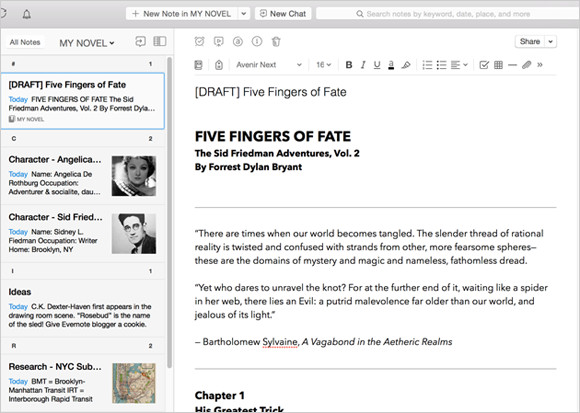
    Screenshot courtesy of www.Evernote.com

    If you’re a writer, whether it’s creative or business, you know that the bulk of a writing task is doing research and/or making notes. When you sit down to compile that research and start your writing, it helps to have those notes, web clippings, photos, etc. organized.

    Having a good organization system for your writing can help so much with getting inspired, getting started, and saving time.

    I suggest using Evernote for this. (You can read my blog post on Evernote here: Use Evernote For a New Level of Organization).

    There are multiple ways to use Evernote to organize your research. You can start with a notebook for “Research” with tags for each type of research. This is helpful if you won’t know the structure of your writing ahead of time. If you do have some structure in mind, it may be more helpful for you to have notebook stacks. For example, you could have a stack for each chapter, or a stack for each article.

    Use the Evernote app on your computer and mobile devices to write up your notes. You can add web clippings using the Evernote “Web Clipper” add-on in your internet browser and use the Evernote app on your smartphone or tablet to take photos.

    Tags can be very helpful to search for all of your research on a particular subject.

    You can assign multiple tags to each note, web clipping, or photo. For example, if you’re writing a piece about wellness and you find a web site dedicated to healthy eating, you can clip it and tag it “wellness”, “eating”, “diet”, etc.

    Using Evernote for research gives you a tool to keep all of your research in one place. Evernote’s great search tool can help you to bring up references quickly so that the most tedious part of writing goes quickly and smoothly, leaving you more time for creativity and even more research!

    Are you a fiction writer? Here’s a great article on Lifehacker: How to Use Evernote for Writing Fiction.

    Need help with Evernote? Contact me.