Category: Evernote

  • How to Organize Using Evernote Notebooks
    How to Organize Using Evernote Notebooks

    Evernote Notebooks

    Evernote Notebooks – the First Level of Organization


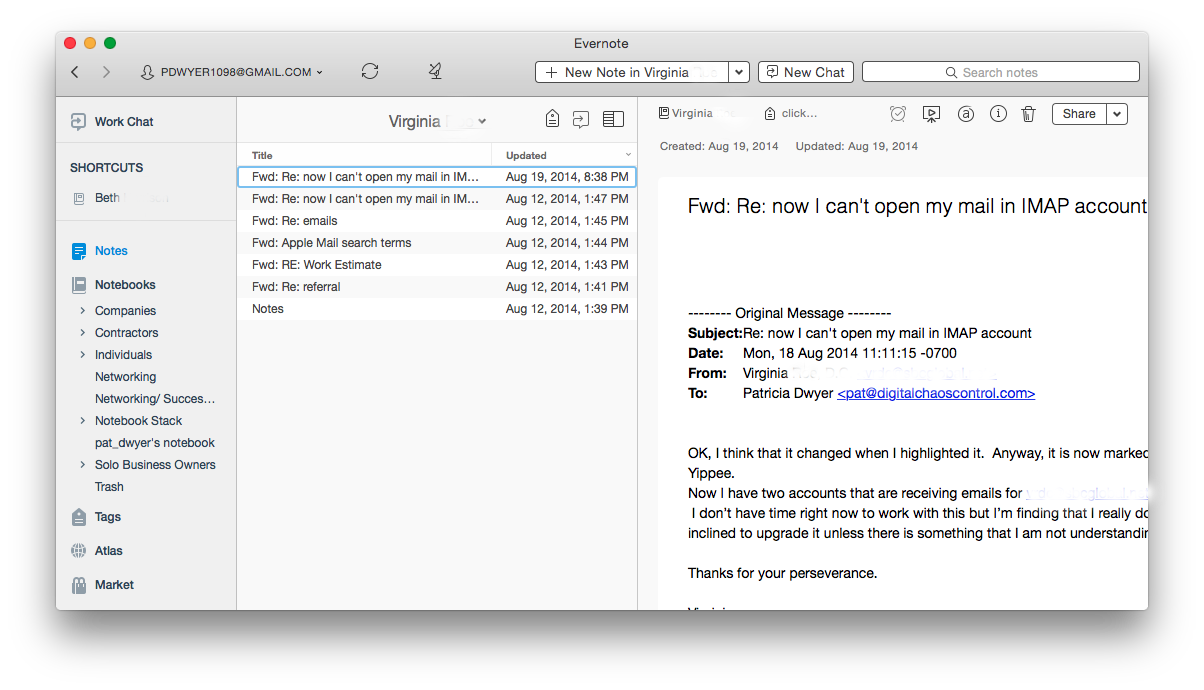
    If you’ve read my blog post on Evernote here: Use Evernote For a New Level of Organization then you know that it’s a great way to organize your digital information.

    Navigating the Evernote interface is dependent on the platform that you’re using it on. I have a desktop PC, a MacBook, and a smartphone – all of which are running Evernote. (You can also use Evernote through their web interface.) Since my main computer is a PC desktop, I typically do my Evernote notebook organization using the PC application. Then, with my organization in place, I can take notes, tag notes, add photos & web clippings – targeting a particular notebook no matter which platform I’m using.

    Notebooks can be “stacked”, meaning that you can create one level of hierarchy. You may have a “clients” stack for example, with a notebook for each client underneath, or a “research” stack, with a notebook for each area of research.

    Here’s how to create Evernote notebooks:

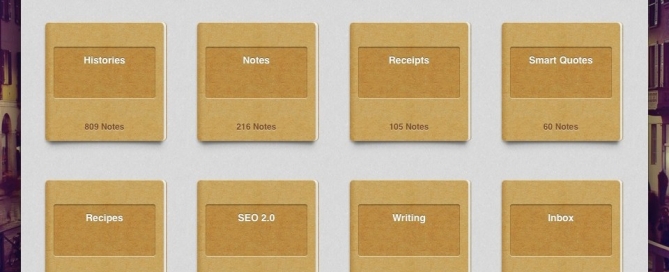
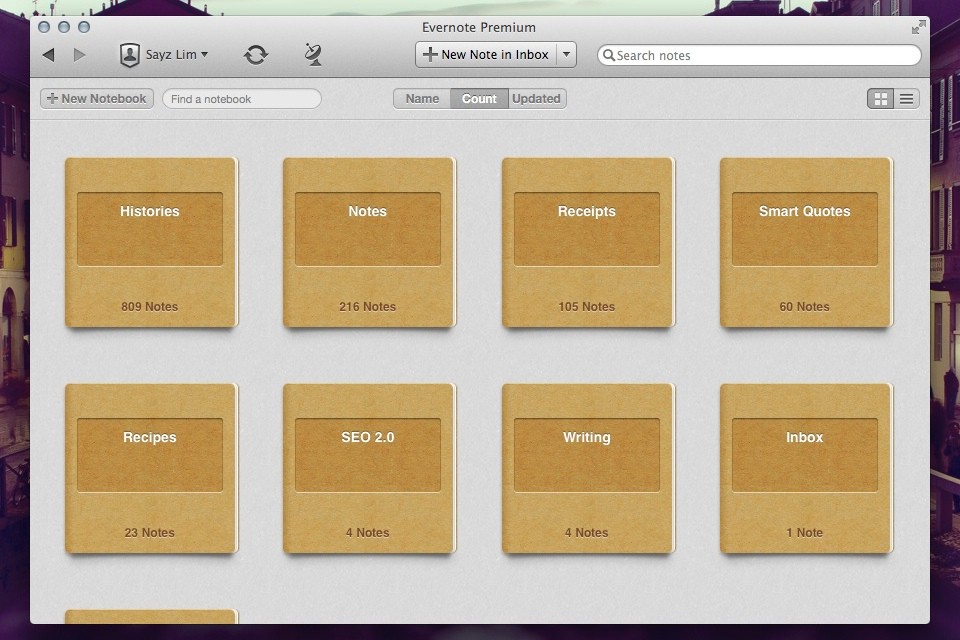
    Click on “Notebooks” in the sidebar. Click on “New Notebook” at the top (or on the below symbol if you’re using a smartphone app/web interface).
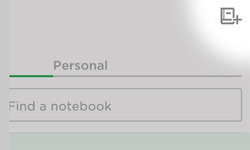
    Evernote New Notebook

    Once you’ve added the notebook, it will show up under “Notebooks” in the sidebar in alphabetic order. Select that notebook so that any new notes will go into it.

    Here’s how to manage Evernote notebooks stacks:

    In the PC or Mac application, when you click and drag one notebook to another then Evernote will create a “Notebook stack”, which you can rename. Or you can right-click on a notebook for a list of options, including “Add to stack” or “Remove from stack”.

    In iOS:

    1. Navigate to your notebook list view.
    2. Tap Edit in the upper right screen.
    3. Select the information icon (“i”) next to the notebook you would like to move to your stack.
    4. Tap Stack.

    In Android:

    If you press and hold on a notebook name, you’ll get a menu with a list of options, including “Move to stack”.

    Keeping Evernote notebooks is like keeping stacks of file folders on your desk, except with no clutter! Use your notebooks to store notes, files, photos, web clippings, and emails so that everything is in one place making it easy to find what you need, when you need it.

    Need help with Evernote? Contact me.
  • Use Evernote For a New Level of Organization

    Use Evernote For a New Level of Organization

    Evernote

    Have you heard of Evernote?

    It’s hard to tell you what it is in one sentence. It’s a note-taking application, you can use it to create to-do lists, you can use it to organize files into notebooks, you can use it to scan documents and make them searchable, you can use it to “clip” and save web pages, etc. The list goes on and on…

    Whether you’re someone who likes to keep digital information organized or whether you’re someone that is organizationally challenged, then Evernote may be the tool for you. You can keep almost anything organized with Evernote – by keeping related items in one place.

    If you’re working with projects, you can use Evernote to organize, share, and collaborate on your projects. If your business involves working with clients, and you’d like a new way to manage those clients, you can use Evernote to keep your client information in one place and to write yourself memos, checklists, and reminders about that client.

    Here’s how to use Evernote for organization:

    1. For each new project or client, create a new notebook.
       
      A note of caution: Keep in mind that Evernote is a cloud application. Anything on the Internet is only as secure as your password, so be sure to use strong passwords and to update them regularly.
    2.  

    3. Share the notebook with collaborators and/or clients.
    4.  

    5. As you work with the project or client, update notes or add new notes. For documentation and or photos, add it to the note as an attachment.
       
      Depending on how you work, you may find that you’re looking at web pages and that you want to save them for reference. Don’t use bookmarks. Install the Evernote Web Clipper extension into your browser. This will allow you to “clip” the page, or an article on the page, and save it to your project or client notebook.
    6.  

    7. Email correspondence goes into the notebook. When you sign up for an Evernote Plus account, you get an associated email address (something like username.XXX@m.evernote.com). This means that you can CC: your Evernote account on your client email correspondence, or you can forward the email later.
       
      If you add “@<notebook name>” to the email subject line, then Evernote will even put the email into the specified notebook.
    8.  

    9. Use tags to help find things. When you tag a note, you can search for all notes with the same tag. For example: If you want to know how your clients found you, you could tag your client notes with a “referred by:<>” tag, and then you can search for all client that have the “referred by: website” tag.
       
      You don’t have to use search to find tags; Evernote conveniently lists all of your tags on the sidebar, so you can just click on it. Here’s a blog post with more information on using tags: Using Evernote the Right Way.

    Now you can have all of your project or client information – notes, files, photos, websites, emails in one place!

    Wait, it gets better – Evernote has great search and is continuing to improve it. You can search within your notes & emails and, if you are a Premium user, then you can search within documents.

    You can search on titles, keywords, or tags, of course, but Evernote supports more advanced search as well.

    • You can search by date – use the format “created:yyyymmdd” or “updated:yyyymmdd”. Even better, search for a date range: use the format “created:day-x” or “updated:day-x”.
    •  
      For example, if you want to search for all notes that you created about infant formula in the last month, enter the following in the search bar: “infant formula” created:day-30.
       

    • If you want to see the notes that you created using your smartphone, enter the following in the search bar: source:mobile.*.
    •  

    • If you want to see just the webpages that you’ve clipped using the Evernote Web Clipper, enter source:web.clip.
    •  

    • If you’re using the Evernote Macintosh app, you can use plain English for your search. For example “Notes about infant formula in the last month”.

    Evernote is just one tool for information organization, but it’s an increasingly popular one and it continues to evolve.

    Try it out and let me know how it works for you! Contact me

    Get the “Controlling the Chaos” Newsletter and receive a free PDF download
    “Drowning in Email – A Lifeline for Communications Overload”

    * indicates required


  • Here are 3 ways that I use Evernote for a productive digital life

    Here are 3 ways that I use Evernote for a productive digital life

    Use Evernote to work productively

    Have you heard of Evernote?

    It’s a note-taking application, but it’s got many uses:

    • Create notes that can be shared between your devices
    • Create to-do lists
    • Organize files into notebooks
    • Scan documents and make them searchable
    • “Clip” and save webpages

    The list goes on and on…

    There are tons of articles on how to use Evernote for productivity. There are even Evernote “ambassadors” who hold seminars on how to use it for your business.

    So I’ll jump in with my two cents. Here are the 3 ways that I use Evernote:

    Note-taking: I use Evernote to take notes on my smartphone

    If you’re comfortable typing on your smartphone keyboard, or if you’re using a tablet, then Evernote would work great for you too. It’s similar in use to Apple Notes, but Evernote supports not just iOS, but also Android. I do suggest using a Swype keyboard instead of typing.

    Evernote syncs with the cloud so that your notes are available on all of your devices. I have Evernote installed on my desktop PC, my notebook PC, my MacBook, and my smartphone. Notes that I take on my smartphone are synced with all of those devices.

    Client Management: I use Evernote to organize my client information.

    I create a notebook for each client. Into that notebook goes the notes, files, and emails related to that client.

    Webpages: I use Evernote to save interesting web pages that I come across.

    I tag these pages when I save them so that I can find them later. This is a great way to do research on the web, save your research, and organize it. You can also target notebooks for your web pages so that research is organized in the right place.


    If you want to know more about using Evernote to help your productivity, Digital Chaos Control can help!

    Contact Me