Category: Email Management

  • 3 Ways to Simplify Email Responses Like an Efficiency Expert

    3 Ways to Simplify Email Responses Like an Efficiency Expert

    Use canned email responses for more efficiency.

    It takes time to get through emails on a daily basis. Even if you follow good email organization (see my blog post here: 4 Steps to Becoming More Responsive), it takes a lot of time to read and respond to the important emails and to follow up on the less important ones.

    If you find yourself responding in a similar way to certain emails, then you can use “canned” email responses to work more efficiently.

    Let’s say, for example, you get a lot of requests for information that you have to research. You may find yourself responding often with: “Thanks for your inquiry. I’ll look into that and get back to you by the end of the week.” For another example, you may get a lot of requests for one-on-one meetings and you’re responding with “Thanks, I’d love to meet with you. Could you please send me your availability for next week?”.

    Rather than take the time to type those email responses over and over, it’s easier to just hit “Reply”, select a saved template, and then hit “Send”.

    Here are 3 ways to set up canned responses:

    1. If you’re using email with a CRM system, you can set up email templates for quick responses.
    2. If you’re using Outlook or Mac Mail you can set up different signatures and use them as templates. Here how to do it for Outlook: How to Create Outlook Email Signature, and for Mac Mail: Include Signatures in Messages.
    3. If you’re using Gmail, you can use “canned responses”. Here’s how: Gmail Canned Responses.

    A personal response is always best but not always practical with our email overwhelm. You do need to be careful about choosing the correct template and reviewing your email response before sending. Also check the To: field to make sure that the correct response is going to the correct person.

    Get the “Controlling the Chaos” Newsletter and receive a free PDF download
    “Drowning in Email – A Lifeline for Communications Overload”

    * indicates required


  • Gmail User? How To Easily Strike Off Tasks.

    Gmail User? How To Easily Strike Off Tasks.


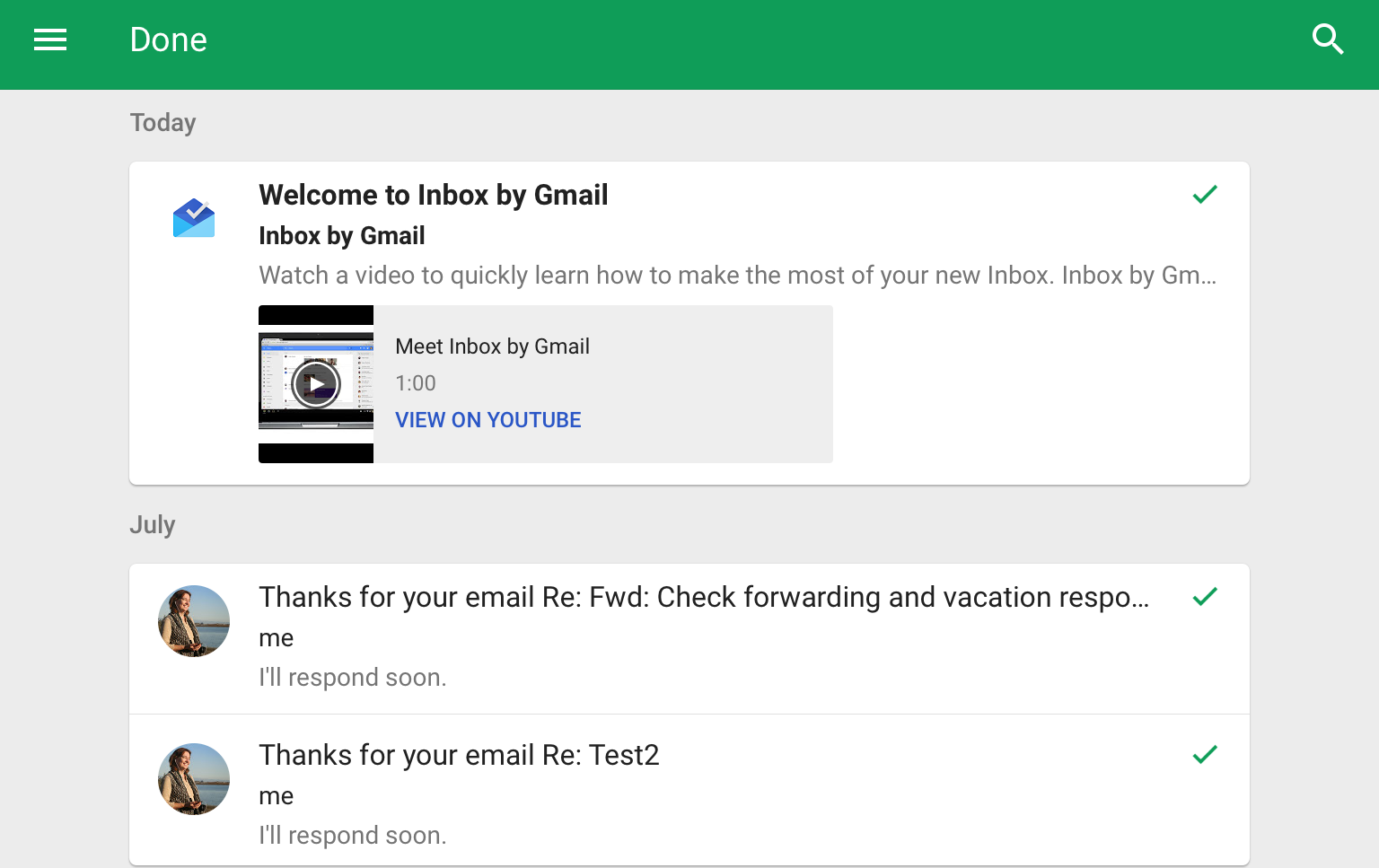
    With Google's Inbox, you can marks tasks as done.

    I generally advise my clients to install a task management application and to integrate it with email, so that they’re not using email to manage tasks. I write about that here: How to Integrate Email with Task Management.

    Google, with its Inbox app, is trying to get people to do the opposite – to dump the task management app and use email instead. You can read more about Google’s Inbox here: How to Manage Your Gmail Inbox.

    There is an argument to be made here. One could make the point that we spend a lot of time in the email application. Hence, it’s a context switch and a mind switch to open another application in order to turn an email into a task.

    It can be hard to get into good habits with email and tasks integration.

    So what if we did the opposite routine and turned our tasks into emails instead? In that scenario, when you have a new task to complete, you could just compose an email and send it to yourself. (You may already be doing that anyway.)

    At first glance, it seems counter-productive. Our inboxes are already overflowing and it doesn’t seem to make sense to add to that overwhelm. But if you practice good email management (read my blog post here: 4 Steps to Becoming More Responsive), you can filter the tasks that you send to yourself into a folder. You would then work in that folder for your task management. (In Google’s Inbox, filters are called “bundles”.)

    It’s easy to manage emails/tasks with Google’s Inbox app.

    You can mark emails/tasks as done or you can “snooze” them until later. You can also set follow-up reminders.

    There are certainly advantages to using a task management application, including list organization, prioritizing, and color-coding. But if you’re someone who’s struggling with your task management – keeping them organized or keeping a consistent routine – you might want to give Inbox a try. Here’s a more detailed article: How to Turn Google Into the Best To-do App.

    You will still need to practice good habits by scheduling time every day to review your tasks bundle, complete tasks, snooze them, or schedule them.

    Those tasks will not only be the ones that you email to yourself, but also emails from others that you need to follow up on. So when you’re going through your Primary inbox, your habit should be to move those emails that are follow-up tasks into your “Tasks” folder.

    Get the “Controlling the Chaos” Newsletter and receive a free PDF download
    “Drowning in Email – A Lifeline for Communications Overload”

    * indicates required


  • 4 Ways to Conquer and Triumph over the Email Beast

    4 Ways to Conquer and Triumph over the Email Beast

    Abstract illustration email spam angry virus infection.

    The average business worker sends and receives over 120 business emails per day and spends nearly 30 percent of the workweek managing email. Together with personal email, 205 billion emails are sent emails each day—a number expected to increase over 16 percent to 246 billion emails in 2019.

    Email overload can result in anxiety and a feeling of guilt.

    It can be stressful to see your Inbox growing out of control and there is an increased risk of missing important email correspondence. Productivity drops when you have to spend too much time dealing with those emails, and distractions increase with those email notifications.

    There are many approaches to managing your Inbox (read my blog post here about some of those methods: How to Control Today’s Pesky Email Overload). Whatever method you like to use, as you’re working through your Inbox, it can be helpful to remove some emails temporarily. You don’t really need those emails that you have to follow up on but that have to wait for some reason – for more information, for example, or for something else to be completed – to be in your way right now.

    Moving those emails temporarily can make your Inbox cleaner and easier to deal with.

    Here are some methods to manage those follow-ups emails:

    1. Move them to an folder called “Later”. You just have to remember to take some time every day to deal with your “Later” folder.
    2. Flag them for later follow-up and then sort your inbox by flag so that they’re grouped together. You can read about flagging here: How to Use Email Flagging.
    3. Turn them into tasks and remove them from your Inbox. You can read about that here: How to Integrate Email with Task Management.
    4. “Snooze” them. “Snoozing” means to send the email away and also pick what time it will show up again in your Inbox.

    Need help with email management?

    Contact Me

  • How to Control Today’s Pesky Email Overload Tomorrow

    How to Control Today’s Pesky Email Overload Tomorrow

    Email Overload

    It’s very common to procrastinate on dealing with your email overload.

    Does this sound familiar to you?

    • You dread sitting down at your desk to look at email.
    • You stay at your desk longer every day to try to stay on top of your inbox.
    • The size of your inbox keeps increasing.
    • You have not just emails from your co-workers, clients, friends, and family, but also emails from school lists, notifications from social networks, and newsletters from retailers, vendors, and consultants (including mine! Sign up here).

    Unfortunately, it’s all too easy to miss important emails in the clutter.

    Email is still an important communication tool but email overload continues to increase every year, so it’s no longer possible to treat your inbox like it’s a to-do list that keeps growing and growing…

    I practice good email organization according to my methods here: 4 Steps to Becoming More Responsive. Another way is the “Inbox Zero” technique as I wrote about here: Should you be worried about your email inbox?.

    With my method, I still have emails sitting in my Inbox because I reference them frequently or because they’re linked to tasks that I need to follow up on. Today’s emails (that don’t get filtered first) continue to come into my Inbox and sit until I deal with them. That means that I sometimes still have an Inbox that grows and has to be culled back.

    I recently read about another method that I found interesting, called “Yesterbox”. You can read about the method here: Yesterbox.

    I still prefer to deal with emails as they arrive in my Inbox, but it’s not always possible, and it can be distracting. I think I’ll try the “Yesterbox” method and report back.

    Here’s a good email management routine that fits well with the “Yesterbox” method.

    I suggest blocking out some time every day to:

    • Priorize and flag your emails
    • Deal with the most important emails, or create follow-up tasks
    • Move less important emails to a “Later” folder.

    I also suggest blocking out some time every week to deal with the “Later” emails and to do clean-out of your other folders.

    If you have a consistent routine, then you’ll find that you’ve become efficient and responsive with your email management. No more apologizing: “I’m so sorry, I didn’t see your email”!

    Need help with email organization?

    Contact Me


  • Communicate with the World Like you’re a Millennial or a Teenager

    Communicate with the World Like you’re a Millennial or a Teenager

    Communicate like a millenial or a teenager

    Email is becoming an inefficient way to communicate.

    Does this sound like you?

    • You dread sitting down at your desk to look at email and feel guilty and anxious at the sight of your overflowing inbox
    • You stay at your desk longer every day to try to stay on top of your inbox.
    • The size of your inbox keeps increasing.
    • You have not just emails from your co-workers, clients, friends, and family, but also emails from school lists, notifications from social networks, and newsletters from retailers, vendors, and consultants (including mine! Sign up in the sidebar).
    • You have missed important emails.

    Unfortunately, it’s all too easy to miss important emails in the clutter. Email is still an important communication tool but email volume continues to increase every year, so it’s no longer possible to treat your inbox like it’s a to-do list that keeps growing and growing.

    Some, especially younger people, have turned to texting and messaging services as a more efficient way to communicate.

    Some of the advantages of texting include:

    • Texts are immediate and personal so you’re more likely to see them and to respond.
    • Through your cell phone, you’re nearly always connected to the cell network, so you’ll see your text messages on the go.
    • Texts are usually short and easy to deal with.
    • Texts don’t usually have attachments that you have to open, read, and organize.
    • Everyone with a cell phone can receive a text without special software.

    Some of the disadvantages of texting include:

    • Can’t share documents through texting (although I would argue that sharing is better served through cloud services, not email).
    • Your text messages are not organized, so you can’t go back and find something.
    • Texts are more intrusive than email.

    Texting is great for a quick one-on-one conversation, but for groups, you need a better interface to add/remove members, search, and archive.

    Messaging apps like Facebook Messenger, Snapchat, What’s App, and WeChat have many of the advantages of texting but work better for groups. (The main disadvantage is that your groups need to be all using the same app.)

    This Wired article is a great place to learn about what’s being used right now for messaging apps for personal use: Time to Ditch Texting . For business use, the runaway winner right now is Slack.

    Slack is for business teams and it’s more than just messaging. There are all kinds of app integrations for Slack and you can share documents, schedule meetings, create to-dos, etc. If you have a team at work or you collaborate with others on projects, then you should check out Slack.

    You can’t get away from email completely. You’ll still need it to communicate with partners, vendors, schools, teachers, and all sorts of people. You can read my blog post here about how to stay on top of email: 4 Steps to Becoming More Responsive.

    SUBSCRIBE TO MY NEWSLETTER

    Get the “Controlling the Chaos” Newsletter and receive a free PDF download
    “Drowning in Email – A Lifeline for Communications Overload”

    * indicates required


  • How To Easily Follow-up on Those Important Emails in Outlook

    How To Easily Follow-up on Those Important Emails in Outlook

    Outlook Follow-up To-do

    If you’ve gone through the process of email organization (see my blog post here: 4 Steps to Becoming More Responsive), then you hopefully have a streamlined inbox with just the most important emails.

    You also should have a daily routine of dealing with those emails that consists of:

    1. Evaluating
    2. Acting On, filing, or flagging for follow-up

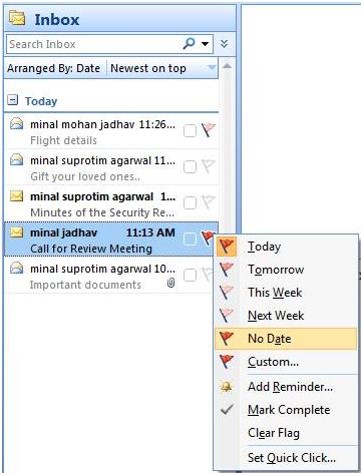
    Flagging an email in Outlook creates a follow-up to-do item.

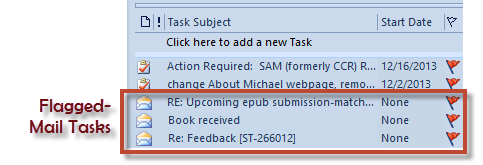
    Your email is not only marked with a flag in your Inbox, it’s also listed in your Tasks view under “To-Do List”, in the To-do sidebar, and in the Daily Task List in your calendar.

    (Outlook treats your email to-do a little differently than a task that you’ve created. You can’t assign it to someone else, for example, or track its progress. If you delete the email, then you delete the to-do.)

    Outlook Follow-up to-doIf your email account is a POP account, open the email and select a flag for Today, Tomorrow, Next Week, etc.  If your email account is an IMAP account, you have only the option of a flag with no follow-up date.

    You can then sort your email inbox by selecting “Arrange By: Flag” under the View menu.

    You can also look at these flagged emails in Tasks under “To-Do List”. (Outlook lists IMAP emails under Due Date: No Date.)

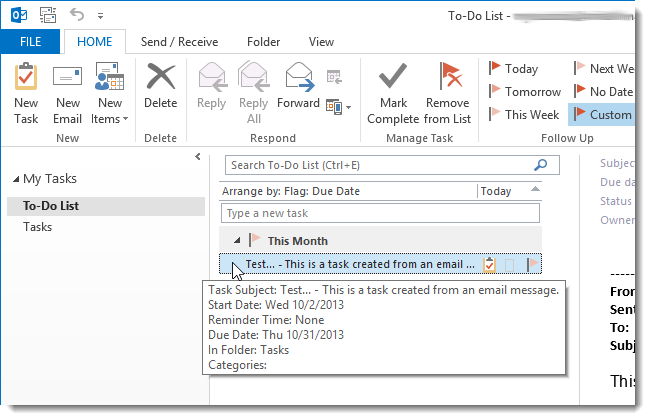
    If you want to create an actual Outlook task, rather than an email to-do, then you can drag the email to Tasks on the navigation bar. Outlook saves the email content to the body of the new task. You can now delete the original email if you wish. Since you will be able to assign a due date for the task, this is the recommended method for any IMAP account.

    Here’s a detailed blog post outlining this method: How to Create a Task from an Email Message.

    SUBSCRIBE TO MY NEWSLETTER

    Get the “Controlling the Chaos” Newsletter and receive a free PDF download
    “Drowning in Email – A Lifeline for Communications Overload”

    * indicates required


  • What Everyone Ought to Know About Office Alternatives

    What Everyone Ought to Know About Office Alternatives

    Microsoft Office

    Microsoft Office has been a workhorse for years.

    Many of us first became accustomed to it in our corporate work. If you’re still working in a corporate setting or if you’re creating detailed documents, spreadsheets, or presentations on a PC, there’s still nothing that beats Office for standard and more advanced content creation.

    Office is not cheap.

    A single license of Office Home and Student costs $120, but we’re often working on multiple devices these days. If you want to install Office on your home computer, your office computer, and your iPad, you’re better off with Office 365, which costs $9.99/month. Other advantages to Office 365 include automatic updates and new downloads to new computers.

    Office on the Mac has always been an afterthought for Microsoft, and not as full-featured as its PC equivalent. (However, Microsoft made many improvements in its Office 2016 version for the Mac.) Fortunately, if you’re on a Mac, you’ve got a great alternative – Apple’s application suite – Pages, Keynote, and Numbers. (Just remember to convert to the Office document equivalent when sharing files so that PC users can open them.)

    If you don’t need the advanced options that Office provides, then Google Docs is worth checking out.

    Mac or PC, you’ve also got an alternative with Google Docs, Google Sheets, and Google Slides. These applications are completely free to use on the web and also via the Google Docs mobile apps. Advantages include 15 GB of cloud storage space, easy collaboration with other Google users, and conversion to Office files for sharing.
    Office OnlineAnother option, perhaps even a better one than Google Docs, is Office Online. You can use the online versions of Word, PowerPoint, and Excel free of charge, with 5 GB of cloud storage. The online versions don’t have all of the features as the paid versions, but that may be fine if you’re not a power user.

    Microsoft Office OutlookMicrosoft Office for Business also includes Outlook, which is a nice integrated email reader, contacts manager, calendar, and task manager. Outlook calendar and contacts can sync with your iOS device by installing the iCloud plug-in, but you’ll need to look at third-party apps for Android contacts sync, or sign up for a Google for Work account.

    Mac Mail Office AlternativeIf you’re a Mac user and you don’t have Outlook, or you don’t want to use the Mac version of Outlook, then Mac Mail is a fine program and integrates well with the Mac Address Book. You will have to launch the Mac Calendar and Mac Reminders separately. (If you’d like to know how to integrate Mac Mail with Mac Reminders, read my blog post here: How to Ingrate Email with Task Management). The Mac Calendar and Mac Address Book can sync with both iOS and Android (through your Google account).

    Windows has always had a basic email program as part of its Windows Essentials. In Windows 10, Microsoft released a new mail program with integrated calendar and contacts. (The jury is still out on this program as Microsoft works out the bugs.) With the release of Windows 10 Mail, Microsoft will no longer be updating Windows Live Mail, and will no longer support it for outlook.com email addresses. Unlike Outlook, Windows 10 Mail will sync with both iOS and Android contacts.

    Thunderbird Office AlternativeFor years, I’ve been using a free program from Mozilla called Thunderbird as my email reader on the PC. Thunderbird, like Outlook, is extensible with add-ons, so I have a calendar add-on called Lightning, and another add-on that syncs with my Google calendar. There are available add-ons for contacts sync as well. Thunderbird is a full-featured program that may be a bit difficult for many people to learn, and the search function is limited. However, if you’re on a PC, you don’t have Outlook, and you have multiple email addresses that you want to manage in one place, then Thunderbird is an excellent option.

    Need help with Office or your email program? Contact me.

     

  • 3 Reasons to Stop Using Email as a To-do List

    3 Reasons to Stop Using Email as a To-do List

    Flagged Email Tasks

    Staying on top of email chaos is not easy.

    Even after you’ve followed the steps to manage your email inbox (see my blog post here: 4 Steps to Becoming More Responsive), you still need to deal with those emails that need a follow-up task. How do you make sure that you get those done, and that they don’t get lost in the daily shuffle?

    There may be event invitations that you leave in your Inbox to remember the date. There may be questions from clients whose emails you need to follow up on later. There may be business partners sending information that you’d like to read when you have time.

    The easiest way is to have a daily routine to review and act on those emails. If you flag the most important emails, you can review them daily. You can then delete them or archive them as you finish your follow-ups.

    But it’s easy to get behind with those email tasks.

    You may find yourself with a list of flagged emails that just keeps growing. They’re all important, but how do you find the time to get through them? Are they all equally important?

    Here are three good reasons to not leave those emails as to-dos in your Inbox:

    1. You may have to read the emails to see what they are. In a to-do list, you have clear task titles. You may even want to use the “action title” method that I mention in this blog post: I never finish anythin….
    2. It’s not easy to prioritize your email tasks. You can try using different color flags or stars, but then you have to take context into consideration. Are you mixing your personal and work emails? What about emails from clients mixed up with emails from vendors?
    3. While you’re working on your sorted, prioritized Inbox, you have emails coming in. You won’t see them until you change your sort order back to dated order.

    Have another look at my blog post here: How to Integrate Email with Task Management and think about installing a task manager instead.

    Get the “Controlling the Chaos” Newsletter and receive a free PDF download
    “Drowning in Email – A Lifeline for Communications Overload”

    * indicates required


  • How to Use Evernote to Keep Email Organized

    How to Use Evernote to Keep Email Organized

    Evernote Organized Email

    Email can be difficult to deal with in an efficient and organized way.

    Keeping emails organized into folders can help you to find the right email conversation, as can using your email search tools. But email correspondence is just one part of the story. If you’re trying to put together the history of working with a client, for example, you’ll have to search separately for related client files and notes. It’s not difficult to do, but it does take time and your search may come up with lots of unrelated information.

    My previous blog post on email management here: 4 Steps to Becoming More Responsive can help. A better method may be to use a tool to keep email organized along with related information. Evernote is a great tool for this. (You can read more about using Evernote for managing client information here: 7 Tips to Manage Client Info.)

    Also, if you’re organizing a trip, you can keep the research, photos, itineraries, email correspondence, and receipts in one notebook. If you’re managing a project, you can keep the tasks, notes, and email correspondence in another notebook.

    How to save your emails to Evernote

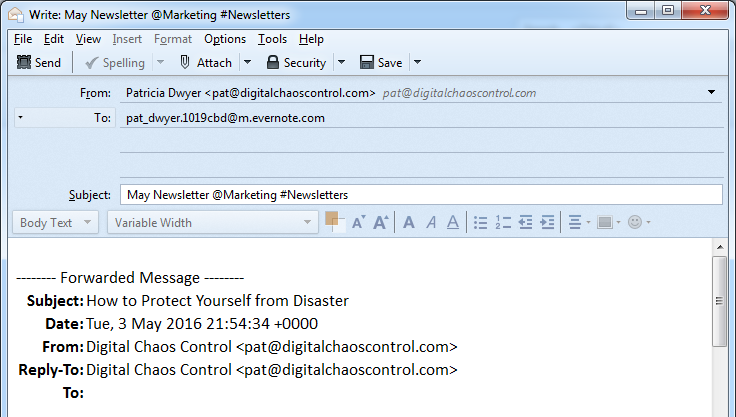
    The most efficient way is to cc: your Evernote email address in your email correspondence. This will put those emails in your default Evernote notebook. You can leave them there and use search to find those emails later, or you can go into Evernote and move them into other notebooks. You can also add those emails later by forwarding to your Evernote email address.

    When you cc: or forward an email you can target a specific notebook by adding “@<notebook name>” to the end of the subject line. You can add tags by using #<tag> and reminders by using !<date>.

    Emailing to Evernote requires an Evernote Plus paid account. Evernote also has a free version, but you’ll have the extra step of copying your email, going to your Evernote app, creating a new note, and pasting the email into it.

    How to find your Evernote email address

    When you sign up for an Evernote Plus account, you get an associated email address (something like username.XXX@m.evernote.com). You can find the address by going to your account info under “Tools” in the PC or “Help” on the Mac.

    Get the “Controlling the Chaos” Newsletter and receive a free PDF download
    “Drowning in Email – A Lifeline for Communications Overload”

    * indicates required


  • Inbox Zero Eliminates Overload – by Michael Neuendorff

    Inbox Zero Eliminates Overload – by Michael Neuendorff

    Inbox Overload

    Do you suffer from email overload?

    Terrible, isn’t it? Every time you open your Inbox the email just flows in like a waterfall.

    The challenges with managing email are myriad. Here are a few:

    • Feeling overwhelmed before even getting started
    • Losing track of an email and asking the sender to send the email again. (Now there are 2 copies in the Inbox!)
    • Difficulty prioritizing
    • Looking at, but not dealing with emails. This becomes an unproductive pattern.
    • Email seems more like a curse than a benefit

    Can you relate? I worked with many people over the years that suffer from email overload. It’s a key reason why they feel chronically disorganized and unable to focus on what really matters each day. The email just keeps coming.

    Here’s my true confession: I used to be that way.

    I would routinely let my Inbox balloon to about 2,500, then I’d start cleaning up email for a period, usually over a holiday break, and get back down to 50 or less. After a few years of this, I decided enough was enough and devised some strategies that would work for me.

    This was more than 2 years ago. Since then I’ve never had more than 100 emails in my Inbox. As I write this I have 19 emails in my Inbox. Here are my 6 rules I follow to manage email.

    1. Move everything non-essential out of your Inbox. What I mean is to have a separate email address for personal email, which includes email from your bank, insurance company, restaurants you like, etc. This puts only business-related email into your primary Inbox. Second-level business email should go into folders via Rules or into another Tab ala Gmail. I use the Gmail tabbed approach.
    2. Be militant about unsubscribing to email you don’t want from Senders you no longer care about. Too many people are lazy about unsubscribing thinking, “I might like the next email I get.” (Even though they really don’t.) If you see value, keep it. If you don’t, throw it out. Simple rule: You should read all the email you get.
    3. Block time out for email cleaning at least every other day. I make sure I have a few hours to mow through my Inbox every few days. I am not willing to let email pile up so I make it a priority.
    4. Don’t use your Inbox as a reminder system. People leave email in their Inbox to remind them to do things. Use a Task Manager like Asana instead. Use email as a communication tool. That’s all.
    5. As soon as you deal with an email, file it away. I file email like crazy all the time. As soon as I reply to someone, I file their email. After they reply, I file it again. Over and over, file, file, file. By the way, this requires that you have file folders for everything and everyone.
    6. Delete email constantly. If I’m not filing it, I’m deleting it. Just as with Rule #5, refuse to let email linger.

    If you’ll follow these 6 rules you’ll have a fighting chance at Inbox Zero.

    The reason you want to do this is because it will lift a huge weight off your shoulders and you’ll realize the true power of email as the powerfully efficient communication and moneymaking tool that it is.

    Once you’re there, vow to never go back to the way it was. Ever.

    If you’d like more tips about dealing with email, get these two books: Getting Things Done by David Allen, and The Ultimate Sales Machine by Chet Holmes. These books cover much more than email, but their tips on this topic were instrumental to my approach.

    Michael Neuendorff is an acclaimed Business Coach and Sales Trainer. Learn more about his business at http://www.buildandbalance.com.