Category: Digital Chaos Control

  • Be Sure That Your Memories are Safe

    Be Sure That Your Memories are Safe

    Safe Memories

    In the above still from an episode of the TV show “The Middle”, Sue Heck had accidently deleted all the family photos. No one had taken on the responsibility of backing up the computer and keeping those memories safe. (The Hecks probably could have taken the computer to a data recovery tech, but who wants to have to do that?)

    In this article in the Guardian, Amy Malloy wrote about losing the photographic record of her 20s, including all the photos of her late husband: I Lost a Decade of Photographs.

    You many think that losing your memories won’t happen to you, but don’t be too sure.

    Unexpected things can trip us up, such as not double-checking that your photos are there, like Amy did.

    Here are some examples:

      • I had someone call me because she just noticed that all of the videos were missing from her iPhone. She was backing up her iPhone to iCloud, but iCloud backups are only good for about 30 days. Her videos went missing before that. There was nothing that anyone could do to help her.
      • If you’re using a cloud service such as Dropbox, it doesn’t mean your data is backed up. Dropbox is a sync service. If you accidently delete files on one device, the files get deleted on the Dropbox server and on all your other devices. (Like with iCloud, you can recover within a period of time, but you have to notice first…)
         
        (Here’s an article at How-To Geek with more details: Ensure You’ll Never Lose Files Stored in Dropbox.)
    • If you’re using iCloud Photo Library, it works the same way as other cloud services. If you delete photos on your iPhone, for example, you’re deleting from your Mac as well.
    • If your cloud service gets hacked, then your files could all get deleted. (Make sure that you’re using a strong password.)

    If you’re sure that you’re backing up your computer and saving your memories, then make sure that you’re really sure.

    Today, I had a client ask me to check her TimeMachine backup, and it was turned off! She had no idea how it had happened…

    Sync your mobile devices to your computer, back up your computer regularly, and sign up for cloud backup as extra insurance.

    Make sure that you read my blog post on backups here: What Everyone Ought to Know About Backups.

    Get the “Controlling the Chaos” Newsletter and receive a free PDF download
    “Drowning in Email – A Lifeline for Communications Overload”
    * indicates required


  • 4 Ways to Add More Computer Storage Space

    4 Ways to Add More Computer Storage Space

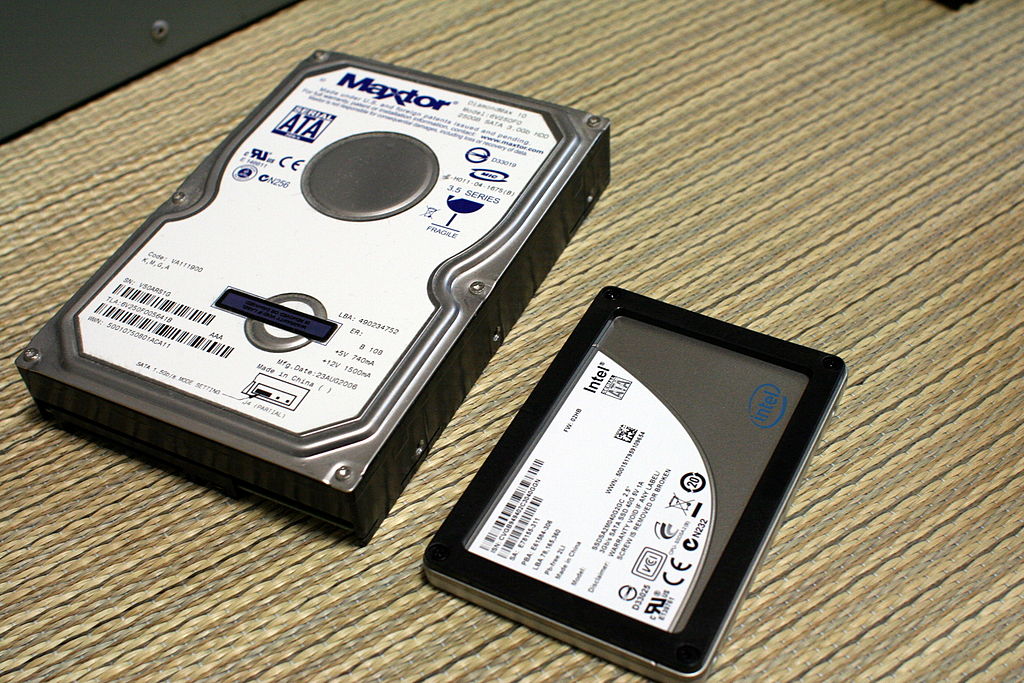
    HDD SDD Storage

    One way that laptops are getting thinner and lighter is by replacing the hard disk drive with a solid-state drive (SSD). An SSD has no mechanical moving parts so it’s faster, lighter, and more robust. Sounds ideal for a portable device, right?

    Yes and no. SSDs are ideal functionally but they cost more per byte than hard drives. To keep the overall cost of the laptop down, you get less storage space. (Here’s a detailed article on SSDs and HDDs: How Much Storage Capacity Do I Need?)

    If you’re like me, you use a desktop computer for daily work and a laptop for working on the go. So then it’s not an issue. Your photos and videos are stored on your desktop computer. (And hopefully backed up – see my blog post on backups here: How to Backup Multiple Computers.)

    But if your laptop is your main computer and your storage space is limited, then you may need to manage that space.

    Don’t wait until you get the message that you’ve run out of space, make a plan now for more storage before you need it.

    Start by reading my blog post here: 6 Tips for Managing Your Computer Storage.

    Now that you know how to keep an eye on your storage space, here are some options for adding more.

    1. You can get a new laptop. A MacBook Air tops out currently at 256GB. You would have to upgrade to a MacBook or a MacBook Pro which goes up to 512GB. High-end PC laptops go up to 2TB.
    2. You can replace your SSD with a larger one. If your laptop is still under warranty, you will want to do this through the original manufacturer. If it’s out of warranty, then a local computer shop may be able to do this for you, depending on the laptop model. You’ll want them to duplicate your existing drive data to the new one first.
    3. You can add an external hard drive. A good way to split your data is to archive your old photos and videos to an external hard drive. (You’ll actually want 2 external drives – one that you can keep handy to access those photos, and one that’s another copy for a backup.)
    4. You can use a removable storage device if your laptop has an SD slot. This option would be more portable than an external hard drive. (Again, you should make another copy of your files on an external hard drive or USB drive.)

    As the price of SSDs come down, we’ll see the default storage for these laptops go up. But for the time being, we’re trading that space for portability and lower cost.

    Portability is a good thing, but make sure that you’re staying on top your of your storage needs.

    Get the “Controlling the Chaos” Newsletter and receive a free PDF download
    “Drowning in Email – A Lifeline for Communications Overload”
    * indicates required


  • 3 Ways to Keep Your Digital Life Organized

    3 Ways to Keep Your Digital Life Organized

    Organized Digital LifeHave you ever found yourself wasting time and getting frustrated because you can’t find something on your computer?

    And what if you don’t have your computer with you? Can you pull up that photo on your mobile device that you’d like to show off?

    Wouldn’t it be nice if you were so efficient and organized that you don’t even have to think about how to find something?

    You may not be able to get to the level of efficiency that you’re working like an automaton, but there’s probably lots of room for improvement. If you’re someone who has file icons littering your desktop or hundreds of photos still on your smartphone and not organized in any way, then read on!

    Start with defining your organized system.

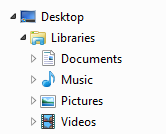
    Organized Digital FilesYour operating system creates some high-level organization for you – a Documents library, a Photos library, a Videos library, and a Music library. When you save a document, import photos, or purchase music, these folders are initially used by default by your applications. (However, your applications will usually change the default to the last folder used, so if you’ve saved something to your desktop, you may be saving everything after that to the desktop without realizing it.) Use these default folders as a start for your organization system.

    You have three options when organizing your documents:

    1. Create file folders by function. For example, you may have a file folder for Personal, with sub-folders for Finance, Kids, etc. You may then have another top-level folder for Business, with sub-folders for Clients, Marketing, Taxes, etc.
    1. Create file folders by type – for example, a folder called Marketing, with sub-folders for Presentations, Brochures, etc.
    1. Use a tool that organizes by function, but that combines documents, media, emails, etc. Evernote is a good example of this and you can read about it here: User Evernote For a New Level of Organization.

    Some software programs that work with media (music, photos, and videos) may use libraries (see my blog post here about libraries: What Everyone Ought to Know About Digital Music and Photos) that contain information about the media (such as keywords, album, genre, etc.) as well as the media file itself. It’s best to work within those programs to organize the media. For example, if you use the Photos program on the Macintosh, you can create folders and albums for your photos. You can also assign keywords to help you search for those photos later.

    Once you have a good organization in place, make sure that you use that system whenever you download or save a new document and whenever you add new media. If you use a cloud service like Dropbox or iCloud Drive, then you’ll also be able to pull up whatever you need on your mobile device as well – just create your organization system in the Dropbox folder or iCloud Drive folder. (You can find your Dropbox folder listed under “Favorites” in a Windows Explorer window, and your Dropbox or iCloud Drive folder under “Favorites” in a Macintosh Finder window.)

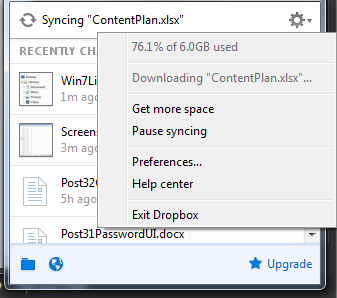
    Organized Files in DropboxHere’s how to check that you have enough storage space in your cloud service:

    • Windows: Click on the Dropbox icon in the far right of your taskbar and then click on the arrow to the right of the gear icon.
    • Macintosh:
      • Dropbox – click on the Dropbox icon in the menu bar at the top and then click on the arrow to the right of the gear icon.
      • iCloud Drive – you can check your iCloud storage space by going to System Preferences and iCloud, then view your available storage at the bottom.

    Remember that your cloud storage ALSO takes up the same amount of space on your computer because it’s a cloud synchronization service, not a backup service. Also remember that deleting a file on one device will delete it from the cloud and from all of your other devices. (iCloud Photo Library works the same way.)

    You should also be keeping an eye on your storage space. You can read my blog post here: 6 Tips for Managing Your Computer Storage.

    Get the “Controlling the Chaos” Newsletter and receive a free PDF download
    “Drowning in Email – A Lifeline for Communications Overload”

    * indicates required


  • How to Backup Multiple Computers

    How to Backup Multiple Computers

    NAS Drive for Backup

    We’ve got five computers in our household. We’re almost like a small business – we need regular maintenance and backup. Rather than set up a separate backup device for each computer, I elected to go with a network-attached storage (NAS) device.

    You connect the NAS device to your internet router. Your computer sees it as a network device that it can use for backup.

    It’s a great way to add storage for backup and also for shared media. You can even set up your NAS device to make your data available securely over the internet for when you need to access it outside of your home or office.

    NAS devices come in all sorts of configurations. The basic configuration is a device with one drive “bay”. (You need to buy the hard drive separately.) I opted for a device with two drive bays. I installed two hard drives and configured the device so that the second drive is “mirrored”, meaning that it’s an exact copy of the first drive. (So it’s a backup of the backup.)

    Here’s a device like the one that I have: Synology NAS Drive.

    On Windows computers, the drive needs to be “mounted”. Your device will typically come with software that will help you to configure that. Once you’ve mounted the device, you’ll be able to access it just like you would a local device.

    On Windows 8 and Windows 10, you can set up Windows File History to back up to the mounted drive. For Windows 7, it’s easiest to install backup software from the device vendor. On a Macintosh, you can select the network drive when setting up Time Machine. (You may need to configure your NAS device first – check the manufacturer instructions.)

    The household computers are all backing up to my NAS drive on a daily schedule. I don’t have to worry about data loss.

    It’s a nice solution if you have more than one computers.

    Get the “Controlling the Chaos” Newsletter and receive a free PDF download
    “Drowning in Email – A Lifeline for Communications Overload”

    * indicates required


  • How to Remain Productive

    How to Remain Productive

    Staying productive

    If you’re using the GTD (“Getting Things Done”) method to stay productive, as outlined in my Evernote blog here: How to Implement “GTD” in Evernote (or even if you’re not, but you do have task lists), you may find yourself with an ever-growing “Next Actions” list, and/or “Someday/Maybe” list. Having a to-do list that just keeps growing can feel discouraging and can affect your “perceived” productivity.

    There are many factors that can keep you from being productive.

    • Life happens – you have personal challenges going on
    • You take on new projects
    • Your day is not well structured
    • You have too many interruptions
    • You’re losing motivation

    If you’re losing motivation, then, by all means, take a break.

    “There’s strong evidence that disengagement, breaking away, can help recharge people cognitively,” says University of Toronto sociology professor Scott Schieman. Schieman is studying the relationship between work, health and stress among Canadians. “This is anecdotal, but if I’ve gone on vacation and I come back, the ideas flow and things really move along. By contrast, if I’m sitting at my desk trying to squeeze out the last bit of idea, it just doesn’t work.”

    If you have too many interruptions, then you need to find some uninterrupted time to work, preferably every day.

    Build the time into your schedule and work somewhere away from distractions if you can, which usually means away from the office. Jason Fried, a co-founder of Basecamp, said during a 2010 TED talk about the workplace: “You walk into the front door and it’s like a Cuisinart. Your day is just shredded to bits.” Jason calls the most frequent sources of interruptions in the workplace “M&Ms” – Managers and Meetings.

    Even working away from the office, you should take breaks. Use them to scan email, do some web surfing, stretch, and/or exercise.

    If you feel like you’re doing all that you can to keep up and your to-do list is still growing, then you should be taking more drastic measures. Your perceived productivity affects your morale can be affected by your perceived productivity, so cut that list down by delegating or deleting.

    Get the “Controlling the Chaos” Newsletter and receive a free PDF download
    “Drowning in Email – A Lifeline for Communications Overload”
    * indicates required


  • How to Use Evernote for “GTD”

    How to Use Evernote for “GTD”

    Evernote GTD Context Tags“Getting Things Done” (or GTD) is a popular productivity method first made popular by David Allen’s book in 2001. The GTD system utilizes an “action management system”. It’s most often used for incoming information like emails, texts, and phone messages.

    The GTD flow goes like this:

    1. Examine each item
    2. Is it actionable?
    3. If not,
      • trash it, or
      • move it to a “someday/maybe” list, or
      • move it to a reference list.
    4. If it is actionable, determine if it will take less than 2 minutes. If yes, take care of the action. If not, delegate it or schedule it for later.

    Use Evernote notebooks for both actionable and non-actionable lists

    Create an Evernote notebook for “Someday/Maybe” items and another one for “Reference”. Your actionable items can go into either a “Next Actions” notebook or a “Waiting For” notebook. Use reminders to help you to schedule your actions.

    Use Evernote tags for context

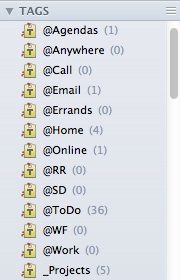
    David Allen also recommends organizing your “Next Actions” by context. His examples are “Agendas”, “Anywhere”, “At the computer”, “Errands, “Home”, and “Office”. You can use Evernote tags for context. So, for example, when you’re checking your “Next Actions” notebook and you’re not at home, search for the “Anywhere” and “Office” tags.

    Notes in your “Next Actions” list should have the name of the action in the title, tags with the contexts, and a reminder set for follow-up. If you have an Evernote Plus account, you can also forward emails to your “Next Actions” notebook. Do this by forwarding to your Evernote email addresses and appending @Next Actions to the title, followed by #<tag1> #<tag2>, etc. (See my blog post here about Evernote and email: How to Use Evernote to Keep Email Organized.)

    Have a routine

    Your daily routine should include time to go through your incoming information using the GTD method. You will also need time daily to check your “Next Items” and “Waiting For” notebooks. Update tags & reminders and remove notes as you complete them. You should also schedule time weekly to check your “Someday/Maybe” notebook.

    This is a simplified version of the GTD method, but I believe strongly in techniques that are easy to follow.

    Here’s a detailed method by AppAdvice: Learn How to Boost Your Productivity, and another by Darren Crawford: My Simple GTD Evernote Combo

    Get the “Controlling the Chaos” Newsletter and receive a free PDF download
    “Drowning in Email – A Lifeline for Communications Overload”
    * indicates required


  • How to Use Evernote to Keep Email Organized

    How to Use Evernote to Keep Email Organized

    Evernote Organized Email

    Email can be difficult to deal with in an efficient and organized way.

    Keeping emails organized into folders can help you to find the right email conversation, as can using your email search tools. But email correspondence is just one part of the story. If you’re trying to put together the history of working with a client, for example, you’ll have to search separately for related client files and notes. It’s not difficult to do, but it does take time and your search may come up with lots of unrelated information.

    My previous blog post on email management here: 4 Steps to Becoming More Responsive can help. A better method may be to use a tool to keep email organized along with related information. Evernote is a great tool for this. (You can read more about using Evernote for managing client information here: 7 Tips to Manage Client Info.)

    Also, if you’re organizing a trip, you can keep the research, photos, itineraries, email correspondence, and receipts in one notebook. If you’re managing a project, you can keep the tasks, notes, and email correspondence in another notebook.

    How to save your emails to Evernote

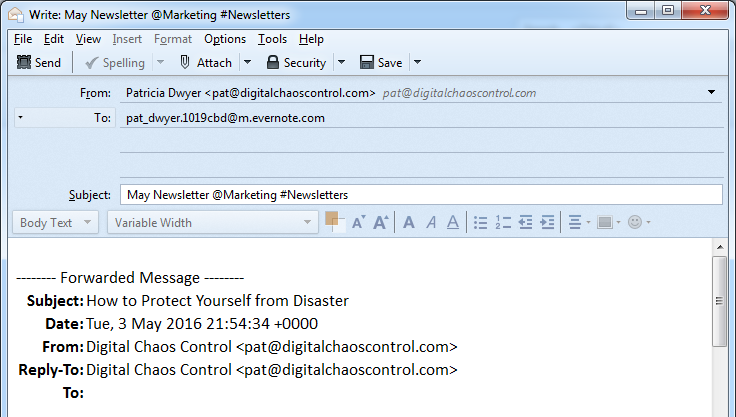
    The most efficient way is to cc: your Evernote email address in your email correspondence. This will put those emails in your default Evernote notebook. You can leave them there and use search to find those emails later, or you can go into Evernote and move them into other notebooks. You can also add those emails later by forwarding to your Evernote email address.

    When you cc: or forward an email you can target a specific notebook by adding “@<notebook name>” to the end of the subject line. You can add tags by using #<tag> and reminders by using !<date>.

    Emailing to Evernote requires an Evernote Plus paid account. Evernote also has a free version, but you’ll have the extra step of copying your email, going to your Evernote app, creating a new note, and pasting the email into it.

    How to find your Evernote email address

    When you sign up for an Evernote Plus account, you get an associated email address (something like username.XXX@m.evernote.com). You can find the address by going to your account info under “Tools” in the PC or “Help” on the Mac.

    Get the “Controlling the Chaos” Newsletter and receive a free PDF download
    “Drowning in Email – A Lifeline for Communications Overload”
    * indicates required


  • Three reasons to use Evernote for Team Collaboration

    Three reasons to use Evernote for Team Collaboration

    Evernote for Business

    Evernote is a great organization system because you can organize your notes, documents, photos, and emails all in one place.

    As an Evernote user, you have the option of sharing notes and notebooks with others. But for true collaboration with team members that gives you a shared work space, admin controls, and more, you need the Evernote for Business plan.

    Your team members can add research notes, to-dos, points for follow-up, web clippings, etc. Members can initiate chat sessions for team discussions. (Work chat allows your team to cut back on email discussions, gets them chatting in real time, and helps to get them focused on the task at hand).

    Here are the advantages to using Evernote for team collaboration:

    • It’s a tool that is already well known.
    • The usage model is well understood.
    • You get to take advantage of Evernote’s organization and search features.

    Evernote for Business costs $12.50 per user per month. Start by setting up an account under your admin email. Then add a work domain. This allows employees in the same domain to be automatically added to your business account without approval.

    It’s a great tool for upfront research.

    Evernote isn’t a project management platform. You probably won’t be using it to create assignments, tasks, and schedules (although you can create checklists and reminders). You also won’t be using it to develop code. But it’s great for upfront work.

    You can gather requirements, document research, and communicate with team members.

    It’s also a great way to keep all project work in one place. You can use Evernote’s search function to find keywords, tags, documents, and emails.

    Get the “Controlling the Chaos” Newsletter and receive a free PDF download
    “Drowning in Email – A Lifeline for Communications Overload”
    * indicates required


  • How to Recharge Your Brain Like an Evernote Employee

    How to Recharge Your Brain Like an Evernote Employee

    Evernote Barista

    If you ever drive through Redwood City CA on Highway 101, you may notice the Evernote headquarters right beside the freeway.

    Redwood City is better known as an enterprise technology hub, home of Oracle headquarters and its spin-offs. (You’ll see the Oracle headquarters down the road with its distinctive buildings. But, unless you work with enterprise databases, you probably won’t get that flash of recognition that you experience when you see that elephant logo.)

    Evernote has only a few hundred employees at its Redwood City headquarters. The company has a unique corporate culture. As Alex Bernson writes on sprudge.com, a coffee culture blog, Evernote encourages informal mixing among its employees by offering barista training and enabling them to take a weekly shift in the lobby coffee bar. (Read the article here: A Different Kind of Coffee Break).

    “The response to Evernote’s unique coffee program has been quite positive, with many employees reporting that by taking a “break” to make coffee for their coworkers, they were able to clear their heads, using a different part of their brains to get creative juices flowing.”

    Evernote: Where Everybody Knows Your Name

    The article made me think of the old TV show “Cheers”. In that show, Sam Malone held out behind the bar and forged close connections with Boston locals.

    I think that this company approach to giving their employees a way to take a break and interact must work well, because they’ve created a great organizational tool for the rest of us.

    So perhaps we could all take a lesson from Evernote.

    Get out there, have coffee (or cocktails) with co-workers or others in your industry, and get your brain recharged.

    Get the “Controlling the Chaos” Newsletter and receive a free PDF download
    “Drowning in Email – A Lifeline for Communications Overload”
    * indicates required


  • How to Get More Organized With Writing

    How to Get More Organized With Writing

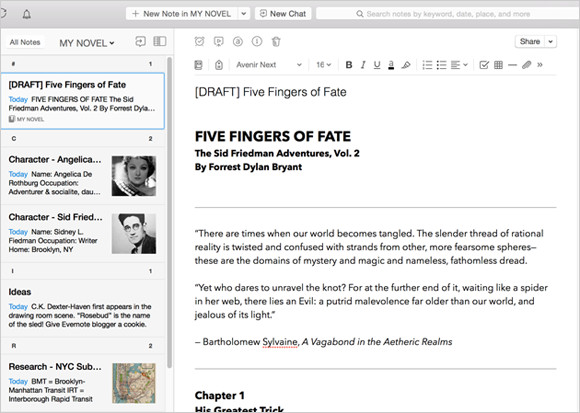
    Evernote for Writing
    Screenshot courtesy of www.Evernote.com

    If you’re a writer, whether it’s creative or business, you know that the bulk of a writing task is doing research and/or making notes. When you sit down to compile that research and start your writing, it helps to have those notes, web clippings, photos, etc. organized.

    Having a good organization system for your writing can help so much with getting inspired, getting started, and saving time.

    I suggest using Evernote for this. (You can read my blog post on Evernote here: Use Evernote For a New Level of Organization).

    There are multiple ways to use Evernote to organize your research. You can start with a notebook for “Research” with tags for each type of research. This is helpful if you won’t know the structure of your writing ahead of time. If you do have some structure in mind, it may be more helpful for you to have notebook stacks. For example, you could have a stack for each chapter, or a stack for each article.

    Use the Evernote app on your computer and mobile devices to write up your notes. You can add web clippings using the Evernote “Web Clipper” add-on in your internet browser and use the Evernote app on your smartphone or tablet to take photos.

    Tags can be very helpful to search for all of your research on a particular subject.

    You can assign multiple tags to each note, web clipping, or photo. For example, if you’re writing a piece about wellness and you find a web site dedicated to healthy eating, you can clip it and tag it “wellness”, “eating”, “diet”, etc.

    Using Evernote for research gives you a tool to keep all of your research in one place. Evernote’s great search tool can help you to bring up references quickly so that the most tedious part of writing goes quickly and smoothly, leaving you more time for creativity and even more research!

    Are you a fiction writer? Here’s a great article on Lifehacker: How to Use Evernote for Writing Fiction.

    Need help with Evernote? Contact me.