Blog

  • Which Password Manager is Right for My Devices and Digital Lifestyle?

    Which Password Manager is Right for My Devices and Digital Lifestyle?

    In my blog post here: How to Manage Your Passwords, I recommend using a password manager and I give a few suggestions for programs based on what my clients are using.

    Which password manager is best for you and what is the difference between them?
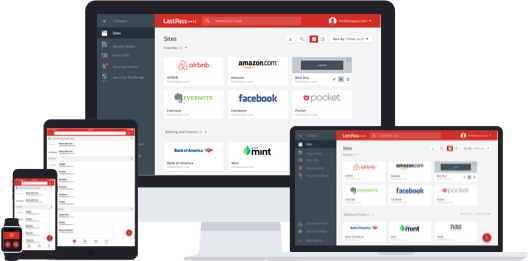
    LastPass Password ManagerI use LastPass because I have multiple types of device – Windows, Mac, Android, and iOS. Since LastPass is a browser plugin for Windows & Mac and an app for Android & iOS, I can use it on all of those devices and it syncs the password vault between them through the cloud. LastPass also has many advanced features such as online shopping profiles, form fill, password generation, and security checks.

    You may have a similar mix of devices, or a subset, or you may be all Apple. You may also not be a very savvy technology user and want something easier to use.
    iCloud Keychain Password ManagerFor my clients on Apple devices and Apple software only (Safari browser), I typically advise to just enable iCloud Keychain and not worry about another password manager (as long as they’re using a strong, unique iCloud password and change it regularly). Some prefer 1Password, which, after an initial investment in the software program, works pretty well for them.


    Dashlane Password Manager

    If you want a password manager just for your desktop computer, and you don’t care about syncing with other devices, then Dashlane has a nice user interface, may be easier to use for you, and it’s free for one device.


    If you watch Shark Tank, you may remember seeing a team pitching for funding for a program called Splikity. The software and service were developed to be easier to use for novices. If you’re struggling with your current password manager or if you’re just jumping in and you want something simple and basic, you may want to give it a try. Like LastPass, Splikity is a browser plugin and iOS app, but is not available on Android.

    LastPass is free for the browser plugin but $12/year to sync with the mobile apps. You’ll pay $49.99 for 1Password (only recommended for Apple devices, and you’ll need a Dropbox account for syncing). Splikity’s service is $4.99/month.

    Need help with passwords?

    Contact Me

  • Don’t Take My Post-it Notes Away

    Don’t Take My Post-it Notes Away

    Post-it Plus

    Are you someone who still uses post-it notes for to-dos?

    You’re not alone. For a visual person, it can be helpful to glance at those colorful notes to see what’s next in the queue. If you’ve read my post on task management here: How to Stay on Target with Your Goals, then you know that there are some visual task management systems. There are also project management systems that have returned to using post-it notes.

    One of the problems with post-it notes is that your system can get messy.

    If you’re very organized, then you have them on your white board in neat columns , but if you’re not, then they may be stuck all over the place. Also, you have to be in the room to see them.

    If you don’t want to let go of your post-it habit, then there’s an iOS app for you, created by 3M, the maker of post-it notes. You can keep your notes and still go digital to organize them and bring them with you.

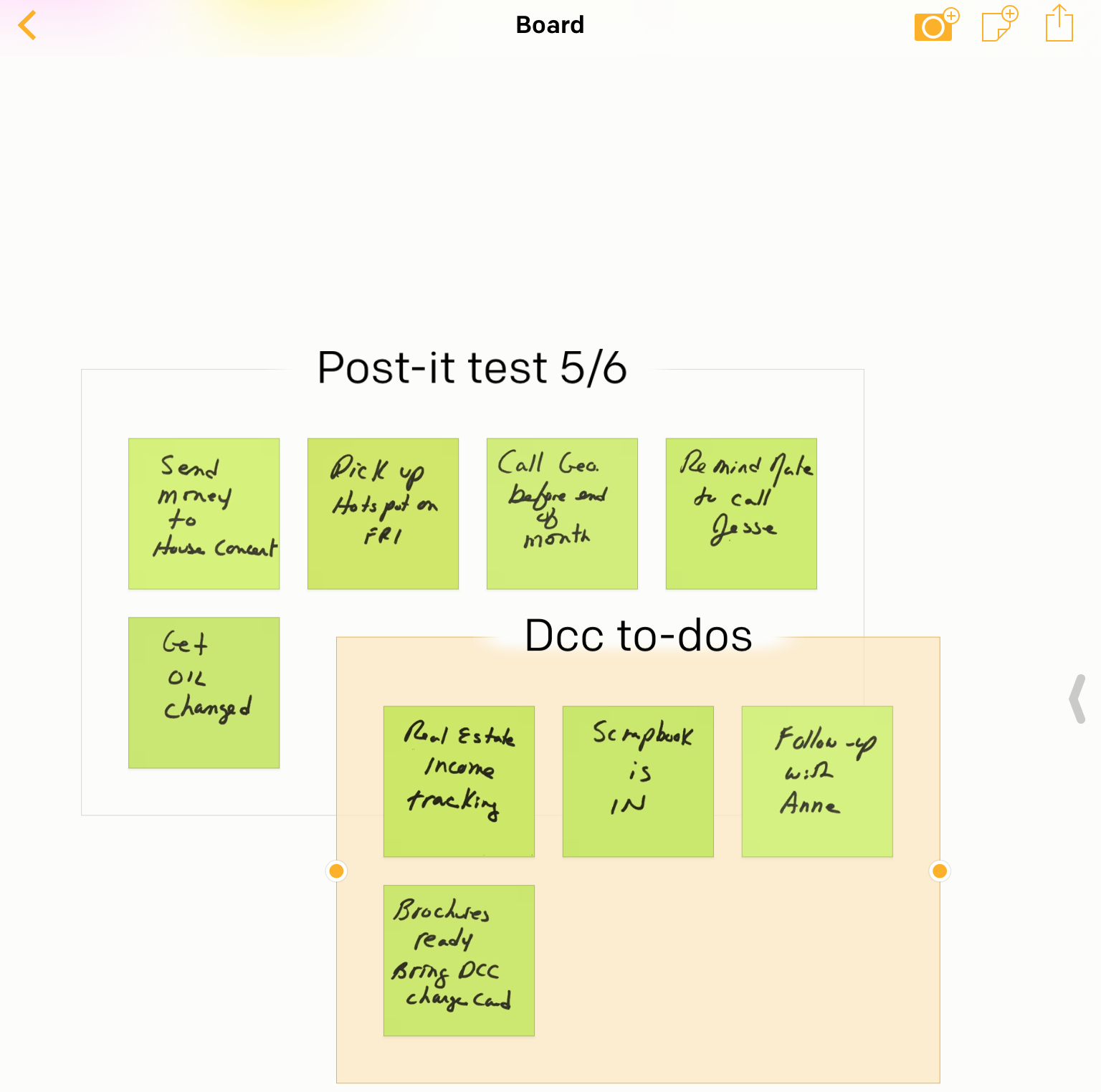
    The app is called “Post-it Plus App”. First, take a picture of your notes. The app will recognize individual notes, allow you to move them around, and also create new notes.

    In my screenshot example above, I started with my notes posted on a wall but not organized in any way. After I took the picture, I moved a note in the app to create a new “board”, and then organized other notes onto that board.

    Now I can see at a glance my personal to-dos board, and my work to-dos board.

    If you don’t work on an iOS device, or if you’d like a more efficient way to work with post-it notes, then consider using Evernote. Here’s a nice post about the Evernote post-it system: Evernote Post-it Notes. More information about Evernote here: Use Evernote For a New Level of Organization.

    Get the “Controlling the Chaos” Newsletter and receive a free PDF download
    “Drowning in Email – A Lifeline for Communications Overload”

    * indicates required


  • 3 Reasons to Stop Using Email as a To-do List

    3 Reasons to Stop Using Email as a To-do List

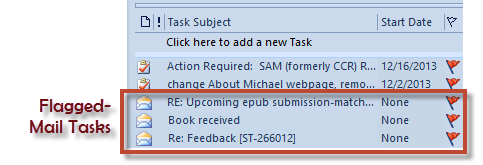
    Flagged Email Tasks

    Staying on top of email chaos is not easy.

    Even after you’ve followed the steps to manage your email inbox (see my blog post here: 4 Steps to Becoming More Responsive), you still need to deal with those emails that need a follow-up task. How do you make sure that you get those done, and that they don’t get lost in the daily shuffle?

    There may be event invitations that you leave in your Inbox to remember the date. There may be questions from clients whose emails you need to follow up on later. There may be business partners sending information that you’d like to read when you have time.

    The easiest way is to have a daily routine to review and act on those emails. If you flag the most important emails, you can review them daily. You can then delete them or archive them as you finish your follow-ups.

    But it’s easy to get behind with those email tasks.

    You may find yourself with a list of flagged emails that just keeps growing. They’re all important, but how do you find the time to get through them? Are they all equally important?

    Here are three good reasons to not leave those emails as to-dos in your Inbox:

    1. You may have to read the emails to see what they are. In a to-do list, you have clear task titles. You may even want to use the “action title” method that I mention in this blog post: I never finish anythin….
    2. It’s not easy to prioritize your email tasks. You can try using different color flags or stars, but then you have to take context into consideration. Are you mixing your personal and work emails? What about emails from clients mixed up with emails from vendors?
    3. While you’re working on your sorted, prioritized Inbox, you have emails coming in. You won’t see them until you change your sort order back to dated order.

    Have another look at my blog post here: How to Integrate Email with Task Management and think about installing a task manager instead.

    Get the “Controlling the Chaos” Newsletter and receive a free PDF download
    “Drowning in Email – A Lifeline for Communications Overload”

    * indicates required


  • How to Stay on Target with Your Goals

    How to Stay on Target with Your Goals

    Task Manager for Your Goals

    What is productivity?

    Productivity means performing on target according to your goals and deadlines. Let’s say your goal is to create a social media presence and have twenty followers. You’ll need to set a deadline to achieve that goal, break it down into achievable tasks, and assign a due date for each task.

    If you’re working unproductively, you won’t meet your goals by the deadline. This results in missed opportunities, loss of income, and perhaps a drop in confidence.

    There are many reasons for missing your deadlines, including unexpected obstacles, distractions, and unproductive employees. But you can mitigate the risk by making sure that you have good productivity tools in place.

    Start by setting up your system.

    You need:

    • Task management or project management software
    • Documented goals and deadlines
    • Activity sets for each goal
    • Due dates for each task with reminders

     
    Wunderlist goals and tasks manager


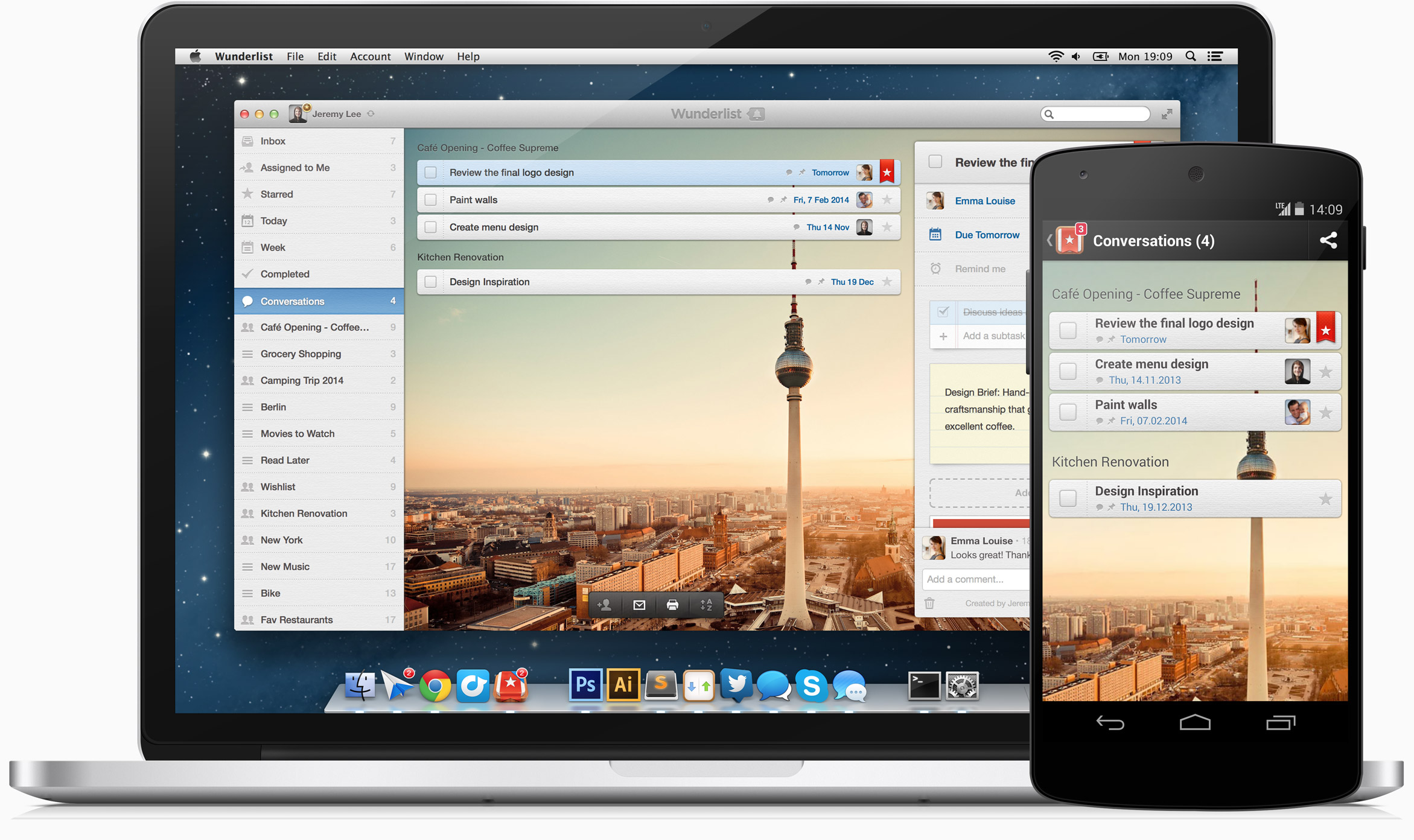
    Here’s my blog post on my preferred task manager called Wunderlist: Task Management for the Super Efficient. For project management, I like Insightly for ease of use, others prefer Asana or Basecamp.

    The next step after setting up your system is to determine your best method for working productively on a single task.

    This includes considering your work layout and your most productive time of day. Also consider limiting distractions during your work time by turning off notifications. Start by reading my blog post here about “perceived” productivity: How to Remain Productive.

    One productivity method is “Getting Things Done”. I’ve mentioned this in previous blog posts. Here’s a post about this and other methods for productivity: The Busy Human’s Guide to the Best Productivity Systems.

    As you’re working toward your goals, you will not only have to deal with distractions, you will also have to deal with shifting priorities.

    Let’s say, for example, that after reaching 10 followers on social media, all 10 are requesting a consultation or more information. These are new tasks that you have to integrate into your system.

    Do the following at least weekly:

    • Review your deadlines
    • Analyze your productivity and the factors affecting it
    • make adjustments


    Gantt Chart for Goals
     
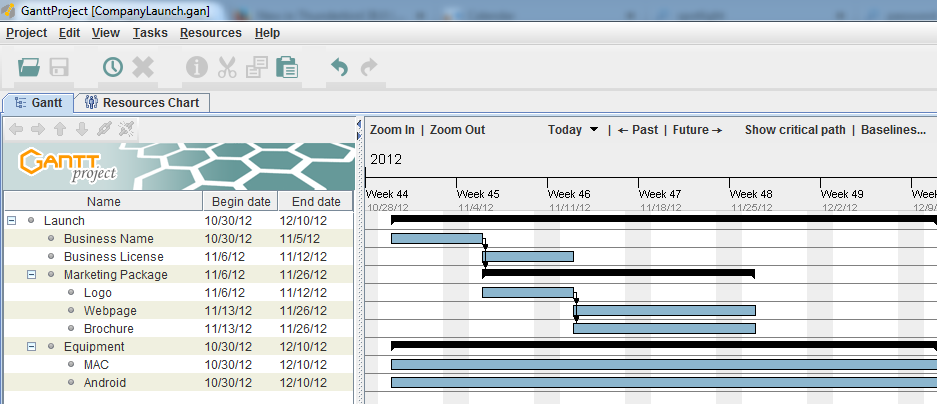
    The white board is the traditional system for making a visual representation of a project. As we moved into digital tools for project management, the Gantt chart (a type of bar chart) became popular. It was sometimes printed out and displayed to show the project progress.

    These days, these methods have been replaced with methods that recognize the shifting priorities of projects.

    Teams have daily meetings run by project managers. They move post-it notes around that represent tasks.

    Trello goals and tasks management

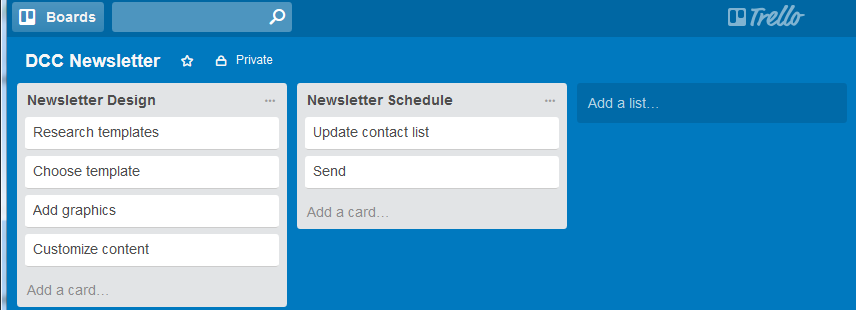
    There are now project management tools that use a more visual method. One example is Trello. Trello implements something called a “Kaban” board. It puts your task cards into columns so that you can arrange your tasks by lists.

    An example might be: Column one: “This week”, Column two: “Today”, Column three: “Done”. You can easily move task cards between columns.

    Whatever your working style is, once you’ve got the right systems and the right tools in place, you’ll be able to reach your goals consistently.

    Get the “Controlling the Chaos” Newsletter and receive a free PDF download
    “Drowning in Email – A Lifeline for Communications Overload”

    * indicates required


  • How to Manage Your Passwords

    How to Manage Your Passwords

    Forgotten Passwords

    We have online accounts for so many things these days – email, social networking, cloud services, financial services, medical accounts, even the local library. Security experts tell us that passwords should be long, cryptic, and unique for each account, but if you follow their guidelines, how can you possibly remember all of your passwords?

    You’re trading security for convenience and saying hello to digital frustration.

    I recommend handing over control to those security experts by signing up for a password management service. You’ll then install a password manager program on your computer and your mobile devices that will help you to generate passwords and securely save them.

    You’ll need to set the program up with a master password, but you’ll only need to remember that one master password to let you into the password vault (write it down and put it in the safe!).

    Of course, you’ll still need to remember a couple of other passwords – the password to log into your computer user account for example, and perhaps a computer administrator password if your computer is set up with one. (You may also need to remember your Apple ID or Google ID and password to install the password manager program.)

    For my master password, I start with a word that has some personal meaning to me, add a character between syllables, a few numbers at the end (that I’m sure that I’ll remember), and then use the word in a complete phrase. For example, “Im#pala876ismyfavoritecar”.

    Some password managers use the cloud to sync your passwords with your other devices.

    For cloud sync, your password vault gets encrypted locally, on your own computer, and then transferred and stored unaltered on the cloud server. When you log into the service, the reverse process happens – the password vault is transferred from the cloud down to your device, and then decrypted.

    I use LastPass as my password manager. Some of my clients use 1Password or Dashlane. If you use all Apple devices, and you don’t care about a nice interface, you can use iCloud Keychain to save and automatically fill in passwords for Safari.

    Here’s a post at How-to Geek comparing password managers: Password Managers Compared.

    Get the “Controlling the Chaos” Newsletter and receive a free PDF download
    “Drowning in Email – A Lifeline for Communications Overload”

    * indicates required


  • Be Sure That Your Memories are Safe

    Be Sure That Your Memories are Safe

    Safe Memories

    In the above still from an episode of the TV show “The Middle”, Sue Heck had accidently deleted all the family photos. No one had taken on the responsibility of backing up the computer and keeping those memories safe. (The Hecks probably could have taken the computer to a data recovery tech, but who wants to have to do that?)

    In this article in the Guardian, Amy Malloy wrote about losing the photographic record of her 20s, including all the photos of her late husband: I Lost a Decade of Photographs.

    You many think that losing your memories won’t happen to you, but don’t be too sure.

    Unexpected things can trip us up, such as not double-checking that your photos are there, like Amy did.

    Here are some examples:

      • I had someone call me because she just noticed that all of the videos were missing from her iPhone. She was backing up her iPhone to iCloud, but iCloud backups are only good for about 30 days. Her videos went missing before that. There was nothing that anyone could do to help her.
      • If you’re using a cloud service such as Dropbox, it doesn’t mean your data is backed up. Dropbox is a sync service. If you accidently delete files on one device, the files get deleted on the Dropbox server and on all your other devices. (Like with iCloud, you can recover within a period of time, but you have to notice first…)
         
        (Here’s an article at How-To Geek with more details: Ensure You’ll Never Lose Files Stored in Dropbox.)
    • If you’re using iCloud Photo Library, it works the same way as other cloud services. If you delete photos on your iPhone, for example, you’re deleting from your Mac as well.
    • If your cloud service gets hacked, then your files could all get deleted. (Make sure that you’re using a strong password.)

    If you’re sure that you’re backing up your computer and saving your memories, then make sure that you’re really sure.

    Today, I had a client ask me to check her TimeMachine backup, and it was turned off! She had no idea how it had happened…

    Sync your mobile devices to your computer, back up your computer regularly, and sign up for cloud backup as extra insurance.

    Make sure that you read my blog post on backups here: What Everyone Ought to Know About Backups.

    Get the “Controlling the Chaos” Newsletter and receive a free PDF download
    “Drowning in Email – A Lifeline for Communications Overload”

    * indicates required


  • 4 Ways to Add More Computer Storage Space

    4 Ways to Add More Computer Storage Space

    HDD SDD Storage

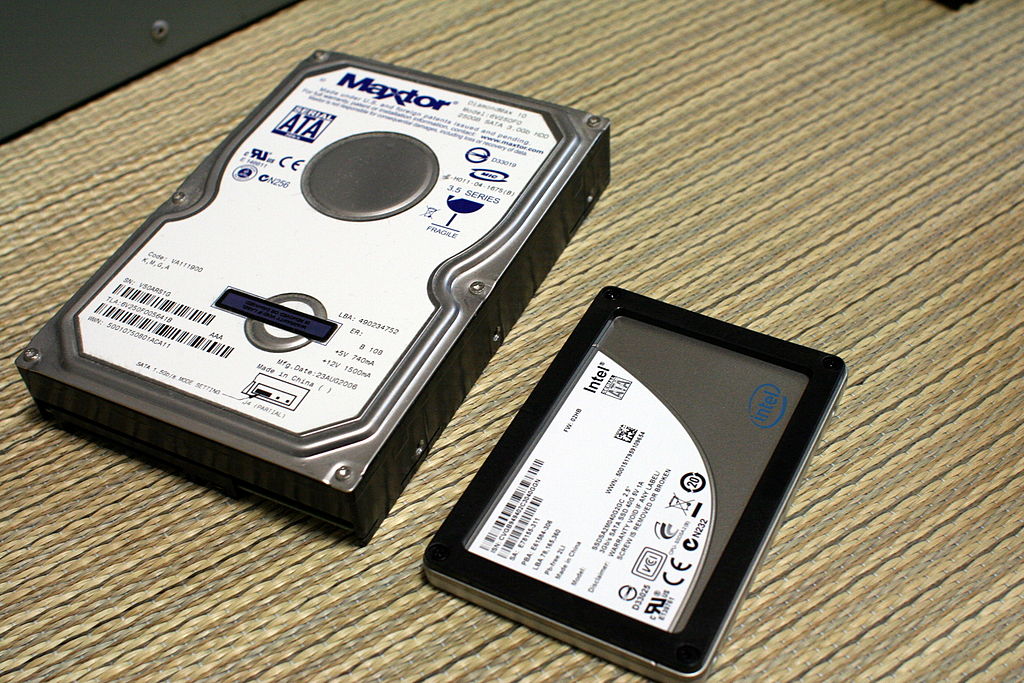
    One way that laptops are getting thinner and lighter is by replacing the hard disk drive with a solid-state drive (SSD). An SSD has no mechanical moving parts so it’s faster, lighter, and more robust. Sounds ideal for a portable device, right?

    Yes and no. SSDs are ideal functionally but they cost more per byte than hard drives. To keep the overall cost of the laptop down, you get less storage space. (Here’s a detailed article on SSDs and HDDs: How Much Storage Capacity Do I Need?)

    If you’re like me, you use a desktop computer for daily work and a laptop for working on the go. So then it’s not an issue. Your photos and videos are stored on your desktop computer. (And hopefully backed up – see my blog post on backups here: How to Backup Multiple Computers.)

    But if your laptop is your main computer and your storage space is limited, then you may need to manage that space.

    Don’t wait until you get the message that you’ve run out of space, make a plan now for more storage before you need it.

    Start by reading my blog post here: 6 Tips for Managing Your Computer Storage.

    Now that you know how to keep an eye on your storage space, here are some options for adding more.

    1. You can get a new laptop. A MacBook Air tops out currently at 256GB. You would have to upgrade to a MacBook or a MacBook Pro which goes up to 512GB. High-end PC laptops go up to 2TB.
    2. You can replace your SSD with a larger one. If your laptop is still under warranty, you will want to do this through the original manufacturer. If it’s out of warranty, then a local computer shop may be able to do this for you, depending on the laptop model. You’ll want them to duplicate your existing drive data to the new one first.
    3. You can add an external hard drive. A good way to split your data is to archive your old photos and videos to an external hard drive. (You’ll actually want 2 external drives – one that you can keep handy to access those photos, and one that’s another copy for a backup.)
    4. You can use a removable storage device if your laptop has an SD slot. This option would be more portable than an external hard drive. (Again, you should make another copy of your files on an external hard drive or USB drive.)

    As the price of SSDs come down, we’ll see the default storage for these laptops go up. But for the time being, we’re trading that space for portability and lower cost.

    Portability is a good thing, but make sure that you’re staying on top your of your storage needs.

    Get the “Controlling the Chaos” Newsletter and receive a free PDF download
    “Drowning in Email – A Lifeline for Communications Overload”

    * indicates required


  • 3 Ways to Keep Your Digital Life Organized

    3 Ways to Keep Your Digital Life Organized

    Organized Digital LifeHave you ever found yourself wasting time and getting frustrated because you can’t find something on your computer?

    And what if you don’t have your computer with you? Can you pull up that photo on your mobile device that you’d like to show off?

    Wouldn’t it be nice if you were so efficient and organized that you don’t even have to think about how to find something?

    You may not be able to get to the level of efficiency that you’re working like an automaton, but there’s probably lots of room for improvement. If you’re someone who has file icons littering your desktop or hundreds of photos still on your smartphone and not organized in any way, then read on!

    Start with defining your organized system.

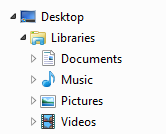
    Organized Digital FilesYour operating system creates some high-level organization for you – a Documents library, a Photos library, a Videos library, and a Music library. When you save a document, import photos, or purchase music, these folders are initially used by default by your applications. (However, your applications will usually change the default to the last folder used, so if you’ve saved something to your desktop, you may be saving everything after that to the desktop without realizing it.) Use these default folders as a start for your organization system.

    You have three options when organizing your documents:

    1. Create file folders by function. For example, you may have a file folder for Personal, with sub-folders for Finance, Kids, etc. You may then have another top-level folder for Business, with sub-folders for Clients, Marketing, Taxes, etc.
    1. Create file folders by type – for example, a folder called Marketing, with sub-folders for Presentations, Brochures, etc.
    1. Use a tool that organizes by function, but that combines documents, media, emails, etc. Evernote is a good example of this and you can read about it here: User Evernote For a New Level of Organization.

    Some software programs that work with media (music, photos, and videos) may use libraries (see my blog post here about libraries: What Everyone Ought to Know About Digital Music and Photos) that contain information about the media (such as keywords, album, genre, etc.) as well as the media file itself. It’s best to work within those programs to organize the media. For example, if you use the Photos program on the Macintosh, you can create folders and albums for your photos. You can also assign keywords to help you search for those photos later.

    Once you have a good organization in place, make sure that you use that system whenever you download or save a new document and whenever you add new media. If you use a cloud service like Dropbox or iCloud Drive, then you’ll also be able to pull up whatever you need on your mobile device as well – just create your organization system in the Dropbox folder or iCloud Drive folder. (You can find your Dropbox folder listed under “Favorites” in a Windows Explorer window, and your Dropbox or iCloud Drive folder under “Favorites” in a Macintosh Finder window.)

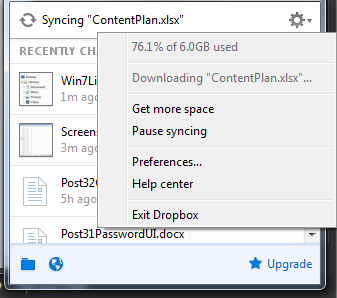
    Organized Files in DropboxHere’s how to check that you have enough storage space in your cloud service:

    • Windows: Click on the Dropbox icon in the far right of your taskbar and then click on the arrow to the right of the gear icon.
    • Macintosh:
      • Dropbox – click on the Dropbox icon in the menu bar at the top and then click on the arrow to the right of the gear icon.
      • iCloud Drive – you can check your iCloud storage space by going to System Preferences and iCloud, then view your available storage at the bottom.

    Remember that your cloud storage ALSO takes up the same amount of space on your computer because it’s a cloud synchronization service, not a backup service. Also remember that deleting a file on one device will delete it from the cloud and from all of your other devices. (iCloud Photo Library works the same way.)

    You should also be keeping an eye on your storage space. You can read my blog post here: 6 Tips for Managing Your Computer Storage.

    Get the “Controlling the Chaos” Newsletter and receive a free PDF download
    “Drowning in Email – A Lifeline for Communications Overload”

    * indicates required


  • How to Backup Multiple Computers

    How to Backup Multiple Computers

    NAS Drive for Backup

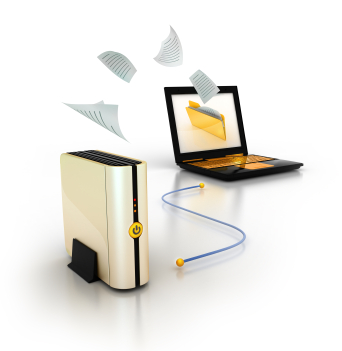
    We’ve got five computers in our household. We’re almost like a small business – we need regular maintenance and backup. Rather than set up a separate backup device for each computer, I elected to go with a network-attached storage (NAS) device.

    You connect the NAS device to your internet router. Your computer sees it as a network device that it can use for backup.

    It’s a great way to add storage for backup and also for shared media. You can even set up your NAS device to make your data available securely over the internet for when you need to access it outside of your home or office.

    NAS devices come in all sorts of configurations. The basic configuration is a device with one drive “bay”. (You need to buy the hard drive separately.) I opted for a device with two drive bays. I installed two hard drives and configured the device so that the second drive is “mirrored”, meaning that it’s an exact copy of the first drive. (So it’s a backup of the backup.)

    Here’s a device like the one that I have: Synology NAS Drive.

    On Windows computers, the drive needs to be “mounted”. Your device will typically come with software that will help you to configure that. Once you’ve mounted the device, you’ll be able to access it just like you would a local device.

    On Windows 8 and Windows 10, you can set up Windows File History to back up to the mounted drive. For Windows 7, it’s easiest to install backup software from the device vendor. On a Macintosh, you can select the network drive when setting up Time Machine. (You may need to configure your NAS device first – check the manufacturer instructions.)

    The household computers are all backing up to my NAS drive on a daily schedule. I don’t have to worry about data loss.

    It’s a nice solution if you have more than one computers.

    Get the “Controlling the Chaos” Newsletter and receive a free PDF download
    “Drowning in Email – A Lifeline for Communications Overload”

    * indicates required


  • How to Remain Productive

    How to Remain Productive

    Staying productive

    If you’re using the GTD (“Getting Things Done”) method to stay productive, as outlined in my Evernote blog here: How to Implement “GTD” in Evernote (or even if you’re not, but you do have task lists), you may find yourself with an ever-growing “Next Actions” list, and/or “Someday/Maybe” list. Having a to-do list that just keeps growing can feel discouraging and can affect your “perceived” productivity.

    There are many factors that can keep you from being productive.

    • Life happens – you have personal challenges going on
    • You take on new projects
    • Your day is not well structured
    • You have too many interruptions
    • You’re losing motivation

    If you’re losing motivation, then, by all means, take a break.

    “There’s strong evidence that disengagement, breaking away, can help recharge people cognitively,” says University of Toronto sociology professor Scott Schieman. Schieman is studying the relationship between work, health and stress among Canadians. “This is anecdotal, but if I’ve gone on vacation and I come back, the ideas flow and things really move along. By contrast, if I’m sitting at my desk trying to squeeze out the last bit of idea, it just doesn’t work.”

    If you have too many interruptions, then you need to find some uninterrupted time to work, preferably every day.

    Build the time into your schedule and work somewhere away from distractions if you can, which usually means away from the office. Jason Fried, a co-founder of Basecamp, said during a 2010 TED talk about the workplace: “You walk into the front door and it’s like a Cuisinart. Your day is just shredded to bits.” Jason calls the most frequent sources of interruptions in the workplace “M&Ms” – Managers and Meetings.

    Even working away from the office, you should take breaks. Use them to scan email, do some web surfing, stretch, and/or exercise.

    If you feel like you’re doing all that you can to keep up and your to-do list is still growing, then you should be taking more drastic measures. Your perceived productivity affects your morale can be affected by your perceived productivity, so cut that list down by delegating or deleting.

    Get the “Controlling the Chaos” Newsletter and receive a free PDF download
    “Drowning in Email – A Lifeline for Communications Overload”

    * indicates required