Blog

  • Internet Safety: How to Connect with the World and Still Feel Safe


    Most of us do a lot of reading on social media. We read news on Twitter, we follow celebrities and politicians (want ideas on who to follow? Here’s a list of some of the most-followed on Twitter), we see trends and updates from friends in our Facebook newsfeeds.

    We can be passive readers, or we can be actively engaging by liking, commenting, and sharing. It’s more fun to engage, and it helps us to build our global community.

    But what about Internet safety?

    It seems like the trolls are everywhere these days. There is a risk that, if you put yourself out there, then you are subject to trolling. (If you’d like to read more about trolling, then try this article: What is Internet Trolling?)

    It’s tempting to stay safe, stop engaging, and shut the door on the trolls.

    But is there another way? Can you continue to engage on social media and still have Internet safety? I believe that you can, but you have to develop some toughness.

    The typical advice is “don’t feed the trolls”. This means to ignore them. Don’t respond to them and don’t let it bother you.

    I don’t know about you, but, although I think it’s good advice, I’m a little uncomfortable with it.

    When I was in Kindergarten, a little girl assigned to sit next to me liked to pinch me on the arm. My mother told me to ignore her and she’ll stop. I still remember how uncomfortable I was to follow my mother’s advice, ignore her, and not stand up for myself.

    Kids these days are not told to ignore bullies. Instead, the experts encourage us to encourage them to report bullies. Perhaps we should do the same with trolls, but the problem is that they’re just so prolific. We’re busy people and we can’t report every troll. Who would we report to anyway?

    The other option would be to engage with trolls.

    That is, to stand up for ourselves or for others, and shut the trolls down with our logic, reasonableness, empathy, and morality. According to the Dangerous Speech Project, it can be possible to reason with trolls: Considerations for Sucessful Counterspeak.

    If you’d still like to engage on social media but you’re concerned about Internet safety, here are some other options:

    • On a personal Facebook profile, you can choose who sees your posts. Read here to learn more: Choose Your Favorite Facebook Friends.
    • If you have a Facebook business page, check your settings. You can limit your audience, block certain words, and turn on a profanity filter.
    • Don’t read comments.
    • Block offensive followers.
    • Don’t invite feedback by asking open questions.

    I invite your engagement! Please like, comment, or share.

    SUBSCRIBE TO MY NEWSLETTER

    Get the “Controlling the Chaos” Newsletter and receive a free PDF download
    “Drowning in Email – A Lifeline for Communications Overload”
    * indicates required


  • Social Media Engagement – What does it mean for Your Business?

    Social Media Engagement – What does it mean for Your Business?

    Social Media Engagement

    Are you not getting the level of social media engagement that you’d like to see?

    You’ve gone through the trouble of create a Facebook business page (if not, read this: How to Create a Facebook Business Page). You’re trying to post to it regularly, but to what end?

    Perhaps you’ve been told to post twice/day to increase social media engagement. That’s a hard standard to keep up. Is it really necessary? Should you be focusing on more likes? Engagements? Or clicks through to your web page?

    It’s hard to get people to engage with your Facebook posts.

    We’re all inundated on our news feeds, we have limited time, and some people are wary of engaging on the Internet. If you’re posting on Instagram (read here: Use Instagram), you may be having better luck. Your audience is likely younger and more accustomed to social media engagement.

    You may have been told to pay to boost your posts to reach a broader audience. This is good advice if your goal is to increase brand awareness.

    Traditional advertisers have always focused more on brand awareness than on social media engagement.

    The more you see something advertised, the more likely you are to remember it when you need it. But think about it – when you see an interesting advertisement, do you go and follow that brand? Do you comment on it? Do you buy right away?

    Chances are that you don’t. Social media engagement is good, because it increases your reach, but it’s hard to achieve. Organic reach (which means unpaid distribution) on Facebook has gotten abysmally low.

    You should think of your social media as a marketing and advertising expense with the goal of increasing brand awareness.

    If you have the budget, hire someone to post content regularly. Boost a post once/week to increase your reach and brand awareness.

    Engagement is also useful for testing your content. Keep track of which content gets more engagement. Re-use some of your best content and boost it.

    Social media marketing is a long-term strategy. So don’t get hung up on likes or engagements. You’re in this for the long haul.

    Tips on boosting a post:

    • Boost a post that has an interesting visual. This could be a link. Be sure that the visual doesn’t have too much text on it.
    • Experiment with budget. Start small, monitor reach and engagement.
    • Consider a “sharing contest”. Encourage your followers to share for a chance at a prize.

    Wondering about Facebook Ads vs. boosting? Read this: Here’s a Quick Guide to Driving Social Engagement.

    Here’s some more advice: 6 Things Business Owners Need to Understand.

    SUBSCRIBE TO MY NEWSLETTER

    Get the “Controlling the Chaos” Newsletter and receive a free PDF download
    “Drowning in Email – A Lifeline for Communications Overload”
    * indicates required


  • Who Else Hates Grocery Shopping and Longs for a Personal Shopper?

    Who Else Hates Grocery Shopping and Longs for a Personal Shopper?

    Online grocery shopping is more convenient

    My husband likes a certain kind of bread that not all grocery stores carry. My son likes a certain kind of cookie. Some things consumed a lot in our house are better bought in bulk. (For us, peanut butter, maple syrup, and loose tea.)

    If you have a Costco near you, and you don’t mind grocery shopping in a warehouse, you can schedule your trips to buy bulk goods. For more specialty items, you can shop at your local market (or markets, if you’re like my family).

    Grocery shopping can take a chunk of out your day.

    Putting grocery shopping off because of a busy schedule often leads to running out of things or eating out more often than you’d like. If you’re lucky, you have a grocery store in your area that stocks the items that you need, hires cheerful employees manning short check-out lines, and has reasonable prices. Also, you have lots of free time to both shop and cook.

    Not the case for you? Well, you’re hardly alone.  If you live in a more rural area, then grocery shopping may even mean a scheduled trip to a larger town.

    Many are turning to online grocery shopping. It’s convenient, it’s a time saver, and it may even save you money.

    If you have Amazon Prime, you can take a look at Amazon Fresh. Google Express and Instacart offer a similar service, but they use local stores instead of shipping from a warehouse. Their stores may include Costco, Whole Foods, Target, Walgreens (Google), CVS (Instacart) and other regional stores. Google Express focuses more on packaged goods, so don’t expect to find meat and fresh produce there.

    Can you expect to pay the same as in-store prices plus the delivery fee?

    It depends. Instacart has been criticized for charging a mark-up plus the delivery fee, but it depends on the store that you order from. Whole Foods, for example, is available through Instacart without markups. If you go with Google Express, the interface allows you to search for an item and compare prices.

    If you have limited time to cook as well, there are services that deliver ingredients and recipes for entire meals.

    Blue Apron is the best-known service for this. You may have other local options as well. If you’re in the SF Bay Area, you can check out Good Eggs.


    SUBSCRIBE TO MY NEWSLETTER

    Get the “Controlling the Chaos” Newsletter and receive a free PDF download
    “Drowning in Email – A Lifeline for Communications Overload”

    * indicates required


  • “OK Google Home. How Can You Make My Work and My Life Easier?”

    “OK Google Home. How Can You Make My Work and My Life Easier?”

    Amazon Echo or Google Home can help with cooking.
    Photo courtesy of Digital Trends.

    Using your voice to give commands to a computer once seemed like science fiction. Remember Hal from the Space Odyssey?

    We’ve been able to talk to our phones for a while now, using Siri or Google Assistant.

    Since Windows 10 and Cortana, we can talk to our PCs as well. And with MacOS Sierra adding Siri support, we can now talk to all of our Apple devices.

    But why be tethered to a device? Now there’s the Amazon and Google Home virtual assistant speakers (with Apple rumored to be releasing a Siri-controlled speaker sometime soon).

    That’s a little too much you say? After all, those devices are continually listening for commands, so everything we say is going to the Internet.

    What about privacy concerns?

    My approach is always to look at how useful new technology is. Then weigh the privacy concerns and security risks against the productivity gains. It’s a personal decision. If you’re truly concerned about these companies knowing all about you, or you’re concerned about hackers/the government/foreign agents, then you probably don’t really need such a device in your life.

    So why get an Amazon or Google Home virtual assistant speaker?

    For me, it feels much more natural to just speak up when I need something. I don’t have to hunt down my device and unlock it first. It’s freeing.

    I love being able to ask my Google Home about a crossword puzzle clue as I’m sitting at the kitchen table. I love being able to speak up and add something to my shopping list as I’m taking the last one of something from the refrigerator. My husband asks it to play music as he cooks dinner. My son asks it to remind him when he needs to leave for somewhere.

    Google Home can now detect our different voices. So when I say “OK Google, what’s on my calendar today?”, I’ll get a different response than when my husband asks the same thing.

    I could turn off the microphone if I wanted to, and I do unplug it when we have guests staying – just in case.

    So which one? Amazon or Google Home?

    Since I’m an Android user, it made sense for me to go with Google Home. Here’s a good comparison here: Amazon Echo vs Google Home

    Here are some things that you can do with these devices:

    • Play music from an internet music service or radio station
    • Set a timer
    • Get driving times
    • Tell you what’s on your calendar
    • Search the internet
    • Set a reminder
    • Get sports scores
    • Get the news
    • Get the weather
    • Tell you a joke
    • Control smart home devices
    • Add items to a shopping list

    SUBSCRIBE TO MY NEWSLETTER

    Get the “Controlling the Chaos” Newsletter and receive a free PDF download
    “Drowning in Email – A Lifeline for Communications Overload”
    * indicates required


  • Here’s an Easy and Efficient Way to Manage Projects and Daily Tasks

    Here’s an Easy and Efficient Way to Manage Projects and Daily Tasks

    Asana Boards for Project Managment and Daily Tasks

    Are you a visual thinker? Are you someone who likes to keep your calendar in front of you and your daily tasks on post-its around your desk?

    Digital task managers are much more efficient than paper for daily tasks.

    • You can have your to-do list with you on your mobile device and check off your tasks throughout the day.
    • You can assign tasks to others.
    • You can create calendar reminders.
    • You can prioritize daily tasks.

    Many organizations use “Kanban” boards for visual process management.

    These boards have cards, post-its, or other markers representing work items. They have columns for process steps. You can read more here: How to Use a Visual Task Management System.

    Trello is one of the most popular tools utilizing a kind of Kanban method. Another popular tool, Asana, has recently added the ability to create boards as well.

    Asana is a bit more complex to learn and use than Trello, but it’s more feature-rich.

    Asana is a unique combination of project management and collaboration tasks. You can create, categorize, and schedule projects in a special calendar. You can add custom fields and track only what is important to you.

    For task management, you can:

    • Create recurring tasks
    • Assign tasks to projects
    • Prioritize daily tasks
    • Easily navigate between views for projects and your specific tasks

    Asana is very popular with teams. Asana provides visuals of completed and remaining tasks in a dashboard that makes it easy for the project owner to track progress. The project owner can add descriptions and status updates, providing a quick snapshot on how the project is moving along.

    Team members can discuss the project’s progress while it is happening, share it, comment on it, upload a file, or simply let everybody know that they like the change. All relevant conversations are saved on Team Pages.

    You can have up to 15 team members with an Asana account on the free plan. The Premium plan will give you more advanced team and project management features as well as priority support.

     
    SUBSCRIBE TO MY NEWSLETTER

    Get the “Controlling the Chaos” Newsletter and receive a free PDF download
    “Drowning in Email – A Lifeline for Communications Overload”

    * indicates required


  • Who Else Wants Digital Photo Organization to be Easy and Automatic?

    Who Else Wants Digital Photo Organization to be Easy and Automatic?

    Google Photos for automated photo organization

    Most of us have a lot of digital photographs – so many that we are not taking the time to look through them and organize them. The problem is that when you want to go back and find photos, you might find yourself in a time-consuming and frustrating search.

    Many people don’t have the time or the inclination to do a lot of photo organization.

    I strongly believe that automating tasks as much as possible is the way to go for those busy people. The Google Photos service, for example, which I write about here: Use Photos Sharing Services, uses automated image recognition. You may be able to find a photo by searching for an object that you know is in it.

    Apple introduced “Memories” in iOS 10.

    Memories has a similar automated image recognition mechanism as Google Photos. So if you don’t have time for photo organization, you can just search for that camping photo or for the pinwheel on the beach.

    Since so many of us use our cell phone as our primary camera, it makes sense to add some photo organization capabilities to a mobile app. Apple’s Photos app can now automatically do some grouping of photos. The results may please you.

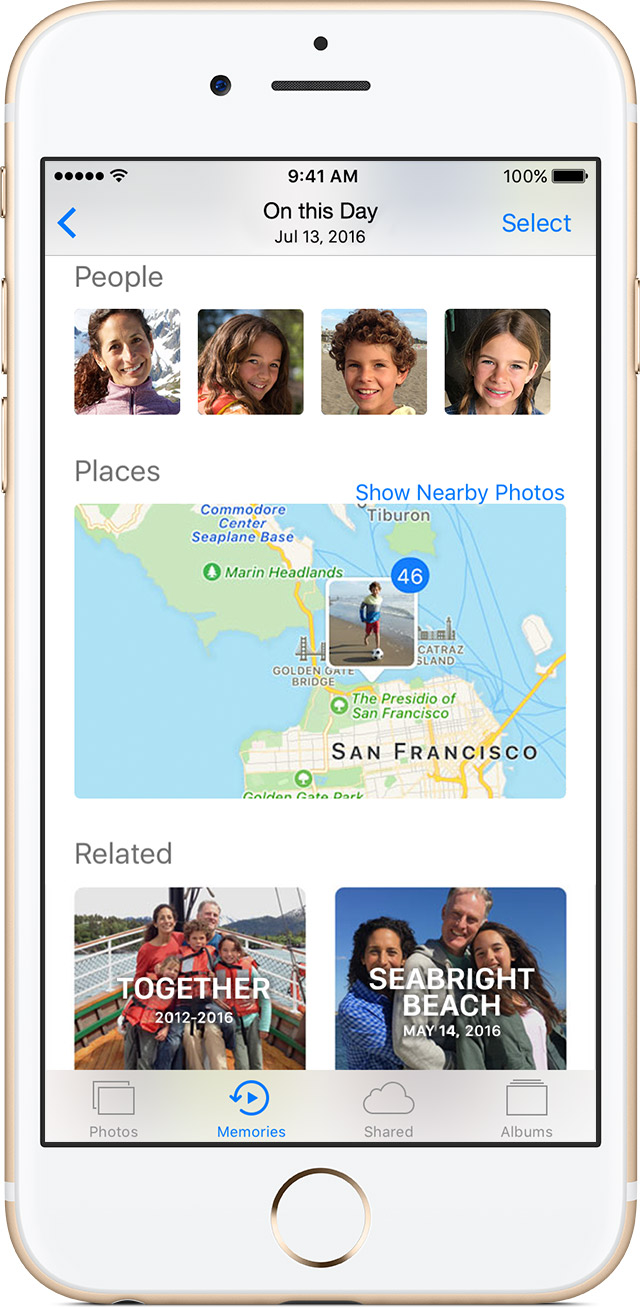
    In the Photos app, the first time that you select “Memories” (under “For You” on the bottom), the program will have to scan your photos in order to group images together. This could take a long time, depending on how many photos you have.

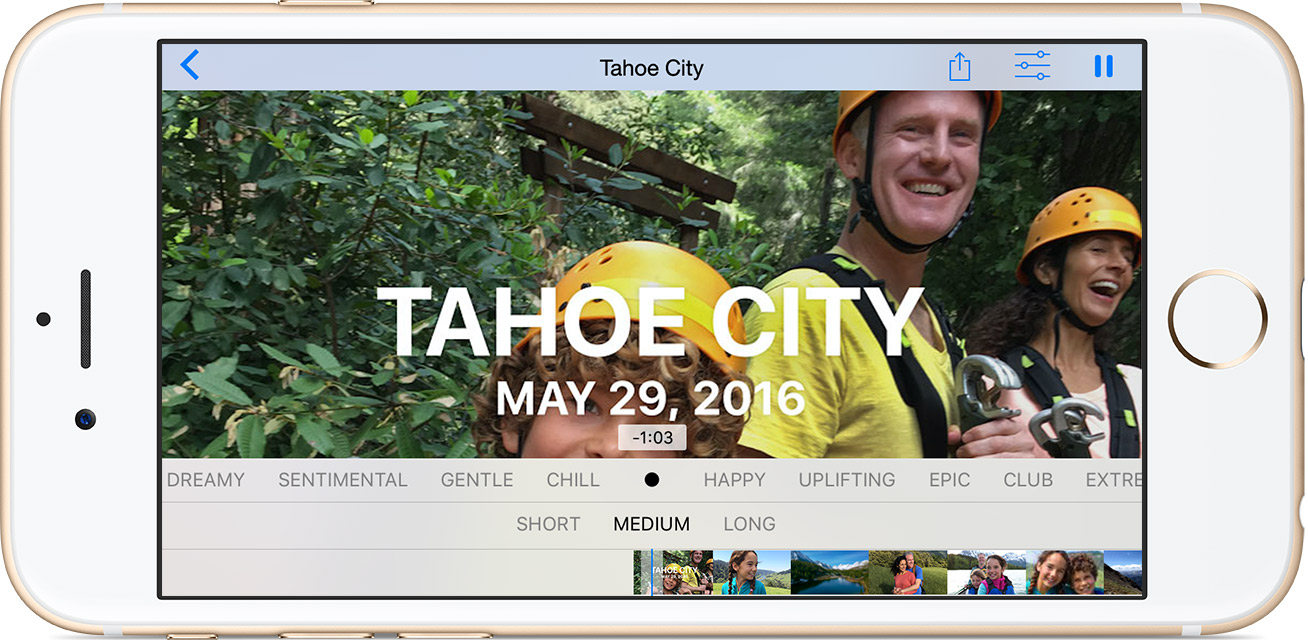
    Apple Memories Photo OrganizingWhen it’s done scanning, Memories will show your photos organized by People, using face recognition, Places, using location information, and finally by “Related”. You can play a slideshow of the memory by selecting it and then tapping the “Play” button.

    Apple Memories Photo Organization


    Adjust your slideshow settings by pausing the slideshow and changing the options. You also have edit and share options.

    Below the photos from your memory you will see a map of the location with the option of showing nearby photos. Below that, you will see “Related” photos.

    PS: If you want your memories to sync with your Mac and/or iPad, you’ll have to set up iCloud Photos Library. Contact me for help.
     

    SUBSCRIBE TO MY NEWSLETTER

    Get the “Controlling the Chaos” Newsletter and receive a free PDF download
    “Drowning in Email – A Lifeline for Communications Overload”
    * indicates required


  • How use Valentine’s Day Ecards to Spread the Love and Do Good

    How use Valentine’s Day Ecards to Spread the Love and Do Good

    Send Valentine's Day ecards through a charitable organization.Happy Valentine’s Day!

    Doh! Did you forget to buy cards and send them?

    It’s too late to send cards now, so it may be time to look into Valentine’s Day ecards.

    Ecards have waned in popularity, but they’re still an efficient, eco-friendly way to let that special someone know that you’re thinking of him/her/them. And many ecard services now allow you to email, text, or Facebook message a greeting.

    Here are some of the more popular services:

    Some people feel like Valentine’s Day is a “Hallmark” holiday that was created to sell cards.

    So a good way to still spread the love and also to do some good is to send Valentine’s Day ecards from a charitable organization. Check your favorite charities to see if they offer ecards. Here are some examples:

    I’m a volunteer tutor through Reading Partners, so I’m sending my cards through them.

    Reading Partners

    It’s probably best to keep it non-political. Keep in mind that your favorite cause may not be your valentine’s favorite, and won’t be appreciated.

    One drawback to sending ecards is that you’ll probably end up on an email list. You can always unsubscribe from that list, or you can manage email lists through email filtering. Read about that here: How to De-Clutter Your Email Inbox.

    On this Valentine’s Day, remember this from the Hebrew Bible:

    “Love suffers long and is kind; love does not envy; love does not parade itself, is not puffed up; does not behave rudely; does not seek its own; is not provoked; thinks no evil; does not rejoice in iniquity, but rejoices in the truth; bears all thing, believes all things, hopes all things, endures all things. Love never fails.”

    –1 Corinthians 13:4-8

    SUBSCRIBE TO MY NEWSLETTER

    Get the “Controlling the Chaos” Newsletter and receive a free PDF download
    “Drowning in Email – A Lifeline for Communications Overload”

    * indicates required


  • How to Save Time and Work More Productively Using an Outlook Add-In

    How to Save Time and Work More Productively Using an Outlook Add-In

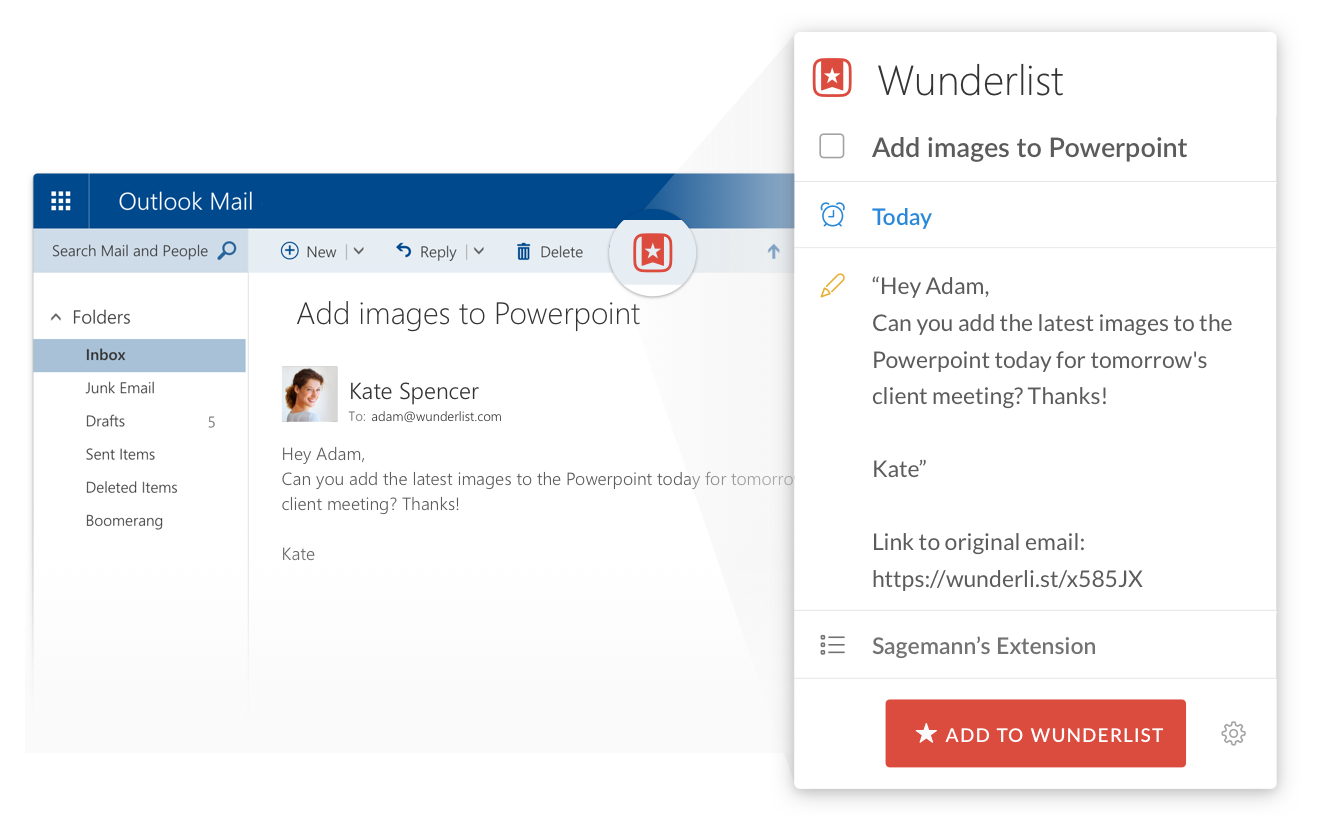
    You can turn an email into a task with the Wunderlist Outlook add-in.

    There are some great cloud-based productivity tools out there. You can use them through your web browser, as desktop applications, and on your mobile devices.

    Productivity tools are best utilized by integrating with your email and calendar. I write about that here: How to Integrate Email with Task Management. If Outlook is your primary platform for email and calendar, and you have an active Office 365 subscription, you have another option as well.

    Many of these productivity tools offer some of their features through an Outlook add-in.

    Evernote, for example, allows you to save emails to a notebook or to attach an Evernote note to an outgoing email (PC Only, requires a paid Evernote plan). The Wunderlist Outlook add-in has similar features.

    The Evernote Clipper is an Outlook add-in that gets automatically installed in Outlook 2013 or Outlook 2010 when you install the Evernote desktop app (PC only). Read more here: How to Use the Microsoft Evernote Clipper Add-In.

    With the Microsoft OneNote Outlook add-in, you can turn your Outlook tasks into notes. Read more here: Combine OneNote and Outlook.

    The OneNote Outlook add-in also has a great feature for taking meeting notes.

    Just open the meeting in Outlook and click on “Meeting Notes”.

    Insightly has an Outlook add-in that allows you to do the following things:

    Create a new task, an opportunity or an associated project in Insightly.
    See at a glance the recent contact or organization history and the date and time of the last actions you had with that person.
    Save a contact and edit that contact information instantly. Insightly will also cleverly link up the email sender to the task, opportunity or project if they are already in Insightly.
    Display the contact details, photo, and background information, all very conveniently shown right beneath the email itself.
    Associate important emails with the relevant projects and opportunities – so you’ve got a record of exactly who said what right there on the page.
    • Link to the contact or organization’s information page within Insightly so you can quickly pull up Insightly at exactly the right page.
    • Sync your Outlook Calendar on an Exchange server with Insightly calendar items.

    Here’s how to get an Outlook add-in:

    • If you’re using Outlook 2013 or Outlook 2016, click the File menu and then Manage Add-ins.
    • If you’re using Outlook on the web or Outlook.com, click the gear icon to the top right and then select Manage Add-ins.

    In the Manage Add-ins page, click the + sign and then select Add from the Office Store.

    SUBSCRIBE TO MY NEWSLETTER

    Get the “Controlling the Chaos” Newsletter and receive a free PDF download
    “Drowning in Email – A Lifeline for Communications Overload”

    * indicates required


  • Which Digital Note-Taking Tool is Both Easy to Use and Efficient?

    Which Digital Note-Taking Tool is Both Easy to Use and Efficient?

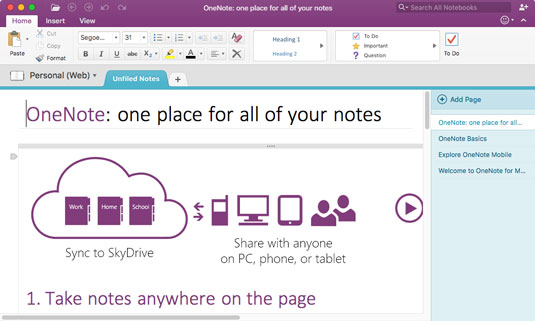
    OneNote is a digital note-taking tool.

    Do you still carry a notebook around?

    I know that I do. Writing your notes can slow the process down so that your mind has time to absorb the information.

    But typing notes on a laptop or a tablet is more efficient. And even when I hand-write notes, I copy them into a digital note taking tool later, or take a picture and add to the tool. A digital note-taking tool is great for organizing your notes and other information. It’s the best way to search and find notes.

    Evernote is the most popular digital note-taking tool.

    It runs on all platforms and syncs between your devices. You can read more about Evernote here: Use Evernote for a New Level of Organization.

    Microsoft’s OneNote 2016 has become a fierce competitor to Evernote.

    It has many of the same features as Evernote but it’s a better editor.

    Like Evernote, OneNote keeps the concept of “Notebooks”. OneNote has notebook “sections” with a tabbed interface. Each note in a section is a “page”.

    What I love about OneNote are the editing features and the templates.

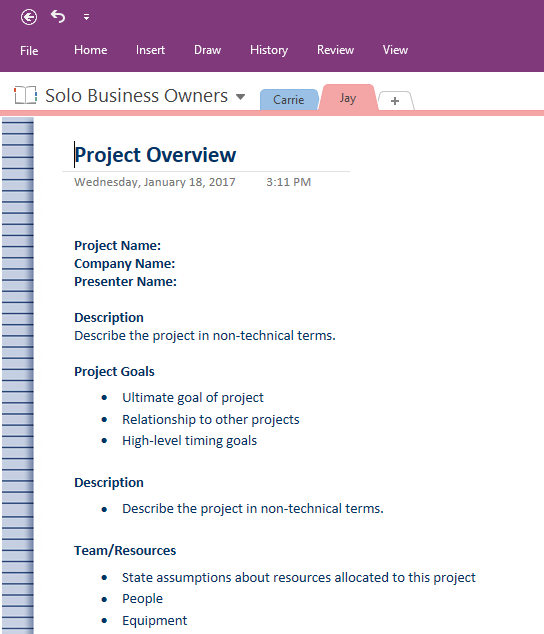
    Here’s a screenshot of a “Project Overview” template. I can edit this template and save it as a custom template.

    Project template for digital note-taking


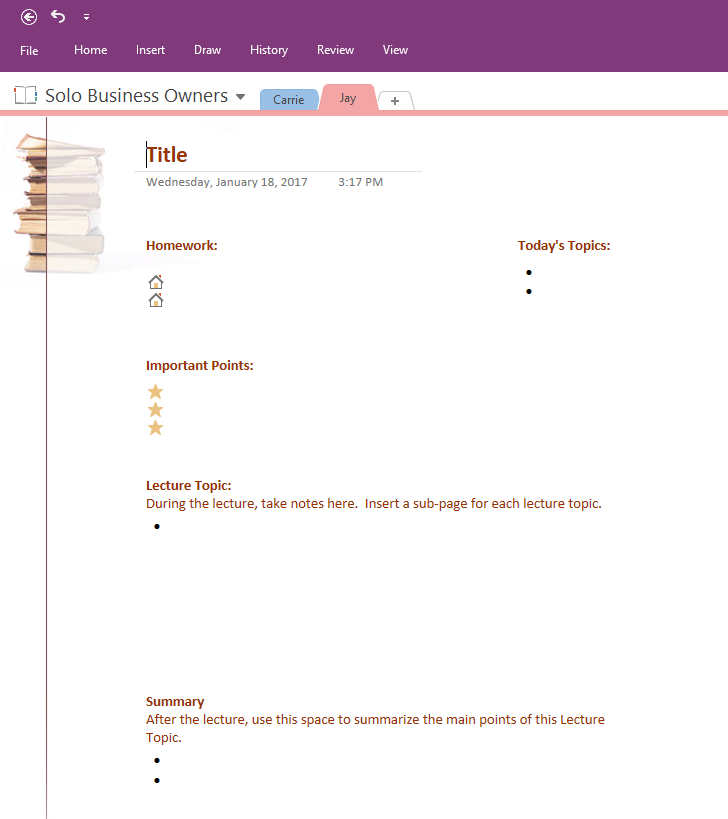
    Here’s a template for taking class notes:


    Class notes template for digital note-taking


    OneNote syncs across platforms, allows you to attach files, clip web pages, and to send emails into notebooks, just like Evernote .

    If you have Windows 10, then you have a version of OneNote built in, but it’s a “light” version. I recommend downloading and installing the full-featured desktop version of OneNote 2016. It’s free!

    You can download it for PC and Mac here: https://www.onenote.com/download. You can also install the mobile apps on iOS/Android.

    So why choose Evernote?

    Evernote has a better visual interface, especially on the Mac, with the ability to create notebook “stacks”. Evernote also has better features at the premium, paid, level – such as searching within attached files and business card scanning. Evernote has a nice reminders feature at both the free and paid levels.


    SUBSCRIBE TO MY NEWSLETTER
    Get the “Controlling the Chaos” Newsletter and receive a free PDF download
    “Drowning in Email – A Lifeline for Communications Overload”

    * indicates required


  • How to Keep Your Internet Accounts Safe from Harmful Hacking

    How to Keep Your Internet Accounts Safe from Harmful Hacking

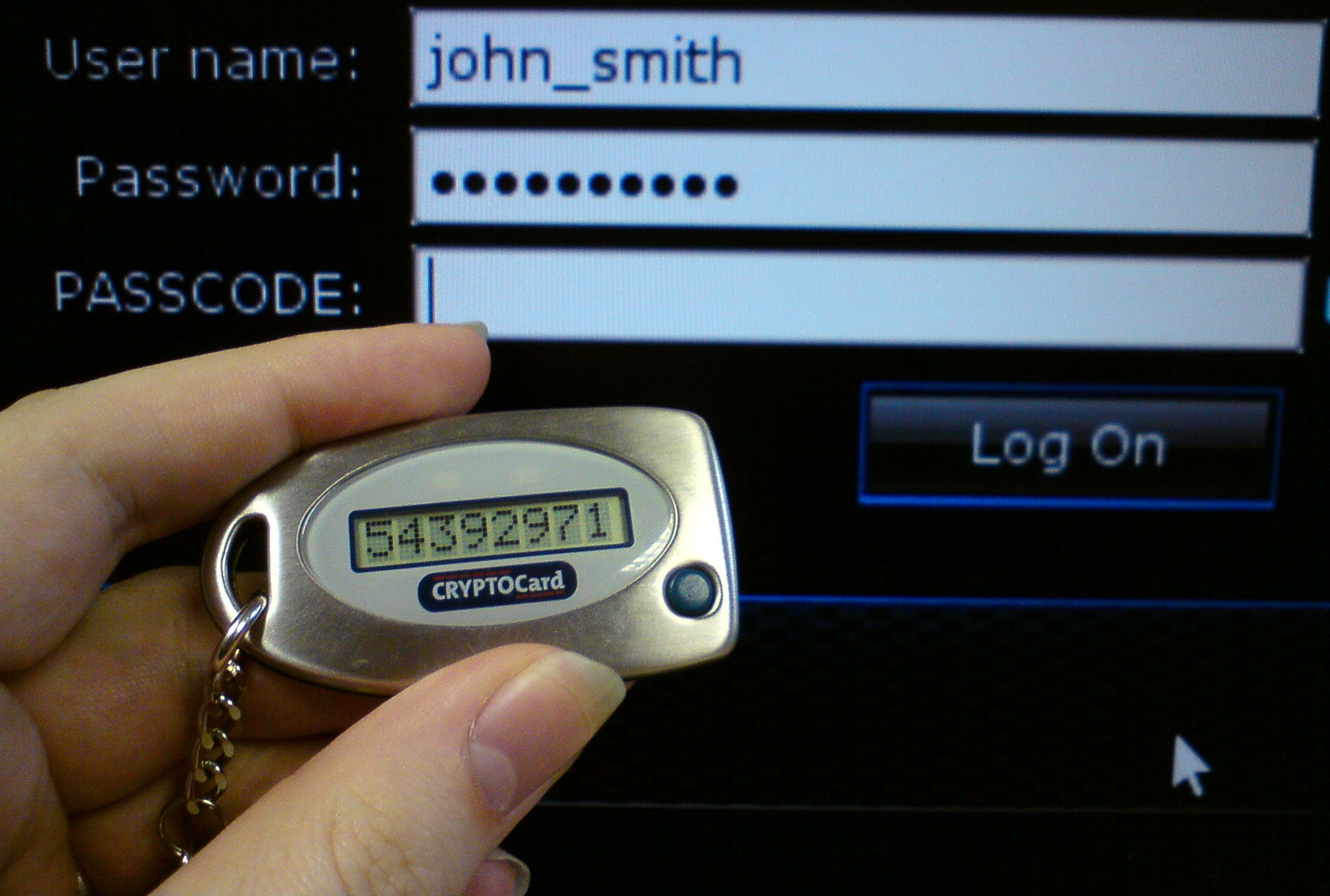
    Use 2-factor authentication to protect from hacking.

    Internet accounts are subject to hacking, putting your personal information at risk. I recommend using a password manager, as I write about here: How to Manage Your Passwords.

    But sometimes passwords alone are not enough to prevent hacking.

    There have been several high-profile breaches where personal information, including passwords, has been stolen. Yahoo, for example, and Google. So even if you use strong passwords and change them regularly, there are times when hackers could compromise your information.

    Several online services are now offering 2-factor (or 2-step, or multi-factor) authentication (or verification). If you enable this optional step, then any new device cannot log into your account through a web interface without also entering a texted code.

    Here are the popular services that offer this:

      • Google (called 2-step verification)

        • Go to Sign-in and Security and sign into your account. Turn on “2-Step Verification”.
        • If you use an application such as Outlook or Thunderbird to access your Gmail, you’ll have to generate an app password. See this article: Sign in Using App Passwords.


      • Apple (used to be 2-step verification, now 2-factor authentication)

        • On your iPhone, iPad, or iPod touch:
          • Go to Settings and tap on your name.
          • Tap Password & Security.
          • Tap Turn on Two-Factor Authentication.
        • On your Mac with OS X El Capitan or later:
          • Go to Apple menu > System Preferences > iCloud > Account Details.
          • Click Security.
          • Click Turn on Two-Factor Authentication.


      • Amazon (called 2-step verification)

        • Go to “Your Account” > “Login and Security Settings” > “Advanced Security Settings”.


      • Dropbox (called 2-step verification)

        • Go to http://www.dropbox.com and sign in.
        • Click on your name and select “Settings”.
        • Click on the Security tab.
        • Click to enable two-step verification.


      • Facebook (called “2-factor authentication”)

        • Go to Settings > Security and Login.
        • Click Edit next to “Login Approvals”.


      • Evernote (called 2-step verification)


    • LastPass: (called multifactor authentication)

      • LastPass uses a mobile app to authenticate. Go to Account Settings at http://lastpass.com and then “Multifactor Options.” Click the pencil icon next to “LastPass Authenticator” and follow instructions.

    So why not enable 2-factor authentication for all services?

    It can be less convenient. If you have to log into a service from a different device – a new device, for example, or a friend’s computer, or a hotel’s computer – then you’ll have to have your cell phone with you and you’ll have to be able to receive a text. This could be a problem while traveling.

    Be sure to read this article before traveling out of the country: Traveling with Two Factor.

    SUBSCRIBE TO MY NEWSLETTER

    Get the “Controlling the Chaos” Newsletter and receive a free PDF download
    “Drowning in Email – A Lifeline for Communications Overload”
    * indicates required