Author: Patricia Dwyer

  • Here’s an easy way to manage projects using a spreadsheet-based tool

    Here’s an easy way to manage projects using a spreadsheet-based tool

    Manage Projects using Smartsheet

    If you’ve read my post on how to manage projects here: How to Stay on Top of Your Project Management, then you know that a good tool can help you:

    • Collaborate
    • Stay on top of tasks
    • Reach your goals and deadlines within your expectations.

    If you use spreadsheets to manage projects (or even if you haven’t but you’re familiar with Excel or Google Sheets), then you might want to check out Smartsheet. Smartsheet is a full project management tool with an interface similar to that of Excel or Google Sheets. Smartsheet has recently added card view as well for visual thinkers (see my blog post here: How to Use a Visual Task Management System.)

    Smartsheet starts with the concept of a simple spreadsheet, then adds:

    • Strong reporting
    • Auto-notifications
    • Row by row task assignment
    • Per project or per task/row dialog
    • Attachments.

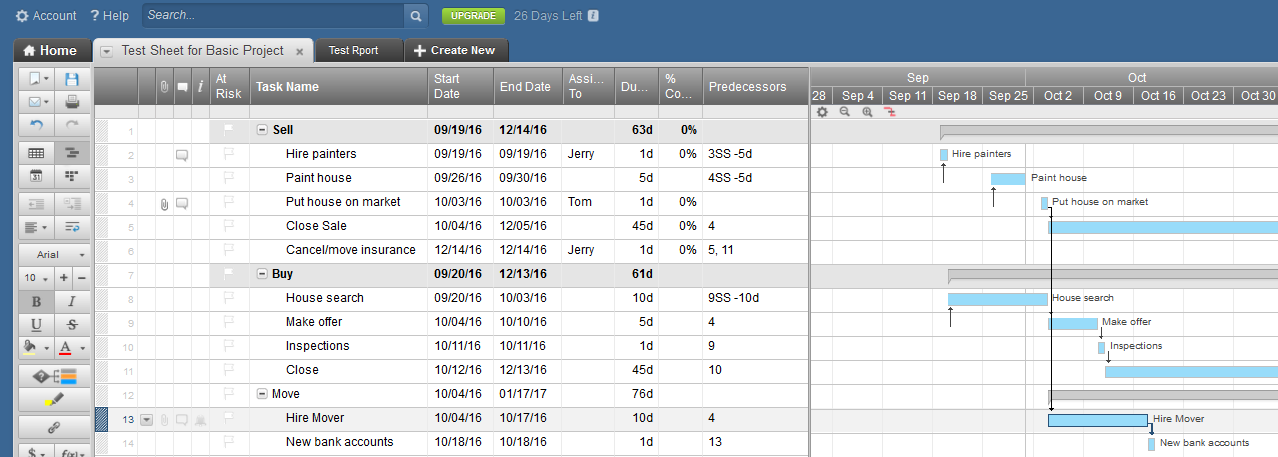
    Smartsheet organizes projects into “sheets”, using one of the Smartsheet templates or using the basic layout. In your sheet, you’ll enter tasks as rows. You can add files to any line on a sheet, uploading a file from your computer or connecting to cloud services such as Google Docs, Dropbox, Evernote, etc. You can add a discussion to any line on a sheet. You can also send one or more lines of a sheet to someone via email for updates. This person does not need to have a Smartsheet account – she or he will get a link to make the update and you will get a confirmation email after the update is made.

    Depending on which template you use, your columns can include Discussions, Start Date, End Date, Assign To, Duration, % Complete, Predecessors, Comments, etc. You can filter a column – to see just the tasks assigned to you, for example, or you can sort rows by a column value.

    You can view your sheet in grid view, Gannt chart, calendar, or card view.

    At the bottom of the sheet are options for sharing the sheet, adding alerts, attaching files to the sheet, adding discussions to the sheet, requesting updates, adding a Web Form (similar to Google Forms), and publishing a link to the sheet.

    In card view, you can move your tasks between columns.

    The card view columns are defined in a drop-down list in your grid view. In my example below, I defined the “Comments” column in the grid view as a drop-down list with selections for “Started”, “On Track”, “Possible delay”, “Need help”, and “Will finish soon”. In card view, I can move a task to any of these selections.
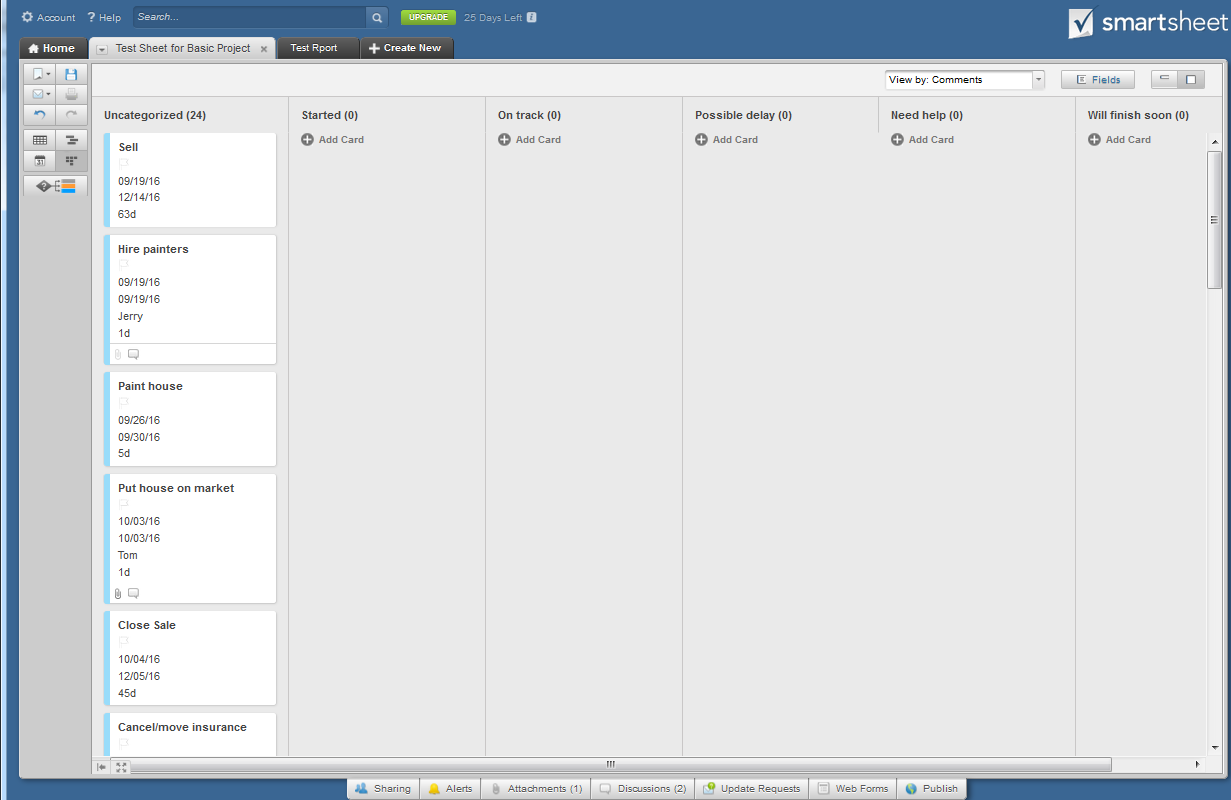
    Manage Projects Using Smartsheet Card View

    You can create custom reports across sheets for tasks assigned and you can create workspaces to organize projects and reports.

    Smartsheet’s mobile apps (available for Android and iOS) are also easy to use, and the sheets you create are easy to view on even the small screen of a smartphone—something that’s not always true of spreadsheets.

    Smartsheet is free for 30 days. After that, plans start at $14 per month and go up from there.

    SUBSCRIBE TO MY NEWSLETTER

    Get the “Controlling the Chaos” Newsletter and receive a free PDF download
    “Drowning in Email – A Lifeline for Communications Overload”

    * indicates required


  • Here Are Five Important Questions to Ask After a Completed Project

    Here Are Five Important Questions to Ask After a Completed Project

    A completed project review is called a postmortem

    A project postmortem is a completed project review session.

    A postmortem is essential to make sure that you’ve learned something from the process. And if you’re worked with others on your project, the postmortem is a great forum for knowledge sharing.

    The Dictionary of Corporate Bullshit defines the postmortem as:

     1. “a meeting held following the conclusion of a project to discuss its strengths and weaknesses 2. “billed as a constructive forum geared toward improving a process but really a meeting in which everyone sits around trying to blame someone else for anything that went wrong…”

    Unfortunately, the second is too often true. You can read here about how to hold a successful postmortem: How to Do a Post-Project Review.

    So what do you do with what you’ve learned from your completed project?

    Ideally, you will be adjusting your process for the project. Here are some things that you can examine: (You can review my post on project management here: How to Stay on Top of Your Project Management).

    1. Did your project meet expectations? How would adjust those expectations next time?
    2. Did you miss any tasks that should have been done?
    3. How were your task estimates?
      • If too optimistic, how will better estimate next time? Build in more buffer? Add more resources? Improve productivity?
      • If too generous, can you commit to an earlier deadline next time?
    4. How were your communications? Were they any surprises? Any negative feedback?
    5. How happy were you and/or your team with the project?

    That last question may be the most important one. This article explains how emotions are crucial to successful projects: Run a Successful Project.

    The SanDisk Rolling Stones card was a project that failedIn my corporate career, I worked on many projects that failed because of unrealistic expectations and/or poor estimating. This resulted in missed deadlines and missing the market window. You probably don’t remember this product that I worked on: SanDisk Rolling Stones Card. I still keep this one on my desk to remind me of good ideas poorly executed.

    The important lesson from a completed project is always to learn from your mistakes.

    Get the “Controlling the Chaos” Newsletter and receive a free PDF download
    “Drowning in Email – A Lifeline for Communications Overload”
    * indicates required


  • How to Use a Visual Task Management System to Stay On Top of Stuff

    How to Use a Visual Task Management System to Stay On Top of Stuff

    Do you want smooth and efficient task management?

    Tasks are those often-reoccurring items that you need to complete on a timely basis. Poor task management may leave you feeling frustrated because your to-do list keeps growing and it seems like you’re not getting anything done.

    Most task management and productivity tools focus on very linear thinking. But what if you’re a visual thinker?

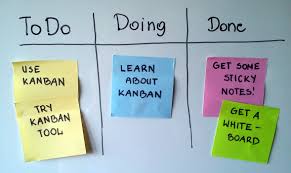
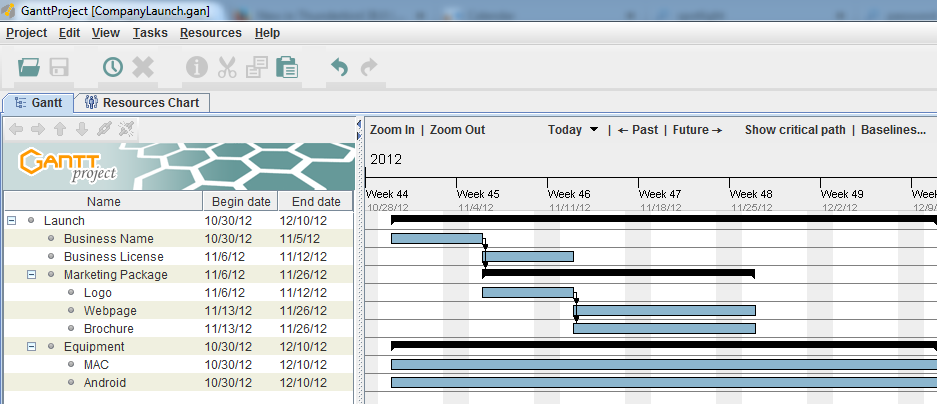
    Visual Task ManagementThe whiteboard is the traditional system for making a visual representation of a project and completed tasks. As we moved into digital tools for project management, the Gantt chart (a type of bar chart) became popular. It was sometimes printed out and displayed to show the project progress. These days, project managers have supplanted the Gantt chart with daily meetings. During these meetings, they move post-it notes, representing the tasks and due dates, around a white board.

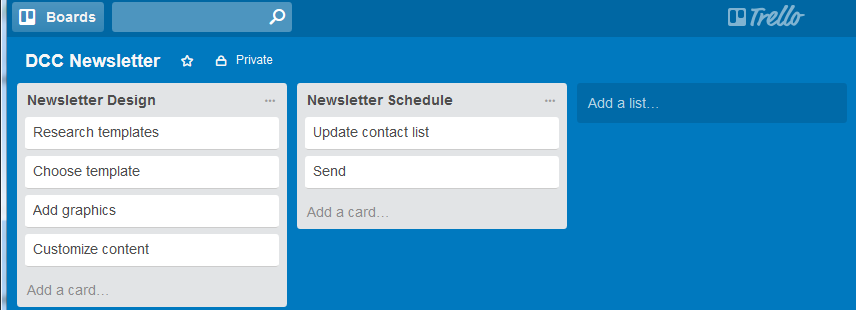
    For individuals and small teams, digital tools are more efficient and practical. Using these tools, you can access your tasks on the go, keep notes and track progress on them, or share them with someone else. One example productivity tool is Trello, which implements something called a “Kaban” board. Trello puts your tasks onto “cards’, and your cards into columns, so that you can arrange your to-dos by lists. An example might be: Column one is “This week”, Column two is “Today”, Column three is “Done”. You can easily move task cards between columns.

    Trello goal and task management

    Trello is a great brainstorming and collaboration tool. For daily task management, here’s a blog post that I wrote about a tool called Wunderlist: Task Management for the Super Efficient. Here’s an interesting perspective on using both Trello and Wunderlist together: Trello and Wunderlist.

    Get the “Controlling the Chaos” Newsletter and receive a free PDF download
    “Drowning in Email – A Lifeline for Communications Overload”

    * indicates required


  • Here is a Free Project Management Cloud Tool That’s Easy to Use

    Here is a Free Project Management Cloud Tool That’s Easy to Use

    Use a project management tool

    Are you staying on top of your project management?

    A project management tool helps. A good tool will give you a visual view of dependencies, progress, and slips in schedule. You also want your project management tool to give you:

    • An overview of the project
    • Completed tasks
    • Tasks in progress
    • Assignments
    • A calendar.

    (Read my blog post here about project management: How to Stay on Top of Your Project Management.)

    I often recommend Insightly to my clients. It’s easy to use and it integrates well with Google Apps for scheduling, calendar, and reminders. It’s a cloud-based application that’s completely free if you don’t need their other CRM features.

    This is how Insightly describes their product:

    Built-in project management functions. Tasks, events, and milestones can be defined and scheduled, with corresponding email notifications triggered by changes or updates. Tasks can be associated with milestones to track projects and percentage of completion. Notes and comments can be added to just about anything, from contacts, to opportunities, to projects. It can deliver nine types of in-depth reports based on opportunities and activities. It also has built-in file sharing capabilities, integration with Google Drive, and versioning control, so team members will always have the latest documents.

    Insightly works with project pipelines, with activity sets for each pipeline stage. If you’re a designer, for example, you could have an activity set for the project initiation stage – with tasks for client proposal, review, sign-off, etc. – an activity set for the initial design stage, and an activity set for the design implementation stage.

    Insightly project management tool pipeline

    Start by defining activity sets in your System Settings. Then create a new pipeline, define your stages, and assign activity sets to the stages.

    You don’t have to use a project pipeline. You can also create a simple project with tasks. You can assign any task to someone else and you can add files to the project for history and for sharing.

    Get the “Controlling the Chaos” Newsletter and receive a free PDF download
    “Drowning in Email – A Lifeline for Communications Overload”

    * indicates required


  • How to Stay on Top of Your Project Management Milestones and Deadlines

    How to Stay on Top of Your Project Management Milestones and Deadlines

    Gantt Chart for Project Management

    Projects have defined start dates and end dates (even if that end date keeps moving!) and it’s important to stay on top of milestones and manage schedule risk. If you’re managing projects with milestones and resources, then you should be using project management software such as Microsoft Project, Insightly, or Asana. (Task management software, on the other hand, is less complex.)

    Here’s how to start the project management process:

    1. Determine your start date for the project and desired completion date.
    2. Define the tasks that make up the project. This is called a “Work Breakdown Structure”, or WBS.
    3. Determine the dependencies for each task. For example, task b cannot start until task a is complete.
    4. Estimate the time it will take to complete each task. You can use different methods to estimate, including past history and resource availability.

    You may think that your start date should be “right now” – after all, by defining the project you have already started it. But your actual start date may have a dependency – budget approval, for example, or resource availability, or client deposit.

    Your desired completion date is probably decided by a commitment to a client or to a customer. This is your deadline – your delivery or launch date.

    It’s your responsibility and your challenge to pick a project completion date that’s reachable and realistic.

    By breaking your project into tasks you can more easily identify where the bottlenecks are. A task that takes longer than estimated can “slip” your desired completion date. If that happens, you try to stay on schedule by examining the remaining tasks. See if you can complete them faster by adding resources or changing requirements.

    Once you launch your project, you have to stay on top of it to make sure that you’re on schedule.

    A project management tool helps by making it easier to visually track dependencies, progress, and slips in schedule. You also want your project management tool to give you an overview of the project, completed tasks, tasks in progress, assignments, and a calendar.

    I often recommend Insightly to my clients. It’s easy to use and it integrates well with Google Apps for scheduling, calendar, and reminders. It’s a cloud-based application that’s completely free if you don’t need their other CRM features.

    Insightly works with project pipelines, with activity sets for each pipeline stage. If you’re a designer, for example, you could have an activity set for the project initiation stage – with tasks for client proposal, review, sign-off, etc. – an activity set for the initial design stage, and an activity set for the design implementation stage.

    Using Insightly Pipelines for Project Management

    Start by defining activity sets in your System Settings. Then create a new pipeline, define your stages, and assign activity sets to the stages.

    You don’t have to use a project pipeline. You can also create a simple project with tasks in Insightly. You can assign any task to someone else and you can add files to the project for history and for sharing.

    For larger projects which require real-time communication, collaboration on tasks, and file sharing, Asana and Basecamp are both good cloud-based tools popular with teams.

    The project management workhorse with extensive features is Microsoft Project. However it’s expensive, hard to learn, and mostly used by large companies. Microsoft recently released an easier-to-use more visual tool for enterprise teams called Planner.

    Although I recommend using a project management tool, you can also manage smaller projects with an easy-to-use task management tool. See my blog post here: Task Management for the Super Efficient

    If you find yourself unable to stay on task and your estimates are way off, then you’re not working productively.

    Sometimes, no amount of technology can help. Read my blog post here on working productively: How to Remain Productive.

    SUBSCRIBE TO MY NEWSLETTER

    Get the “Controlling the Chaos” Newsletter and receive a free PDF download
    “Drowning in Email – A Lifeline for Communications Overload”

    * indicates required


  • Who Else Wants to Easily Find Photos When You Need Them?

    Who Else Wants to Easily Find Photos When You Need Them?

    Most of us have an abundance of digital photographs – so many that we are not taking the time to look through them and organize them. The problem is that when you want to go back and find photos, you might find yourself in a time-consuming and frustrating search.

    Find Photos by Tag

    I was recently looking at an old photo of my brothers, and it struck me that I had a recent photo of my brother and son that was strikingly similar. I had no idea when I had taken that photo, but I had to find it.

    Fortunately, it was a cinch for me to find photos since I had tagged them with both of their names and the location.

    Find Photos by Tag

    Brian Chen recently wrote an article in the NY Times about his search for the best software to use that could automate photo organization. Brian calls tagging systems “neurotic”, but also admits that “If you spend tons of time rummaging for a specific photo, then sorting photos may be worthwhile.”

    Brian has a point that most people don’t have the time or the inclination to do a lot of photo organizing, and I strongly believe that automating tasks as much as possible is the way to go, but I also believe that automation isn’t where it needs to be, not yet.

    You can read Brian’s article here: Zen and the Art of Managing Cell Phone Photos.

    Brian recommends using the Google Photos service because of its automated image recognition. When I uploaded my marketing photos to Google Photos and did a search for “computer”, it did quite well at finding photos of computers. But when I did a search on “umbrella”, it found a photo of a camping tent instead. The image recognition is pretty good, finding a photo of a deer correctly, and of a starfish, but missing most of my whale photos.

    Image recognition is bound to improve, and I’m looking forward to that, but in order to quickly find photos, I’m not willing to let go of my photo organization system yet.

    If you do use Google’s Photos service, I strongly disagree with Brian about deleting your photos after uploading them. You should not delete your photos from your phone until you’ve copied as well to your computer.

    You can read my blog post here about backup: Be Sure That Your Memories are Safe.

    Getting an organization system in place is something that you should start now for your future photos and that you can implement for your past photos as you have time.

    You can read my blog here about photo organization: 6 Steps for a Photo Organization Routine.

    Need help with photos?

    Contact Me


  • If a Mac User, Are You More Hip? If PC, More Practical?

    If a Mac User, Are You More Hip? If PC, More Practical?

    Trendy Mac, Practical PC

    Are you Mac or PC? What does that say about your personality?

    Let’s look at a little history to see how we got here with this question. The Apple II was the first personal computer, released in 1977 after Steve Jobs and Steve Wozniak founded the company – followed by the IBM PC in 1981, running Microsoft MS-DOS.

    Always one step ahead, Apple under Steve Jobs released the Macintosh in 1984 – its windows interface was a revelation at the time. Microsoft’s Bill Gates, no dummy to the potential of a graphical user interface, released Windows in 1985.

    Jobs accused Gates of stealing the idea, but Gates replied, “Well, Steve, I think there’s more than one way of looking at it. I think it’s more like we both had this rich neighbor named Xerox and I broke into his house to steal the TV set and found out that you had already stolen it.”

    Microsoft far outpaced Apple in market share throughout the ‘90s and 2000s, but after Jobs’ return to Apple in 1997, the release of the iPhone & iPad, and the trend toward more remote workers and consultants, the Macintosh has seen a resurgence in popularity.

    Bill Gates is generally considered a “nice” man – cutthroat in business, yes, but philanthropic and generally respectful of others. He’s a brilliant engineer as well as a brilliant businessman. Steve Jobs is brilliant in other ways – a visionary and creative marketer.

    So if you’re a PC user, does it mean that you’re more practical (like me!) and a “nice” person? (I’m not talking to you gamers. I know that you love your gaming PCs!) If you’re a Mac user, are you more visionary and creative? More hip? Or just wealthier?

    Here’s a survey that suggests that it may be true. You Mac users may be more like Steve Jobs than Bill Gates: Mac and PC Users

    There’s actually a third category of users. You may own a Chromebook, or you may be someone who has a Mac or PC but mostly uses Gmail and/or Google Docs through a web browser. What kind of person are you?

    If you’re like Larry Page and Sergey Brin, the founders of Google, you may be younger, less aware of the history of the Mac vs PC debate, and just focused on the best way to get the job done.

    I’m bilingual, so I can help you learn how to make better use of your Mac or your PC.

    Contact Me


  • Office on Mac? What you ought to know…

    Office on Mac? What you ought to know…

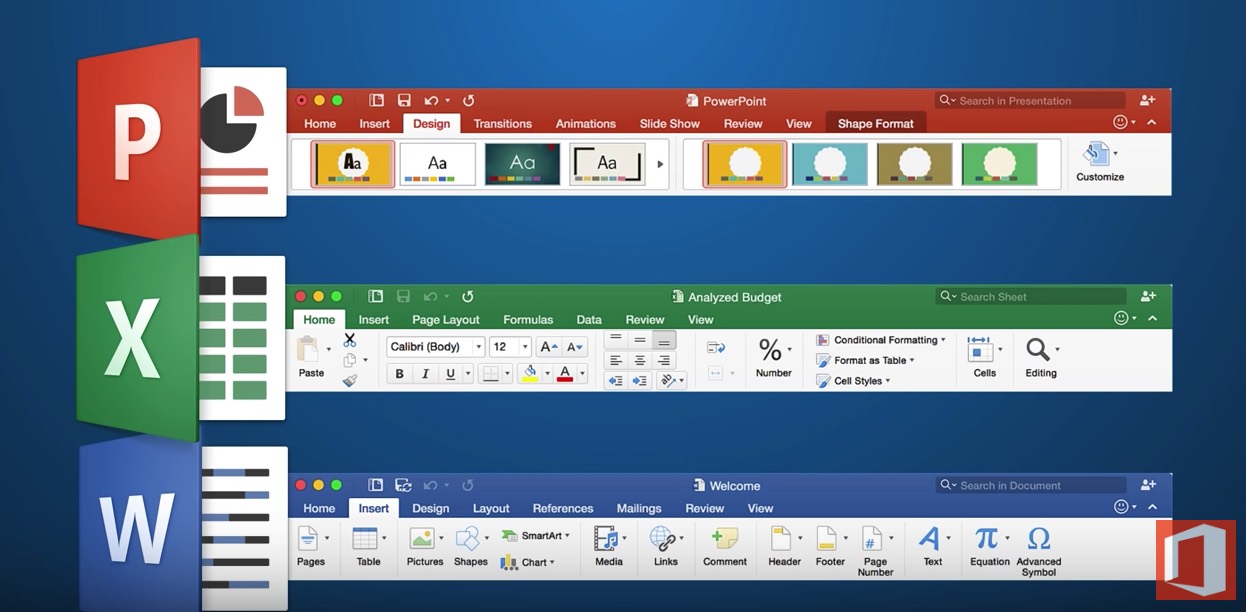
    Office for the Mac

    Office on the Mac has always been an afterthought for Microsoft, and not as full-featured as its PC equivalent.

    Microsoft has a different development team working on Office for the Mac, and, over the years, people have wondered if the team was just a couple of engineers working in the Microsoft basement. (If you’re curious, here’s a video of the team from a couple of years ago: Office for Apple Team).

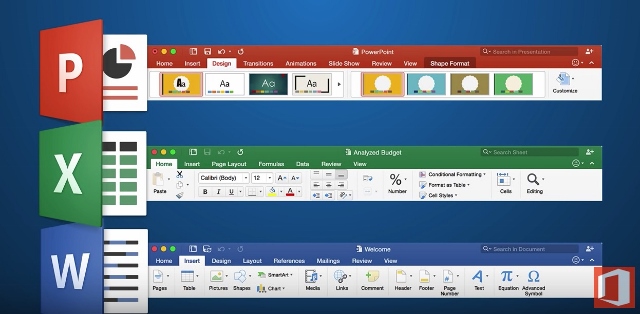
    Microsoft has made many improvements in its 2016 version for the Mac. If you’re used to the PC version, the Mac version now much more closely resembles it.

    Word, Excel, and PowerPoint all have improved features and interface.

    Excel for Mac has many new features but still does not support pivot charts, if that’s important to you. (Here’s an article from Microsoft about those: Overview of Pivot Tables and Pivot Charts). PowerPoint has many new templates and now has presentation mode, but does not allow you to record your presentation with a narration and save it as a movie.

    Here’s a more detailed article: Office for Mac 2016 Overview.

    Outlook 2016 for the Mac is also improved, at least for working with email. For example, you can now have different signatures for different email accounts. But if you’d like to access your contacts and/or calendar from your mobile device, there is no mechanism for sync with Outlook on the Mac. If that’s important to you, then you’ll have to use the Mac Address book and Calendar program instead.

    Make sure that you’re keeping your Office for Mac updated with the latest software releases and bug fixes. If you haven’t updated yet to El Capitan, it’s important to update your Office software first or you may run into trouble. And if you have updated to El Capitan, make sure that you have the latest version of the OS as Apple has improved compatibility with Office.

    Need help with Office for the Mac? Contact me.


  • How To Easily Follow-up on Those Important Emails in Outlook

    How To Easily Follow-up on Those Important Emails in Outlook

    Outlook Follow-up To-do

    If you’ve gone through the process of email organization (see my blog post here: 4 Steps to Becoming More Responsive), then you hopefully have a streamlined inbox with just the most important emails.

    You also should have a daily routine of dealing with those emails that consists of:

    1. Evaluating
    2. Acting On, filing, or flagging for follow-up

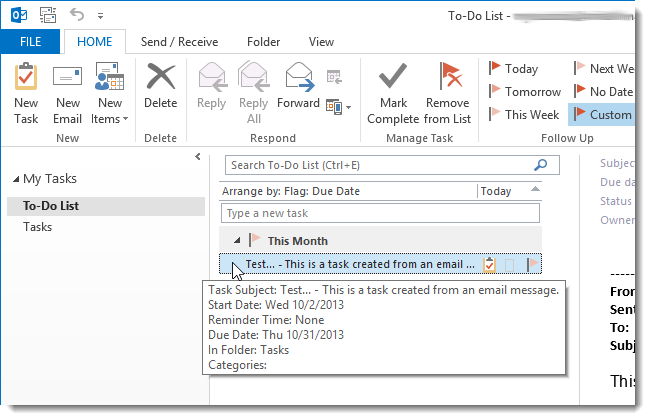
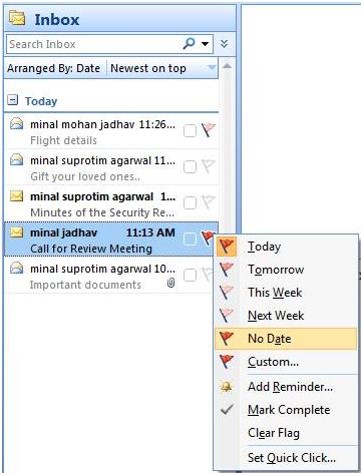
    Flagging an email in Outlook creates a follow-up to-do item.

    Your email is not only marked with a flag in your Inbox, it’s also listed in your Tasks view under “To-Do List”, in the To-do sidebar, and in the Daily Task List in your calendar.

    (Outlook treats your email to-do a little differently than a task that you’ve created. You can’t assign it to someone else, for example, or track its progress. If you delete the email, then you delete the to-do.)

    Outlook Follow-up to-doIf your email account is a POP account, open the email and select a flag for Today, Tomorrow, Next Week, etc.  If your email account is an IMAP account, you have only the option of a flag with no follow-up date.

    You can then sort your email inbox by selecting “Arrange By: Flag” under the View menu.

    You can also look at these flagged emails in Tasks under “To-Do List”. (Outlook lists IMAP emails under Due Date: No Date.)

    If you want to create an actual Outlook task, rather than an email to-do, then you can drag the email to Tasks on the navigation bar. Outlook saves the email content to the body of the new task. You can now delete the original email if you wish. Since you will be able to assign a due date for the task, this is the recommended method for any IMAP account.

    Here’s a detailed blog post outlining this method: How to Create a Task from an Email Message.

    SUBSCRIBE TO MY NEWSLETTER

    Get the “Controlling the Chaos” Newsletter and receive a free PDF download
    “Drowning in Email – A Lifeline for Communications Overload”

    * indicates required


  • What Everyone Ought to Know About Office Alternatives

    What Everyone Ought to Know About Office Alternatives

    Microsoft Office

    Microsoft Office has been a workhorse for years.

    Many of us first became accustomed to it in our corporate work. If you’re still working in a corporate setting or if you’re creating detailed documents, spreadsheets, or presentations on a PC, there’s still nothing that beats Office for standard and more advanced content creation.

    Office is not cheap.

    A single license of Office Home and Student costs $120, but we’re often working on multiple devices these days. If you want to install Office on your home computer, your office computer, and your iPad, you’re better off with Office 365, which costs $9.99/month. Other advantages to Office 365 include automatic updates and new downloads to new computers.

    Office on the Mac has always been an afterthought for Microsoft, and not as full-featured as its PC equivalent. (However, Microsoft made many improvements in its Office 2016 version for the Mac.) Fortunately, if you’re on a Mac, you’ve got a great alternative – Apple’s application suite – Pages, Keynote, and Numbers. (Just remember to convert to the Office document equivalent when sharing files so that PC users can open them.)

    If you don’t need the advanced options that Office provides, then Google Docs is worth checking out.

    Mac or PC, you’ve also got an alternative with Google Docs, Google Sheets, and Google Slides. These applications are completely free to use on the web and also via the Google Docs mobile apps. Advantages include 15 GB of cloud storage space, easy collaboration with other Google users, and conversion to Office files for sharing.

    Office OnlineAnother option, perhaps even a better one than Google Docs, is Office Online. You can use the online versions of Word, PowerPoint, and Excel free of charge, with 5 GB of cloud storage. The online versions don’t have all of the features as the paid versions, but that may be fine if you’re not a power user.

    Microsoft Office OutlookMicrosoft Office for Business also includes Outlook, which is a nice integrated email reader, contacts manager, calendar, and task manager. Outlook calendar and contacts can sync with your iOS device by installing the iCloud plug-in, but you’ll need to look at third-party apps for Android contacts sync, or sign up for a Google for Work account.

    Mac Mail Office AlternativeIf you’re a Mac user and you don’t have Outlook, or you don’t want to use the Mac version of Outlook, then Mac Mail is a fine program and integrates well with the Mac Address Book. You will have to launch the Mac Calendar and Mac Reminders separately. (If you’d like to know how to integrate Mac Mail with Mac Reminders, read my blog post here: How to Ingrate Email with Task Management). The Mac Calendar and Mac Address Book can sync with both iOS and Android (through your Google account).

    Windows has always had a basic email program as part of its Windows Essentials. In Windows 10, Microsoft released a new mail program with integrated calendar and contacts. (The jury is still out on this program as Microsoft works out the bugs.) With the release of Windows 10 Mail, Microsoft will no longer be updating Windows Live Mail, and will no longer support it for outlook.com email addresses. Unlike Outlook, Windows 10 Mail will sync with both iOS and Android contacts.

    Thunderbird Office AlternativeFor years, I’ve been using a free program from Mozilla called Thunderbird as my email reader on the PC. Thunderbird, like Outlook, is extensible with add-ons, so I have a calendar add-on called Lightning, and another add-on that syncs with my Google calendar. There are available add-ons for contacts sync as well. Thunderbird is a full-featured program that may be a bit difficult for many people to learn, and the search function is limited. However, if you’re on a PC, you don’t have Outlook, and you have multiple email addresses that you want to manage in one place, then Thunderbird is an excellent option.

    Need help with Office or your email program? Contact me.