Tag: productivity

  • How to Stay on Target with Your Goals

    How to Stay on Target with Your Goals

    Task Manager for Your Goals

    What is productivity?

    Productivity means performing on target according to your goals and deadlines. Let’s say your goal is to create a social media presence and have twenty followers. You’ll need to set a deadline to achieve that goal, break it down into achievable tasks, and assign a due date for each task.

    If you’re working unproductively, you won’t meet your goals by the deadline. This results in missed opportunities, loss of income, and perhaps a drop in confidence.

    There are many reasons for missing your deadlines, including unexpected obstacles, distractions, and unproductive employees. But you can mitigate the risk by making sure that you have good productivity tools in place.

    Start by setting up your system.

    You need:

    • Task management or project management software
    • Documented goals and deadlines
    • Activity sets for each goal
    • Due dates for each task with reminders
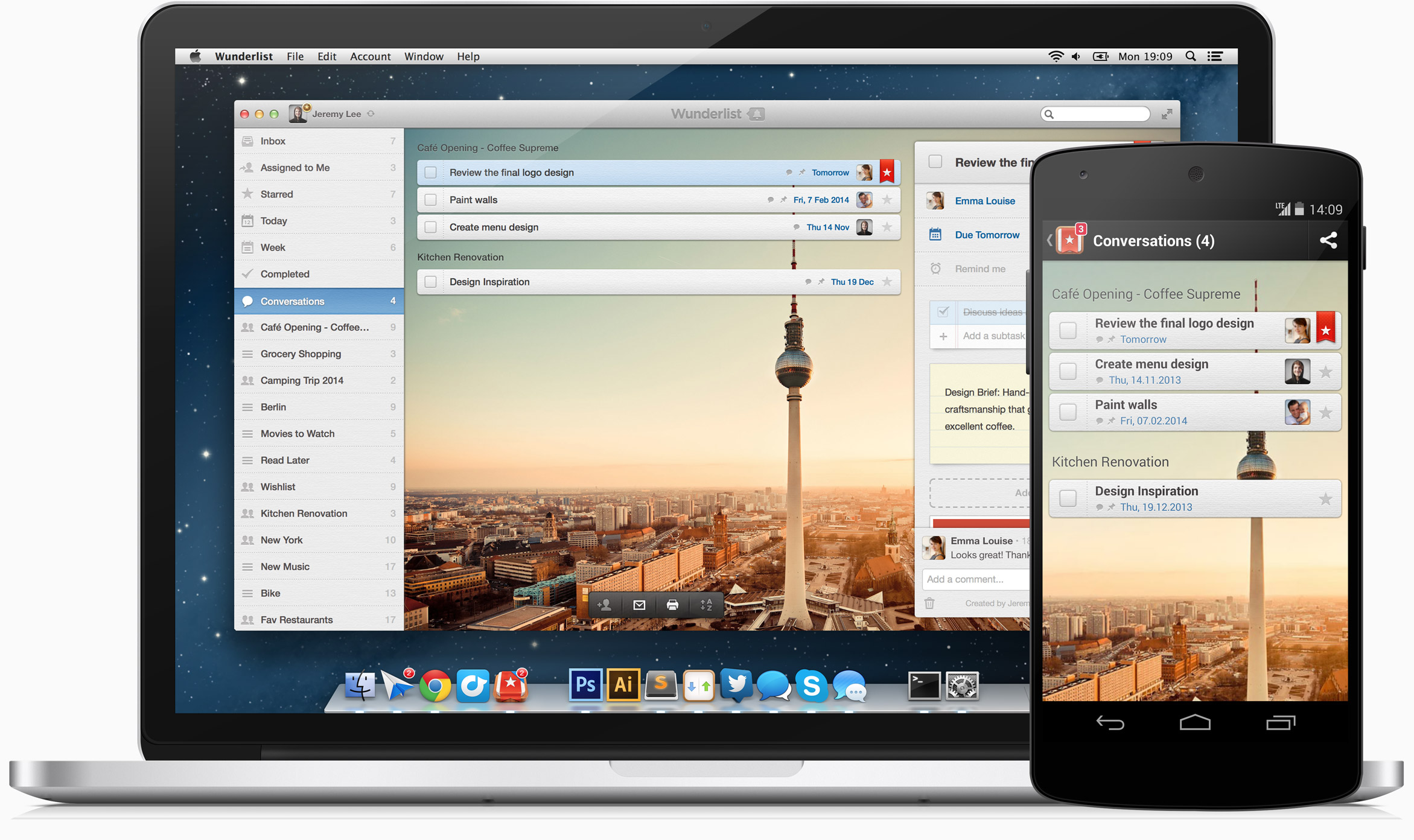
     
    Wunderlist goals and tasks manager


    Here’s my blog post on my preferred task manager called Wunderlist: Task Management for the Super Efficient. For project management, I like Insightly for ease of use, others prefer Asana or Basecamp.

    The next step after setting up your system is to determine your best method for working productively on a single task.

    This includes considering your work layout and your most productive time of day. Also consider limiting distractions during your work time by turning off notifications. Start by reading my blog post here about “perceived” productivity: How to Remain Productive.

    One productivity method is “Getting Things Done”. I’ve mentioned this in previous blog posts. Here’s a post about this and other methods for productivity: The Busy Human’s Guide to the Best Productivity Systems.

    As you’re working toward your goals, you will not only have to deal with distractions, you will also have to deal with shifting priorities.

    Let’s say, for example, that after reaching 10 followers on social media, all 10 are requesting a consultation or more information. These are new tasks that you have to integrate into your system.

    Do the following at least weekly:

    • Review your deadlines
    • Analyze your productivity and the factors affecting it
    • make adjustments


    Gantt Chart for Goals
     
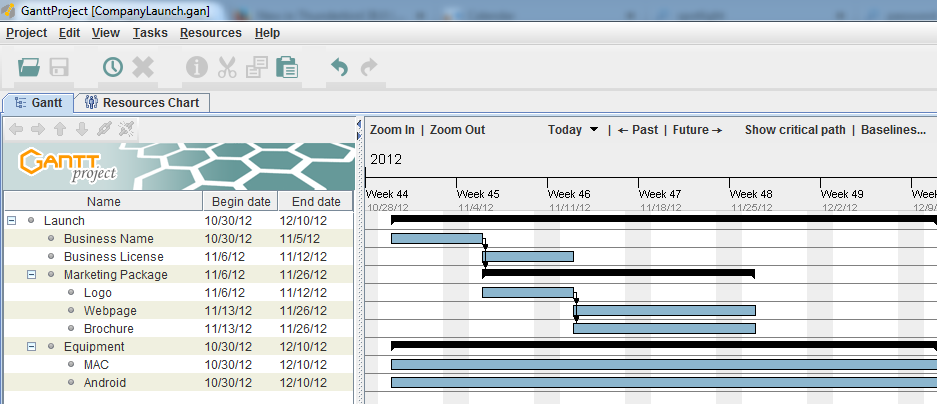
    The white board is the traditional system for making a visual representation of a project. As we moved into digital tools for project management, the Gantt chart (a type of bar chart) became popular. It was sometimes printed out and displayed to show the project progress.

    These days, these methods have been replaced with methods that recognize the shifting priorities of projects.

    Teams have daily meetings run by project managers. They move post-it notes around that represent tasks.
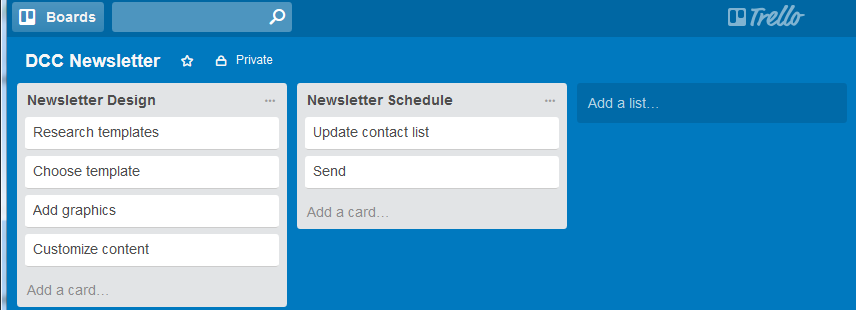
    Trello goals and tasks management

    There are now project management tools that use a more visual method. One example is Trello. Trello implements something called a “Kaban” board. It puts your task cards into columns so that you can arrange your tasks by lists.

    An example might be: Column one: “This week”, Column two: “Today”, Column three: “Done”. You can easily move task cards between columns.

    Whatever your working style is, once you’ve got the right systems and the right tools in place, you’ll be able to reach your goals consistently.

    Get the “Controlling the Chaos” Newsletter and receive a free PDF download
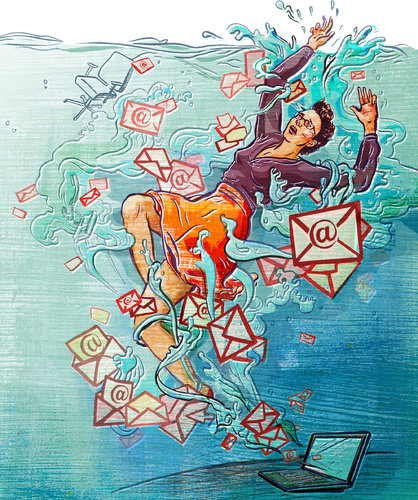
    “Drowning in Email – A Lifeline for Communications Overload”
    * indicates required


  • Inbox Zero Eliminates Overload – by Michael Neuendorff

    Inbox Zero Eliminates Overload – by Michael Neuendorff

    Inbox Overload

    Do you suffer from email overload?

    Terrible, isn’t it? Every time you open your Inbox the email just flows in like a waterfall.

    The challenges with managing email are myriad. Here are a few:

    • Feeling overwhelmed before even getting started
    • Losing track of an email and asking the sender to send the email again. (Now there are 2 copies in the Inbox!)
    • Difficulty prioritizing
    • Looking at, but not dealing with emails. This becomes an unproductive pattern.
    • Email seems more like a curse than a benefit

    Can you relate? I worked with many people over the years that suffer from email overload. It’s a key reason why they feel chronically disorganized and unable to focus on what really matters each day. The email just keeps coming.

    Here’s my true confession: I used to be that way.

    I would routinely let my Inbox balloon to about 2,500, then I’d start cleaning up email for a period, usually over a holiday break, and get back down to 50 or less. After a few years of this, I decided enough was enough and devised some strategies that would work for me.

    This was more than 2 years ago. Since then I’ve never had more than 100 emails in my Inbox. As I write this I have 19 emails in my Inbox. Here are my 6 rules I follow to manage email.

    1. Move everything non-essential out of your Inbox. What I mean is to have a separate email address for personal email, which includes email from your bank, insurance company, restaurants you like, etc. This puts only business-related email into your primary Inbox. Second-level business email should go into folders via Rules or into another Tab ala Gmail. I use the Gmail tabbed approach.
    2. Be militant about unsubscribing to email you don’t want from Senders you no longer care about. Too many people are lazy about unsubscribing thinking, “I might like the next email I get.” (Even though they really don’t.) If you see value, keep it. If you don’t, throw it out. Simple rule: You should read all the email you get.
    3. Block time out for email cleaning at least every other day. I make sure I have a few hours to mow through my Inbox every few days. I am not willing to let email pile up so I make it a priority.
    4. Don’t use your Inbox as a reminder system. People leave email in their Inbox to remind them to do things. Use a Task Manager like Asana instead. Use email as a communication tool. That’s all.
    5. As soon as you deal with an email, file it away. I file email like crazy all the time. As soon as I reply to someone, I file their email. After they reply, I file it again. Over and over, file, file, file. By the way, this requires that you have file folders for everything and everyone.
    6. Delete email constantly. If I’m not filing it, I’m deleting it. Just as with Rule #5, refuse to let email linger.

    If you’ll follow these 6 rules you’ll have a fighting chance at Inbox Zero.

    The reason you want to do this is because it will lift a huge weight off your shoulders and you’ll realize the true power of email as the powerfully efficient communication and moneymaking tool that it is.

    Once you’re there, vow to never go back to the way it was. Ever.

    If you’d like more tips about dealing with email, get these two books: Getting Things Done by David Allen, and The Ultimate Sales Machine by Chet Holmes. These books cover much more than email, but their tips on this topic were instrumental to my approach.

    Michael Neuendorff is an acclaimed Business Coach and Sales Trainer. Learn more about his business at http://www.buildandbalance.com.

  • I never finish anythin…

    I never finish anythin…

    Task List

    If you’re using your email inbox as a task list, you’re probably seeing it get out of control. Even if you’re flagging important emails and looking at your flagged email daily, are you feeling a little worn-down with how many emails you’re seeing? Seeing a long to-do list or a stack of actionable emails can leave you feeling like throwing in the towel.

    You know that you can’t give up. You need to get through them because they were important enough to flag in the first place. The root of the problem is that it takes too much of your attention and decision-making skills to look at each one and determine the action needed.

    Save your email as a task

    In my blog post here: How to Ingrate Email with Task Management I write about integrating your email with a task manager. If you save an email as an actual task, then you can re-write the title and add notes to help you to remember what it is that you have to do. Wouldn’t it be much easier to look at a list of actionable tasks then a list of emails with vague titles?

    You still may have a to-do list that’s long, but if you focus on your top 5 every day then you can whittle down your list over time. (If you list continues to grow because of too-full days, you may also want to look at delegating and outsourcing.)

    Every task is an action

    One great technique for a to-do list is to make every task an action. I.e., if you have an email from David titled: “Hey Robin, can we talk soon?” you need a task that’s more like: “Contact David and schedule a discussion”.

    Here’s a great article about organizing your to-do list by emotion: Sort Your To-do List By Emotion. If I take the previous example and change it to this: “Contact David and schedule a discussion (Great Sense of Accomplishment)”, I would feel more motivated to get it done.

    Get the “Controlling the Chaos” Newsletter and receive a free PDF download
    “Drowning in Email – A Lifeline for Communications Overload”
    * indicates required


  • Do You Swipe?

    Do You Swipe?

    If you have a smartphone, you probably do. Apple’s iOS first popularized the use of swipe gestures such as swiping between app screens. In later iOS updates, Apple added more swipe gestures, such as swiping down to see notifications. Now, smartphone applications are adding their own swipe gestures, which are similar to clicking on something in a computer application and then selecting an action. But swiping is so much simpler, isn’t it?

    When you think about all of the actions that you can take with an email – reply to it, forward it, delete it, archive it, move it, flag it, etc., have you ever wondered if there’s a more efficient way?

    Swipe Gestures for Apple Mail

    Apple, Microsoft, and lots of other application developers have been thinking about it too. Here’s what you can do now with Apple mail on your iOS 9 device:

    • You can swipe on an email from left to right and mark the email as “Unread”.iOs Mail Swipe
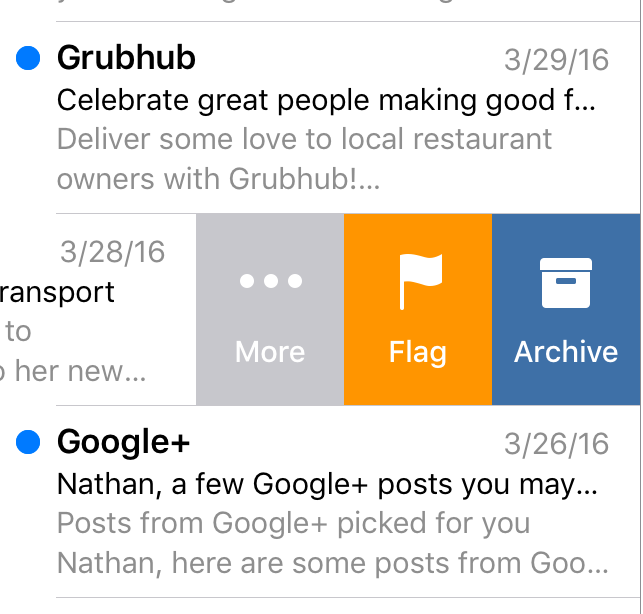
    • As you swipe slowly from right to left, you can select “Archive”, “Flag”, or “More…”. From “More..”, you can select “Reply All”, “Forward”, “Mark..”, “Notify Me…”, “Move Message”.
    • Swiping quickly from right to left will delete the message.

    If you don’t like these gestures, you can go to your Mail settings and change them.


    On your Macintosh, you can swipe left on an email to delete it, or swipe right to mark it as read.

    Other Applications are Going Further

    Some application developers are going further. Here are a couple of examples:

    Google Inbox Swipe

    • Outlook for iOS adds the ability to swipe to schedule an email. This is like a “snooze” feature for an email that you don’t have time to deal with right now.
    • In Google’s Inbox app, swiping right marks the email as “Done.” Swiping left will “snooze” it, similar to Outlook’s “swipe to schedule”. Swiping down or up will close the email.

    One of the biggest breakthroughs in technology was the mouse and the ability to move a cursor around the screen, click to select, and click to perform an action. In the mobile-centric 21st century, we are moving rapidly toward an all-touchscreen world. Knowing the swipe gestures and other kinds of gestures for your favorite applications will keep you working efficiently.

    Confused about how to swipe? Contact me.


  • How to Manage Emails and Tasks

    How to Manage Emails and Tasks

    Tasks

    If you’re like me, you spend a good part of the day in front of a computer. I have several to-do lists, consisting of project tasks, business tasks, and personal tasks. Throughout the day, I’m also getting phone calls and emails.

    The phone calls are easy because they’re immediate.

    I take notes during the call, bring up my calendar for scheduling, and then fill in my intake form with the information that I’ve written down. I can then transition to my task management tool, my project management tool, or my CRM (customer relationship management) tool. If I get the call when I’m away from the office, then I will do some of this on my mobile device and the rest when I get to my computer

    Some emails are easy.

    If I see any emails come in from a paying client or a potential client, I will deal with that email shortly. If those come in when I’m out of the office, I’ll respond on my mobile device.

    Other emails become to-dos on their own.

    There may be invitations to meetings or events or lunch. There may be clients out of the office currently and whose emails I need to follow up on later. There may be business partners sending information that I’d like to read when I have time.

    Every single one of those emails becomes a task in itself. But they’re not on my to-do list, and they’re not organized into my daily blocks of time that I allocate for certain tasks. There is a risk that, by using my email inbox as another task list, there are things that won’t get done.

    It may be fine for you to keep emails as tasks in your inbox. You could schedule some time every day to deal with those tasks. It’s a good idea in general to block out time every day to do email anyway – to categorize emails, archive, delete or flag. You can sort your inbox so that the flagged emails are at the top, and then spend that time dealing with them.

    It’s easy to get behind with these emails tasks.

    You may find yourself with a list of flagged emails that just keeps growing. They’re all important, but how do you find the time to get through them? Are they all equally important?

    It may be more efficient to integrate those emails instead with whatever task management system you’re using. See my blog post here about email/task integration: How to Integrate Email with Task Management.

    If you’re not using a task manager, then here’s some that you can check out:

    1. Outlook

    If you use Outlook for email and calendar, then it may make sense to use the built-in task manager as well. The downside to this is that you can’t quit your email program to focus on your task list. You may find that other task managers fit your needs better.

    1. Google Tasks

    If you use Gmail and Google Calendar, then Google Tasks may make sense for you. The interface is easy to use and it functions just fine as a straight-forward task manager.

    1. Apple Reminders

    Apple Reminders is another good, simple task manager, for use on Apple devices only. If you don’t need collaboration, then Apple Reminders should work for you.

    1. Wunderlist

    This is my choice for a task manager. I have Wunderlist installed on all of my devices so that I can sync and access my to-do list wherever I am. I can create multiple lists, sub-tasks, a “starred” list, a “today” list, and I can share lists.

    1. Evernote

    Evernote is more of an information organization system then a task manager. But many people like to use it for their to-do lists. You can create an Evernote Notebook for your to-dos and assign reminders for them.

    Email can be a distraction in your otherwise productive day. It can be stressful to see those emails tasks piling up. You’ll need a regular routine to stay on top of those email tasks, whether it’s dealing with them as them come in, flagging them for follow-up, or integrating with your task manager.

    Get the “Controlling the Chaos” Newsletter and receive a free PDF download
    “Drowning in Email – A Lifeline for Communications Overload”
    * indicates required


  • How to Integrate Email with Task Management

    How to Integrate Email with Task Management

    Staying on top of email chaos is not easy.

    Even after you’ve followed the steps to manage your email inbox (see my blog post here: 4 Steps to Becoming More Responsive ), you still need to “deal with” those emails that require a follow-up task. How do you make sure that you get those done, and that they don’t get lost in the daily shuffle?

    The easiest way is to have a daily routine to review and act on those emails. If you flag the most important emails, you can sort your inbox by flag. You can then review those emails daily and then delete them or archive them as you finish your follow-ups.

    However, a more efficient way is to merge your email with a task management system. Your emails will then become integrated with your daily to-do list.

    If you’re an Outlook user, then you can use the built-in Outlook task manager.

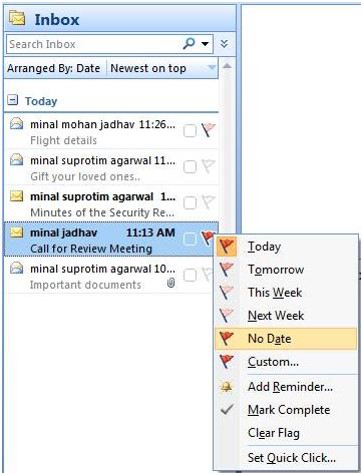
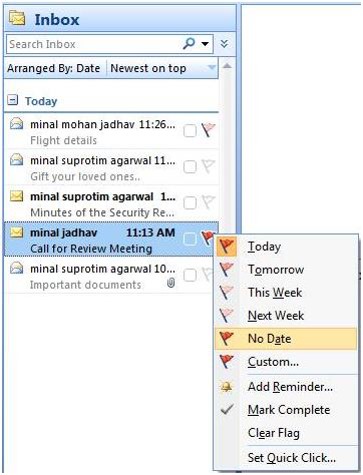
    Outlook Flag for TaskFlagging an email in Outlook actually assigns a follow-up task. If your email account is a POP account, this is pretty straightforward: open the email and select a flag for Today, Tomorrow, Next Week, etc.  If your email account is an IMAP account, you have only the option of a flag with no follow-up date. You’ll have to drag the email to Tasks (in your sidebar) and then assign a due date.

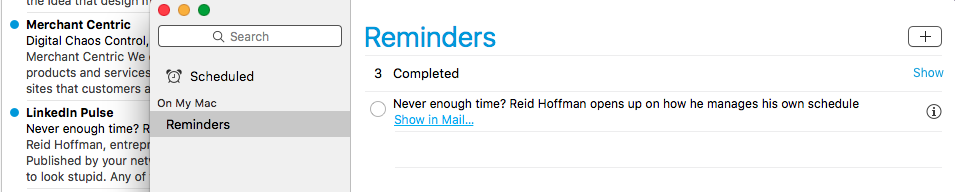
    If you use Mac mail, you can drag an email to your Reminders list.

    Apple Reminders

    Click on the “i” at the right of the reminder, and then choose the day that you want to be reminded on.

    If you’re a Gmail user, you can create a Google reminder from an email.

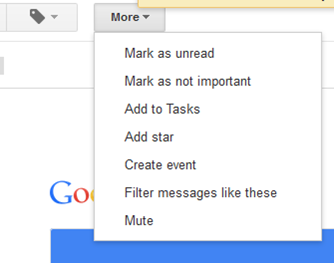
    Gmail Add to TaskOpen the email, click on “More”, and then select “Add to Tasks”. Your Tasks window will open in the bottom right-hand corner. You can then click on the arrow next to your new task to give it a due date. (If you use the Google Inbox app on your mobile device, then see my blog post here: How to Manage Your Gmail Inbox).

    You can also integrate your email with dedicated task managers such as Wunderlist.

    Here’s how it works with Wunderlist: when you’re running the app on your device and signed into your Wunderlist account, you can send emails to your Wunderlist Inbox by forwarding to me@wunderlist.com. Once the email is in your Wunderlist Inbox, you can give it a due date.

    If you’re keeping your to-do list in Evernote, then I suggest creating an Evernote Notebook.

    You could call it “My Tasks”, and then you can then forward emails into that notebook. (You find your Evernote email address by going to “Account Info”.) When you forward an email to your Evernote email address, you can specify a notebook by adding “@<notebook name>” to the subject line. For example, if you forward an email titled “Request for more information”, you would add your “My Tasks” notebook name to that title, so: “Request for more information @My Tasks”. If you’d like to tag the email, also add “#<tag>” to the subject line. You can then go to your Evernote app and assign a due date.

    Many of us like to use our email inbox as a todo list. It’s possible to do this, particularly by using flags to prioritize, but it’s more efficient to have all of your to-dos in one place, including emails that you need to follow up on.

    SUBSCRIBE TO MY NEWSLETTER

    Get the “Controlling the Chaos” Newsletter and receive a free PDF download
    “Drowning in Email – A Lifeline for Communications Overload”
    * indicates required


  • Drowning in Email: A Guide Back to Shore

    Drowning in Email: A Guide Back to Shore

    10-BITS-popup

    Dial back time (you’ll have to imagine if you’re too young) to 1980.

    Imagine your morning routine: you rise, shower, eat breakfast, get in the car (or not), and get to work. You sit down at your desk, and you’re looking at a pile of nearly 100 envelopes that have been delivered overnight, stacked in front of pile after pile of envelopes that you haven’t gotten to in the previous days. You start going through the pile, sorting by the return address according to importance. As you’re doing this, the office mail person keeps coming by and adding more envelopes to the pile. Then your boss sticks her nose in the door and asks, “Where’s that invoice from the marketing agency? They said that they sent it 2 weeks ago!”

    You would probably stand up and say, “I quit!” right? No one could be expected to work like that. You would need an assistant whose only job was to go through the constant stream of mail, file things where you can find them, and bring your attention to the important pieces of mail.

    You can still hire an assistant to take care of your email; many business owners do, hence the rise of virtual assistants. And corporate environments are moving away from email, using team chat and collaboration tools primarily. But email is a long way from obsolescence. Despite being overwhelming and inefficient, it’s still the best way to get your thoughts and questions down and send them to other departments or clients or vendors.

    You can work efficiently and productively with email even without the help of an assistant.

    Your sorting method needs to be automated through the use of filters; prioritizing can be done using flags, and follow-up can be done by integrating with a task manager. You can read further here: 4 Steps to Becoming More Responsive.

    Contact me if you’d like some one-on-one or group help with your email management.


  • How to Manage Your Gmail Inbox

    How to Manage Your Gmail Inbox

    Google InboxIf you’re dealing with Gmail overload, then you have options to get organized and efficient. (If you haven’t yet read my blog post on email organization, then you may want to read it and come back: 4 Step to Becoming More Responsive). Google calls folders “labels”. Google starts you off with your email organization by automatically creating labels for “Promotions” & “Social” and filtering emails into those labels.

    Here are three options for your Gmail organization:

    1. Read your Gmail using any mail reader, such as Mac mail or Outlook. You can take advantage of the organization features built into those programs.
    2. Manage your inbox through Google’s web interface. From that interface, you can create labels & filters, and also star important emails.
    3. Manage your inbox on your mobile device using Google’s Inbox app.

    Google based their Inbox interface on the idea that most of us use our email inbox as a to-do list.

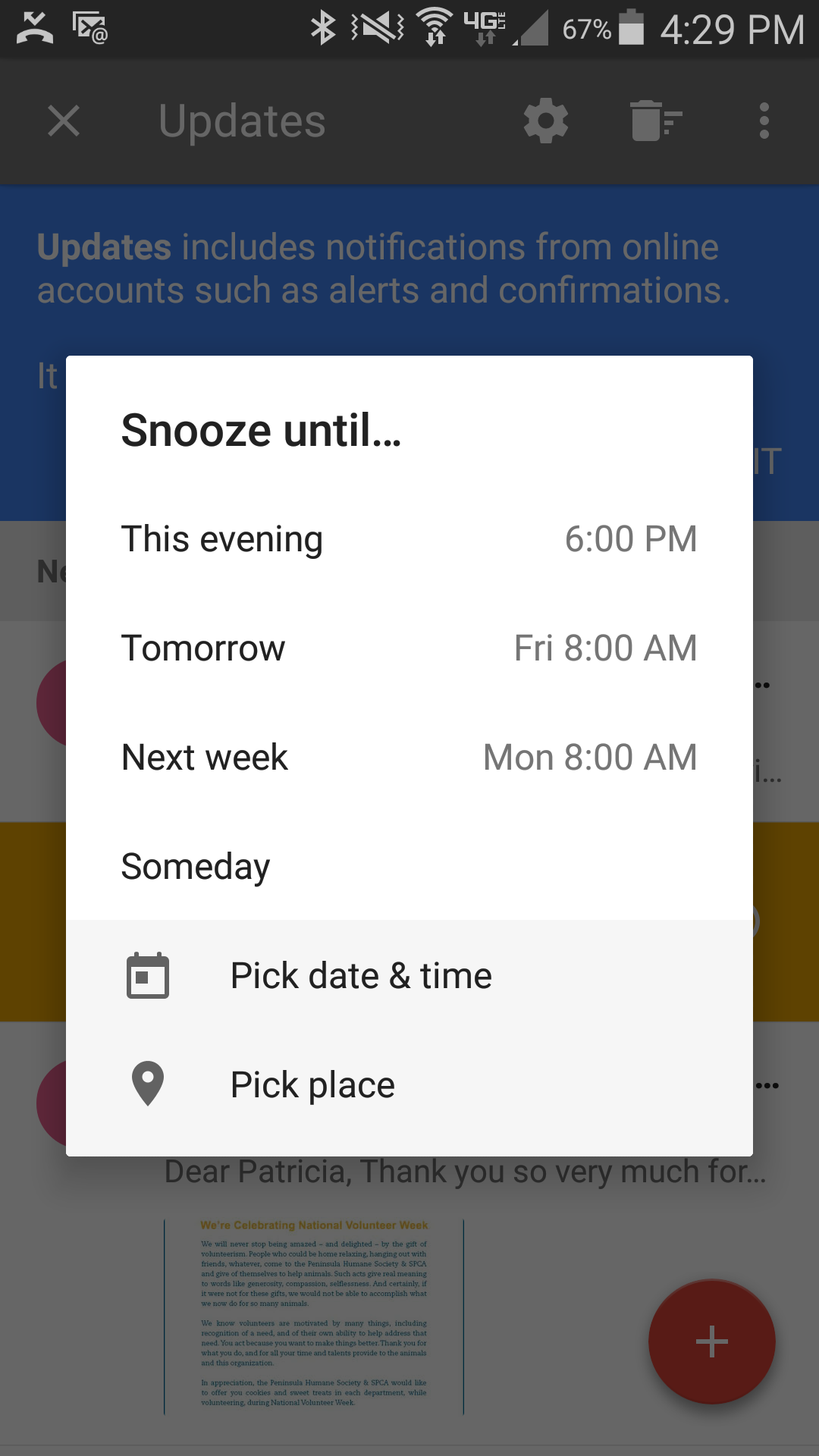
    Through the app’s interface, you “check off” an email item by swiping right to move it to “done”. You can also “snooze” an email, which allows you to select a time that the email will get moved back to the top of your inbox.

    Filters are called “bundles” in the Google Inbox app. You can create new labels with rules. You turn filtering for each label off and on by selecting the label under the menu and disabling or enabling the bundle. If you have an email in a bundle that you want to follow up on, you can pin it so that it shows up as an individual email in your inbox. Then you can snooze it or create a reminder.

    Here’s a great post on TechRepublic about creating Google Inbox bundles: Create Your Own Bundles

    Your Google reminders are also part of Inbox. You can create new reminders or look at your reminder list and check things off.

    Do you need some one-on-one or group help with your email management?

    Contact Me

  • 4 Steps to Becoming More Responsive by Managing Your Email Chaos

    Inbox overload leads to email chaosIt’s very common to procrastinate on dealing with your email chaos.

    Does this sound familiar to you?

    • You dread sitting down at your desk to look at email.
    • You stay at your desk longer every day to try to stay on top of your inbox.
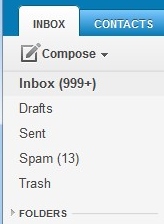
    • The size of your inbox keeps increasing.
    • You have not just emails from your co-workers, clients, friends, and family, but also emails from school lists, notifications from social networks, and newsletters from retailers, vendors, and consultants (including mine! Sign up on the right sidebar).

    Unfortunately, it’s all too easy to miss important communication due to email chaos.

    Email is still an important communication tool but email chaos continues to increase every year. It’s no longer possible to treat your inbox like it’s a to-do list that keeps growing and growing…

    Many of us use an email reader like Microsoft Outlook, but in recent years webmail has become more common, particularly Gmail. There are ways to manage your email chaos whether you’re using Outlook, Apple Mail, or Gmail.

    Here are my suggestions to get a handle on your email chaos:

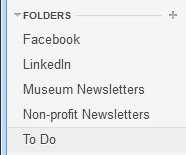
    Email FoldersThe first thing to do is to create email folders.

    These are to serve as repositories for less important emails as they come in. You don’t want those newsletters from your neighborhood grocery store taking up space in your inbox. You may want to read about this week’s specials when you have time, so don’t unsubscribe, manage your inbox instead.

    I suggest creating a folder for each email list that you’re a member of, a folder for social network notifications, a folder for each category of newsletter, and a folder for “deferred” items. The point is to keep your inbox sparse enough so that you’re not spending a lot of time daily going through looking for the important emails. (And go ahead: unsubscribe from any newsletters or marketing emails that you don’t care about).

    In Apple Mail, folders are called “Mailboxes”. In Gmail, they’re called “Labels”.

    After you’ve created folders, the next step is to create “filters” – automatic programs that run within your email reader.

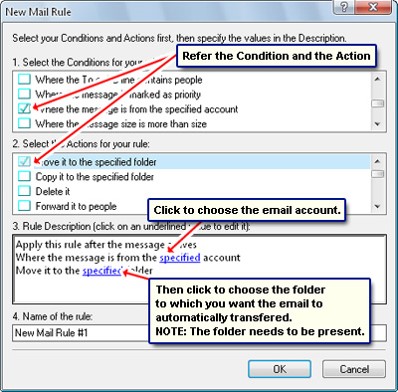
    Filters search for specific criteria, which you define, as your email arrives and then perform a defined action based on those criteria. For example, your filter can search the “from” field for your grocery store name and then save the email to a specific folder that you’ve created in step one.

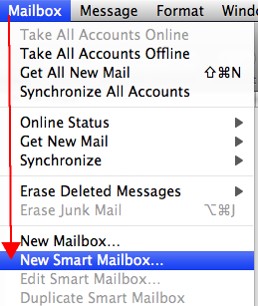
    Apple MailboxIf you use Apple Mail, you create the filters using “Rules” under “Preferences” or using the “Smart Mailbox” feature. (Creating a Smart Mailbox creates a “mailbox” for emails that fit the rules but doesn’t move the original emails out of the Inbox). Apple Mail also has a useful “VIP” feature that creates folders for your favorite people – when you open an email from a favorite person, click on the star next to the “from” line.

    If you use Outlook, filters are called “Rules.”

    Outlook Rules


    Email FlagsOnce you have your folders and filters set up, you should see a big improvement with your email chaos. The next step for Inbox management is to flag your emails with priority levels (Gmail uses colored stars), and then to sort your Inbox by priority, so that you can deal with your most important emails first.

    This is not as easy as it sounds. How do you “deal with” those important emails, since some of the emails just require a response, but often they require creating a follow-up task?

    There are ways to integrate your email system with a task management system, and I will address that in a later blog post. Stay posted!


    Finally, you need to set up your email management routine, preferably by adding time into your calendar.

    I suggest blocking out some time every day to:

    • Priorize and flag your emails
    • Deal with the most important emails, or create follow-up tasks
    • Move less important emails to a “Later” folder.

    I also suggest blocking out some time every week to deal with the “Later” emails and to do clean-out of your other folders.

    If you have a consistent routine, then you’ll find that you’ve become efficient and responsive with your email management. No more apologizing: “I’m so sorry, I didn’t see your email”!

    SUBSCRIBE TO MY NEWSLETTER

    Get the “Controlling the Chaos” Newsletter and receive a free PDF download
    “Drowning in Email – A Lifeline for Communications Overload”
    * indicates required