Tag: evernote

  • Don’t Take My Post-it Notes Away

    Don’t Take My Post-it Notes Away

    Post-it Plus

    Are you someone who still uses post-it notes for to-dos?

    You’re not alone. For a visual person, it can be helpful to glance at those colorful notes to see what’s next in the queue. If you’ve read my post on task management here: How to Stay on Target with Your Goals, then you know that there are some visual task management systems. There are also project management systems that have returned to using post-it notes.

    One of the problems with post-it notes is that your system can get messy.

    If you’re very organized, then you have them on your white board in neat columns , but if you’re not, then they may be stuck all over the place. Also, you have to be in the room to see them.

    If you don’t want to let go of your post-it habit, then there’s an iOS app for you, created by 3M, the maker of post-it notes. You can keep your notes and still go digital to organize them and bring them with you.

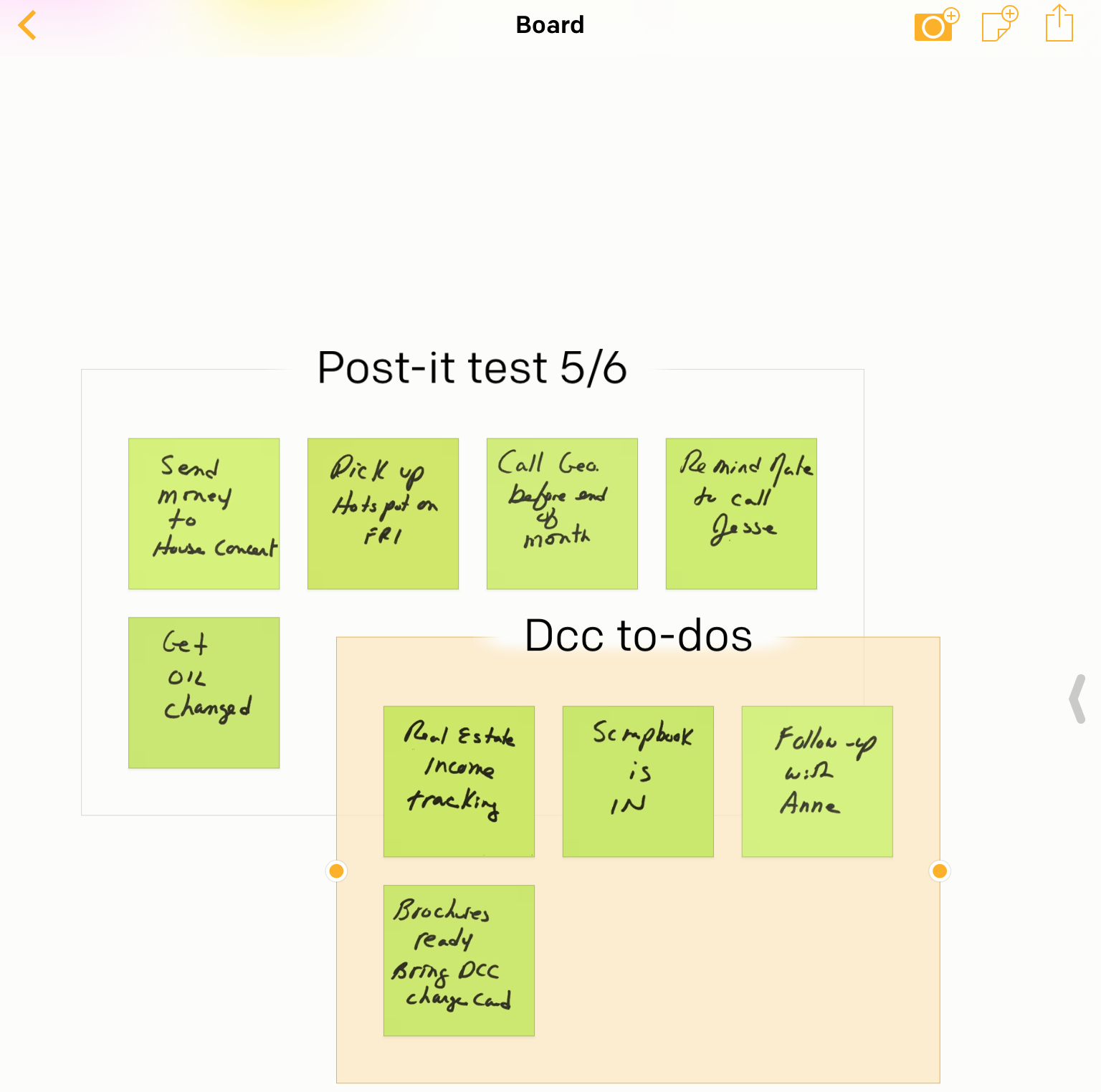
    The app is called “Post-it Plus App”. First, take a picture of your notes. The app will recognize individual notes, allow you to move them around, and also create new notes.

    In my screenshot example above, I started with my notes posted on a wall but not organized in any way. After I took the picture, I moved a note in the app to create a new “board”, and then organized other notes onto that board.

    Now I can see at a glance my personal to-dos board, and my work to-dos board.

    If you don’t work on an iOS device, or if you’d like a more efficient way to work with post-it notes, then consider using Evernote. Here’s a nice post about the Evernote post-it system: Evernote Post-it Notes. More information about Evernote here: Use Evernote For a New Level of Organization.

    Get the “Controlling the Chaos” Newsletter and receive a free PDF download
    “Drowning in Email – A Lifeline for Communications Overload”

    * indicates required


  • 3 Ways to Keep Your Digital Life Organized

    3 Ways to Keep Your Digital Life Organized

    Organized Digital LifeHave you ever found yourself wasting time and getting frustrated because you can’t find something on your computer?

    And what if you don’t have your computer with you? Can you pull up that photo on your mobile device that you’d like to show off?

    Wouldn’t it be nice if you were so efficient and organized that you don’t even have to think about how to find something?

    You may not be able to get to the level of efficiency that you’re working like an automaton, but there’s probably lots of room for improvement. If you’re someone who has file icons littering your desktop or hundreds of photos still on your smartphone and not organized in any way, then read on!

    Start with defining your organized system.

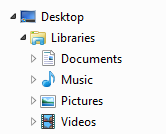
    Organized Digital FilesYour operating system creates some high-level organization for you – a Documents library, a Photos library, a Videos library, and a Music library. When you save a document, import photos, or purchase music, these folders are initially used by default by your applications. (However, your applications will usually change the default to the last folder used, so if you’ve saved something to your desktop, you may be saving everything after that to the desktop without realizing it.) Use these default folders as a start for your organization system.

    You have three options when organizing your documents:

    1. Create file folders by function. For example, you may have a file folder for Personal, with sub-folders for Finance, Kids, etc. You may then have another top-level folder for Business, with sub-folders for Clients, Marketing, Taxes, etc.
    1. Create file folders by type – for example, a folder called Marketing, with sub-folders for Presentations, Brochures, etc.
    1. Use a tool that organizes by function, but that combines documents, media, emails, etc. Evernote is a good example of this and you can read about it here: User Evernote For a New Level of Organization.

    Some software programs that work with media (music, photos, and videos) may use libraries (see my blog post here about libraries: What Everyone Ought to Know About Digital Music and Photos) that contain information about the media (such as keywords, album, genre, etc.) as well as the media file itself. It’s best to work within those programs to organize the media. For example, if you use the Photos program on the Macintosh, you can create folders and albums for your photos. You can also assign keywords to help you search for those photos later.

    Once you have a good organization in place, make sure that you use that system whenever you download or save a new document and whenever you add new media. If you use a cloud service like Dropbox or iCloud Drive, then you’ll also be able to pull up whatever you need on your mobile device as well – just create your organization system in the Dropbox folder or iCloud Drive folder. (You can find your Dropbox folder listed under “Favorites” in a Windows Explorer window, and your Dropbox or iCloud Drive folder under “Favorites” in a Macintosh Finder window.)

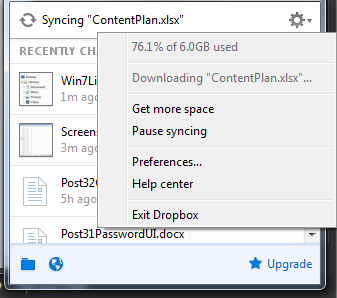
    Organized Files in DropboxHere’s how to check that you have enough storage space in your cloud service:

    • Windows: Click on the Dropbox icon in the far right of your taskbar and then click on the arrow to the right of the gear icon.
    • Macintosh:
      • Dropbox – click on the Dropbox icon in the menu bar at the top and then click on the arrow to the right of the gear icon.
      • iCloud Drive – you can check your iCloud storage space by going to System Preferences and iCloud, then view your available storage at the bottom.

    Remember that your cloud storage ALSO takes up the same amount of space on your computer because it’s a cloud synchronization service, not a backup service. Also remember that deleting a file on one device will delete it from the cloud and from all of your other devices. (iCloud Photo Library works the same way.)

    You should also be keeping an eye on your storage space. You can read my blog post here: 6 Tips for Managing Your Computer Storage.

    Get the “Controlling the Chaos” Newsletter and receive a free PDF download
    “Drowning in Email – A Lifeline for Communications Overload”

    * indicates required


  • How to Use Evernote to Keep Email Organized

    How to Use Evernote to Keep Email Organized

    Evernote Organized Email

    Email can be difficult to deal with in an efficient and organized way.

    Keeping emails organized into folders can help you to find the right email conversation, as can using your email search tools. But email correspondence is just one part of the story. If you’re trying to put together the history of working with a client, for example, you’ll have to search separately for related client files and notes. It’s not difficult to do, but it does take time and your search may come up with lots of unrelated information.

    My previous blog post on email management here: 4 Steps to Becoming More Responsive can help. A better method may be to use a tool to keep email organized along with related information. Evernote is a great tool for this. (You can read more about using Evernote for managing client information here: 7 Tips to Manage Client Info.)

    Also, if you’re organizing a trip, you can keep the research, photos, itineraries, email correspondence, and receipts in one notebook. If you’re managing a project, you can keep the tasks, notes, and email correspondence in another notebook.

    How to save your emails to Evernote

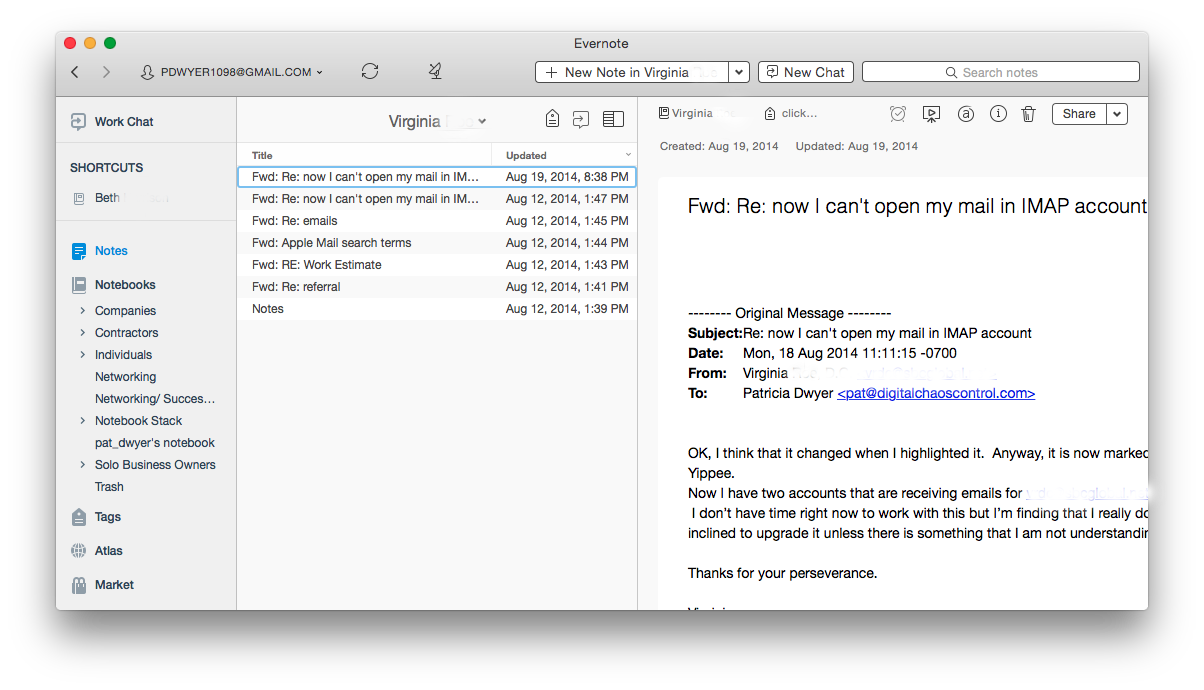
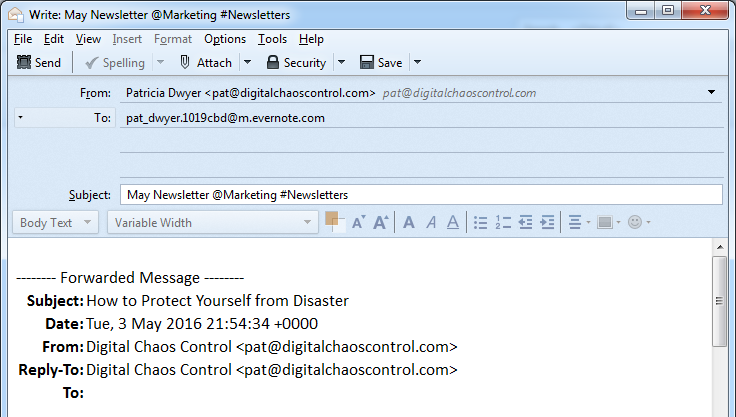
    The most efficient way is to cc: your Evernote email address in your email correspondence. This will put those emails in your default Evernote notebook. You can leave them there and use search to find those emails later, or you can go into Evernote and move them into other notebooks. You can also add those emails later by forwarding to your Evernote email address.

    When you cc: or forward an email you can target a specific notebook by adding “@<notebook name>” to the end of the subject line. You can add tags by using #<tag> and reminders by using !<date>.

    Emailing to Evernote requires an Evernote Plus paid account. Evernote also has a free version, but you’ll have the extra step of copying your email, going to your Evernote app, creating a new note, and pasting the email into it.

    How to find your Evernote email address

    When you sign up for an Evernote Plus account, you get an associated email address (something like username.XXX@m.evernote.com). You can find the address by going to your account info under “Tools” in the PC or “Help” on the Mac.

    Get the “Controlling the Chaos” Newsletter and receive a free PDF download
    “Drowning in Email – A Lifeline for Communications Overload”
    * indicates required


  • 8 Tips to Manage Client Information Using Evernote

    8 Tips to Manage Client Information Using Evernote

    Evernote NotebooksIn my previous blog post about Using Evernote, I referred to using Evernote to manage client information.

    Evernote is a great tool for creating memos, checklists, and reminders about clients. It’s also a good way to keep your client information all in one place and keep it organized.

    Here’s how to use Evernote to manage your client information:

    1. For each client, create a new notebook.
    2.  

    3. Evernote notebooks can be “stacked”, meaning that you can create one level of hierarchy. I suggest a notebook stack for each type of client or type of work.
       
      For example, if you are an interior designer, you may have a notebook stack titled “Window Treatments”, another titled “Room Layouts”, etc.
    4.  

    5. Share the notebook with collaborators and/or clients.
    6.  

    7. As you work with the client, update notes or add new notes. If you have related documents and/or photos, you can add them to the note as attachments. 
    8.  

    9. Referenced web sites go into the notebook. Install the Evernote Web Clipper extension into your browser. This will allow you to “clip” the page, or an article on the page, and save it to your client notebook.
    10.  

    11. Email correspondence goes into the notebook. When you sign up for an Evernote Plus account, you get an associated email address (something like username.XXX@m.evernote.com). You can CC: your Evernote account on your client email correspondence or you can forward the email later. 
       
      If you add “@<notebook name>” to the email subject line, then Evernote will even put the email into the specified notebook.
    12.  

    13. Use tags to help find things. For example: If you want to track how your clients found you, you could tag your client notes with a “referred by:<>” tag. Evernote lists your tags on the sidebar.
    14.  

    15. Add reminders to notes so that you’ll remember to follow up with your clients.


    Using Evernote as a simple CRM (Customer Relationship Management) system.

    Here’s one method to do so:

    • Create a notebook stack for each month.
    • Create a notebook daily:
      • Use the Evernote mobile app to capture business cards or contact information for the day’s leads and opportunities.
      • Add notes for those leads and opportunities and reminders so that you’ll remember to follow up.

    Another method could be to create one notebook called “Leads” with contact information and reminders.

    Here’s a blog post from “101 Conversations” on this subject: How to Use Evernote as a Relationship Management Tool

    You can also use a dedicated CRM tool and integrate it with your Evernote client notes. I use Insightly for this, but there might be other CRM tools that integrate with Evernote as well.

    http://www.insightly.com

    Now you can have all of your client information – notes, files, photos, websites, emails in one place! And Evernote has great search and is continuing to improve it. You can search within your notes & emails and, if you are a Premium user, then you can search within documents.

    A note of caution: Keep in mind that Evernote is a cloud application. Anything on the Internet is only as secure as your password, so be sure to use strong passwords and to update them regularly.

    Get the “Controlling the Chaos” Newsletter and receive a free PDF download
    “Drowning in Email – A Lifeline for Communications Overload”
    * indicates required


  • Three reasons to use Evernote for Team Collaboration

    Three reasons to use Evernote for Team Collaboration

    Evernote for Business

    Evernote is a great organization system because you can organize your notes, documents, photos, and emails all in one place.

    As an Evernote user, you have the option of sharing notes and notebooks with others. But for true collaboration with team members that gives you a shared work space, admin controls, and more, you need the Evernote for Business plan.

    Your team members can add research notes, to-dos, points for follow-up, web clippings, etc. Members can initiate chat sessions for team discussions. (Work chat allows your team to cut back on email discussions, gets them chatting in real time, and helps to get them focused on the task at hand).

    Here are the advantages to using Evernote for team collaboration:

    • It’s a tool that is already well known.
    • The usage model is well understood.
    • You get to take advantage of Evernote’s organization and search features.

    Evernote for Business costs $12.50 per user per month. Start by setting up an account under your admin email. Then add a work domain. This allows employees in the same domain to be automatically added to your business account without approval.

    It’s a great tool for upfront research.

    Evernote isn’t a project management platform. You probably won’t be using it to create assignments, tasks, and schedules (although you can create checklists and reminders). You also won’t be using it to develop code. But it’s great for upfront work.

    You can gather requirements, document research, and communicate with team members.

    It’s also a great way to keep all project work in one place. You can use Evernote’s search function to find keywords, tags, documents, and emails.

    Get the “Controlling the Chaos” Newsletter and receive a free PDF download
    “Drowning in Email – A Lifeline for Communications Overload”
    * indicates required


  • How to Recharge Your Brain Like an Evernote Employee

    How to Recharge Your Brain Like an Evernote Employee

    Evernote Barista

    If you ever drive through Redwood City CA on Highway 101, you may notice the Evernote headquarters right beside the freeway.

    Redwood City is better known as an enterprise technology hub, home of Oracle headquarters and its spin-offs. (You’ll see the Oracle headquarters down the road with its distinctive buildings. But, unless you work with enterprise databases, you probably won’t get that flash of recognition that you experience when you see that elephant logo.)

    Evernote has only a few hundred employees at its Redwood City headquarters. The company has a unique corporate culture. As Alex Bernson writes on sprudge.com, a coffee culture blog, Evernote encourages informal mixing among its employees by offering barista training and enabling them to take a weekly shift in the lobby coffee bar. (Read the article here: A Different Kind of Coffee Break).

    “The response to Evernote’s unique coffee program has been quite positive, with many employees reporting that by taking a “break” to make coffee for their coworkers, they were able to clear their heads, using a different part of their brains to get creative juices flowing.”

    Evernote: Where Everybody Knows Your Name

    The article made me think of the old TV show “Cheers”. In that show, Sam Malone held out behind the bar and forged close connections with Boston locals.

    I think that this company approach to giving their employees a way to take a break and interact must work well, because they’ve created a great organizational tool for the rest of us.

    So perhaps we could all take a lesson from Evernote.

    Get out there, have coffee (or cocktails) with co-workers or others in your industry, and get your brain recharged.

    Get the “Controlling the Chaos” Newsletter and receive a free PDF download
    “Drowning in Email – A Lifeline for Communications Overload”
    * indicates required


  • How to Get More Organized With Writing

    How to Get More Organized With Writing

    Evernote for Writing
    Screenshot courtesy of www.Evernote.com

    If you’re a writer, whether it’s creative or business, you know that the bulk of a writing task is doing research and/or making notes. When you sit down to compile that research and start your writing, it helps to have those notes, web clippings, photos, etc. organized.

    Having a good organization system for your writing can help so much with getting inspired, getting started, and saving time.

    I suggest using Evernote for this. (You can read my blog post on Evernote here: Use Evernote For a New Level of Organization).

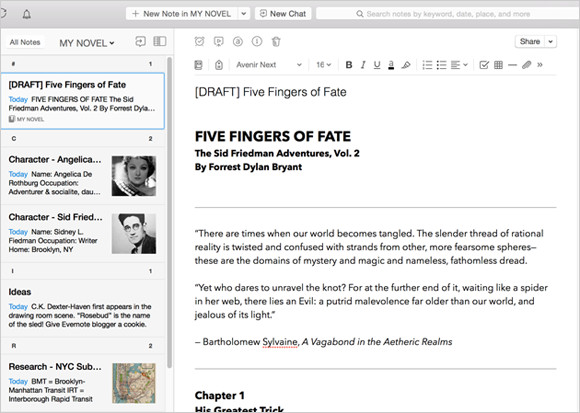
    There are multiple ways to use Evernote to organize your research. You can start with a notebook for “Research” with tags for each type of research. This is helpful if you won’t know the structure of your writing ahead of time. If you do have some structure in mind, it may be more helpful for you to have notebook stacks. For example, you could have a stack for each chapter, or a stack for each article.

    Use the Evernote app on your computer and mobile devices to write up your notes. You can add web clippings using the Evernote “Web Clipper” add-on in your internet browser and use the Evernote app on your smartphone or tablet to take photos.

    Tags can be very helpful to search for all of your research on a particular subject.

    You can assign multiple tags to each note, web clipping, or photo. For example, if you’re writing a piece about wellness and you find a web site dedicated to healthy eating, you can clip it and tag it “wellness”, “eating”, “diet”, etc.

    Using Evernote for research gives you a tool to keep all of your research in one place. Evernote’s great search tool can help you to bring up references quickly so that the most tedious part of writing goes quickly and smoothly, leaving you more time for creativity and even more research!

    Are you a fiction writer? Here’s a great article on Lifehacker: How to Use Evernote for Writing Fiction.

    Need help with Evernote? Contact me.

  • How to Organize Using Evernote Notebooks

    How to Organize Using Evernote Notebooks

    Evernote Notebooks

    Evernote Notebooks – the First Level of Organization


    If you’ve read my blog post on Evernote here: Use Evernote For a New Level of Organization then you know that it’s a great way to organize your digital information.

    Navigating the Evernote interface is dependent on the platform that you’re using it on. I have a desktop PC, a MacBook, and a smartphone – all of which are running Evernote. (You can also use Evernote through their web interface.) Since my main computer is a PC desktop, I typically do my Evernote notebook organization using the PC application. Then, with my organization in place, I can take notes, tag notes, add photos & web clippings – targeting a particular notebook no matter which platform I’m using.

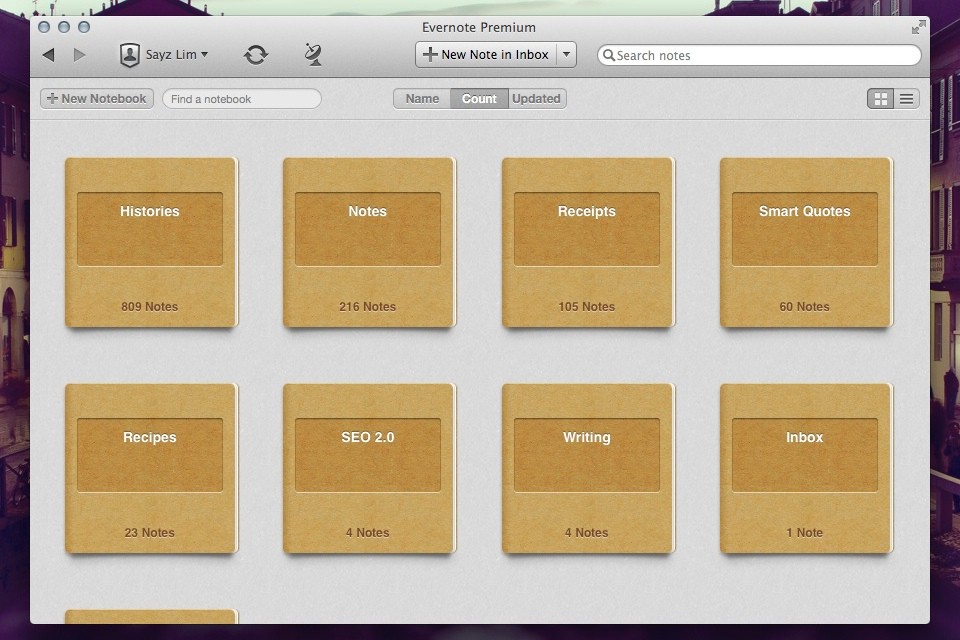
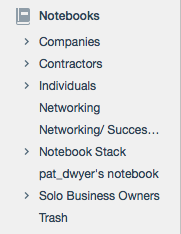
    Notebooks can be “stacked”, meaning that you can create one level of hierarchy. You may have a “clients” stack for example, with a notebook for each client underneath, or a “research” stack, with a notebook for each area of research.

    Here’s how to create Evernote notebooks:

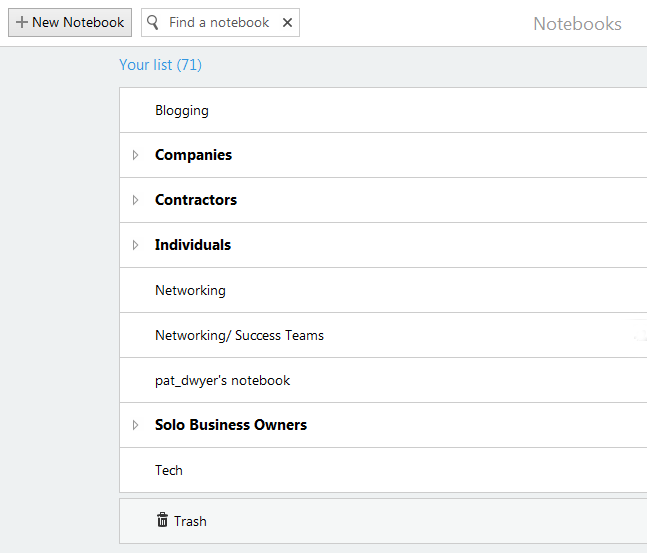
    Click on “Notebooks” in the sidebar. Click on “New Notebook” at the top (or on the below symbol if you’re using a smartphone app/web interface).

    Evernote New Notebook

    Once you’ve added the notebook, it will show up under “Notebooks” in the sidebar in alphabetic order. Select that notebook so that any new notes will go into it.

    Here’s how to manage Evernote notebooks stacks:

    In the PC or Mac application, when you click and drag one notebook to another then Evernote will create a “Notebook stack”, which you can rename. Or you can right-click on a notebook for a list of options, including “Add to stack” or “Remove from stack”.

    In iOS:

    1. Navigate to your notebook list view.
    2. Tap Edit in the upper right screen.
    3. Select the information icon (“i”) next to the notebook you would like to move to your stack.
    4. Tap Stack.

    In Android:

    If you press and hold on a notebook name, you’ll get a menu with a list of options, including “Move to stack”.

    Keeping Evernote notebooks is like keeping stacks of file folders on your desk, except with no clutter! Use your notebooks to store notes, files, photos, web clippings, and emails so that everything is in one place making it easy to find what you need, when you need it.

    Need help with Evernote? Contact me.

  • Use Evernote For a New Level of Organization

    Use Evernote For a New Level of Organization

    Evernote

    Have you heard of Evernote?

    It’s hard to tell you what it is in one sentence. It’s a note-taking application, you can use it to create to-do lists, you can use it to organize files into notebooks, you can use it to scan documents and make them searchable, you can use it to “clip” and save web pages, etc. The list goes on and on…

    Whether you’re someone who likes to keep digital information organized or whether you’re someone that is organizationally challenged, then Evernote may be the tool for you. You can keep almost anything organized with Evernote – by keeping related items in one place.

    If you’re working with projects, you can use Evernote to organize, share, and collaborate on your projects. If your business involves working with clients, and you’d like a new way to manage those clients, you can use Evernote to keep your client information in one place and to write yourself memos, checklists, and reminders about that client.

    Here’s how to use Evernote for organization:

    1. For each new project or client, create a new notebook.
       
      A note of caution: Keep in mind that Evernote is a cloud application. Anything on the Internet is only as secure as your password, so be sure to use strong passwords and to update them regularly.
    2.  

    3. Share the notebook with collaborators and/or clients.
    4.  

    5. As you work with the project or client, update notes or add new notes. For documentation and or photos, add it to the note as an attachment.
       
      Depending on how you work, you may find that you’re looking at web pages and that you want to save them for reference. Don’t use bookmarks. Install the Evernote Web Clipper extension into your browser. This will allow you to “clip” the page, or an article on the page, and save it to your project or client notebook.
    6.  

    7. Email correspondence goes into the notebook. When you sign up for an Evernote Plus account, you get an associated email address (something like username.XXX@m.evernote.com). This means that you can CC: your Evernote account on your client email correspondence, or you can forward the email later.
       
      If you add “@<notebook name>” to the email subject line, then Evernote will even put the email into the specified notebook.
    8.  

    9. Use tags to help find things. When you tag a note, you can search for all notes with the same tag. For example: If you want to know how your clients found you, you could tag your client notes with a “referred by:<>” tag, and then you can search for all client that have the “referred by: website” tag.
       
      You don’t have to use search to find tags; Evernote conveniently lists all of your tags on the sidebar, so you can just click on it. Here’s a blog post with more information on using tags: Using Evernote the Right Way.

    Now you can have all of your project or client information – notes, files, photos, websites, emails in one place!

    Wait, it gets better – Evernote has great search and is continuing to improve it. You can search within your notes & emails and, if you are a Premium user, then you can search within documents.

    You can search on titles, keywords, or tags, of course, but Evernote supports more advanced search as well.

    • You can search by date – use the format “created:yyyymmdd” or “updated:yyyymmdd”. Even better, search for a date range: use the format “created:day-x” or “updated:day-x”.
    •  
      For example, if you want to search for all notes that you created about infant formula in the last month, enter the following in the search bar: “infant formula” created:day-30.
       

    • If you want to see the notes that you created using your smartphone, enter the following in the search bar: source:mobile.*.
    •  

    • If you want to see just the webpages that you’ve clipped using the Evernote Web Clipper, enter source:web.clip.
    •  

    • If you’re using the Evernote Macintosh app, you can use plain English for your search. For example “Notes about infant formula in the last month”.

    Evernote is just one tool for information organization, but it’s an increasingly popular one and it continues to evolve.

    Try it out and let me know how it works for you! Contact me

    Get the “Controlling the Chaos” Newsletter and receive a free PDF download
    “Drowning in Email – A Lifeline for Communications Overload”
    * indicates required


  • How to Integrate Email with Task Management

    How to Integrate Email with Task Management

    Staying on top of email chaos is not easy.

    Even after you’ve followed the steps to manage your email inbox (see my blog post here: 4 Steps to Becoming More Responsive ), you still need to “deal with” those emails that require a follow-up task. How do you make sure that you get those done, and that they don’t get lost in the daily shuffle?

    The easiest way is to have a daily routine to review and act on those emails. If you flag the most important emails, you can sort your inbox by flag. You can then review those emails daily and then delete them or archive them as you finish your follow-ups.

    However, a more efficient way is to merge your email with a task management system. Your emails will then become integrated with your daily to-do list.

    If you’re an Outlook user, then you can use the built-in Outlook task manager.

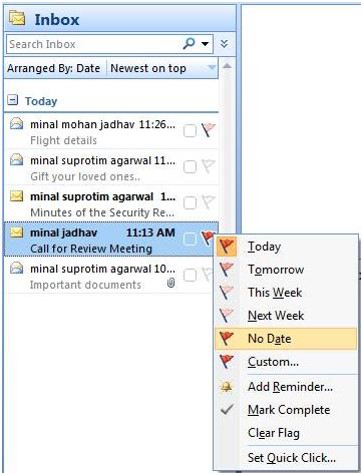
    Outlook Flag for TaskFlagging an email in Outlook actually assigns a follow-up task. If your email account is a POP account, this is pretty straightforward: open the email and select a flag for Today, Tomorrow, Next Week, etc.  If your email account is an IMAP account, you have only the option of a flag with no follow-up date. You’ll have to drag the email to Tasks (in your sidebar) and then assign a due date.

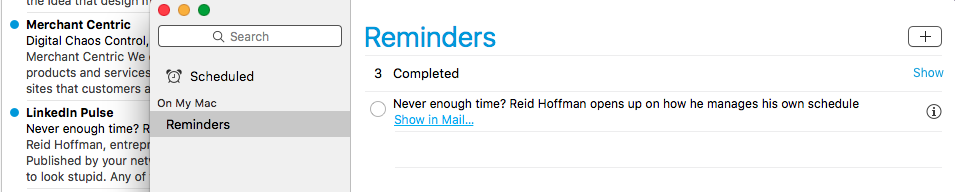
    If you use Mac mail, you can drag an email to your Reminders list.

    Apple Reminders

    Click on the “i” at the right of the reminder, and then choose the day that you want to be reminded on.

    If you’re a Gmail user, you can create a Google reminder from an email.

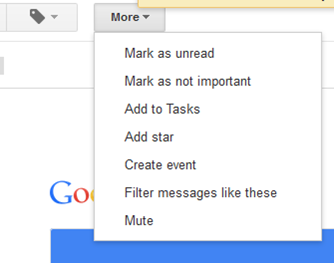
    Gmail Add to TaskOpen the email, click on “More”, and then select “Add to Tasks”. Your Tasks window will open in the bottom right-hand corner. You can then click on the arrow next to your new task to give it a due date. (If you use the Google Inbox app on your mobile device, then see my blog post here: How to Manage Your Gmail Inbox).

    You can also integrate your email with dedicated task managers such as Wunderlist.

    Here’s how it works with Wunderlist: when you’re running the app on your device and signed into your Wunderlist account, you can send emails to your Wunderlist Inbox by forwarding to me@wunderlist.com. Once the email is in your Wunderlist Inbox, you can give it a due date.

    If you’re keeping your to-do list in Evernote, then I suggest creating an Evernote Notebook.

    You could call it “My Tasks”, and then you can then forward emails into that notebook. (You find your Evernote email address by going to “Account Info”.) When you forward an email to your Evernote email address, you can specify a notebook by adding “@<notebook name>” to the subject line. For example, if you forward an email titled “Request for more information”, you would add your “My Tasks” notebook name to that title, so: “Request for more information @My Tasks”. If you’d like to tag the email, also add “#<tag>” to the subject line. You can then go to your Evernote app and assign a due date.

    Many of us like to use our email inbox as a todo list. It’s possible to do this, particularly by using flags to prioritize, but it’s more efficient to have all of your to-dos in one place, including emails that you need to follow up on.

    SUBSCRIBE TO MY NEWSLETTER

    Get the “Controlling the Chaos” Newsletter and receive a free PDF download
    “Drowning in Email – A Lifeline for Communications Overload”
    * indicates required