Category: Photo Management

  • Who Else Wants Digital Photo Organization to be Easy and Automatic?

    Who Else Wants Digital Photo Organization to be Easy and Automatic?

    Google Photos for automated photo organization

    Most of us have a lot of digital photographs – so many that we are not taking the time to look through them and organize them. The problem is that when you want to go back and find photos, you might find yourself in a time-consuming and frustrating search.

    Many people don’t have the time or the inclination to do a lot of photo organization.

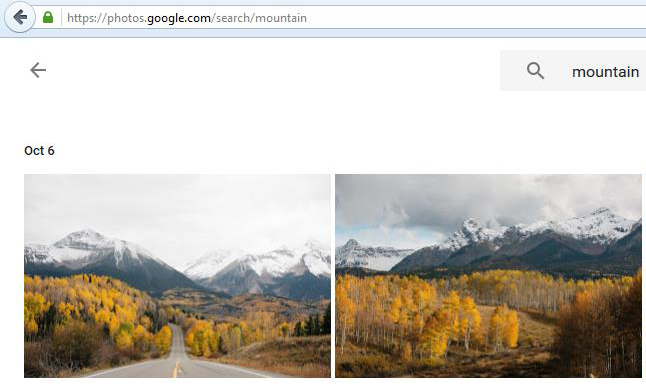
    I strongly believe that automating tasks as much as possible is the way to go for those busy people. The Google Photos service, for example, which I write about here: Use Photos Sharing Services, uses automated image recognition. You may be able to find a photo by searching for an object that you know is in it.

    Apple introduced “Memories” in iOS 10.

    Memories has a similar automated image recognition mechanism as Google Photos. So if you don’t have time for photo organization, you can just search for that camping photo or for the pinwheel on the beach.

    Since so many of us use our cell phone as our primary camera, it makes sense to add some photo organization capabilities to a mobile app. Apple’s Photos app can now automatically do some grouping of photos. The results may please you.

    In the Photos app, the first time that you select “Memories” (under “For You” on the bottom), the program will have to scan your photos in order to group images together. This could take a long time, depending on how many photos you have.

    Apple Memories Photo OrganizingWhen it’s done scanning, Memories will show your photos organized by People, using face recognition, Places, using location information, and finally by “Related”. You can play a slideshow of the memory by selecting it and then tapping the “Play” button.

    Apple Memories Photo Organization


    Adjust your slideshow settings by pausing the slideshow and changing the options. You also have edit and share options.

    Below the photos from your memory you will see a map of the location with the option of showing nearby photos. Below that, you will see “Related” photos.

    PS: If you want your memories to sync with your Mac and/or iPad, you’ll have to set up iCloud Photos Library. Contact me for help.
     

    SUBSCRIBE TO MY NEWSLETTER

    Get the “Controlling the Chaos” Newsletter and receive a free PDF download
    “Drowning in Email – A Lifeline for Communications Overload”

    * indicates required


  • Use Photo Sharing Services to Show off Your Photos on Your Mobile

    Use Photo Sharing Services to Show off Your Photos on Your Mobile

    Are you filling up your cell phone storage with photos and you don’t want to delete any because you want to be able to share them with people?

    A better way to share would be to use a cloud photo sharing service that will store your photos online. You can send links to your photos for sharing and you can use an app on your phone to show them off.

    Cloud photo sharing services have been around for a long time.

    The most popular at one time were Shutterfly, Snapfish, and Google’s Picasa web. Some people are now instead using general cloud sync services for their photos such as Dropbox. However, there are advantages to using the dedicated cloud photo sharing services.

    Google Photos is the newest kid on the block – replacing Google+ Photos and, before that, Picasa web. Google Photos is free as long as you’re storing photos taken with a camera with 16-megapixel resolution or less. Unless you’re a professional photographer, that should be fine for you.

    Google is working hard on implementing and enhancing an image recognition feature as part of its cloud photo sharing service.

    We’ve had face recognition and geo-tagging for a while with photo applications. Google Photos can recognize other features in images as well. When I uploaded my marketing photos to the Google Photos service and did a search for “computer”, it did quite well at finding photos of computers. But when I did a search on “umbrella”, it found a photo of a camping tent instead. The search is pretty good, finding a photo of a deer correctly, and of a starfish, but missing most of my whale photos. It’s bound to improve, and I’m looking forward to that.

    Google Photos is the latest cloud photo sharing service.

    Apple is releasing an update to iOS and Mac OSX this fall which will also support image recognition on both platforms.

    Here an article from MacWorld that reviews the feature in detail: Hands On with the New Photos Features. Apple’s cloud photo service is called iCloud Photo Library, and you will need enough iCloud storage space to use it.

    Here’s a detailed article on the cloud photo services: Best Photo Sharing Sites. All of these services allow you to automatically upload photos from your mobile device if you have their application installed. Google and Flickr (if you’re a subscriber) have desktop applications as well for automatic upload. If you have your photos organized on your desktop in folders, Google Photos will not save that organization, so you’re better off with Flickr.

    On the Mac, Flickr and iCloud Photo Library will both work with your Photos organization scheme. Google Photos will not yet upload from your Apple Photos library (just iPhoto) so, again, you’re better off with Flickr or iCloud Photo Library.

    Do you still need to get your photos organized? You can read my blog about photo organization here: 6 Steps for a Photo Organization Routine.

    Need help with photos?

    Contact Me


  • Who Else Wants to Easily Find Photos When You Need Them?

    Who Else Wants to Easily Find Photos When You Need Them?

    Most of us have an abundance of digital photographs – so many that we are not taking the time to look through them and organize them. The problem is that when you want to go back and find photos, you might find yourself in a time-consuming and frustrating search.

    Find Photos by Tag

    I was recently looking at an old photo of my brothers, and it struck me that I had a recent photo of my brother and son that was strikingly similar. I had no idea when I had taken that photo, but I had to find it.

    Fortunately, it was a cinch for me to find photos since I had tagged them with both of their names and the location.

    Find Photos by Tag

    Brian Chen recently wrote an article in the NY Times about his search for the best software to use that could automate photo organization. Brian calls tagging systems “neurotic”, but also admits that “If you spend tons of time rummaging for a specific photo, then sorting photos may be worthwhile.”

    Brian has a point that most people don’t have the time or the inclination to do a lot of photo organizing, and I strongly believe that automating tasks as much as possible is the way to go, but I also believe that automation isn’t where it needs to be, not yet.

    You can read Brian’s article here: Zen and the Art of Managing Cell Phone Photos.

    Brian recommends using the Google Photos service because of its automated image recognition. When I uploaded my marketing photos to Google Photos and did a search for “computer”, it did quite well at finding photos of computers. But when I did a search on “umbrella”, it found a photo of a camping tent instead. The image recognition is pretty good, finding a photo of a deer correctly, and of a starfish, but missing most of my whale photos.

    Image recognition is bound to improve, and I’m looking forward to that, but in order to quickly find photos, I’m not willing to let go of my photo organization system yet.

    If you do use Google’s Photos service, I strongly disagree with Brian about deleting your photos after uploading them. You should not delete your photos from your phone until you’ve copied as well to your computer.

    You can read my blog post here about backup: Be Sure That Your Memories are Safe.

    Getting an organization system in place is something that you should start now for your future photos and that you can implement for your past photos as you have time.

    You can read my blog here about photo organization: 6 Steps for a Photo Organization Routine.

    Need help with photos?

    Contact Me


  • 6 Steps for a Photo Organization Routine

    You may or may not remember film photography – keeping exposed film in your fridge, dropping it off for developing, getting prints that you eagerly look through, picking out your favorites, and putting them in a photo album.

    Now we have an abundance of digital photographs, and most of us are not taking the time to look through them and organize them, which means that when you want to go back and find those special photos, you might find yourself in a time-consuming and frustrating search.

    Getting an organization system in place is something that you should start now for your future photos, and that you can implement for your past photos as you have time.

    Most photo management programs organize your photos by date. When you need to find a particular photo, this system works fine as long as you remember the event or date that you took that photo. A better system would be to go back to that old-fashioned concept of photo albums: create events, tag people, and add categories.

    Here are the steps to follow for a photo organization routine:

    1. Import using your photo management software. Your newly imported photos will be organized by date.
    2. If it doesn’t already exist,create a new album or folder for this year
    3. Under this year, create a new album or folder for the current quarter (ex: Q1, Q2, etc.)
    4. Under this quarter, create a new album or folder for each event.
    5. Move the newly imported photos to the relevant event or to the current quarter if there’s no associated event.
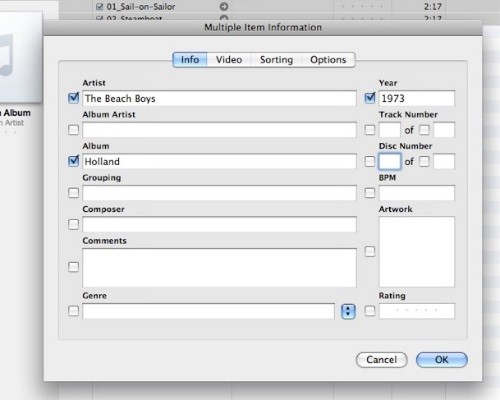
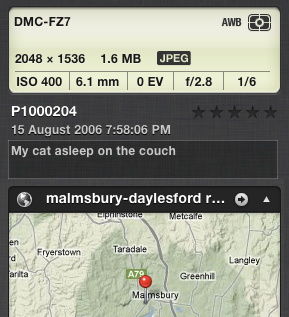
    6. Select the photos for that event and add tags or keywords describing the event, date, people, etc. (Depending on the photo management software you use, this is calling “tagging” or “assigning keywords”).


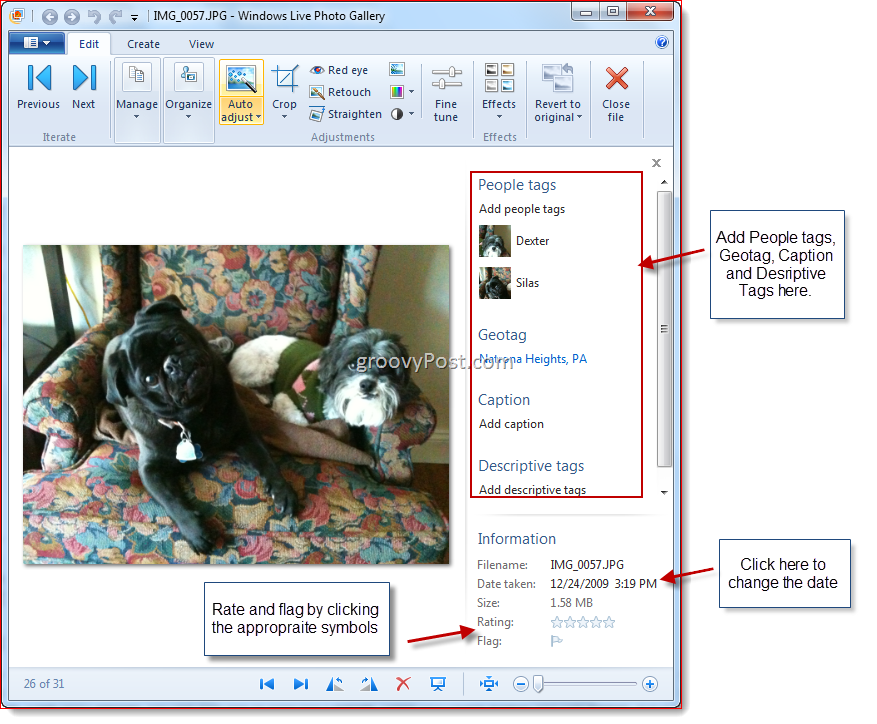
    Windows Photo Gallery
    Windows Photo Gallery: Adding Tags
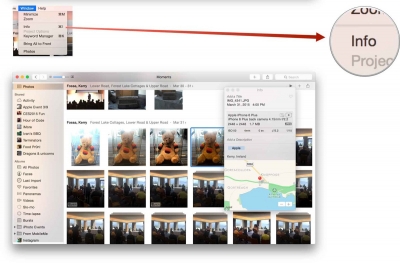
    Apple Photos
    Photos: Assigning Keywords

    Organizing your photos by date and event allows you to easily browse through and find photos, and assigning keywords or tags allows you to easily search or sort by keyword.


    Did you find this post useful? The way that we work with information is changing and you can help spread the word by sharing with your social media.

    Do you have questions? Share them by commenting below or contact Patricia at 650.517.3142 or pat@digitalchaoscontrol.com for a complimentary consultation.

  • What You Need to Know About the New Apple Photos

    What You Need to Know About the New Apple Photos

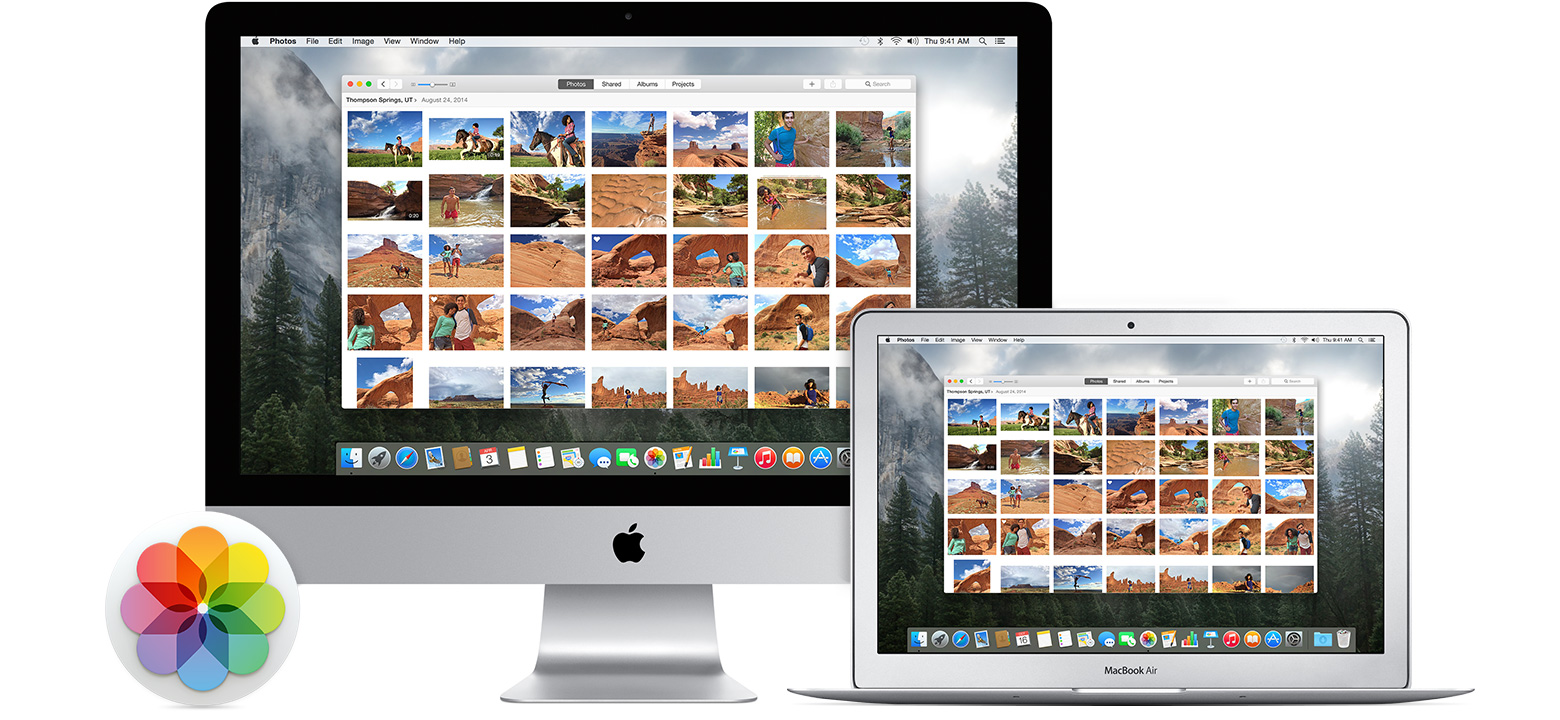
    Did you know that Apple has replaced their both their iPhoto and Aperture applications with a single new application called just “Photos”?

    Apple released Photos with the latest Mac OS X Yosemite update (OS X 10.10.3). To upgrade, just go to Software Update on your Mac and choose the OS update. Once the update is installed, then Photos will automatically import your iPhoto or Aperture library.

    Photos works a lot like your iOS 8 iPad or iPhone photo app. You’ll see your photos organized into thumbnails by date, you can save photos into photo albums, and you can share on sites like Twitter, Facebook, and Flickr.

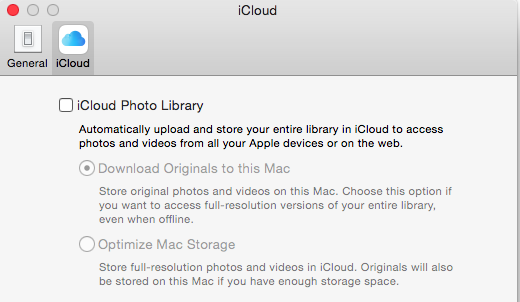
    iCloud Photo LibraryThe update includes support for iCloud Photo Library. If you enable this option in Preferences, then all of your photos (it’s all or none) will be stored in iCloud and synced to any of your devices that have the option enabled under iCloud settings. That means that you can access your entire photo library on your mobile devices, and that any photo edits get synced as well. And the good news is that your mobile device will store only the thumbnail, not the full photo unless you choose to download it.

    “But I’ve always had my photos in the iCloud”, you say? Well, no you haven’t. If you had Photos enabled in your iCloud settings, then your photos were going to Apple’s Photostream, which is not the iCloud.

    Photostream is a mechanism for syncing your photos to your Mac over the Internet. Your photos were stored in Photostream for only 30 days (or the last 1000 photos). Photostream didn’t count toward your iCloud storage space, but iCloud Photo Library does. So if you plan on taking advantage of iCloud Photo Library, you’ll need to look at how much space your photos take up, and upgrade your iCloud plan accordingly.

    FlickrAn alternative to iCloud Photo Library is Flickr. Flickr is not a cloud sync system, so photos saved to Flickr are copies in the cloud. If you delete a photo in your iCloud Photo Library on your iPhone, for example, then the photo will be deleted everywhere – in the cloud, on your Mac, etc. But since photos on Flickr are copies, they will be stored on Flickr until they’re deleted from Flickr. Flickr offers a whopping 1TB of free photo storage, and it has both iOS and Android apps.


    Did you find this post useful? The way that we work with information is changing and you can help spread the word by sharing with your social media. Do you have questions? Share them by commenting below or contact Patricia at pat@digitalchaoscontrol.com for a complimentary consultation.

  • Photo Sharing

    CameraIn this age of digital photography, we generate tons of photos – our families, pets, vacations, school field trips, concerts, parties; the list goes on and on. The old days of getting our photos printed and into binders and scrapbooks are largely gone. It used to be fun to pull out the old photo albums and sit down with family and friends to laugh at crazy poses and faces, and to experience a shared emotion and memory of those who have passed on.

    We still have our photo albums, but they’re on our computers. And fortunately, there’s lot of ways to share our digital photo albums.

    The closest things that we have to our old binders that we can sit down and share are our portable devices – our smart phones, tablets, and laptops. It is possible to duplicate your entire photo library on a portable device if you have enough storage, but for most of us, there are just too many photos to fit. We have to manage our photo albums on our devices.

    When I travel to visit family, I go through my computer photo albums, and I pick which albums I want to bring with me. The next step to to sync those albums with my device. There are several ways to do this:

    1. Copy files – You can copy the files from the albums that you choose to your devices through USB, or to a memory card or flash drive that you move to the portable device. This is an easy option if you’re comfortable with computers and peripheral devices.

    2. USB Sync – You can use software to sync specific albums to your device. If you connect your iPhone or ipad, for example, through USB, you can use iTunes to select and sync albums. This is a great option if you use Apple devices and you’re familiar with iTunes.

    3. Cloud Sync – You can use a cloud sync service such as Dropbox or Sugar Sync to select and sync specific photo albums. These cloud services are very easy to use. You’ll have to have the software installed on both your computer and your portable device.

    4. Cloud Photo Sharing – You can use a cloud photo sharing service such as Flickr or Shutterfly to upload and share specific photo albums. Once you’ve created an account on Flickr, you can connect with it through iPhoto or Windows Live Photo Gallery and easily upload photos. You can install a Flickr app on your portable device and you’ll be able to view your albums and display slide shows whenever you have internet connectivity. You can also share the link with friends and family.

    5. Social Networks – You can use a social network such as Facebook or Google+ to upload and share specific photo albums. Your photos on Facebook won’t be full resolution, but this is a great option to show photos if you’re comfortable with Facebook and want to share only with your Facebook friends. You can also tag people in your photos.

    If you need help organizing and tagging photos, syncing with your devices, and/or setting up cloud services, Digital Chaos Control can help! Contact us today.