Category: Cloud Services

  • How use Valentine’s Day Ecards to Spread the Love and Do Good

    How use Valentine’s Day Ecards to Spread the Love and Do Good

    Send Valentine's Day ecards through a charitable organization.Happy Valentine’s Day!

    Doh! Did you forget to buy cards and send them?

    It’s too late to send cards now, so it may be time to look into Valentine’s Day ecards.

    Ecards have waned in popularity, but they’re still an efficient, eco-friendly way to let that special someone know that you’re thinking of him/her/them. And many ecard services now allow you to email, text, or Facebook message a greeting.

    Here are some of the more popular services:

    Some people feel like Valentine’s Day is a “Hallmark” holiday that was created to sell cards.

    So a good way to still spread the love and also to do some good is to send Valentine’s Day ecards from a charitable organization. Check your favorite charities to see if they offer ecards. Here are some examples:

    I’m a volunteer tutor through Reading Partners, so I’m sending my cards through them.

    Reading Partners

    It’s probably best to keep it non-political. Keep in mind that your favorite cause may not be your valentine’s favorite, and won’t be appreciated.

    One drawback to sending ecards is that you’ll probably end up on an email list. You can always unsubscribe from that list, or you can manage email lists through email filtering. Read about that here: How to De-Clutter Your Email Inbox.

    On this Valentine’s Day, remember this from the Hebrew Bible:

    “Love suffers long and is kind; love does not envy; love does not parade itself, is not puffed up; does not behave rudely; does not seek its own; is not provoked; thinks no evil; does not rejoice in iniquity, but rejoices in the truth; bears all thing, believes all things, hopes all things, endures all things. Love never fails.”

    –1 Corinthians 13:4-8

    SUBSCRIBE TO MY NEWSLETTER

    Get the “Controlling the Chaos” Newsletter and receive a free PDF download
    “Drowning in Email – A Lifeline for Communications Overload”

    * indicates required


  • iCloud Drive: Should You Trust Apple to Take Care of Your Storage?

    iCloud Drive: Should You Trust Apple to Take Care of Your Storage?

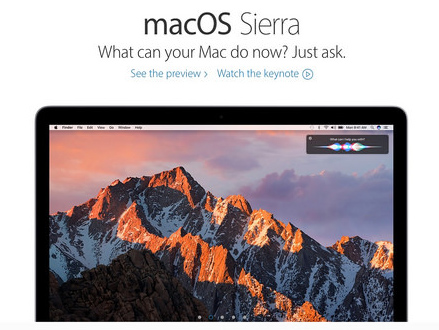
    MacOS Sierra iCloud Drive

    You’re all Apple – Mac, iPhone, iPad – and you want to be able to access your documents on multiple devices. You may already know that you can use iCloud Drive to do that.

    iCloud Drive is like Dropbox and Google Drive, with a dedicated folder on your Mac that syncs to the cloud. Until Apple’s Mac OS Sierra release, your only option to share files with your other devices was to save the files in that folder.

    Now, if you’re running Sierra or later, you can sync everything on your Desktop and in Documents to iCloud Drive. You can enable this in your iCloud Drive preferences (in System Preferences/iCloud).

    The question is: is it a good idea to move everything in Desktop and Documents to iCloud Drive?

    Let’s examine the pros and cons.

    Pros:

    • You no longer have to remember to save files in the iCloud Drive folder. And you’re less likely to end up with multiple copies of the same files.
    • You can access your PDFs and your Pages/Numbers/Keynote documents on any Apple device. Also Office documents if you have Office installed.

    Cons:

    • You need to have enough iCloud storage.
    • Syncing may slow down your computer.
    • If you enable this on multiple Macs – a desktop and a laptop for example – Apple will choose one as a primary device and put your documents from the second device in a subfolder.
    • It’s difficult to change your mind. You’ll have to manually move the files back from iCloud Drive to your Desktop and Documents folders.

    If you do opt in, make sure that your Time Machine backup is current.

    A Time Machine backup will ensure that you can recover the original Desktop/Documents if you need to.

    When you enable the iCloud Drive Desktop/Documents sync, you will also see an option to “Optimize Mac Storage”. If you check this option, and you run low on storage space on your Mac, then the OS will remove iCloud documents from your Mac storage. Those documents will get downloaded again when you open them.

    This is helpful if you’ve got storage issues on your Mac, but I don’t recommend it. It’s much less risky to increase your local storage space. (Read my blog post here: 4 Ways to Add More Computer Storage Space. What if you’ve got your laptop on the airplane and the wi-fi isn’t working? You won’t be able to get that optimized document.

    Apple would like to see us all working from the cloud and paying more for iCloud storage. The convenience may be worth it for you, but tread carefully!

    Get the “Controlling the Chaos” Newsletter and receive a free PDF download
    “Drowning in Email – A Lifeline for Communications Overload”

    * indicates required


  • Who Else is Shopping Online and Loving the Pricing and Convenience?

    Who Else is Shopping Online and Loving the Pricing and Convenience?

    Shopping online is more convenient

    Are you shopping online for almost everything?

    It probably depends somewhat on your age. Most of us are not yet shopping online for furniture, home repair & home decorations, and jewelry but we are for books, music, movies, and electronics. Many of us are increasingly shopping online for clothes. The younger you are, the more likely you are to be buying your groceries (and everything else) online. If you have a family, you’re probably not only shopping online, you’re setting up automatic re-ordering so that you don’t have to get out there and drag the kids along.

    Shopping online is very popular amongst millennials.

    Younger shoppers spend more time shopping on their mobile devices and even shopping from social media. This is particularly prevalent in Asian countries. Over half of young people shopping in Thailand, for example, use their mobile devices and shop through social media, mainly through Facebook.

    If you’re shopping online, particularly through your mobile device, make sure that you stay on top of your security. You can read my blog post here: How to Manage Your Passwords.

    We all know that shopping online has hurt brick-and-mortar businesses.

    With books, music, and videos especially, we have no other recourse in some localities now, apart from the local Redbox kiosk or the local library. (Hopefully you still have an independent book store where you live – I have to drive two towns away.) Many large clothing chains are now struggling to stay in business – The Gap, Sears, Macy’s, J. C. Penney, etc.

    Shopping in a physical store has its advantages – you’ll have the item immediately without having to wait for delivery and you don’t have to pay for a delivery charge. Those are the reasons why most of still do our grocery shopping in a physical store. We need our fresh good for tonight’s dinner and many of us don’t plan meals too far in advance.

    Personally, I like to do my clothes shopping in person so that I can try on the clothes and see how they look. And it’s easier to return items.

    If you can afford it, there are still local options, mainly in the form of pricey boutiques. If you can’t afford it, there are still stores like Walmart and Target, but you’ll have to battle full parking lots and long check-out lines. Given that alternative, I usually turn to Google Express.

    Do you want to know more about online shopping and your security and privacy?

    Contact Me


  • Here is an Easy Way to Sync Information between Your Cloud Services

    Here is an Easy Way to Sync Information between Your Cloud Services

    Cloud Services Run in the Internet

    You may have heard of “The Cloud”. It’s a term that basically just means the Internet.

    I am a big fan of cloud services. It’s magic to me, the way that the photos that I take with my cell phone appear on my PC when I get home, without having to connect any cables, and to have my work from my desktop PC instantly available to me on my laptop.

    Your email, for example, is a cloud service.

    Your email is stored on an email server, and delivered to your device(s) over the Internet. If your PC dies, or you lose your laptop, your email goes on accumulating on the server, and you can download those emails when you get back on-line.

    I’ve written in this blog space many times about cloud services for task management (How to Stay on Target with Your Goals), project management (How to Stay on Top of Your Project Management), and customer/client management (7 Tips to Manage Client Info). But what if you are using multiple cloud services? Are you getting tired of entering information in multiple places?

    Wouldn’t it be nice if those cloud services could work together?

    Cloud Services Should Communicate with Each OtherSome do – Google Apps, for example – where your email, calendar, contacts, and documents can all talk to each other. For your other cloud services – your project management, your CRM, and/or your email marketing program, you can use a service called Zapier.

    Go ahead and create a Zapier account for free and play around with it. Search for the cloud services that you use and see what they support for triggers and for actions.

    Here’s an example: Creating a new Google contact can be a trigger for Zapier to automatically create a contact in my CRM application & in my email marketing application, and also create a new note in Evernote


    Zapier is free for 5 “zaps” (cloud service connections) that run every five hours. For more frequent syncing, Zapier has paid plans.

    Get the “Controlling the Chaos” Newsletter and receive a free PDF download
    “Drowning in Email – A Lifeline for Communications Overload”

    * indicates required


  • What Everyone Ought to Know About Office Alternatives

    What Everyone Ought to Know About Office Alternatives

    Microsoft Office

    Microsoft Office has been a workhorse for years.

    Many of us first became accustomed to it in our corporate work. If you’re still working in a corporate setting or if you’re creating detailed documents, spreadsheets, or presentations on a PC, there’s still nothing that beats Office for standard and more advanced content creation.

    Office is not cheap.

    A single license of Office Home and Student costs $120, but we’re often working on multiple devices these days. If you want to install Office on your home computer, your office computer, and your iPad, you’re better off with Office 365, which costs $9.99/month. Other advantages to Office 365 include automatic updates and new downloads to new computers.

    Office on the Mac has always been an afterthought for Microsoft, and not as full-featured as its PC equivalent. (However, Microsoft made many improvements in its Office 2016 version for the Mac.) Fortunately, if you’re on a Mac, you’ve got a great alternative – Apple’s application suite – Pages, Keynote, and Numbers. (Just remember to convert to the Office document equivalent when sharing files so that PC users can open them.)

    If you don’t need the advanced options that Office provides, then Google Docs is worth checking out.

    Mac or PC, you’ve also got an alternative with Google Docs, Google Sheets, and Google Slides. These applications are completely free to use on the web and also via the Google Docs mobile apps. Advantages include 15 GB of cloud storage space, easy collaboration with other Google users, and conversion to Office files for sharing.
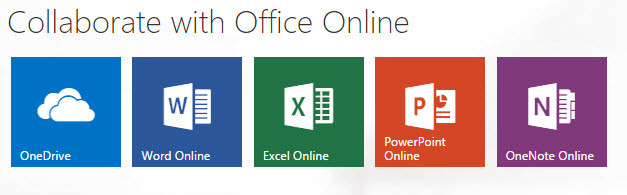
    Office OnlineAnother option, perhaps even a better one than Google Docs, is Office Online. You can use the online versions of Word, PowerPoint, and Excel free of charge, with 5 GB of cloud storage. The online versions don’t have all of the features as the paid versions, but that may be fine if you’re not a power user.

    Microsoft Office OutlookMicrosoft Office for Business also includes Outlook, which is a nice integrated email reader, contacts manager, calendar, and task manager. Outlook calendar and contacts can sync with your iOS device by installing the iCloud plug-in, but you’ll need to look at third-party apps for Android contacts sync, or sign up for a Google for Work account.

    Mac Mail Office AlternativeIf you’re a Mac user and you don’t have Outlook, or you don’t want to use the Mac version of Outlook, then Mac Mail is a fine program and integrates well with the Mac Address Book. You will have to launch the Mac Calendar and Mac Reminders separately. (If you’d like to know how to integrate Mac Mail with Mac Reminders, read my blog post here: How to Ingrate Email with Task Management). The Mac Calendar and Mac Address Book can sync with both iOS and Android (through your Google account).

    Windows has always had a basic email program as part of its Windows Essentials. In Windows 10, Microsoft released a new mail program with integrated calendar and contacts. (The jury is still out on this program as Microsoft works out the bugs.) With the release of Windows 10 Mail, Microsoft will no longer be updating Windows Live Mail, and will no longer support it for outlook.com email addresses. Unlike Outlook, Windows 10 Mail will sync with both iOS and Android contacts.

    Thunderbird Office AlternativeFor years, I’ve been using a free program from Mozilla called Thunderbird as my email reader on the PC. Thunderbird, like Outlook, is extensible with add-ons, so I have a calendar add-on called Lightning, and another add-on that syncs with my Google calendar. There are available add-ons for contacts sync as well. Thunderbird is a full-featured program that may be a bit difficult for many people to learn, and the search function is limited. However, if you’re on a PC, you don’t have Outlook, and you have multiple email addresses that you want to manage in one place, then Thunderbird is an excellent option.

    Need help with Office or your email program? Contact me.

     

  • How to Stay on Target with Your Goals

    How to Stay on Target with Your Goals

    Task Manager for Your Goals

    What is productivity?

    Productivity means performing on target according to your goals and deadlines. Let’s say your goal is to create a social media presence and have twenty followers. You’ll need to set a deadline to achieve that goal, break it down into achievable tasks, and assign a due date for each task.

    If you’re working unproductively, you won’t meet your goals by the deadline. This results in missed opportunities, loss of income, and perhaps a drop in confidence.

    There are many reasons for missing your deadlines, including unexpected obstacles, distractions, and unproductive employees. But you can mitigate the risk by making sure that you have good productivity tools in place.

    Start by setting up your system.

    You need:

    • Task management or project management software
    • Documented goals and deadlines
    • Activity sets for each goal
    • Due dates for each task with reminders

     
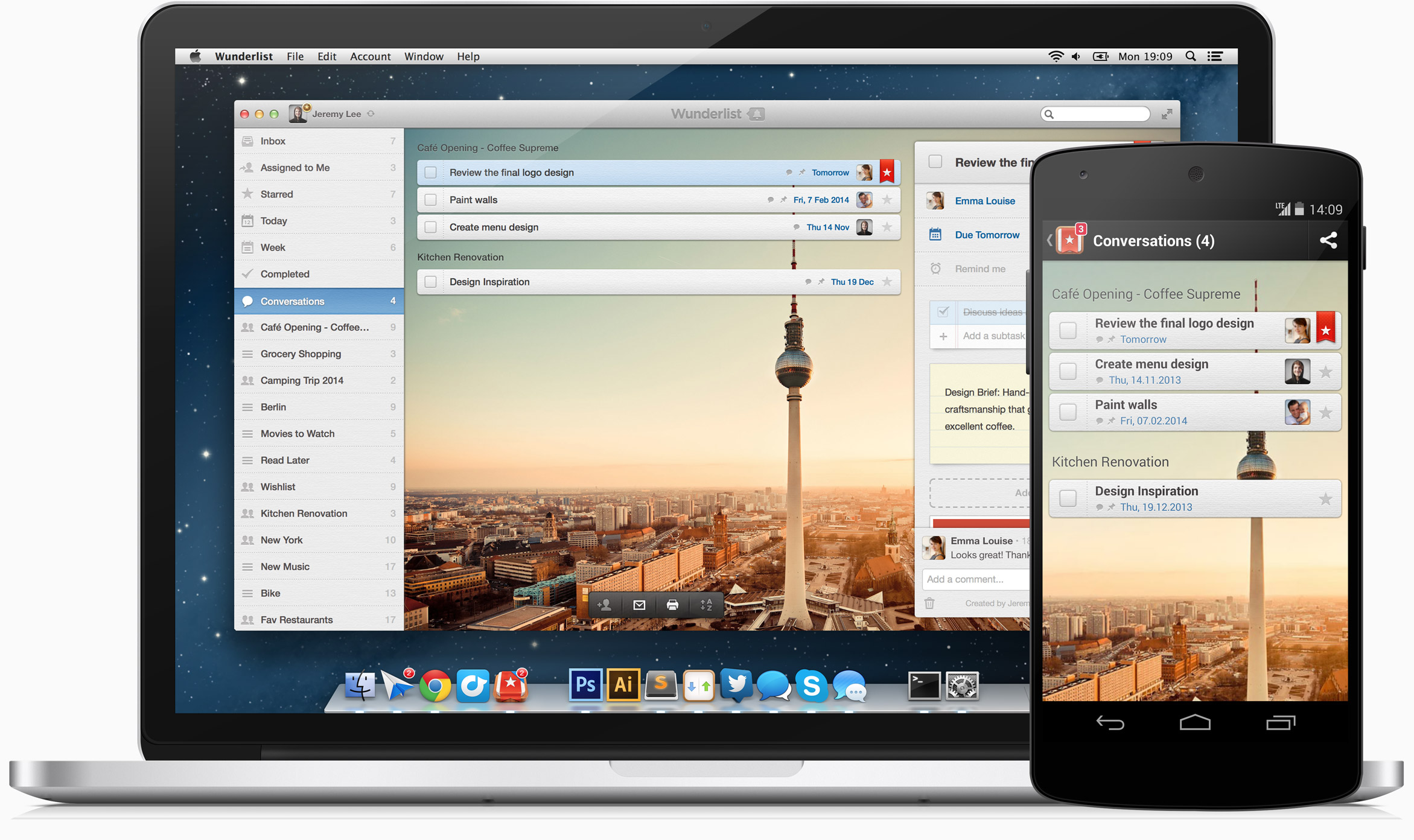
    Wunderlist goals and tasks manager


    Here’s my blog post on my preferred task manager called Wunderlist: Task Management for the Super Efficient. For project management, I like Insightly for ease of use, others prefer Asana or Basecamp.

    The next step after setting up your system is to determine your best method for working productively on a single task.

    This includes considering your work layout and your most productive time of day. Also consider limiting distractions during your work time by turning off notifications. Start by reading my blog post here about “perceived” productivity: How to Remain Productive.

    One productivity method is “Getting Things Done”. I’ve mentioned this in previous blog posts. Here’s a post about this and other methods for productivity: The Busy Human’s Guide to the Best Productivity Systems.

    As you’re working toward your goals, you will not only have to deal with distractions, you will also have to deal with shifting priorities.

    Let’s say, for example, that after reaching 10 followers on social media, all 10 are requesting a consultation or more information. These are new tasks that you have to integrate into your system.

    Do the following at least weekly:

    • Review your deadlines
    • Analyze your productivity and the factors affecting it
    • make adjustments


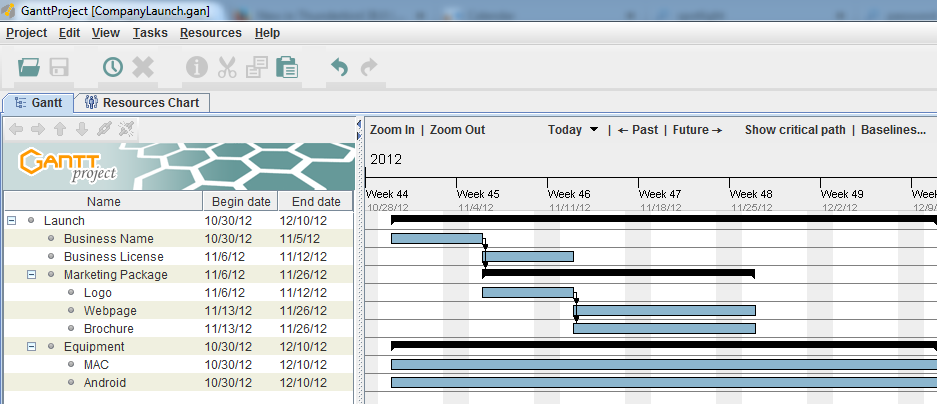
    Gantt Chart for Goals
     
    The white board is the traditional system for making a visual representation of a project. As we moved into digital tools for project management, the Gantt chart (a type of bar chart) became popular. It was sometimes printed out and displayed to show the project progress.

    These days, these methods have been replaced with methods that recognize the shifting priorities of projects.

    Teams have daily meetings run by project managers. They move post-it notes around that represent tasks.

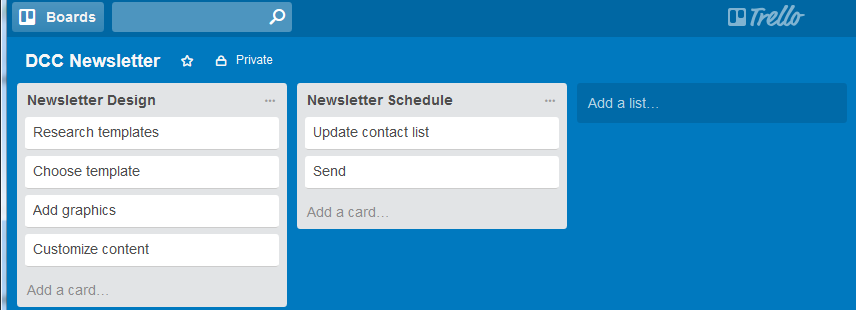
    Trello goals and tasks management

    There are now project management tools that use a more visual method. One example is Trello. Trello implements something called a “Kaban” board. It puts your task cards into columns so that you can arrange your tasks by lists.

    An example might be: Column one: “This week”, Column two: “Today”, Column three: “Done”. You can easily move task cards between columns.

    Whatever your working style is, once you’ve got the right systems and the right tools in place, you’ll be able to reach your goals consistently.

    Get the “Controlling the Chaos” Newsletter and receive a free PDF download
    “Drowning in Email – A Lifeline for Communications Overload”

    * indicates required


  • 3 Ways to Keep Your Digital Life Organized

    3 Ways to Keep Your Digital Life Organized

    Organized Digital LifeHave you ever found yourself wasting time and getting frustrated because you can’t find something on your computer?

    And what if you don’t have your computer with you? Can you pull up that photo on your mobile device that you’d like to show off?

    Wouldn’t it be nice if you were so efficient and organized that you don’t even have to think about how to find something?

    You may not be able to get to the level of efficiency that you’re working like an automaton, but there’s probably lots of room for improvement. If you’re someone who has file icons littering your desktop or hundreds of photos still on your smartphone and not organized in any way, then read on!

    Start with defining your organized system.

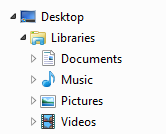
    Organized Digital FilesYour operating system creates some high-level organization for you – a Documents library, a Photos library, a Videos library, and a Music library. When you save a document, import photos, or purchase music, these folders are initially used by default by your applications. (However, your applications will usually change the default to the last folder used, so if you’ve saved something to your desktop, you may be saving everything after that to the desktop without realizing it.) Use these default folders as a start for your organization system.

    You have three options when organizing your documents:

    1. Create file folders by function. For example, you may have a file folder for Personal, with sub-folders for Finance, Kids, etc. You may then have another top-level folder for Business, with sub-folders for Clients, Marketing, Taxes, etc.
    1. Create file folders by type – for example, a folder called Marketing, with sub-folders for Presentations, Brochures, etc.
    1. Use a tool that organizes by function, but that combines documents, media, emails, etc. Evernote is a good example of this and you can read about it here: User Evernote For a New Level of Organization.

    Some software programs that work with media (music, photos, and videos) may use libraries (see my blog post here about libraries: What Everyone Ought to Know About Digital Music and Photos) that contain information about the media (such as keywords, album, genre, etc.) as well as the media file itself. It’s best to work within those programs to organize the media. For example, if you use the Photos program on the Macintosh, you can create folders and albums for your photos. You can also assign keywords to help you search for those photos later.

    Once you have a good organization in place, make sure that you use that system whenever you download or save a new document and whenever you add new media. If you use a cloud service like Dropbox or iCloud Drive, then you’ll also be able to pull up whatever you need on your mobile device as well – just create your organization system in the Dropbox folder or iCloud Drive folder. (You can find your Dropbox folder listed under “Favorites” in a Windows Explorer window, and your Dropbox or iCloud Drive folder under “Favorites” in a Macintosh Finder window.)

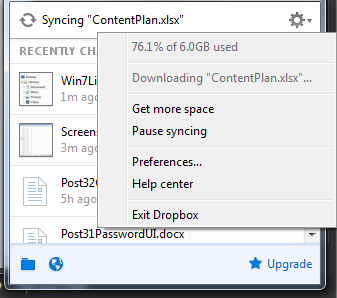
    Organized Files in DropboxHere’s how to check that you have enough storage space in your cloud service:

    • Windows: Click on the Dropbox icon in the far right of your taskbar and then click on the arrow to the right of the gear icon.
    • Macintosh:
      • Dropbox – click on the Dropbox icon in the menu bar at the top and then click on the arrow to the right of the gear icon.
      • iCloud Drive – you can check your iCloud storage space by going to System Preferences and iCloud, then view your available storage at the bottom.

    Remember that your cloud storage ALSO takes up the same amount of space on your computer because it’s a cloud synchronization service, not a backup service. Also remember that deleting a file on one device will delete it from the cloud and from all of your other devices. (iCloud Photo Library works the same way.)

    You should also be keeping an eye on your storage space. You can read my blog post here: 6 Tips for Managing Your Computer Storage.

    Get the “Controlling the Chaos” Newsletter and receive a free PDF download
    “Drowning in Email – A Lifeline for Communications Overload”

    * indicates required


  • How to Use Evernote to Keep Email Organized

    How to Use Evernote to Keep Email Organized

    Evernote Organized Email

    Email can be difficult to deal with in an efficient and organized way.

    Keeping emails organized into folders can help you to find the right email conversation, as can using your email search tools. But email correspondence is just one part of the story. If you’re trying to put together the history of working with a client, for example, you’ll have to search separately for related client files and notes. It’s not difficult to do, but it does take time and your search may come up with lots of unrelated information.

    My previous blog post on email management here: 4 Steps to Becoming More Responsive can help. A better method may be to use a tool to keep email organized along with related information. Evernote is a great tool for this. (You can read more about using Evernote for managing client information here: 7 Tips to Manage Client Info.)

    Also, if you’re organizing a trip, you can keep the research, photos, itineraries, email correspondence, and receipts in one notebook. If you’re managing a project, you can keep the tasks, notes, and email correspondence in another notebook.

    How to save your emails to Evernote

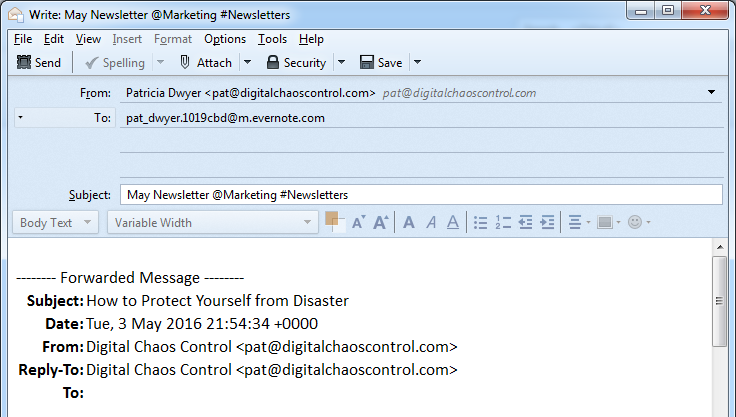
    The most efficient way is to cc: your Evernote email address in your email correspondence. This will put those emails in your default Evernote notebook. You can leave them there and use search to find those emails later, or you can go into Evernote and move them into other notebooks. You can also add those emails later by forwarding to your Evernote email address.

    When you cc: or forward an email you can target a specific notebook by adding “@<notebook name>” to the end of the subject line. You can add tags by using #<tag> and reminders by using !<date>.

    Emailing to Evernote requires an Evernote Plus paid account. Evernote also has a free version, but you’ll have the extra step of copying your email, going to your Evernote app, creating a new note, and pasting the email into it.

    How to find your Evernote email address

    When you sign up for an Evernote Plus account, you get an associated email address (something like username.XXX@m.evernote.com). You can find the address by going to your account info under “Tools” in the PC or “Help” on the Mac.

    Get the “Controlling the Chaos” Newsletter and receive a free PDF download
    “Drowning in Email – A Lifeline for Communications Overload”

    * indicates required


  • Three reasons to use Evernote for Team Collaboration

    Three reasons to use Evernote for Team Collaboration

    Evernote for Business

    Evernote is a great organization system because you can organize your notes, documents, photos, and emails all in one place.

    As an Evernote user, you have the option of sharing notes and notebooks with others. But for true collaboration with team members that gives you a shared work space, admin controls, and more, you need the Evernote for Business plan.

    Your team members can add research notes, to-dos, points for follow-up, web clippings, etc. Members can initiate chat sessions for team discussions. (Work chat allows your team to cut back on email discussions, gets them chatting in real time, and helps to get them focused on the task at hand).

    Here are the advantages to using Evernote for team collaboration:

    • It’s a tool that is already well known.
    • The usage model is well understood.
    • You get to take advantage of Evernote’s organization and search features.

    Evernote for Business costs $12.50 per user per month. Start by setting up an account under your admin email. Then add a work domain. This allows employees in the same domain to be automatically added to your business account without approval.

    It’s a great tool for upfront research.

    Evernote isn’t a project management platform. You probably won’t be using it to create assignments, tasks, and schedules (although you can create checklists and reminders). You also won’t be using it to develop code. But it’s great for upfront work.

    You can gather requirements, document research, and communicate with team members.

    It’s also a great way to keep all project work in one place. You can use Evernote’s search function to find keywords, tags, documents, and emails.

    Get the “Controlling the Chaos” Newsletter and receive a free PDF download
    “Drowning in Email – A Lifeline for Communications Overload”

    * indicates required


  • How to Recharge Your Brain Like an Evernote Employee

    How to Recharge Your Brain Like an Evernote Employee

    Evernote Barista

    If you ever drive through Redwood City CA on Highway 101, you may notice the Evernote headquarters right beside the freeway.

    Redwood City is better known as an enterprise technology hub, home of Oracle headquarters and its spin-offs. (You’ll see the Oracle headquarters down the road with its distinctive buildings. But, unless you work with enterprise databases, you probably won’t get that flash of recognition that you experience when you see that elephant logo.)

    Evernote has only a few hundred employees at its Redwood City headquarters. The company has a unique corporate culture. As Alex Bernson writes on sprudge.com, a coffee culture blog, Evernote encourages informal mixing among its employees by offering barista training and enabling them to take a weekly shift in the lobby coffee bar. (Read the article here: A Different Kind of Coffee Break).

    “The response to Evernote’s unique coffee program has been quite positive, with many employees reporting that by taking a “break” to make coffee for their coworkers, they were able to clear their heads, using a different part of their brains to get creative juices flowing.”

    Evernote: Where Everybody Knows Your Name

    The article made me think of the old TV show “Cheers”. In that show, Sam Malone held out behind the bar and forged close connections with Boston locals.

    I think that this company approach to giving their employees a way to take a break and interact must work well, because they’ve created a great organizational tool for the rest of us.

    So perhaps we could all take a lesson from Evernote.

    Get out there, have coffee (or cocktails) with co-workers or others in your industry, and get your brain recharged.

    Get the “Controlling the Chaos” Newsletter and receive a free PDF download
    “Drowning in Email – A Lifeline for Communications Overload”

    * indicates required