Blog

  • How to Prioritize Email and See What’s Most Important

    How to Prioritize Email and See What’s Most Important

    Prioritize Email

    If you practice good email organization, as I write about here: 4 Steps to Becoming More Responsive, you will have an Inbox with emails flagged by priority (more about flagging here: How to Use Email Flagging). Before you can even start with flagging, you need to understand how to prioritize email.

    You will prioritize email based on your unique goals.

    As a general rule, your top priority should be the emails that you need to act upon as soon as you can. I use red flags for my top priority emails.

    Prioritizing just the most important emails may still leave many in your Inbox that you need to act on.

    You can flag these emails as well with colors that have meaning to you. You could use yellow flags, for example, for emails that need a response within a few days. Emails waiting for a response from someone else could be flagged as purple. You could use blue flags for personal email that you will tackle on the weekend.

    Here’s an article about a method of prioritizing called the “Eisenhower” method, which uses these 4 categories:

    • Urgent and Important
    • Urgent (Not Important)
    • Important (Not Urgent)
    • Not Urgent, Not Important

    Decisive Email Sorting Solution

    If you are designating time each day to work on emails, then you should follow these steps:

    1. Start by reviewing and flagging new emails
    2. Sort your Inbox by flag
    3. Deal with those top priority emails first

    For lower priority emails, designate some time every week to deal with them.

    Here’s how to sort:

    • In Outlook, sort your email inbox by selecting “Arrange By: Flag” under the View menu, or click on the “Flag Status” column header.
    • Flagging an email in Apple mail actually puts it in a separate Mailbox under “Flagged” (as well as leaving it in your Inbox.) You can rename that Mailbox to whatever you want to help you to remember what your priorities are. For example, you can rename the “Red” Mailbox to “High Priority”, the “Yellow” Mailbox to “Follow Up This Week”, etc.
    • In Gmail, “starred” emails are in a single folder called Starred and automatically sorted by color.

    Get the “Controlling the Chaos” Newsletter and receive a free PDF download
    “Drowning in Email – A Lifeline for Communications Overload”
    * indicates required


  • 4 Ways to Make the De-Cluttering of Your Email Inbox Easy

    4 Ways to Make the De-Cluttering of Your Email Inbox Easy

      Cluttered Email Inbox

    Your email inbox can feel cluttered and overwhelming.

    Email filtering (see my blog post here: De-Clutter Your Email Inbox) automatically removes the less-important emails. Your email inbox can stay organized with less effort and you won’t miss important communication.

    Manually setting up filters in your email program provides the most control over your inbox. It can, however, seem intimidating to learn how to set filters up.

    If you don’t want to deal with setting up filters yourself then you may want to look into these programs that can automate the process:

    1. If you’re already not a Gmail user you may want to consider switching. Gmail automatically creates categories like “Promotions” and “Social”. The service then filters the relevant emails into those folders (called “labels” in Gmail). You need to make sure to use the Gmail app on your mobile device instead of the native email app or you won’t see the categories.
    1. As an alternative to the Gmail app, Google’s Inbox app adds additional categories (called “bundles”) like “Finance”, “Purchases”, and “Trips”. Here’s some more information on Inbox: How to Manage Your Gmail Inbox.
    1. Sanebox is a service that automatically prioritizes your Inbox and filters less important email into a folder, called “SaneLater”. The service has other features as well, such as reminders to follow-up on sent emails and a “snooze” feature. Sanebox is $7/month for the basic plan which includes filtering.
    1. Unroll.me is a free service that “rolls” newsletter into a daily digest.

    Be aware that most free services, including Gmail, use your information for marketing purposes. Read their privacy statements carefully before signing up.

    Also be aware that handing off your email filtering to a service means that important emails could end up filtered out of your Inbox, similar to the way that spam filters sometimes make mistakes. You’ll need to keep an eye on your automated categories, bundles, “SaneLater” folder, or daily digest.

    Get the “Controlling the Chaos” Newsletter and receive a free PDF download
    “Drowning in Email – A Lifeline for Communications Overload”
    * indicates required


  • 3 Steps to Easily Avoid “Back in the Office” Email Hell

    3 Steps to Easily Avoid “Back in the Office” Email Hell

    You can take steps to avoid email hell.

    You’re pretty consistent at staying on top of your email. But now you’re going on vacation, or on a business trip, or you know that you’re going to be too busy working on a project. Just the thought of all those unanswered emails piling up while you’re gone from the office is enough to give you a least a little bit of a sinking feeling.

    We all experience email hell from time to time. It can be difficult to stay on top of your Inbox even with a regular routine.

    If you’ve got good email organization (read my blog post here: 4 Steps to Becoming More Responsive), you already have the less important emails filtered out of your inbox. So when you return, you know that you have to deal with everything that’s landed in your inbox.

    If you follow the steps below, it can help you to relax when you’re away from the office. You’ll be able to get back on top of things when you return, easily avoiding email hell.

    1. Set up a filter for your most important people – your “VIPs”. That way, when you return, you can go to those folders first. See my blog post about filters here: How to De-Clutter Your Email Inbox.
    2. Set up a temporary filter for everything else, so that email goes into a “Catch up” folder. You’ll work on this folder as you have time. I suggest that you start dealing with the oldest email that came into your inbox after you left the office down to the newest.
    3. Set up an “out-of-office” auto-response, so that you’re not letting people wondering about your delayed reply.

    When you return, make sure to turn off your auto-response and delete the “Catch up” filter. You can also remove the VIP filters. Or, you can leave them in place if you know that you’ll remember to check those folders first thing every day.

    Get the “Controlling the Chaos” Newsletter and receive a free PDF download
    “Drowning in Email – A Lifeline for Communications Overload”

    * indicates required


  • How to Quickly Find the Right Contact Information for Modern Life

    How to Quickly Find the Right Contact Information for Modern Life

    We used to use address books for contact information.Communications have become so fragmented.

    Some people communicate with me by email, some text me, some send a Facebook message, some call me on the phone. Lately, I even have a couple of teams on Slack and am communicating with them using that platform.

    Responding to them is easy – I just respond using the same method. What’s not productive is when I need to initiate a conversation and I have to stop to think, “Now which platform does this person use to communicate with me?”

    It used to be easy. You would pick up your address book and look up the contact information, or call directory service to connect you. Then Email made it even easier. Now you just start typing the name and the email address will get filled in for you. Communicating by phone is getting harder because mobile numbers are unlisted and many are dropping their land lines. Communicating by email is getting harder too because so many people are overwhelmed that yours may get overlooked.

    Many are turning to texting and messaging (read my blog post here: Communicate with the World). Now, for some of my contacts, I have her or his home phone number, mobile phone number, email address, LinkedIn profile, Twitter handle, and Facebook profile. I may also be following her or him on Instagram and/or Pinterest.

    This all leads to the issue of contact information management.

    There are services that connect some of it together. One example of such a service is CRM (Customer Relationship Management) tools. They help to centralize contact information and to track interactions.

    One tool that’s interesting is Contactually. The tool can run on your mobile device and keep track of your email correspondence, phone calls, and texts.

    You can use Evernote as a simple CRM (see my blog post here: 7 Tips to Manage Client Info) by scanning business cards using Evernote on your mobile device and connecting to LinkedIn.

    Without a tool to help manage your contacts, you might be wasting too much looking up the contact information that you need. Did that person send me an email, call me, or text me?

    Get the “Controlling the Chaos” Newsletter and receive a free PDF download
    “Drowning in Email – A Lifeline for Communications Overload”
    * indicates required


  • 3 Ways to Simplify Email Responses Like an Efficiency Expert

    3 Ways to Simplify Email Responses Like an Efficiency Expert

    Use canned email responses for more efficiency.

    It takes time to get through emails on a daily basis. Even if you follow good email organization (see my blog post here: 4 Steps to Becoming More Responsive), it takes a lot of time to read and respond to the important emails and to follow up on the less important ones.

    If you find yourself responding in a similar way to certain emails, then you can use “canned” email responses to work more efficiently.

    Let’s say, for example, you get a lot of requests for information that you have to research. You may find yourself responding often with: “Thanks for your inquiry. I’ll look into that and get back to you by the end of the week.” For another example, you may get a lot of requests for one-on-one meetings and you’re responding with “Thanks, I’d love to meet with you. Could you please send me your availability for next week?”.

    Rather than take the time to type those email responses over and over, it’s easier to just hit “Reply”, select a saved template, and then hit “Send”.

    Here are 3 ways to set up canned responses:

    1. If you’re using email with a CRM system, you can set up email templates for quick responses.
    2. If you’re using Outlook or Mac Mail you can set up different signatures and use them as templates. Here how to do it for Outlook: How to Create Outlook Email Signature, and for Mac Mail: Include Signatures in Messages.
    3. If you’re using Gmail, you can use “canned responses”. Here’s how: Gmail Canned Responses.

    A personal response is always best but not always practical with our email overwhelm. You do need to be careful about choosing the correct template and reviewing your email response before sending. Also check the To: field to make sure that the correct response is going to the correct person.

    Get the “Controlling the Chaos” Newsletter and receive a free PDF download
    “Drowning in Email – A Lifeline for Communications Overload”
    * indicates required


  • Gmail User? How To Easily Strike Off Tasks.

    Gmail User? How To Easily Strike Off Tasks.


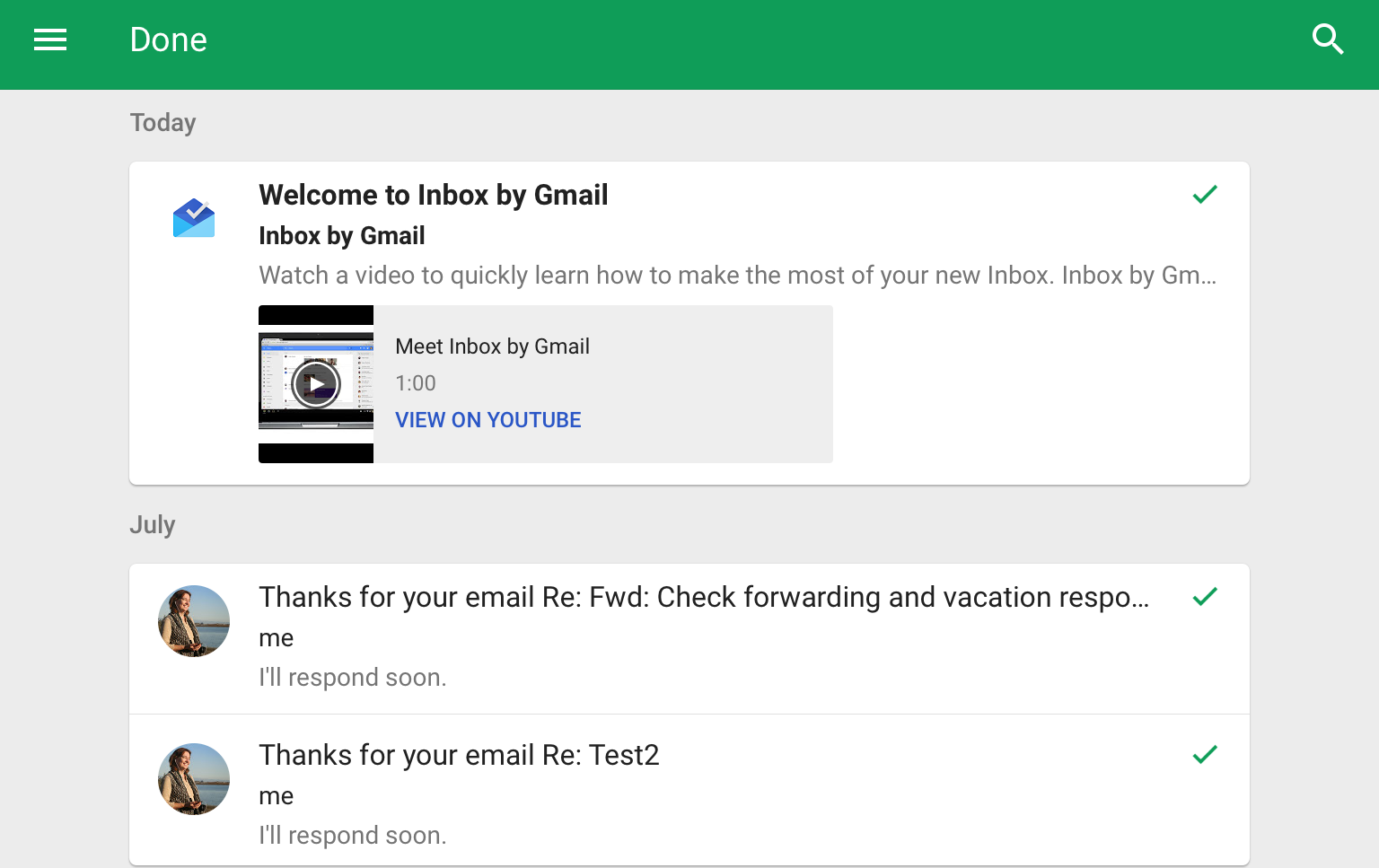
    With Google's Inbox, you can marks tasks as done.

    I generally advise my clients to install a task management application and to integrate it with email, so that they’re not using email to manage tasks. I write about that here: How to Integrate Email with Task Management.

    Google, with its Inbox app, is trying to get people to do the opposite – to dump the task management app and use email instead. You can read more about Google’s Inbox here: How to Manage Your Gmail Inbox.

    There is an argument to be made here. One could make the point that we spend a lot of time in the email application. Hence, it’s a context switch and a mind switch to open another application in order to turn an email into a task.

    It can be hard to get into good habits with email and tasks integration.

    So what if we did the opposite routine and turned our tasks into emails instead? In that scenario, when you have a new task to complete, you could just compose an email and send it to yourself. (You may already be doing that anyway.)

    At first glance, it seems counter-productive. Our inboxes are already overflowing and it doesn’t seem to make sense to add to that overwhelm. But if you practice good email management (read my blog post here: 4 Steps to Becoming More Responsive), you can filter the tasks that you send to yourself into a folder. You would then work in that folder for your task management. (In Google’s Inbox, filters are called “bundles”.)

    It’s easy to manage emails/tasks with Google’s Inbox app.

    You can mark emails/tasks as done or you can “snooze” them until later. You can also set follow-up reminders.

    There are certainly advantages to using a task management application, including list organization, prioritizing, and color-coding. But if you’re someone who’s struggling with your task management – keeping them organized or keeping a consistent routine – you might want to give Inbox a try. Here’s a more detailed article: How to Turn Google Into the Best To-do App.

    You will still need to practice good habits by scheduling time every day to review your tasks bundle, complete tasks, snooze them, or schedule them.

    Those tasks will not only be the ones that you email to yourself, but also emails from others that you need to follow up on. So when you’re going through your Primary inbox, your habit should be to move those emails that are follow-up tasks into your “Tasks” folder.

    Get the “Controlling the Chaos” Newsletter and receive a free PDF download
    “Drowning in Email – A Lifeline for Communications Overload”
    * indicates required


  • 4 Ways to Conquer and Triumph over the Email Beast

    4 Ways to Conquer and Triumph over the Email Beast

    Abstract illustration email spam angry virus infection.

    The average business worker sends and receives over 120 business emails per day and spends nearly 30 percent of the workweek managing email. Together with personal email, 205 billion emails are sent emails each day—a number expected to increase over 16 percent to 246 billion emails in 2019.

    Email overload can result in anxiety and a feeling of guilt.

    It can be stressful to see your Inbox growing out of control and there is an increased risk of missing important email correspondence. Productivity drops when you have to spend too much time dealing with those emails, and distractions increase with those email notifications.

    There are many approaches to managing your Inbox (read my blog post here about some of those methods: How to Control Today’s Pesky Email Overload). Whatever method you like to use, as you’re working through your Inbox, it can be helpful to remove some emails temporarily. You don’t really need those emails that you have to follow up on but that have to wait for some reason – for more information, for example, or for something else to be completed – to be in your way right now.

    Moving those emails temporarily can make your Inbox cleaner and easier to deal with.

    Here are some methods to manage those follow-ups emails:

    1. Move them to an folder called “Later”. You just have to remember to take some time every day to deal with your “Later” folder.
    2. Flag them for later follow-up and then sort your inbox by flag so that they’re grouped together. You can read about flagging here: How to Use Email Flagging.
    3. Turn them into tasks and remove them from your Inbox. You can read about that here: How to Integrate Email with Task Management.
    4. “Snooze” them. “Snoozing” means to send the email away and also pick what time it will show up again in your Inbox.

    Need help with email management?

    Contact Me

  • How to Control Today’s Pesky Email Overload Tomorrow

    How to Control Today’s Pesky Email Overload Tomorrow

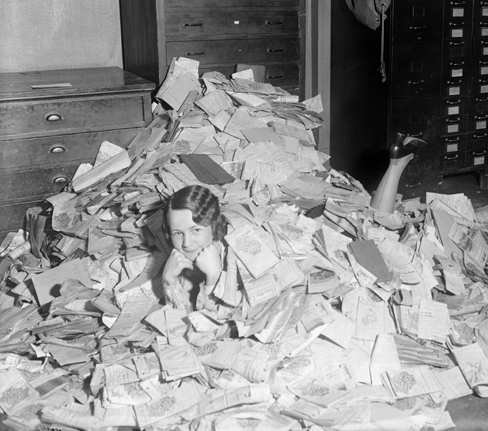
    Email Overload

    It’s very common to procrastinate on dealing with your email overload.

    Does this sound familiar to you?

    • You dread sitting down at your desk to look at email.
    • You stay at your desk longer every day to try to stay on top of your inbox.
    • The size of your inbox keeps increasing.
    • You have not just emails from your co-workers, clients, friends, and family, but also emails from school lists, notifications from social networks, and newsletters from retailers, vendors, and consultants (including mine! Sign up here).

    Unfortunately, it’s all too easy to miss important emails in the clutter.

    Email is still an important communication tool but email overload continues to increase every year, so it’s no longer possible to treat your inbox like it’s a to-do list that keeps growing and growing…

    I practice good email organization according to my methods here: 4 Steps to Becoming More Responsive. Another way is the “Inbox Zero” technique as I wrote about here: Should you be worried about your email inbox?.

    With my method, I still have emails sitting in my Inbox because I reference them frequently or because they’re linked to tasks that I need to follow up on. Today’s emails (that don’t get filtered first) continue to come into my Inbox and sit until I deal with them. That means that I sometimes still have an Inbox that grows and has to be culled back.

    I recently read about another method that I found interesting, called “Yesterbox”. You can read about the method here: Yesterbox.

    I still prefer to deal with emails as they arrive in my Inbox, but it’s not always possible, and it can be distracting. I think I’ll try the “Yesterbox” method and report back.

    Here’s a good email management routine that fits well with the “Yesterbox” method.

    I suggest blocking out some time every day to:

    • Priorize and flag your emails
    • Deal with the most important emails, or create follow-up tasks
    • Move less important emails to a “Later” folder.

    I also suggest blocking out some time every week to deal with the “Later” emails and to do clean-out of your other folders.

    If you have a consistent routine, then you’ll find that you’ve become efficient and responsive with your email management. No more apologizing: “I’m so sorry, I didn’t see your email”!

    Need help with email organization?

    Contact Me


  • Communicate with the World Like you’re a Millennial or a Teenager

    Communicate with the World Like you’re a Millennial or a Teenager

    Communicate like a millenial or a teenager

    Email is becoming an inefficient way to communicate.

    Does this sound like you?

    • You dread sitting down at your desk to look at email and feel guilty and anxious at the sight of your overflowing inbox
    • You stay at your desk longer every day to try to stay on top of your inbox.
    • The size of your inbox keeps increasing.
    • You have not just emails from your co-workers, clients, friends, and family, but also emails from school lists, notifications from social networks, and newsletters from retailers, vendors, and consultants (including mine! Sign up in the sidebar).
    • You have missed important emails.

    Unfortunately, it’s all too easy to miss important emails in the clutter. Email is still an important communication tool but email volume continues to increase every year, so it’s no longer possible to treat your inbox like it’s a to-do list that keeps growing and growing.

    Some, especially younger people, have turned to texting and messaging services as a more efficient way to communicate.

    Some of the advantages of texting include:

    • Texts are immediate and personal so you’re more likely to see them and to respond.
    • Through your cell phone, you’re nearly always connected to the cell network, so you’ll see your text messages on the go.
    • Texts are usually short and easy to deal with.
    • Texts don’t usually have attachments that you have to open, read, and organize.
    • Everyone with a cell phone can receive a text without special software.

    Some of the disadvantages of texting include:

    • Can’t share documents through texting (although I would argue that sharing is better served through cloud services, not email).
    • Your text messages are not organized, so you can’t go back and find something.
    • Texts are more intrusive than email.

    Texting is great for a quick one-on-one conversation, but for groups, you need a better interface to add/remove members, search, and archive.

    Messaging apps like Facebook Messenger, Snapchat, What’s App, and WeChat have many of the advantages of texting but work better for groups. (The main disadvantage is that your groups need to be all using the same app.)

    This Wired article is a great place to learn about what’s being used right now for messaging apps for personal use: Time to Ditch Texting . For business use, the runaway winner right now is Slack.

    Slack is for business teams and it’s more than just messaging. There are all kinds of app integrations for Slack and you can share documents, schedule meetings, create to-dos, etc. If you have a team at work or you collaborate with others on projects, then you should check out Slack.

    You can’t get away from email completely. You’ll still need it to communicate with partners, vendors, schools, teachers, and all sorts of people. You can read my blog post here about how to stay on top of email: 4 Steps to Becoming More Responsive.

    SUBSCRIBE TO MY NEWSLETTER

    Get the “Controlling the Chaos” Newsletter and receive a free PDF download
    “Drowning in Email – A Lifeline for Communications Overload”
    * indicates required


  • How to Use an Ad Blocker for a Better Internet Browsing Experience

    How to Use an Ad Blocker for a Better Internet Browsing Experience

    Ad Blocker

    In the “early days” of the Internet, websites discovered pop-up ads.

    These ads were intrusive and annoying, and they were followed shortly by adware and malware pop-ups that posed as ads. Clicking on them at a minimum encouraged intrusive advertising. They could also possibly infect your computer with malware.

    Internet browsers responded by adding a pop-up ad blocker which mainly took care of the problem.

    Advertisers had to find another way. First, they came up with “pop-under” ads. These open up in another browser window under the one you’re using. You probably don’t see it until you close your browser window and then you wonder where it came from.

    Most ads now show up somewhere in the page that you’re reading – at the top, in the sidebar, or in the text. Many are not intrusive and are relevant to the page that you’re on. (If you’re surprised that you’re seeing ads for something that you’ve searched for on Google or on Facebook, then you may want to check to see if you’re still signed into your Google or Facebook account. Both companies will track your internet usage.)

    Some ads are still very intrusive and can slow your browsing experience down, particularly video ads that start playing when you visit the page. Although advertising is important if we want to continue to have a free internet, there are methods to block those annoying, intrusive ads.

    If you’re using Chrome, Safari, or Firefox, then you can install an ad blocker extension (even on Safari in iOS now, and Firefox & Opera for Android). The most popular one is called “Adblock Plus”. After you’ve installed it, it will block the most intrusive ads.

    The default setting in AdBlock Plus is to allow ads that are not intrusive (and it’s possible that it “whitelists” ads for a fee from advertisers). You may have to play with the blocking settings.

    Do you need help with your digital chaos and/or to understand your technology?

    Contact Me