Tag: photos

  • Be Sure That Your Memories are Safe

    Be Sure That Your Memories are Safe

    Safe Memories

    In the above still from an episode of the TV show “The Middle”, Sue Heck had accidently deleted all the family photos. No one had taken on the responsibility of backing up the computer and keeping those memories safe. (The Hecks probably could have taken the computer to a data recovery tech, but who wants to have to do that?)

    In this article in the Guardian, Amy Malloy wrote about losing the photographic record of her 20s, including all the photos of her late husband: I Lost a Decade of Photographs.

    You many think that losing your memories won’t happen to you, but don’t be too sure.

    Unexpected things can trip us up, such as not double-checking that your photos are there, like Amy did.

    Here are some examples:

      • I had someone call me because she just noticed that all of the videos were missing from her iPhone. She was backing up her iPhone to iCloud, but iCloud backups are only good for about 30 days. Her videos went missing before that. There was nothing that anyone could do to help her.
      • If you’re using a cloud service such as Dropbox, it doesn’t mean your data is backed up. Dropbox is a sync service. If you accidently delete files on one device, the files get deleted on the Dropbox server and on all your other devices. (Like with iCloud, you can recover within a period of time, but you have to notice first…)
         
        (Here’s an article at How-To Geek with more details: Ensure You’ll Never Lose Files Stored in Dropbox.)
    • If you’re using iCloud Photo Library, it works the same way as other cloud services. If you delete photos on your iPhone, for example, you’re deleting from your Mac as well.
    • If your cloud service gets hacked, then your files could all get deleted. (Make sure that you’re using a strong password.)

    If you’re sure that you’re backing up your computer and saving your memories, then make sure that you’re really sure.

    Today, I had a client ask me to check her TimeMachine backup, and it was turned off! She had no idea how it had happened…

    Sync your mobile devices to your computer, back up your computer regularly, and sign up for cloud backup as extra insurance.

    Make sure that you read my blog post on backups here: What Everyone Ought to Know About Backups.

    Get the “Controlling the Chaos” Newsletter and receive a free PDF download
    “Drowning in Email – A Lifeline for Communications Overload”

    * indicates required


  • 6 Steps for a Photo Organization Routine

    You may or may not remember film photography – keeping exposed film in your fridge, dropping it off for developing, getting prints that you eagerly look through, picking out your favorites, and putting them in a photo album.

    Now we have an abundance of digital photographs, and most of us are not taking the time to look through them and organize them, which means that when you want to go back and find those special photos, you might find yourself in a time-consuming and frustrating search.

    Getting an organization system in place is something that you should start now for your future photos, and that you can implement for your past photos as you have time.

    Most photo management programs organize your photos by date. When you need to find a particular photo, this system works fine as long as you remember the event or date that you took that photo. A better system would be to go back to that old-fashioned concept of photo albums: create events, tag people, and add categories.

    Here are the steps to follow for a photo organization routine:

    1. Import using your photo management software. Your newly imported photos will be organized by date.
    2. If it doesn’t already exist,create a new album or folder for this year
    3. Under this year, create a new album or folder for the current quarter (ex: Q1, Q2, etc.)
    4. Under this quarter, create a new album or folder for each event.
    5. Move the newly imported photos to the relevant event or to the current quarter if there’s no associated event.
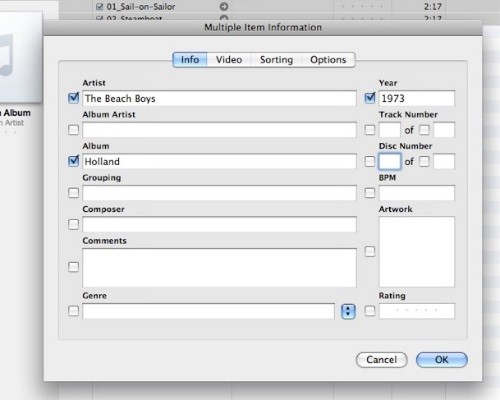
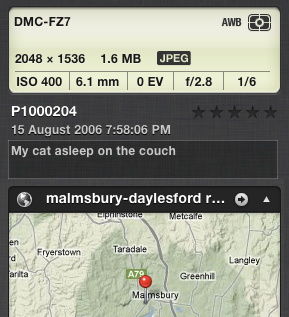
    6. Select the photos for that event and add tags or keywords describing the event, date, people, etc. (Depending on the photo management software you use, this is calling “tagging” or “assigning keywords”).


    Windows Photo Gallery
    Windows Photo Gallery: Adding Tags
    Apple Photos
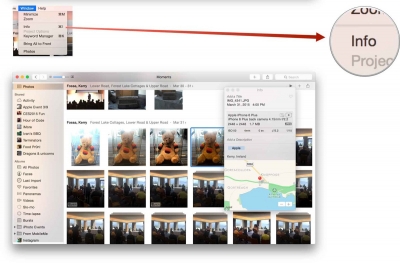
    Photos: Assigning Keywords

    Organizing your photos by date and event allows you to easily browse through and find photos, and assigning keywords or tags allows you to easily search or sort by keyword.


    Did you find this post useful? The way that we work with information is changing and you can help spread the word by sharing with your social media.

    Do you have questions? Share them by commenting below or contact Patricia at 650.517.3142 or pat@digitalchaoscontrol.com for a complimentary consultation.

  • What You Need to Know About the New Apple Photos

    What You Need to Know About the New Apple Photos

    Did you know that Apple has replaced their both their iPhoto and Aperture applications with a single new application called just “Photos”?

    Apple released Photos with the latest Mac OS X Yosemite update (OS X 10.10.3). To upgrade, just go to Software Update on your Mac and choose the OS update. Once the update is installed, then Photos will automatically import your iPhoto or Aperture library.

    Photos works a lot like your iOS 8 iPad or iPhone photo app. You’ll see your photos organized into thumbnails by date, you can save photos into photo albums, and you can share on sites like Twitter, Facebook, and Flickr.

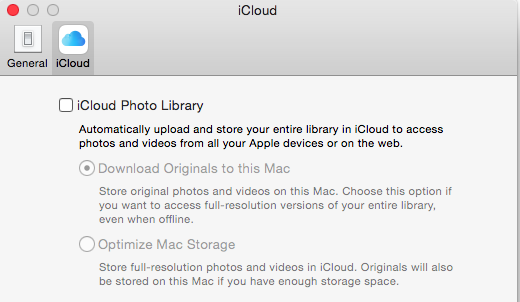
    iCloud Photo LibraryThe update includes support for iCloud Photo Library. If you enable this option in Preferences, then all of your photos (it’s all or none) will be stored in iCloud and synced to any of your devices that have the option enabled under iCloud settings. That means that you can access your entire photo library on your mobile devices, and that any photo edits get synced as well. And the good news is that your mobile device will store only the thumbnail, not the full photo unless you choose to download it.

    “But I’ve always had my photos in the iCloud”, you say? Well, no you haven’t. If you had Photos enabled in your iCloud settings, then your photos were going to Apple’s Photostream, which is not the iCloud.

    Photostream is a mechanism for syncing your photos to your Mac over the Internet. Your photos were stored in Photostream for only 30 days (or the last 1000 photos). Photostream didn’t count toward your iCloud storage space, but iCloud Photo Library does. So if you plan on taking advantage of iCloud Photo Library, you’ll need to look at how much space your photos take up, and upgrade your iCloud plan accordingly.

    FlickrAn alternative to iCloud Photo Library is Flickr. Flickr is not a cloud sync system, so photos saved to Flickr are copies in the cloud. If you delete a photo in your iCloud Photo Library on your iPhone, for example, then the photo will be deleted everywhere – in the cloud, on your Mac, etc. But since photos on Flickr are copies, they will be stored on Flickr until they’re deleted from Flickr. Flickr offers a whopping 1TB of free photo storage, and it has both iOS and Android apps.


    Did you find this post useful? The way that we work with information is changing and you can help spread the word by sharing with your social media. Do you have questions? Share them by commenting below or contact Patricia at pat@digitalchaoscontrol.com for a complimentary consultation.