Tag: overload

  • Inbox Zero Eliminates Overload – by Michael Neuendorff

    Inbox Zero Eliminates Overload – by Michael Neuendorff

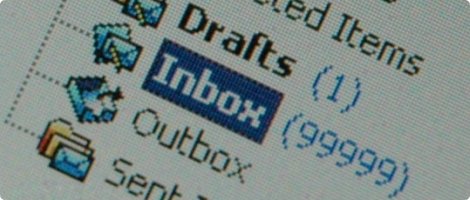
    Inbox Overload

    Do you suffer from email overload?

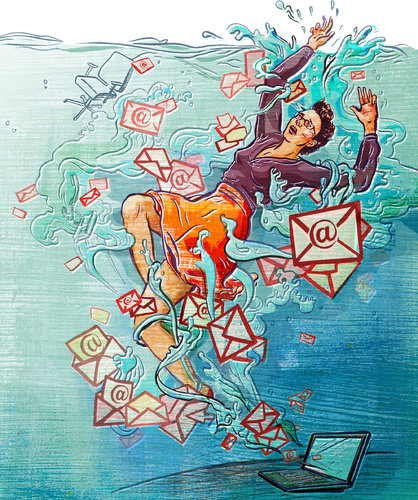
    Terrible, isn’t it? Every time you open your Inbox the email just flows in like a waterfall.

    The challenges with managing email are myriad. Here are a few:

    • Feeling overwhelmed before even getting started
    • Losing track of an email and asking the sender to send the email again. (Now there are 2 copies in the Inbox!)
    • Difficulty prioritizing
    • Looking at, but not dealing with emails. This becomes an unproductive pattern.
    • Email seems more like a curse than a benefit

    Can you relate? I worked with many people over the years that suffer from email overload. It’s a key reason why they feel chronically disorganized and unable to focus on what really matters each day. The email just keeps coming.

    Here’s my true confession: I used to be that way.

    I would routinely let my Inbox balloon to about 2,500, then I’d start cleaning up email for a period, usually over a holiday break, and get back down to 50 or less. After a few years of this, I decided enough was enough and devised some strategies that would work for me.

    This was more than 2 years ago. Since then I’ve never had more than 100 emails in my Inbox. As I write this I have 19 emails in my Inbox. Here are my 6 rules I follow to manage email.

    1. Move everything non-essential out of your Inbox. What I mean is to have a separate email address for personal email, which includes email from your bank, insurance company, restaurants you like, etc. This puts only business-related email into your primary Inbox. Second-level business email should go into folders via Rules or into another Tab ala Gmail. I use the Gmail tabbed approach.
    2. Be militant about unsubscribing to email you don’t want from Senders you no longer care about. Too many people are lazy about unsubscribing thinking, “I might like the next email I get.” (Even though they really don’t.) If you see value, keep it. If you don’t, throw it out. Simple rule: You should read all the email you get.
    3. Block time out for email cleaning at least every other day. I make sure I have a few hours to mow through my Inbox every few days. I am not willing to let email pile up so I make it a priority.
    4. Don’t use your Inbox as a reminder system. People leave email in their Inbox to remind them to do things. Use a Task Manager like Asana instead. Use email as a communication tool. That’s all.
    5. As soon as you deal with an email, file it away. I file email like crazy all the time. As soon as I reply to someone, I file their email. After they reply, I file it again. Over and over, file, file, file. By the way, this requires that you have file folders for everything and everyone.
    6. Delete email constantly. If I’m not filing it, I’m deleting it. Just as with Rule #5, refuse to let email linger.

    If you’ll follow these 6 rules you’ll have a fighting chance at Inbox Zero.

    The reason you want to do this is because it will lift a huge weight off your shoulders and you’ll realize the true power of email as the powerfully efficient communication and moneymaking tool that it is.

    Once you’re there, vow to never go back to the way it was. Ever.

    If you’d like more tips about dealing with email, get these two books: Getting Things Done by David Allen, and The Ultimate Sales Machine by Chet Holmes. These books cover much more than email, but their tips on this topic were instrumental to my approach.

    Michael Neuendorff is an acclaimed Business Coach and Sales Trainer. Learn more about his business at http://www.buildandbalance.com.
  • Four Steps to Recover from Missed Email

    Four Steps to Recover from Missed Email

    Digital Chaos Control

    Well, it finally happened. Your client, or customer, or boss, or best friend feels put out or confused. That’s because you never responded to his or her email.

    Why? Because you missed it. Perhaps you’re still working on your inbox organization. Or maybe you haven’t gotten around to getting organized yet. Even if you do have a handle on your inbox most of the time, there are always those times when you fall behind.

    The first thing to do is to find that email and to follow up on any action.

    Use the built-in search tool for your email program. You can search by sender or subject.

    The next thing to do is to apologize.

    Here’s a great website to help you to formulate that apology: Perfect Apology.

    Hopefully, you’ve been forgiven now and you can patch things up. If it’s a client or a customer, you may have to follow up with a special offer or discount on your services. Take on some extra work if it’s your boss. If it’s a friend or family member, there’s always the old throwback of flowers and/or chocolates. Perhaps stand her or him a drink sometime.

    The third step may be to make sure that important people can reach you in other ways.

    We’ve all experienced times when an email never got answered. A lot of people are dealing with inbox chaos. I usually follow up with another email. If that goes unanswered within a day or two, I’ll call or text. Some prominent people who can’t stay on top of their inbox volume set up a regular Skype chat or Google Hangout with their followers.

    Check out my blog post here on alternative communication methods: Communicate Like You’re a Millennial.

    The last step is to get back on top of your inbox.

    Be sure to read my blog post here on email management if you haven’t already: 4 Steps to Becoming More Responsive.

    Get the “Controlling the Chaos” Newsletter and receive a free PDF download
    “Drowning in Email – A Lifeline for Communications Overload”

    * indicates required


  • How to De-Clutter Your Email Inbox

    If you’re like most people, you’re getting too many emails in your inbox.

    An overflowing inbox can create stress and cause you worry that you’re missing important emails.

    One way to reduce the number of emails going into your inbox is to unsubscribe to as many automatic emails as possible, such as the ones from shopping sites that add you to their newsletter or promotions list. However, there still may be automatic emails that you would like to receive and read when you have time. Those emails can be filtered so that they’re being saved automatically to folders that you’ve created but not cluttering up your inbox.

    Filters are automatic programs that run within your email reader.

    As your email arrives, the filters search for specific criteria, defined by you, and then perform a defined action based on those criteria. For example, your filter can search the “from” field for your grocery store name and then save the email to a folder that you’ve created.

    I suggest creating filters for:

    • Your social media notifications
    • Any mail lists that you’re a member of (school, church, community organization, etc.)
    • Any newsletters that you’re subscribed to.

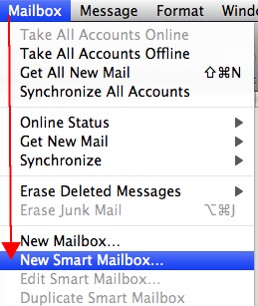
    Apple SmartMailboxIf you use Apple Mail, you create the filters using “Rules” under “Preferences” or using the “Smart Mailbox” feature.

    A Smart Mailbox is a filter/mailbox combination (Apple calls folders “mailboxes”). However, a Smart Mailbox doesn’t move the original emails out of the Inbox, so it’s more like a saved search.

    Apple Mail also has a useful “VIP” feature that creates Smart Mailboxes for your favorite people. To create a VIP when you open an email from a favorite person, click on the star next to the “from” line in that email.


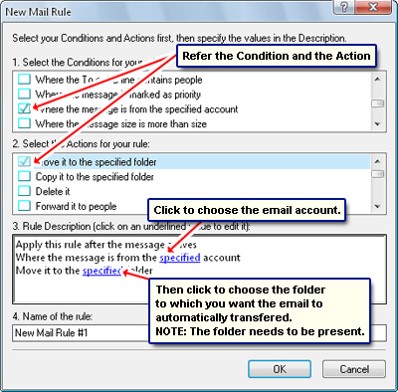
    If you use Outlook, filters are called “Rules.”Outlook Inbox Rules


    Gmail Inbox FIlter


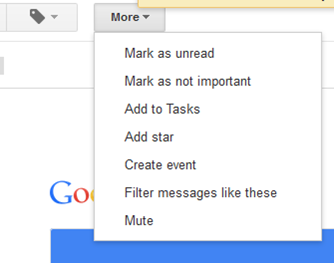
    In Gmail, open the email that you’d like to filter, click on “More”, and select “Filter Messages Like These” from the drop-down list.

    You can also create an email filter from the search box. Click on the down arrow at the right end of the search box, enter your filtering criteria, and then click on “Create filter with this search”.

    Need some help with your email management? Contact me.

  • A Musing on Email Overload

    A Musing on Email Overload

    AOL

    How did we get here with our email overload?

    If you read my last blog post here: Drowning in Email, you may have been amused by the trip back to 1980. I chose this date because it was before most people had email.

    Email was actually invented back in 1971.

    You can read about it here: The Man Who Made You Put Away Your Pen. AOL was the first widely-used public email platform, and many of you may still use your AOL email address. If you’re old enough to remember AOL mail, then you’re probably old enough to remember the audio notification “You’ve got mail”, and the movie of the same name. AOL launched in the early 90’s and by 2006 had nearly 50 million subscribers.

    AOL’s fall from that base was rapid, with Yahoo, Hotmail, and Gmail (now the most popular) all passing them by 2010.

    Email volume overtook postal mail volume by 2007.

    By that time close to 100 billion emails were being sent per day, an increase of 500% in just five years, mostly due to corporate email. By 2015, that number has doubled, to nearly 200 billion emails per day. (So you’re not the only one dealing with email overload.)

    You may be reading, responding to, and organizing your email on your device through dedicated email software, called an “email client” or you may be doing it through a web browser. One of the first email clients was Eudora, developed in 1988, followed by Microsoft Outlook, released as part of Microsoft Office ’97. Today, half of all email is being read on mobile devices, particularly the iPhone and iPad. On the desktop, most email is being read on mail.google.com, followed by Outlook & Apple Mail, with Yahoo mail losing steam fast.

    If you find yourself accessing your Gmail mostly on your mobile device, you may want to read my post on Google’s Inbox here: How to Manage Your Gmail Inbox. And don’t miss my longer post on email management here: 4 Steps to Becoming More Responsive.

    Contact me if you’d like some help with your email management.

  • Drowning in Email: A Guide Back to Shore

    Drowning in Email: A Guide Back to Shore

    10-BITS-popup

    Dial back time (you’ll have to imagine if you’re too young) to 1980.

    Imagine your morning routine: you rise, shower, eat breakfast, get in the car (or not), and get to work. You sit down at your desk, and you’re looking at a pile of nearly 100 envelopes that have been delivered overnight, stacked in front of pile after pile of envelopes that you haven’t gotten to in the previous days. You start going through the pile, sorting by the return address according to importance. As you’re doing this, the office mail person keeps coming by and adding more envelopes to the pile. Then your boss sticks her nose in the door and asks, “Where’s that invoice from the marketing agency? They said that they sent it 2 weeks ago!”

    You would probably stand up and say, “I quit!” right? No one could be expected to work like that. You would need an assistant whose only job was to go through the constant stream of mail, file things where you can find them, and bring your attention to the important pieces of mail.

    You can still hire an assistant to take care of your email; many business owners do, hence the rise of virtual assistants. And corporate environments are moving away from email, using team chat and collaboration tools primarily. But email is a long way from obsolescence. Despite being overwhelming and inefficient, it’s still the best way to get your thoughts and questions down and send them to other departments or clients or vendors.

    You can work efficiently and productively with email even without the help of an assistant.

    Your sorting method needs to be automated through the use of filters; prioritizing can be done using flags, and follow-up can be done by integrating with a task manager. You can read further here: 4 Steps to Becoming More Responsive.

    Contact me if you’d like some one-on-one or group help with your email management.