Tag: outlook

  • How To Easily Follow-up on Those Important Emails in Outlook

    How To Easily Follow-up on Those Important Emails in Outlook

    Outlook Follow-up To-do

    If you’ve gone through the process of email organization (see my blog post here: 4 Steps to Becoming More Responsive), then you hopefully have a streamlined inbox with just the most important emails.

    You also should have a daily routine of dealing with those emails that consists of:

    1. Evaluating
    2. Acting On, filing, or flagging for follow-up

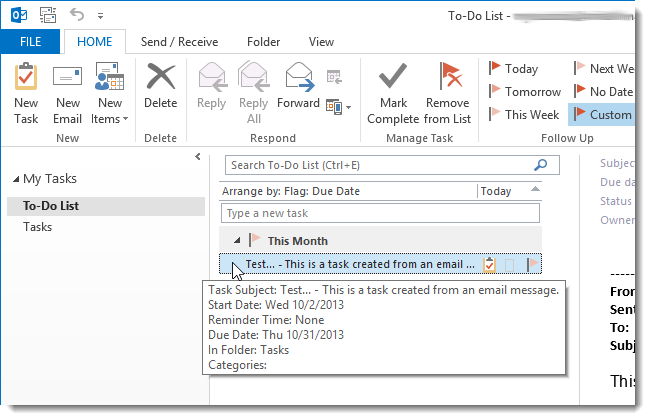
    Flagging an email in Outlook creates a follow-up to-do item.

    Your email is not only marked with a flag in your Inbox, it’s also listed in your Tasks view under “To-Do List”, in the To-do sidebar, and in the Daily Task List in your calendar.

    (Outlook treats your email to-do a little differently than a task that you’ve created. You can’t assign it to someone else, for example, or track its progress. If you delete the email, then you delete the to-do.)

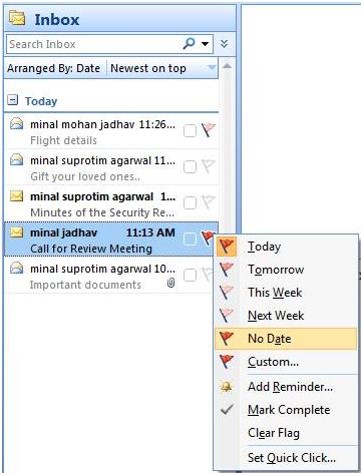
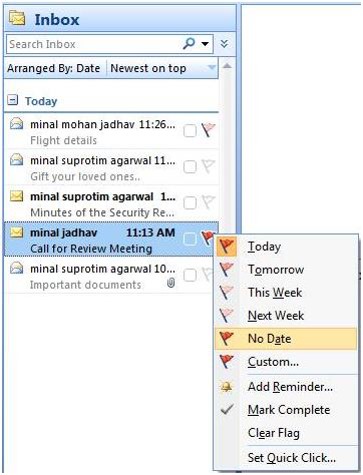
    Outlook Follow-up to-doIf your email account is a POP account, open the email and select a flag for Today, Tomorrow, Next Week, etc.  If your email account is an IMAP account, you have only the option of a flag with no follow-up date.

    You can then sort your email inbox by selecting “Arrange By: Flag” under the View menu.

    You can also look at these flagged emails in Tasks under “To-Do List”. (Outlook lists IMAP emails under Due Date: No Date.)

    If you want to create an actual Outlook task, rather than an email to-do, then you can drag the email to Tasks on the navigation bar. Outlook saves the email content to the body of the new task. You can now delete the original email if you wish. Since you will be able to assign a due date for the task, this is the recommended method for any IMAP account.

    Here’s a detailed blog post outlining this method: How to Create a Task from an Email Message.

    SUBSCRIBE TO MY NEWSLETTER

    Get the “Controlling the Chaos” Newsletter and receive a free PDF download
    “Drowning in Email – A Lifeline for Communications Overload”

    * indicates required


  • What Everyone Ought to Know About Office Alternatives

    What Everyone Ought to Know About Office Alternatives

    Microsoft Office

    Microsoft Office has been a workhorse for years.

    Many of us first became accustomed to it in our corporate work. If you’re still working in a corporate setting or if you’re creating detailed documents, spreadsheets, or presentations on a PC, there’s still nothing that beats Office for standard and more advanced content creation.

    Office is not cheap.

    A single license of Office Home and Student costs $120, but we’re often working on multiple devices these days. If you want to install Office on your home computer, your office computer, and your iPad, you’re better off with Office 365, which costs $9.99/month. Other advantages to Office 365 include automatic updates and new downloads to new computers.

    Office on the Mac has always been an afterthought for Microsoft, and not as full-featured as its PC equivalent. (However, Microsoft made many improvements in its Office 2016 version for the Mac.) Fortunately, if you’re on a Mac, you’ve got a great alternative – Apple’s application suite – Pages, Keynote, and Numbers. (Just remember to convert to the Office document equivalent when sharing files so that PC users can open them.)

    If you don’t need the advanced options that Office provides, then Google Docs is worth checking out.

    Mac or PC, you’ve also got an alternative with Google Docs, Google Sheets, and Google Slides. These applications are completely free to use on the web and also via the Google Docs mobile apps. Advantages include 15 GB of cloud storage space, easy collaboration with other Google users, and conversion to Office files for sharing.
    Office OnlineAnother option, perhaps even a better one than Google Docs, is Office Online. You can use the online versions of Word, PowerPoint, and Excel free of charge, with 5 GB of cloud storage. The online versions don’t have all of the features as the paid versions, but that may be fine if you’re not a power user.

    Microsoft Office OutlookMicrosoft Office for Business also includes Outlook, which is a nice integrated email reader, contacts manager, calendar, and task manager. Outlook calendar and contacts can sync with your iOS device by installing the iCloud plug-in, but you’ll need to look at third-party apps for Android contacts sync, or sign up for a Google for Work account.
    Mac Mail Office AlternativeIf you’re a Mac user and you don’t have Outlook, or you don’t want to use the Mac version of Outlook, then Mac Mail is a fine program and integrates well with the Mac Address Book. You will have to launch the Mac Calendar and Mac Reminders separately. (If you’d like to know how to integrate Mac Mail with Mac Reminders, read my blog post here: How to Ingrate Email with Task Management). The Mac Calendar and Mac Address Book can sync with both iOS and Android (through your Google account).

    Windows has always had a basic email program as part of its Windows Essentials. In Windows 10, Microsoft released a new mail program with integrated calendar and contacts. (The jury is still out on this program as Microsoft works out the bugs.) With the release of Windows 10 Mail, Microsoft will no longer be updating Windows Live Mail, and will no longer support it for outlook.com email addresses. Unlike Outlook, Windows 10 Mail will sync with both iOS and Android contacts.

    Thunderbird Office AlternativeFor years, I’ve been using a free program from Mozilla called Thunderbird as my email reader on the PC. Thunderbird, like Outlook, is extensible with add-ons, so I have a calendar add-on called Lightning, and another add-on that syncs with my Google calendar. There are available add-ons for contacts sync as well. Thunderbird is a full-featured program that may be a bit difficult for many people to learn, and the search function is limited. However, if you’re on a PC, you don’t have Outlook, and you have multiple email addresses that you want to manage in one place, then Thunderbird is an excellent option.

    Need help with Office or your email program? Contact me.
     

  • Do You Swipe?

    Do You Swipe?

    If you have a smartphone, you probably do. Apple’s iOS first popularized the use of swipe gestures such as swiping between app screens. In later iOS updates, Apple added more swipe gestures, such as swiping down to see notifications. Now, smartphone applications are adding their own swipe gestures, which are similar to clicking on something in a computer application and then selecting an action. But swiping is so much simpler, isn’t it?

    When you think about all of the actions that you can take with an email – reply to it, forward it, delete it, archive it, move it, flag it, etc., have you ever wondered if there’s a more efficient way?

    Swipe Gestures for Apple Mail

    Apple, Microsoft, and lots of other application developers have been thinking about it too. Here’s what you can do now with Apple mail on your iOS 9 device:

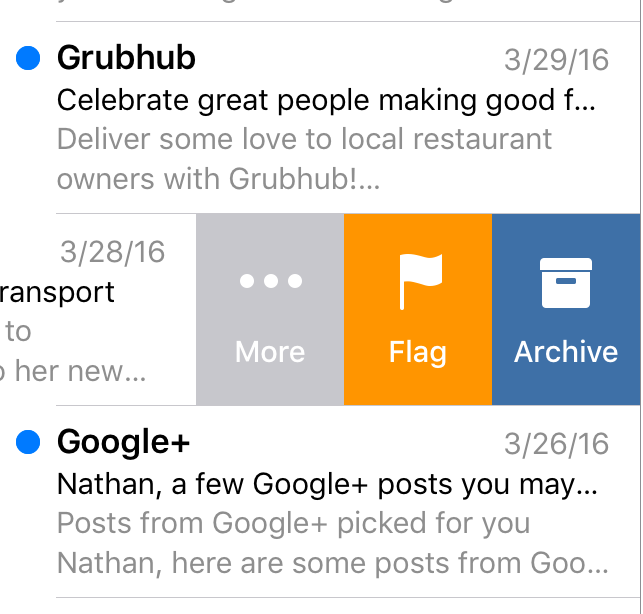
    • You can swipe on an email from left to right and mark the email as “Unread”.iOs Mail Swipe
    • As you swipe slowly from right to left, you can select “Archive”, “Flag”, or “More…”. From “More..”, you can select “Reply All”, “Forward”, “Mark..”, “Notify Me…”, “Move Message”.
    • Swiping quickly from right to left will delete the message.

    If you don’t like these gestures, you can go to your Mail settings and change them.


    On your Macintosh, you can swipe left on an email to delete it, or swipe right to mark it as read.

    Other Applications are Going Further

    Some application developers are going further. Here are a couple of examples:

    Google Inbox Swipe

    • Outlook for iOS adds the ability to swipe to schedule an email. This is like a “snooze” feature for an email that you don’t have time to deal with right now.
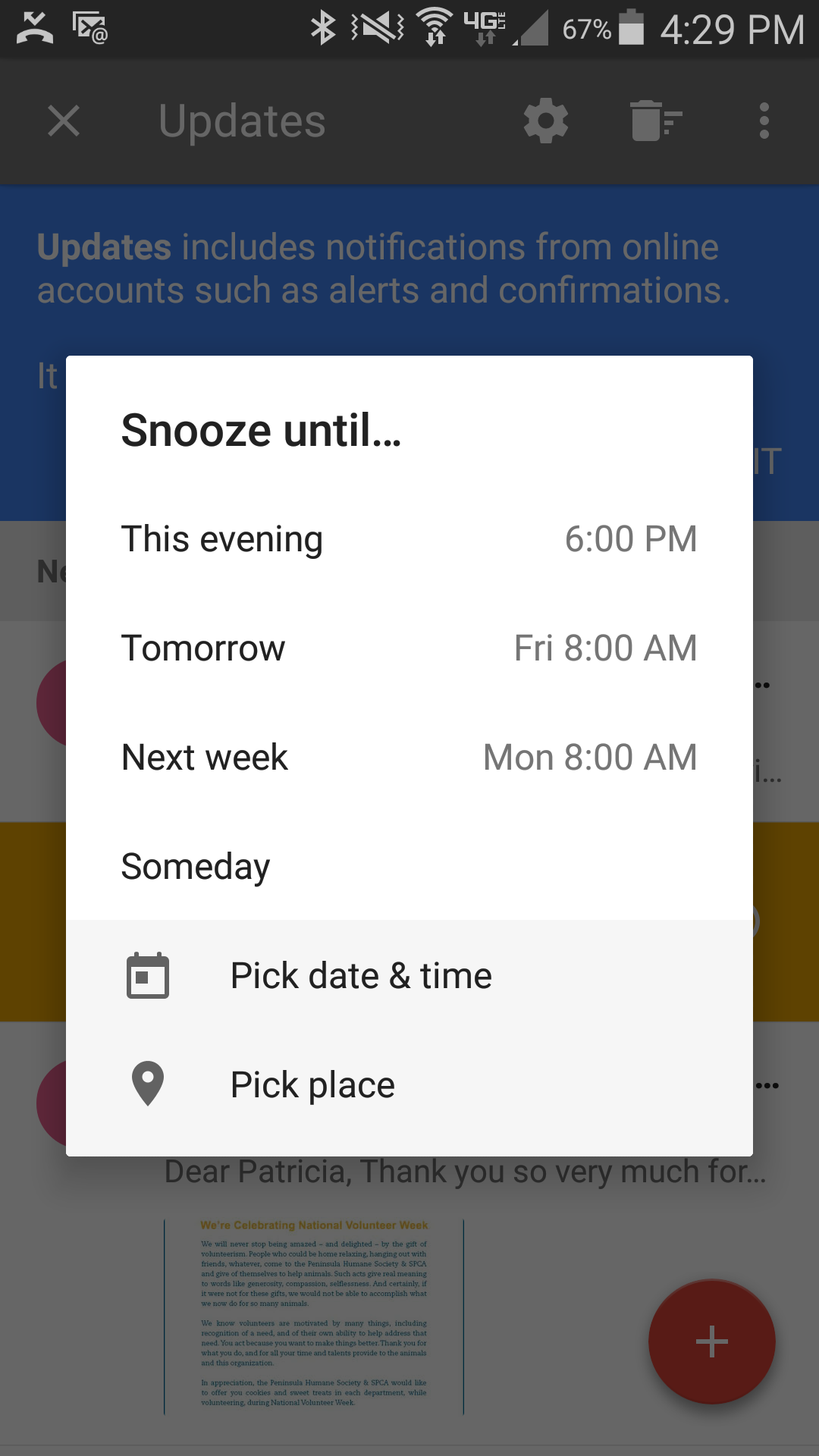
    • In Google’s Inbox app, swiping right marks the email as “Done.” Swiping left will “snooze” it, similar to Outlook’s “swipe to schedule”. Swiping down or up will close the email.

    One of the biggest breakthroughs in technology was the mouse and the ability to move a cursor around the screen, click to select, and click to perform an action. In the mobile-centric 21st century, we are moving rapidly toward an all-touchscreen world. Knowing the swipe gestures and other kinds of gestures for your favorite applications will keep you working efficiently.

    Confused about how to swipe? Contact me.


  • How to Integrate Email with Task Management

    How to Integrate Email with Task Management

    Staying on top of email chaos is not easy.

    Even after you’ve followed the steps to manage your email inbox (see my blog post here: 4 Steps to Becoming More Responsive ), you still need to “deal with” those emails that require a follow-up task. How do you make sure that you get those done, and that they don’t get lost in the daily shuffle?

    The easiest way is to have a daily routine to review and act on those emails. If you flag the most important emails, you can sort your inbox by flag. You can then review those emails daily and then delete them or archive them as you finish your follow-ups.

    However, a more efficient way is to merge your email with a task management system. Your emails will then become integrated with your daily to-do list.

    If you’re an Outlook user, then you can use the built-in Outlook task manager.

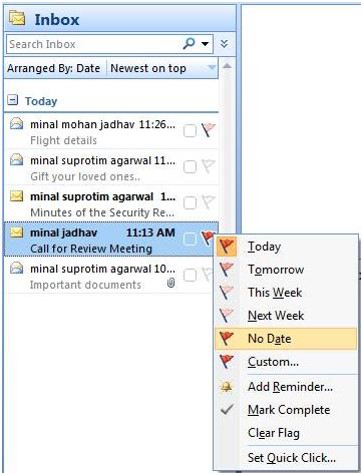
    Outlook Flag for TaskFlagging an email in Outlook actually assigns a follow-up task. If your email account is a POP account, this is pretty straightforward: open the email and select a flag for Today, Tomorrow, Next Week, etc.  If your email account is an IMAP account, you have only the option of a flag with no follow-up date. You’ll have to drag the email to Tasks (in your sidebar) and then assign a due date.
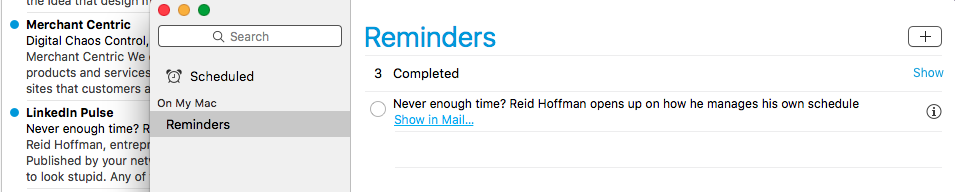
    If you use Mac mail, you can drag an email to your Reminders list.

    Apple Reminders

    Click on the “i” at the right of the reminder, and then choose the day that you want to be reminded on.

    If you’re a Gmail user, you can create a Google reminder from an email.

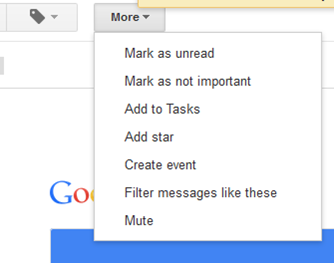
    Gmail Add to TaskOpen the email, click on “More”, and then select “Add to Tasks”. Your Tasks window will open in the bottom right-hand corner. You can then click on the arrow next to your new task to give it a due date. (If you use the Google Inbox app on your mobile device, then see my blog post here: How to Manage Your Gmail Inbox).

    You can also integrate your email with dedicated task managers such as Wunderlist.

    Here’s how it works with Wunderlist: when you’re running the app on your device and signed into your Wunderlist account, you can send emails to your Wunderlist Inbox by forwarding to me@wunderlist.com. Once the email is in your Wunderlist Inbox, you can give it a due date.

    If you’re keeping your to-do list in Evernote, then I suggest creating an Evernote Notebook.

    You could call it “My Tasks”, and then you can then forward emails into that notebook. (You find your Evernote email address by going to “Account Info”.) When you forward an email to your Evernote email address, you can specify a notebook by adding “@<notebook name>” to the subject line. For example, if you forward an email titled “Request for more information”, you would add your “My Tasks” notebook name to that title, so: “Request for more information @My Tasks”. If you’d like to tag the email, also add “#<tag>” to the subject line. You can then go to your Evernote app and assign a due date.

    Many of us like to use our email inbox as a todo list. It’s possible to do this, particularly by using flags to prioritize, but it’s more efficient to have all of your to-dos in one place, including emails that you need to follow up on.

    SUBSCRIBE TO MY NEWSLETTER

    Get the “Controlling the Chaos” Newsletter and receive a free PDF download
    “Drowning in Email – A Lifeline for Communications Overload”

    * indicates required


  • How to De-Clutter Your Email Inbox

    If you’re like most people, you’re getting too many emails in your inbox.

    An overflowing inbox can create stress and cause you worry that you’re missing important emails.

    One way to reduce the number of emails going into your inbox is to unsubscribe to as many automatic emails as possible, such as the ones from shopping sites that add you to their newsletter or promotions list. However, there still may be automatic emails that you would like to receive and read when you have time. Those emails can be filtered so that they’re being saved automatically to folders that you’ve created but not cluttering up your inbox.

    Filters are automatic programs that run within your email reader.

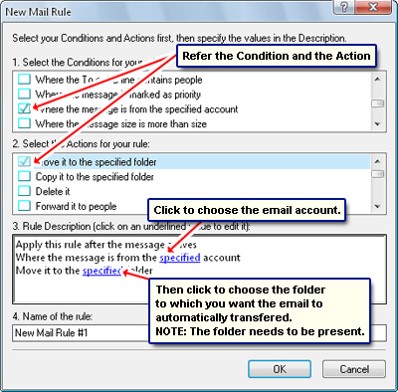
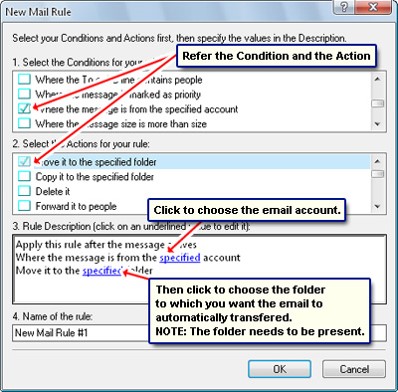
    As your email arrives, the filters search for specific criteria, defined by you, and then perform a defined action based on those criteria. For example, your filter can search the “from” field for your grocery store name and then save the email to a folder that you’ve created.

    I suggest creating filters for:

    • Your social media notifications
    • Any mail lists that you’re a member of (school, church, community organization, etc.)
    • Any newsletters that you’re subscribed to.

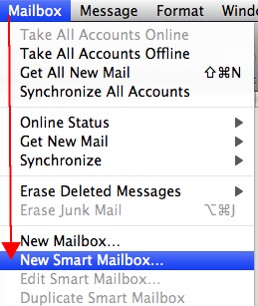
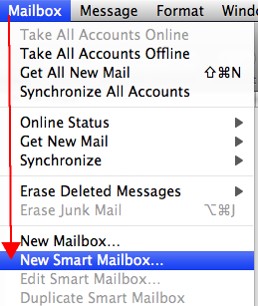
    Apple SmartMailboxIf you use Apple Mail, you create the filters using “Rules” under “Preferences” or using the “Smart Mailbox” feature.

    A Smart Mailbox is a filter/mailbox combination (Apple calls folders “mailboxes”). However, a Smart Mailbox doesn’t move the original emails out of the Inbox, so it’s more like a saved search.

    Apple Mail also has a useful “VIP” feature that creates Smart Mailboxes for your favorite people. To create a VIP when you open an email from a favorite person, click on the star next to the “from” line in that email.


    If you use Outlook, filters are called “Rules.”Outlook Inbox Rules


    Gmail Inbox FIlter


    In Gmail, open the email that you’d like to filter, click on “More”, and select “Filter Messages Like These” from the drop-down list.

    You can also create an email filter from the search box. Click on the down arrow at the right end of the search box, enter your filtering criteria, and then click on “Create filter with this search”.

    Need some help with your email management? Contact me.

  • A Musing on Email Overload

    A Musing on Email Overload

    AOL

    How did we get here with our email overload?

    If you read my last blog post here: Drowning in Email, you may have been amused by the trip back to 1980. I chose this date because it was before most people had email.

    Email was actually invented back in 1971.

    You can read about it here: The Man Who Made You Put Away Your Pen. AOL was the first widely-used public email platform, and many of you may still use your AOL email address. If you’re old enough to remember AOL mail, then you’re probably old enough to remember the audio notification “You’ve got mail”, and the movie of the same name. AOL launched in the early 90’s and by 2006 had nearly 50 million subscribers.

    AOL’s fall from that base was rapid, with Yahoo, Hotmail, and Gmail (now the most popular) all passing them by 2010.

    Email volume overtook postal mail volume by 2007.

    By that time close to 100 billion emails were being sent per day, an increase of 500% in just five years, mostly due to corporate email. By 2015, that number has doubled, to nearly 200 billion emails per day. (So you’re not the only one dealing with email overload.)

    You may be reading, responding to, and organizing your email on your device through dedicated email software, called an “email client” or you may be doing it through a web browser. One of the first email clients was Eudora, developed in 1988, followed by Microsoft Outlook, released as part of Microsoft Office ’97. Today, half of all email is being read on mobile devices, particularly the iPhone and iPad. On the desktop, most email is being read on mail.google.com, followed by Outlook & Apple Mail, with Yahoo mail losing steam fast.

    If you find yourself accessing your Gmail mostly on your mobile device, you may want to read my post on Google’s Inbox here: How to Manage Your Gmail Inbox. And don’t miss my longer post on email management here: 4 Steps to Becoming More Responsive.

    Contact me if you’d like some help with your email management.

  • Are you Dealing with Email Chaos? Here are 3 Ways to Help Manage Your Inbox.

    Are you Dealing with Email Chaos? Here are 3 Ways to Help Manage Your Inbox.

    It’s very common to procrastinate dealing with your email chaos. Does this sound familiar to you?

    Inbox

    • Email comes in and sits there until you have a chance to look at it.
    • The size of your inbox keeps increasing.
    • You have not just emails from your co-workers, clients, friends, and family, but also emails from school lists, notifications from social networks, and newsletters from retailers, vendors, and consultants (including mine! Sign up here).

    Unfortunately, it’s all too easy to miss important emails in all of the clutter. It’s no longer possible to treat your inbox like it’s a to-do list that keeps growing and growing…

    Here are my suggestions to get a handle on your email chaos:

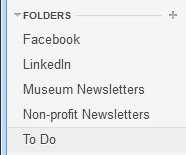
    InboxFolders

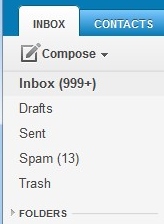
      1. The first thing to do is to create email folders. These are to serve as repositories for less important emails as they come in, so that those newsletters from your neighborhood grocery store aren’t taking up space in your inbox. You may want to read about these weeks specials when you have time, so don’t unsubscribe, manage your inbox instead.


    I suggest creating a folder for each email list that you’re a member of, a folder for social network notifications, a folder for each category of newsletter, and a folder for “deferred” items. The point is to keep your inbox sparse enough so that you’re not spending a lot of time daily going through looking for the important emails.

      1. After you’ve created folders, the next step is to create “filters” – automatic programs that run within your email reader. Filters search for specific criteria, which you define, as your email arrives and then perform a defined action based on that criteria. For example, your filter can search the “from” field for your grocery store name and then save the email to a specific folder that you’ve created in step 1.

    AppleSmartMailbox

    OutlookRules

    If you use Apple Mail, you create the filters using the “Smart Mailbox” feature. (Apple Mail also has a useful “VIP” feature that creates folders for your favorite people. When you open an email from a favorite, click on the star next to the “from” line.) If you use Outlook, filters are called “Rules.”

    OutlookFlags

    1. Once you have your folders and filters set up, you should see a big improvement in your inbox. The next step is to flag your emails with priority levels (Gmail uses colored stars), and then to sort them by priority.

    If you have a consistent routine – dealing with the most important emails first and also setting aside some time daily or weekly to flag, sort, and organize your inbox, then you’ll find that you’ve become efficient and responsive with your email management. No more apologizing, “Sorry, I missed that email”!


    Digital Chaos Control

    If you need some help managing your inbox, Digital Chaos Control can help! Contact us today.