Well, it finally happened. Your client, or customer, or boss, or best friend feels put out or confused. That’s because you never responded to his or her email.
Why? Because you missed it. Perhaps you’re still working on your inbox organization. Or maybe you haven’t gotten around to getting organized yet. Even if you do have a handle on your inbox most of the time, there are always those times when you fall behind.
The first thing to do is to find that email and to follow up on any action.
Use the built-in search tool for your email program. You can search by sender or subject.
The next thing to do is to apologize.
Here’s a great website to help you to formulate that apology: Perfect Apology.
Hopefully, you’ve been forgiven now and you can patch things up. If it’s a client or a customer, you may have to follow up with a special offer or discount on your services. Take on some extra work if it’s your boss. If it’s a friend or family member, there’s always the old throwback of flowers and/or chocolates. Perhaps stand her or him a drink sometime.
The third step may be to make sure that important people can reach you in other ways.
We’ve all experienced times when an email never got answered. A lot of people are dealing with inbox chaos. I usually follow up with another email. If that goes unanswered within a day or two, I’ll call or text. Some prominent people who can’t stay on top of their inbox volume set up a regular Skype chat or Google Hangout with their followers.
If you’re like most people, you’re getting too many emails in your inbox.
An overflowing inbox can create stress and cause you worry that you’re missing important emails.
One way to reduce the number of emails going into your inbox is to unsubscribe to as many automatic emails as possible, such as the ones from shopping sites that add you to their newsletter or promotions list. However, there still may be automatic emails that you would like to receive and read when you have time. Those emails can be filtered so that they’re being saved automatically to folders that you’ve created but not cluttering up your inbox.
Filters are automatic programs that run within your email reader.
As your email arrives, the filters search for specific criteria, defined by you, and then perform a defined action based on those criteria. For example, your filter can search the “from” field for your grocery store name and then save the email to a folder that you’ve created.
I suggest creating filters for:
Your social media notifications
Any mail lists that you’re a member of (school, church, community organization, etc.)
Any newsletters that you’re subscribed to.
If you use Apple Mail, you create the filters using “Rules” under “Preferences” or using the “Smart Mailbox” feature.
A Smart Mailbox is a filter/mailbox combination (Apple calls folders “mailboxes”). However, a Smart Mailbox doesn’t move the original emails out of the Inbox, so it’s more like a saved search.
Apple Mail also has a useful “VIP” feature that creates Smart Mailboxes for your favorite people. To create a VIP when you open an email from a favorite person, click on the star next to the “from” line in that email.
If you use Outlook, filters are called “Rules.”
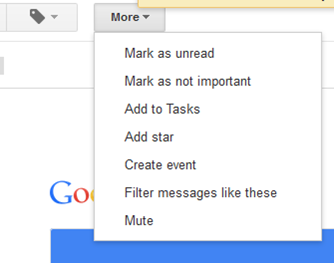
In Gmail, open the email that you’d like to filter, click on “More”, and select “Filter Messages Like These” from the drop-down list.
You can also create an email filter from the search box. Click on the down arrow at the right end of the search box, enter your filtering criteria, and then click on “Create filter with this search”.
Need some help with your email management? Contact me.
The first step towards productive email management may be to identify your goals. For most of us, it means a few things:
Not missing important emails
Not having to spend hours of our time picking out the important emails
Quickly finding an email when we need it
Being able to scan the inbox for important items
One popular productivity method is called “Getting Things Done” (or GTD), first made popular by David Allen’s book in 2001.
The GTD system requires that you empty your email inbox through utilizing an “action management system”. The flow goes like this:
Examine each email
Is it actionable?
If not,
trash it, or
move it to a “someday/maybe” list, or
move it to a reference list.
If it is actionable, determine if it will take less than 2 minutes. If yes, take care of the action. If not, delegate it or schedule it for later.
Here’s what I see are the problems with the GTD system:
If you’re not on top of your inbox, it can grow out of control.
So you need to make sure to:
Schedule time to stay on top of your inbox
Schedule time to deal with the task list that results from deferred items so that it’s not getting too long
Schedule time for your “someday/maybe” list, or else you’ll never get to it
Many people struggle with the GTD system because of the level of organization and time involved, so I advocate making a little tweak to this system.
You do need to start with looking at each email first, or at least a good representation of your inbox, and that’s because you’ll determine how you will categorize your email. Read my blog post about categorization here: How to Become a Pro at Managing Email Chaos.
Your “green” category emails are equivalent to David Allen’s “someday/maybe” emails, your “yellow” category emails his “schedule for later”, and your “red” category emails his “2 minute” emails.
Once you’ve determined how your emails can be categorized, you’ll use filters to keep the green category (or “someday/maybe”) emails out of your inbox, simplifying your daily inbox management process. I’ll be writing more on email filters later, but read this post to get the basic idea: 4 Steps to Becoming More Responsive. And now that your green category emails are out of your inbox, you should ideally block out some time on your calendar on a weekly basis to review these emails.
Your inbox is now smaller and easier to manage.
You’ll still need a regular routine to read those yellow and red category incoming emails and deal with them. As you move the yellow category (or “schedule for later”) emails out of your inbox, David Allen advocates implementing a method for reminding yourself to act on those tasks. If you have an email program that supports it, you can “snooze” the email or flag it for follow-up, or you can integrate your email with a task manager. (I’ll be writing blog post soon on task management integration with reminders, so check back.) If you’re a Gmail user, here’s a great post at TechRepublic: How Google Steathily Built a “GTD” Suite of Apps.
Your red category emails are your immediately actionable emails. However, you often cannot deal with these emails within two minutes or five minutes, and you may not have anyone to delegate to. So, these emails need to stay in your inbox, and they need to stay visible. The best way to keep them visible is to assign flags or stars to them, depending on your email program. Your daily routine should include sorting your inbox by flag and dealing with those high-priority emails that you had to defer because you needed more information, a response, or you just didn’t have a few minutes to deal with them.
If you struggle with organization, or even if you are a highly organized person, the most productive way to find the email that you need is to search for it. Hopefully, you’ve signed up for my email list and received my paper on “How to Find What You Need When You Need it”. If not, shoot me an email and I’ll send it to you.
If you read my last blog post here: Drowning in Email, you may have been amused by the trip back to 1980. I chose this date because it was before most people had email.
Email was actually invented back in 1971.
You can read about it here: The Man Who Made You Put Away Your Pen. AOL was the first widely-used public email platform, and many of you may still use your AOL email address. If you’re old enough to remember AOL mail, then you’re probably old enough to remember the audio notification “You’ve got mail”, and the movie of the same name. AOL launched in the early 90’s and by 2006 had nearly 50 million subscribers.
AOL’s fall from that base was rapid, with Yahoo, Hotmail, and Gmail (now the most popular) all passing them by 2010.
Email volume overtook postal mail volume by 2007.
By that time close to 100 billion emails were being sent per day, an increase of 500% in just five years, mostly due to corporate email. By 2015, that number has doubled, to nearly 200 billion emails per day. (So you’re not the only one dealing with email overload.)
You may be reading, responding to, and organizing your email on your device through dedicated email software, called an “email client” or you may be doing it through a web browser. One of the first email clients was Eudora, developed in 1988, followed by Microsoft Outlook, released as part of Microsoft Office ’97. Today, half of all email is being read on mobile devices, particularly the iPhone and iPad. On the desktop, most email is being read on mail.google.com, followed by Outlook & Apple Mail, with Yahoo mail losing steam fast.
Dial back time (you’ll have to imagine if you’re too young) to 1980.
Imagine your morning routine: you rise, shower, eat breakfast, get in the car (or not), and get to work. You sit down at your desk, and you’re looking at a pile of nearly 100 envelopes that have been delivered overnight, stacked in front of pile after pile of envelopes that you haven’t gotten to in the previous days. You start going through the pile, sorting by the return address according to importance. As you’re doing this, the office mail person keeps coming by and adding more envelopes to the pile. Then your boss sticks her nose in the door and asks, “Where’s that invoice from the marketing agency? They said that they sent it 2 weeks ago!”
You would probably stand up and say, “I quit!” right? No one could be expected to work like that. You would need an assistant whose only job was to go through the constant stream of mail, file things where you can find them, and bring your attention to the important pieces of mail.
You can still hire an assistant to take care of your email; many business owners do, hence the rise of virtual assistants. And corporate environments are moving away from email, using team chat and collaboration tools primarily. But email is a long way from obsolescence. Despite being overwhelming and inefficient, it’s still the best way to get your thoughts and questions down and send them to other departments or clients or vendors.
You can work efficiently and productively with email even without the help of an assistant.
Your sorting method needs to be automated through the use of filters; prioritizing can be done using flags, and follow-up can be done by integrating with a task manager. You can read further here: 4 Steps to Becoming More Responsive.
Contact me if you’d like some one-on-one or group help with your email management.
If you’re dealing with Gmail overload, then you have options to get organized and efficient. (If you haven’t yet read my blog post on email organization, then you may want to read it and come back: 4 Step to Becoming More Responsive). Google calls folders “labels”. Google starts you off with your email organization by automatically creating labels for “Promotions” & “Social” and filtering emails into those labels.
Here are three options for your Gmail organization:
Read your Gmail using any mail reader, such as Mac mail or Outlook. You can take advantage of the organization features built into those programs.
Manage your inbox through Google’s web interface. From that interface, you can create labels & filters, and also star important emails.
Manage your inbox on your mobile device using Google’s Inbox app.
Google based their Inbox interface on the idea thatmost of us use our email inbox as a to-do list.
Through the app’s interface, you “check off” an email item by swiping right to move it to “done”. You can also “snooze” an email, which allows you to select a time that the email will get moved back to the top of your inbox.
Filters are called “bundles” in the Google Inbox app. You can create new labels with rules. You turn filtering for each label off and on by selecting the label under the menu and disabling or enabling the bundle. If you have an email in a bundle that you want to follow up on, you can pin it so that it shows up as an individual email in your inbox. Then you can snooze it or create a reminder.
Here’s a great post on TechRepublic about creating Google Inbox bundles: Create Your Own Bundles
Your Google reminders are also part of Inbox. You can create new reminders or look at your reminder list and check things off.
Do you need some one-on-one or group help with your email management?
The average business worker sends and receives over 120 business emails per day and spends nearly 30 percent of the workweek managing email. Together with personal email, 205 billion emails are sent emails each day—a number expected to increase over 16 percent to 246 billion emails in 2019.
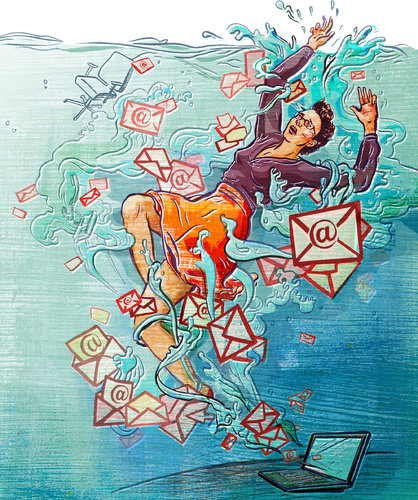
Email overload can result in anxiety and feelings of guilt.
It can be stressful to see your Inbox growing out of control and there is an increased risk of missing important email correspondence. Productivity drops when you have to spend too much time dealing with those emails, and distractions increase with those email notifications.
Fortunately, there are solutions to email overload. To start with, we need to be able to categorize those emails that we receive so that we can move forward with organization and management techniques.
Make Three Lists
I recommend taking a look through your Inbox and making three lists. Keep those lists handy for the next steps.
Red Category
These are emails that you want to see in your Inbox, and that you don’t want to miss.
Example: Emails from clients, customers, co-workers, vendors, contractors, etc.
Yellow Category
Identify those emails that you don’t want to miss, but can wait until the end of the day or end of the week.
Example: Emails from friends and family, industry associations, school and church mail lists, etc.
Green Category
Identify those emails that you only want to deal with when you have the time.
Examples: Newsletters, social media notifications, etc.
Once you have your three lists, you can work on an organization strategy for those emails. You can create folders for those yellow and green category emails and set up email filters so that they will automatically be delivered to those folders instead of cluttering up your inbox.
The folks at SaneBox, an email management app, have written a post here that you might find interesting: Email Triage, and you can read further advice from me here: 4 Step to Becoming More Responsive
Need some one-on-one or group help with your email management?
It’s very common to procrastinate on dealing with your chaotic email inbox.
Does this sound familiar to you?
You dread sitting down at your desk to look at email and feel guilty and anxious at the sight of your overflowing email inbox
You stay at your desk longer every day to try to stay on top of your email inbox.
The size of your email inbox keeps increasing.
You have not just emails from your co-workers, clients, friends, and family, but also emails from school lists, notifications from social networks, and newsletters from retailers, vendors, and consultants (including mine! Sign up here: http://www.digitalchaoscontrol.com).
You have missed important emails.
Unfortunately, it’s all too easy to miss important emails in the clutter.
Email is still an important communication tool but email volume continues to increase every year. It’s no longer possible to treat your email inbox like it’s a to-do list that keeps growing and growing.
How do we turn things around? There are differing opinions and advice on this. One well-known tactic is called “Inbox zero”, which is a technique that encourages you to take the time to look at each and every email and make a decision on it: delete, delegate, respond, defer or do. This is a great technique if you have the time and discipline to go through your email innbox every day, but most of us don’t have enough free time to prioritize email management. You may think that you’ll have some time later when things are less busy, but the truth is that your future self will probably be just as busy.
The first thing to do is to relax.
The size of your email inbox doesn’t matter. What does matter is that you’re not missing important emails or losing track of them, you’re responsive to your clients and co-workers, and that you can find the email that you need when you need it.
Don’t worry about getting to Inbox zero. There are other more productive and efficient ways to deal with email. Read this blog post: 4 Steps to Becoming More Responsive for some tips, and contact me for some one-on-one or group expert help.
It’s very common to procrastinate on dealing with your email chaos.
Does this sound familiar to you?
You dread sitting down at your desk to look at email.
You stay at your desk longer every day to try to stay on top of your inbox.
The size of your inbox keeps increasing.
You have not just emails from your co-workers, clients, friends, and family, but also emails from school lists, notifications from social networks, and newsletters from retailers, vendors, and consultants (including mine! Sign up on the right sidebar).
Unfortunately, it’s all too easy to miss important communication due to email chaos.
Email is still an important communication tool but email chaos continues to increase every year. It’s no longer possible to treat your inbox like it’s a to-do list that keeps growing and growing…
Many of us use an email reader like Microsoft Outlook, but in recent years webmail has become more common, particularly Gmail. There are ways to manage your email chaos whether you’re using Outlook, Apple Mail, or Gmail.
Here are my suggestions to get a handle on your email chaos:
The first thing to do is to create email folders.
These are to serve as repositories for less important emails as they come in. You don’t want those newsletters from your neighborhood grocery store taking up space in your inbox. You may want to read about this week’s specials when you have time, so don’t unsubscribe, manage your inbox instead.
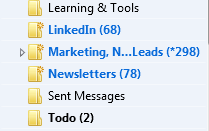
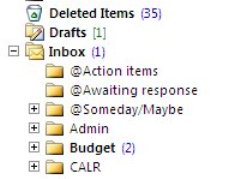
I suggest creating a folder for each email list that you’re a member of, a folder for social network notifications, a folder for each category of newsletter, and a folder for “deferred” items. The point is to keep your inbox sparse enough so that you’re not spending a lot of time daily going through looking for the important emails. (And go ahead: unsubscribe from any newsletters or marketing emails that you don’t care about).
In Apple Mail, folders are called “Mailboxes”. In Gmail, they’re called “Labels”.
After you’ve created folders,the next step is to create “filters” – automatic programs that run within your email reader.
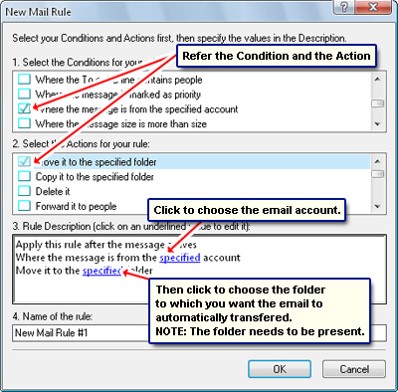
Filters search for specific criteria, which you define, as your email arrives and then perform a defined action based on those criteria. For example, your filter can search the “from” field for your grocery store name and then save the email to a specific folder that you’ve created in step one.
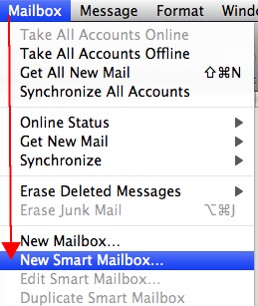
If you use Apple Mail, you create the filters using “Rules” under “Preferences” or using the “Smart Mailbox” feature. (Creating a Smart Mailbox creates a “mailbox” for emails that fit the rules but doesn’t move the original emails out of the Inbox). Apple Mail also has a useful “VIP” feature that creates folders for your favorite people – when you open an email from a favorite person, click on the star next to the “from” line.
If you use Outlook, filters are called “Rules.”
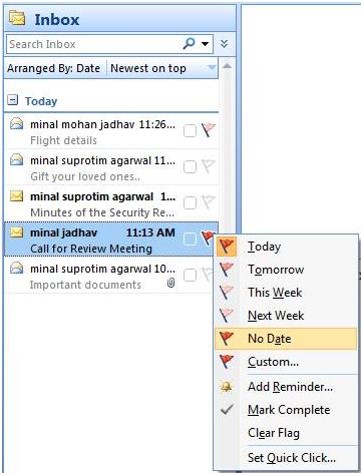
Once you have your folders and filters set up, you should see a big improvement with your email chaos. The next step for Inbox management is to flag your emails with priority levels (Gmail uses colored stars), and then to sort your Inbox by priority, so that you can deal with your most important emails first.
This is not as easy as it sounds. How do you “deal with” those important emails, since some of the emails just require a response, but often they require creating a follow-up task?
There are ways to integrate your email system with a task management system, and I will address that in a later blog post. Stay posted!
Finally, you need to set up your email management routine, preferably by adding time into your calendar.
I suggest blocking out some time every day to:
Priorize and flag your emails
Deal with the most important emails, or create follow-up tasks
Move less important emails to a “Later” folder.
I also suggest blocking out some time every week to deal with the “Later” emails and to do clean-out of your other folders.
If you have a consistent routine, then you’ll find that you’ve become efficient and responsive with your email management. No more apologizing: “I’m so sorry, I didn’t see your email”!
SUBSCRIBE TO MY NEWSLETTER
Get the “Controlling the Chaos” Newsletter and receive a free PDF download “Drowning in Email – A Lifeline for Communications Overload”
It’s very common to procrastinate dealing with your email chaos. Does this sound familiar to you?
Email comes in and sits there until you have a chance to look at it.
The size of your inbox keeps increasing.
You have not just emails from your co-workers, clients, friends, and family, but also emails from school lists, notifications from social networks, and newsletters from retailers, vendors, and consultants (including mine! Sign up here).
Unfortunately, it’s all too easy to miss important emails in all of the clutter. It’s no longer possible to treat your inbox like it’s a to-do list that keeps growing and growing…
Here are my suggestions to get a handle on your email chaos:
The first thing to do is to create email folders. These are to serve as repositories for less important emails as they come in, so that those newsletters from your neighborhood grocery store aren’t taking up space in your inbox. You may want to read about these weeks specials when you have time, so don’t unsubscribe, manage your inbox instead.
I suggest creating a folder for each email list that you’re a member of, a folder for social network notifications, a folder for each category of newsletter, and a folder for “deferred” items. The point is to keep your inbox sparse enough so that you’re not spending a lot of time daily going through looking for the important emails.
After you’ve created folders, the next step is to create “filters” – automatic programs that run within your email reader. Filters search for specific criteria, which you define, as your email arrives and then perform a defined action based on that criteria. For example, your filter can search the “from” field for your grocery store name and then save the email to a specific folder that you’ve created in step 1.
If you use Apple Mail, you create the filters using the “Smart Mailbox” feature. (Apple Mail also has a useful “VIP” feature that creates folders for your favorite people. When you open an email from a favorite, click on the star next to the “from” line.) If you use Outlook, filters are called “Rules.”
Once you have your folders and filters set up, you should see a big improvement in your inbox. The next step is to flag your emails with priority levels (Gmail uses colored stars), and then to sort them by priority.
If you have a consistent routine – dealing with the most important emails first and also setting aside some time daily or weekly to flag, sort, and organize your inbox, then you’ll find that you’ve become efficient and responsive with your email management. No more apologizing, “Sorry, I missed that email”!
If you need some help managing your inbox, Digital Chaos Control can help! Contact us today.





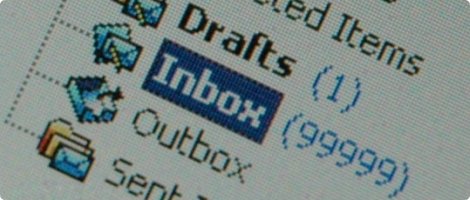
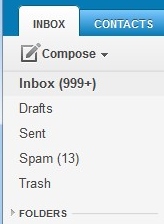 It’s very common to procrastinate on dealing with your email chaos.
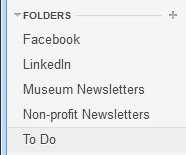 The first thing to do is to create email folders.
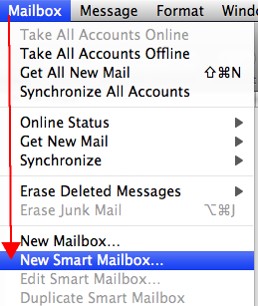 If you use Apple Mail, you create the filters using “Rules” under “Preferences” or using the “Smart Mailbox” feature. (Creating a Smart Mailbox creates a “mailbox” for emails that fit the rules but doesn’t move the original emails out of the Inbox). Apple Mail also has a useful “VIP” feature that creates folders for your favorite people – when you open an email from a favorite person, click on the star next to the “from” line.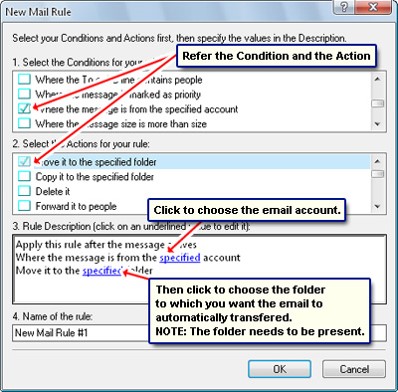
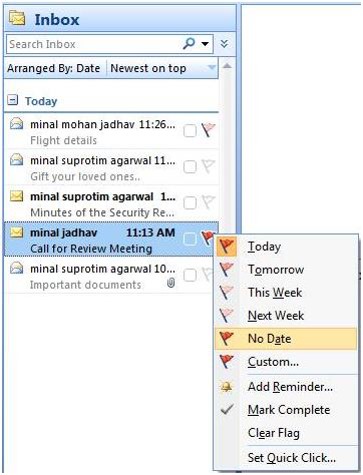 Once you have your folders and filters set up, you should see a big improvement with your email chaos. The next step for Inbox management is to flag your emails with priority levels (Gmail uses colored stars), and then to sort your Inbox by priority, so that you can deal with your most important emails first.