Category: Back-Ups

  • Be Sure That Your Memories are Safe

    Be Sure That Your Memories are Safe

    Safe Memories

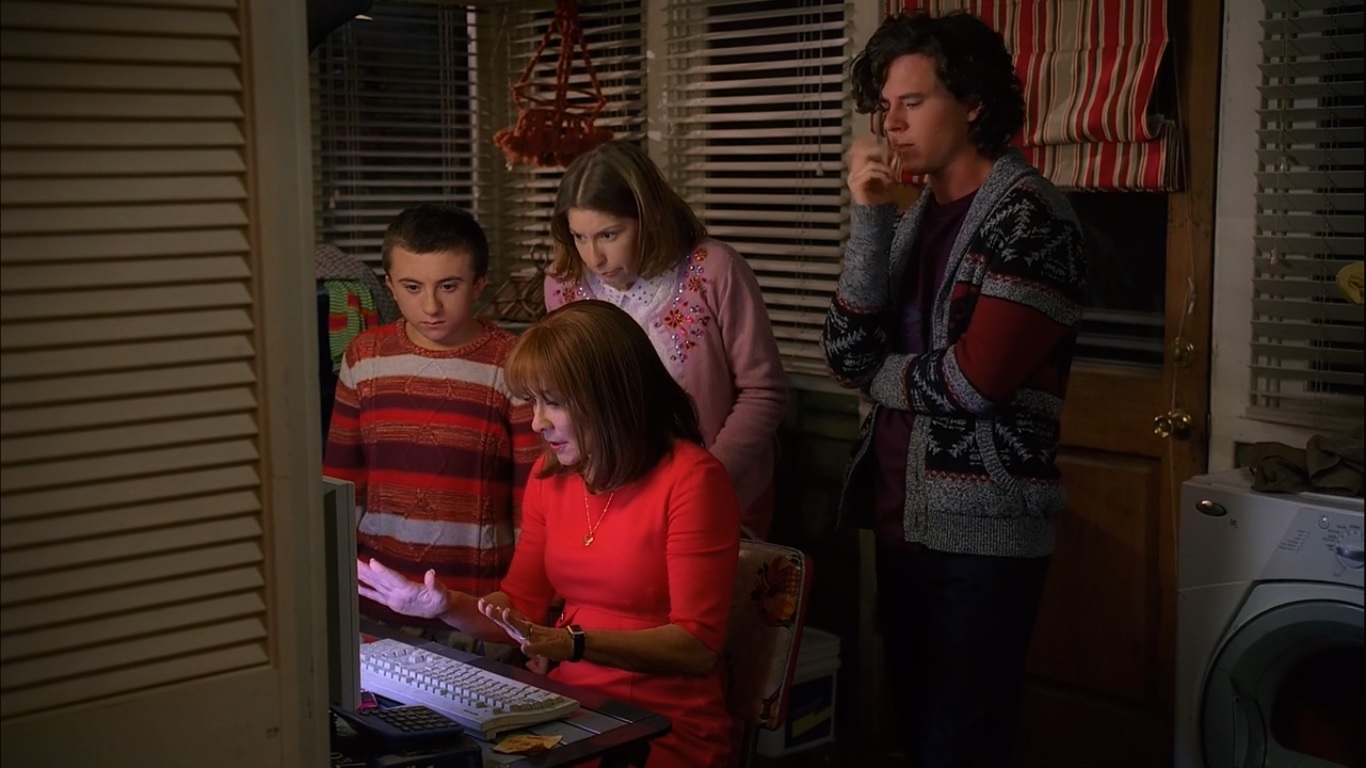
    In the above still from an episode of the TV show “The Middle”, Sue Heck had accidently deleted all the family photos. No one had taken on the responsibility of backing up the computer and keeping those memories safe. (The Hecks probably could have taken the computer to a data recovery tech, but who wants to have to do that?)

    In this article in the Guardian, Amy Malloy wrote about losing the photographic record of her 20s, including all the photos of her late husband: I Lost a Decade of Photographs.

    You many think that losing your memories won’t happen to you, but don’t be too sure.

    Unexpected things can trip us up, such as not double-checking that your photos are there, like Amy did.

    Here are some examples:

      • I had someone call me because she just noticed that all of the videos were missing from her iPhone. She was backing up her iPhone to iCloud, but iCloud backups are only good for about 30 days. Her videos went missing before that. There was nothing that anyone could do to help her.
      • If you’re using a cloud service such as Dropbox, it doesn’t mean your data is backed up. Dropbox is a sync service. If you accidently delete files on one device, the files get deleted on the Dropbox server and on all your other devices. (Like with iCloud, you can recover within a period of time, but you have to notice first…)
         
        (Here’s an article at How-To Geek with more details: Ensure You’ll Never Lose Files Stored in Dropbox.)
    • If you’re using iCloud Photo Library, it works the same way as other cloud services. If you delete photos on your iPhone, for example, you’re deleting from your Mac as well.
    • If your cloud service gets hacked, then your files could all get deleted. (Make sure that you’re using a strong password.)

    If you’re sure that you’re backing up your computer and saving your memories, then make sure that you’re really sure.

    Today, I had a client ask me to check her TimeMachine backup, and it was turned off! She had no idea how it had happened…

    Sync your mobile devices to your computer, back up your computer regularly, and sign up for cloud backup as extra insurance.

    Make sure that you read my blog post on backups here: What Everyone Ought to Know About Backups.

    Get the “Controlling the Chaos” Newsletter and receive a free PDF download
    “Drowning in Email – A Lifeline for Communications Overload”
    * indicates required


  • How to Backup Multiple Computers

    How to Backup Multiple Computers

    NAS Drive for Backup

    We’ve got five computers in our household. We’re almost like a small business – we need regular maintenance and backup. Rather than set up a separate backup device for each computer, I elected to go with a network-attached storage (NAS) device.

    You connect the NAS device to your internet router. Your computer sees it as a network device that it can use for backup.

    It’s a great way to add storage for backup and also for shared media. You can even set up your NAS device to make your data available securely over the internet for when you need to access it outside of your home or office.

    NAS devices come in all sorts of configurations. The basic configuration is a device with one drive “bay”. (You need to buy the hard drive separately.) I opted for a device with two drive bays. I installed two hard drives and configured the device so that the second drive is “mirrored”, meaning that it’s an exact copy of the first drive. (So it’s a backup of the backup.)

    Here’s a device like the one that I have: Synology NAS Drive.

    On Windows computers, the drive needs to be “mounted”. Your device will typically come with software that will help you to configure that. Once you’ve mounted the device, you’ll be able to access it just like you would a local device.

    On Windows 8 and Windows 10, you can set up Windows File History to back up to the mounted drive. For Windows 7, it’s easiest to install backup software from the device vendor. On a Macintosh, you can select the network drive when setting up Time Machine. (You may need to configure your NAS device first – check the manufacturer instructions.)

    The household computers are all backing up to my NAS drive on a daily schedule. I don’t have to worry about data loss.

    It’s a nice solution if you have more than one computers.

    Get the “Controlling the Chaos” Newsletter and receive a free PDF download
    “Drowning in Email – A Lifeline for Communications Overload”
    * indicates required


  • What Everyone Ought to Know About Automatic Local and Cloud Backups

    What Everyone Ought to Know About Automatic Local and Cloud Backups

    Use a an external hard drive for local backupsYour digital data is crucially important to the quality of your life. Imagine losing all of the photos of your children, or your client information, or your financial information.

    Most of us know about backups and that we should be doing them regularly. Did you know that there continues to be new and easier ways to automate the process?

    I recommend three copies of your data:

    1. On your computer storage
    2. On external storage media
    3. In the cloud

    Use software to automate your backups.

    Software also allows you to restore your data to your computer should you ever need to. You can use “Time Machine” on the Mac, “Windows Backup and Restore” on Windows 7, “File History” on Windows 8/10, or the software that comes with your backup device. You should have external media, such as an external hard drive, connected to your computer at the times of your scheduled backups.

    Backups keep your important memories safeYou can archive your important memories to save space on your computer. Move your photo library to external storage or cloud storage. Make a second copy in a different location for backup. Then create a new photo library on your computer that you’re updating with your recent photos.

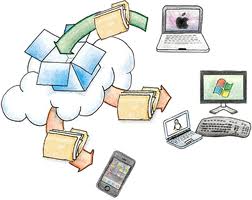
    If you use a cloud sync service such as iCloud Drive or Dropbox, keep in mind that if you delete files from one device, then you are also deleting them from your other devices.

    There are backup services that specialize in scheduled, automated backups to the cloud.

    These services tend to be more reasonably priced than the cloud sync services mentioned above for large amounts of data. Also, if you have data stored only on external media, then a cloud backup service can support automatic backups of those devices.

    Here are some cloud backup services:

    Carbonite Cloud Backups


    Price: $72/year for unlimited storage for one computer, including attached thumb drives, $112/year if you’re including an external hard drive.

    Zipcloud Cloud Backups


    Price depends on the amount of storage space. Supports external hard drives at an additional cost.

    Backblaze Cloud Backups

    Price: $60/year for unlimited storage. Supports external hard drives and thumb drives.

    Get the “Controlling the Chaos” Newsletter and receive a free PDF download
    “Drowning in Email – A Lifeline for Communications Overload”

    * indicates required


  • Do You Need a Cloud Service?

    Do You Need a Cloud Service?

    Cloud Storage

    You may have heard of “The Cloud”. It’s a term that basically just means Internet storage.

    Your email, for example, is a cloud service. Your email is stored on an email server, and delivered to your device(s) over the Internet. If your PC dies, or you lose your laptop, your email goes on accumulating on the server, and you can download all of the new email as well as all of the previous email, when you get back on-line.

    So that’s pretty convenient, right? Why not offer a service that does that for all of your documents, and your photos too? That way you get backup and easy retrieval when you need it. Hey, maybe you can even sync all of that data on your desktop, your laptop, and your iPad too. Wouldn’t that be cool?

    Happily, there are many cloud back-up services available that will do just that. They will automatically backup your designated data and sync that data with your other devices.

    So which cloud service to use?

    The first step in choosing a cloud service is to determine is how much storage you need. If you only want to store your important documents then a free service will be fine for you, but if you have tons of music files that you ripped from your CDs and also thousands of digital photos, then you may need a good deal of storage.

    You also want a service with the right features for you. For example, you may want to put everything in one designated folder and have it automatically backed up, or you may want a service that can sync your existing folder structure. And the software needs to be compatible with all of your devices.

    Here’s a summary of some of the cloud services. All of these services support Mac, PC, and iOS, and all except iCloud support Android.


    iCloudiCloud:

    Storage: 5GB free; $9.99/month for 1TB

    Features: automatic backup of iPhone and iPad; automatic sync of calendars, notes, and contacts; automatic sync of all content stored on iCloud Drive; automatic sync of all photos stored in iCloud Photo Library


    Google Drive Cloud StorageGoogle Drive:

    Storage: 15GB free; $9.99/month for 1TB

    Features: Automatic sync of all content stored on Google Drive; automatic upload for mobile photos


    Microsoft OneDrive Cloud StorageMicrosoft OneDrive:

    Storage: 5GB free, $1.99/month for 50GB; $6.99/month for 1TB of personal storage when subscribing to Office 365

    Features: Automatic sync of all content stored on OneDrive; automatic upload for mobile photos


    Dropbox Cloud StorageDropbox:

    Storage: 2GB free; $9.99/month for 1TB

    Features: Automatic sync of all content stored in the Dropbox folder; automatic upload for mobile photos


    SugarSync Cloud StorageSugarSync:

    Storage: 5GB free; $9.99/month for 250GB

    Features: Automatic sync of all content in designated folders; automatic upload for mobile photos


    There are also dedicated services for music and photos if you don’t want to pay for an all-in-one service. I’ll be writing about those services in an upcoming post, so check back soon!

    Need help with cloud services? Contact me.