Category: Technology

  • How to Create Your Own Meme and Go Viral

    How to Create Your Own Meme and Go Viral

    What is a meme?

    A ‘meme’ is something that goes “viral”, which means that it gets shared all over the Internet. It can be almost any idea or concept expressed in some form of content on the web. It can be a photo, a video, a person, an animal, a fictional character, an event, a song, a belief, an action, a GIF, a symbol, a word or anything else. Most are captioned photos or series of photos intended to be funny. The photo may be used over and over with different captions.

    Many start on sites like 4chan, Reddit, and Tumblr. They become viral through social media sharing.

    If you’d like to jump on the meme bandwagon, here’s some ways to do it:

    1. Help memes go viral by sharing on social media
    2. Download an interesting photo and then share it with your own edits, captions, or comments
    3. Make your own

    You can make a meme by using a photo, drawing, or video of your own, or just a phrase with a background. You can use a tool like Microsoft Paint or PhotoShop, or use the creative options that your social media platform provides.

    There are now specialized websites and apps for meme creation.

    Kapwing

    Canva


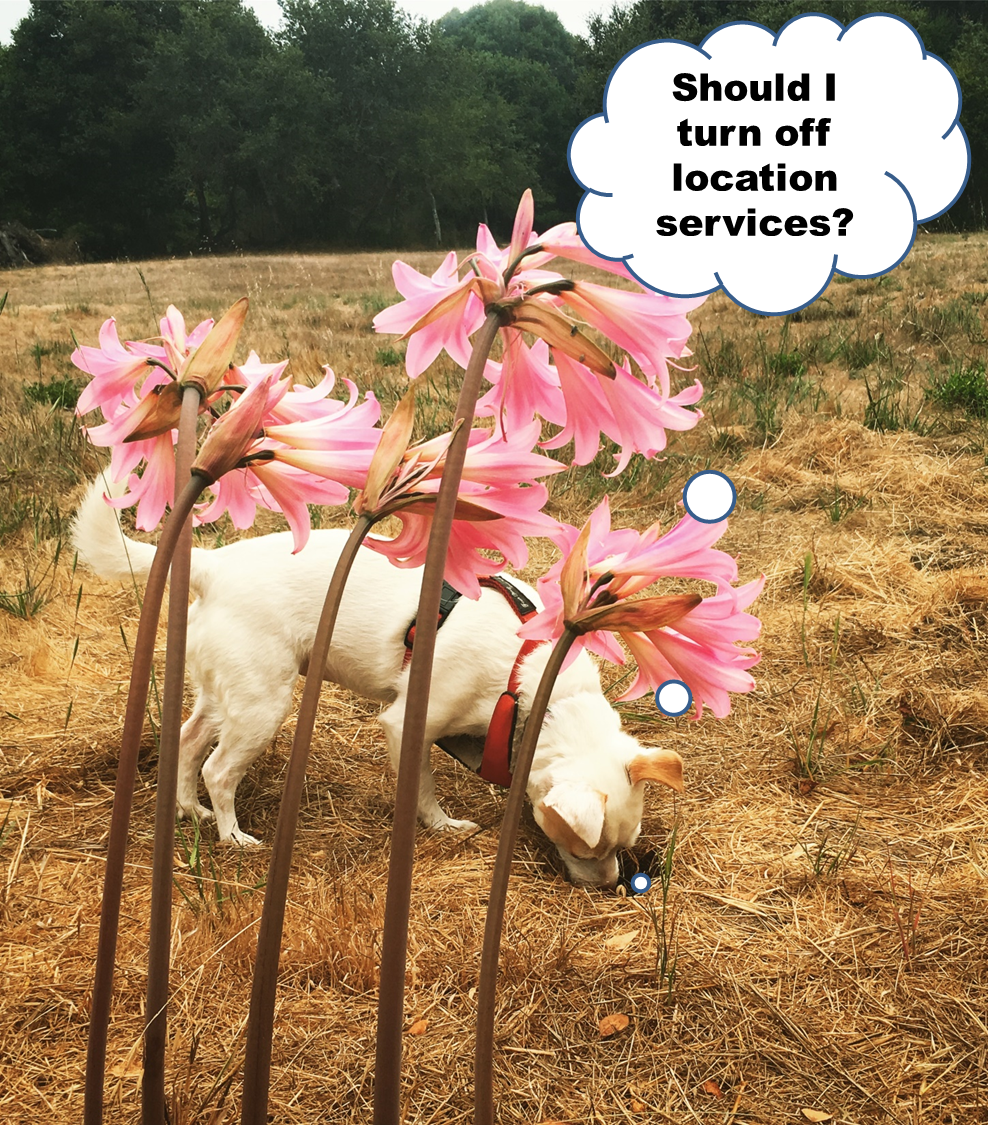
    Here’s a meme that I created using PowerPoint.


    Make your own meme using PowerPoint

    Create your own meme using PowerPoint


    Here are the steps in PowerPoint:

    1. Insert a picture using the Insert menu
    2. Insert a callout shape from the Insert menu
    3. Insert a text box from the Insert menu
    4. Change the text color to black and write the text
    5. Select all, right-click, and select “Group
    6. Right click and select “Save as Picture

    That’s it! It just took me a few minutes.

    Do you want to help my meme go viral? Be sure to like, comment, and share.

    Digital Chaos Control on Facebook.

    Get the “Controlling the Chaos” Newsletter and receive a free PDF download
    “Drowning in Email – A Lifeline for Communications Overload”
    * indicates required


  • Who Else Hates Grocery Shopping and Longs for a Personal Shopper?

    Who Else Hates Grocery Shopping and Longs for a Personal Shopper?

    Online grocery shopping is more convenient

    My husband likes a certain kind of bread that not all grocery stores carry. My son likes a certain kind of cookie. Some things consumed a lot in our house are better bought in bulk. (For us, peanut butter, maple syrup, and loose tea.)

    If you have a Costco near you, and you don’t mind grocery shopping in a warehouse, you can schedule your trips to buy bulk goods. For more specialty items, you can shop at your local market (or markets, if you’re like my family).

    Grocery shopping can take a chunk of out your day.

    Putting grocery shopping off because of a busy schedule often leads to running out of things or eating out more often than you’d like. If you’re lucky, you have a grocery store in your area that stocks the items that you need, hires cheerful employees manning short check-out lines, and has reasonable prices. Also, you have lots of free time to both shop and cook.

    Not the case for you? Well, you’re hardly alone.  If you live in a more rural area, then grocery shopping may even mean a scheduled trip to a larger town.

    Many are turning to online grocery shopping. It’s convenient, it’s a time saver, and it may even save you money.

    If you have Amazon Prime, you can take a look at Amazon Fresh. Google Express and Instacart offer a similar service, but they use local stores instead of shipping from a warehouse. Their stores may include Costco, Whole Foods, Target, Walgreens (Google), CVS (Instacart) and other regional stores. Google Express focuses more on packaged goods, so don’t expect to find meat and fresh produce there.

    Can you expect to pay the same as in-store prices plus the delivery fee?

    It depends. Instacart has been criticized for charging a mark-up plus the delivery fee, but it depends on the store that you order from. Whole Foods, for example, is available through Instacart without markups. If you go with Google Express, the interface allows you to search for an item and compare prices.

    If you have limited time to cook as well, there are services that deliver ingredients and recipes for entire meals.

    Blue Apron is the best-known service for this. You may have other local options as well. If you’re in the SF Bay Area, you can check out Good Eggs.


    SUBSCRIBE TO MY NEWSLETTER

    Get the “Controlling the Chaos” Newsletter and receive a free PDF download
    “Drowning in Email – A Lifeline for Communications Overload”
    * indicates required


  • “OK Google Home. How Can You Make My Work and My Life Easier?”

    “OK Google Home. How Can You Make My Work and My Life Easier?”

    Amazon Echo or Google Home can help with cooking.
    Photo courtesy of Digital Trends.

    Using your voice to give commands to a computer once seemed like science fiction. Remember Hal from the Space Odyssey?

    We’ve been able to talk to our phones for a while now, using Siri or Google Assistant.

    Since Windows 10 and Cortana, we can talk to our PCs as well. And with MacOS Sierra adding Siri support, we can now talk to all of our Apple devices.

    But why be tethered to a device? Now there’s the Amazon and Google Home virtual assistant speakers (with Apple rumored to be releasing a Siri-controlled speaker sometime soon).

    That’s a little too much you say? After all, those devices are continually listening for commands, so everything we say is going to the Internet.

    What about privacy concerns?

    My approach is always to look at how useful new technology is. Then weigh the privacy concerns and security risks against the productivity gains. It’s a personal decision. If you’re truly concerned about these companies knowing all about you, or you’re concerned about hackers/the government/foreign agents, then you probably don’t really need such a device in your life.

    So why get an Amazon or Google Home virtual assistant speaker?

    For me, it feels much more natural to just speak up when I need something. I don’t have to hunt down my device and unlock it first. It’s freeing.

    I love being able to ask my Google Home about a crossword puzzle clue as I’m sitting at the kitchen table. I love being able to speak up and add something to my shopping list as I’m taking the last one of something from the refrigerator. My husband asks it to play music as he cooks dinner. My son asks it to remind him when he needs to leave for somewhere.

    Google Home can now detect our different voices. So when I say “OK Google, what’s on my calendar today?”, I’ll get a different response than when my husband asks the same thing.

    I could turn off the microphone if I wanted to, and I do unplug it when we have guests staying – just in case.

    So which one? Amazon or Google Home?

    Since I’m an Android user, it made sense for me to go with Google Home. Here’s a good comparison here: Amazon Echo vs Google Home

    Here are some things that you can do with these devices:

    • Play music from an internet music service or radio station
    • Set a timer
    • Get driving times
    • Tell you what’s on your calendar
    • Search the internet
    • Set a reminder
    • Get sports scores
    • Get the news
    • Get the weather
    • Tell you a joke
    • Control smart home devices
    • Add items to a shopping list

    SUBSCRIBE TO MY NEWSLETTER

    Get the “Controlling the Chaos” Newsletter and receive a free PDF download
    “Drowning in Email – A Lifeline for Communications Overload”

    * indicates required


  • If a Mac User, Are You More Hip? If PC, More Practical?

    If a Mac User, Are You More Hip? If PC, More Practical?

    Trendy Mac, Practical PC

    Are you Mac or PC? What does that say about your personality?

    Let’s look at a little history to see how we got here with this question. The Apple II was the first personal computer, released in 1977 after Steve Jobs and Steve Wozniak founded the company – followed by the IBM PC in 1981, running Microsoft MS-DOS.

    Always one step ahead, Apple under Steve Jobs released the Macintosh in 1984 – its windows interface was a revelation at the time. Microsoft’s Bill Gates, no dummy to the potential of a graphical user interface, released Windows in 1985.

    Jobs accused Gates of stealing the idea, but Gates replied, “Well, Steve, I think there’s more than one way of looking at it. I think it’s more like we both had this rich neighbor named Xerox and I broke into his house to steal the TV set and found out that you had already stolen it.”

    Microsoft far outpaced Apple in market share throughout the ‘90s and 2000s, but after Jobs’ return to Apple in 1997, the release of the iPhone & iPad, and the trend toward more remote workers and consultants, the Macintosh has seen a resurgence in popularity.

    Bill Gates is generally considered a “nice” man – cutthroat in business, yes, but philanthropic and generally respectful of others. He’s a brilliant engineer as well as a brilliant businessman. Steve Jobs is brilliant in other ways – a visionary and creative marketer.

    So if you’re a PC user, does it mean that you’re more practical (like me!) and a “nice” person? (I’m not talking to you gamers. I know that you love your gaming PCs!) If you’re a Mac user, are you more visionary and creative? More hip? Or just wealthier?

    Here’s a survey that suggests that it may be true. You Mac users may be more like Steve Jobs than Bill Gates: Mac and PC Users

    There’s actually a third category of users. You may own a Chromebook, or you may be someone who has a Mac or PC but mostly uses Gmail and/or Google Docs through a web browser. What kind of person are you?

    If you’re like Larry Page and Sergey Brin, the founders of Google, you may be younger, less aware of the history of the Mac vs PC debate, and just focused on the best way to get the job done.

    I’m bilingual, so I can help you learn how to make better use of your Mac or your PC.

    Contact Me


  • Be Sure That Your Memories are Safe

    Be Sure That Your Memories are Safe

    Safe Memories

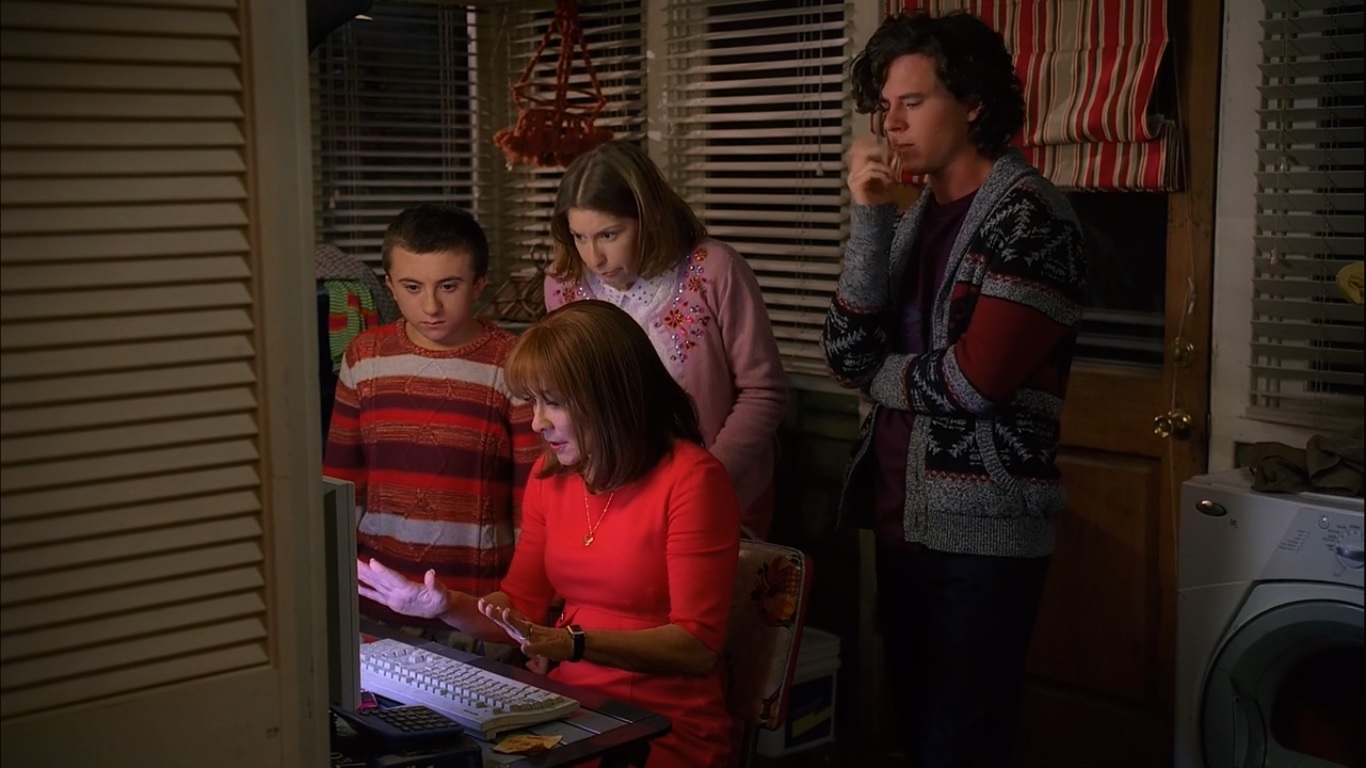
    In the above still from an episode of the TV show “The Middle”, Sue Heck had accidently deleted all the family photos. No one had taken on the responsibility of backing up the computer and keeping those memories safe. (The Hecks probably could have taken the computer to a data recovery tech, but who wants to have to do that?)

    In this article in the Guardian, Amy Malloy wrote about losing the photographic record of her 20s, including all the photos of her late husband: I Lost a Decade of Photographs.

    You many think that losing your memories won’t happen to you, but don’t be too sure.

    Unexpected things can trip us up, such as not double-checking that your photos are there, like Amy did.

    Here are some examples:

      • I had someone call me because she just noticed that all of the videos were missing from her iPhone. She was backing up her iPhone to iCloud, but iCloud backups are only good for about 30 days. Her videos went missing before that. There was nothing that anyone could do to help her.
      • If you’re using a cloud service such as Dropbox, it doesn’t mean your data is backed up. Dropbox is a sync service. If you accidently delete files on one device, the files get deleted on the Dropbox server and on all your other devices. (Like with iCloud, you can recover within a period of time, but you have to notice first…)
         
        (Here’s an article at How-To Geek with more details: Ensure You’ll Never Lose Files Stored in Dropbox.)
    • If you’re using iCloud Photo Library, it works the same way as other cloud services. If you delete photos on your iPhone, for example, you’re deleting from your Mac as well.
    • If your cloud service gets hacked, then your files could all get deleted. (Make sure that you’re using a strong password.)

    If you’re sure that you’re backing up your computer and saving your memories, then make sure that you’re really sure.

    Today, I had a client ask me to check her TimeMachine backup, and it was turned off! She had no idea how it had happened…

    Sync your mobile devices to your computer, back up your computer regularly, and sign up for cloud backup as extra insurance.

    Make sure that you read my blog post on backups here: What Everyone Ought to Know About Backups.

    Get the “Controlling the Chaos” Newsletter and receive a free PDF download
    “Drowning in Email – A Lifeline for Communications Overload”
    * indicates required


  • How to Backup Multiple Computers

    How to Backup Multiple Computers

    NAS Drive for Backup

    We’ve got five computers in our household. We’re almost like a small business – we need regular maintenance and backup. Rather than set up a separate backup device for each computer, I elected to go with a network-attached storage (NAS) device.

    You connect the NAS device to your internet router. Your computer sees it as a network device that it can use for backup.

    It’s a great way to add storage for backup and also for shared media. You can even set up your NAS device to make your data available securely over the internet for when you need to access it outside of your home or office.

    NAS devices come in all sorts of configurations. The basic configuration is a device with one drive “bay”. (You need to buy the hard drive separately.) I opted for a device with two drive bays. I installed two hard drives and configured the device so that the second drive is “mirrored”, meaning that it’s an exact copy of the first drive. (So it’s a backup of the backup.)

    Here’s a device like the one that I have: Synology NAS Drive.

    On Windows computers, the drive needs to be “mounted”. Your device will typically come with software that will help you to configure that. Once you’ve mounted the device, you’ll be able to access it just like you would a local device.

    On Windows 8 and Windows 10, you can set up Windows File History to back up to the mounted drive. For Windows 7, it’s easiest to install backup software from the device vendor. On a Macintosh, you can select the network drive when setting up Time Machine. (You may need to configure your NAS device first – check the manufacturer instructions.)

    The household computers are all backing up to my NAS drive on a daily schedule. I don’t have to worry about data loss.

    It’s a nice solution if you have more than one computers.

    Get the “Controlling the Chaos” Newsletter and receive a free PDF download
    “Drowning in Email – A Lifeline for Communications Overload”

    * indicates required


  • Do You Need a Technology Coach?

    Do You Need a Technology Coach?

    MagnoliaBudGoing it alone is not always a good idea and can stall your progress, so it sometimes makes sense to invest in a coach.

    I call myself a “productivity consultant” rather than a “coach” because I have years of expertise in technology, organization, management, and communication – all skills that I leverage to help my clients with their digital chaos. Coaches, such as business and life coaches, have expertise as well, but their skills are more centered on drawing out your strengths in order to achieve your goals.

    However, I’ve often thought that what I do for clients is a type of coaching. Coaching can often involve developing skills & abilities and boosting performance, which is all very relevant in navigating digital chaos. Coaching also helps deal with issues and challenges before they become major problems – like when you can’t find that client information that you need right now, or that photo for your daughter’s graduation ceremony.

    Another role of a coach is help clients to stay accountable to their goals. This often involves scheduled, regular sessions with the client. To this end, I am considering adding a service that will allow me to stay connected with my clients, to offer regular support, and to offer a community for getting questions answered. I believe that an ongoing technology coaching program can help my clients to venture out of their comfort zones and into new territory. A monthly subscription service would also help with budget planning.

    I’m doing some market research that will help me to formulate such a service offering. If you would be willing to help me out by filling out a short survey, I’d really appreciate it!

    In my coaching role, I act as a type of mentor – to help my clients think through their technology issues and to be more creative in solving them – through new techniques and/or new tools. I help them to find confidence in their potential to be more proficient and competent with technology. My coaching can convert a client who is reluctant to work with technology into an enthusiastic user.

    My clients are all smart, creative, and extremely competent in their professional or family roles. I believe that I not only teach and train them, but that I learn from them, and I often stand in awe of their competencies that differ from mine.

    By filling out the survey, you can sign up for a free, no sales pitch, coaching session, or you can do it completely anonymously – it’s up to you.

    The survey is here:

    http://tinyurl.com/p7u4brm

  • Are You Tired of Your Old Computer? Why Not Go PC-free?

    Are You Tired of Your Old Computer? Why Not Go PC-free?

    PC-FreeHave you ever wondered if you still need a computer? If you own both a smartphone and a tablet and find yourself using your computer less and less often, then it’s a valid question. Our mobile devices have evolved to become as powerful as some desktop computers. They are easier to use in many ways with their touch interfaces and dedicated apps and also easier to maintain. They are less vulnerable to hackers (thus far).

    So when the time inevitably comes that your computer has died or has gotten too old to be useful, why get a new one? Why not go PC-free?

    If you still use your computer to create a lot of content, then it’s probably not the right time to go free. Although you can have a keyboard for your mobile device and create content quite well using apps like Kingston Office or on-line tools like Google Docs, computers still shine with their full-featured content creation tools. Also, if you’re running a business or doing your own taxes, you will need a computer for the foreseeable future.

    The other main difference between a computer and a mobile device is the amount of storage for your content. You have hundreds of even thousands of gigabytes available to you on your computer, which allows you to store all of your photos, videos, & documents, back them up, and have instant access to them. Your mobile device on the other hand has only a few gigabytes of storage and can fill up very quickly if you use it for photos and videos. You should already have a plan to backup and archive your content, but going PC-free means makes it critical to do so.

    You can use external storage like SanDisk’s Connect Wireless Drive to add additional storage for your mobile device. You can also use cloud services like iCloud, Dropbox, SugarSync, Google Drive, Flickr (for photos), Google Music (for music), and iTunes Match (for music). I always suggest using both external storage and cloud storage as you want, ideally, three copies of your content.

    You will probably replace your mobile device a lot more often than you replace your computer. We’re all subject to losing or breaking these devices, so be sure that your content can be easily restored to your new device.

    Go PC-free and you’ll be on the cutting edge. We may all see the end of personal computers someday soon.


  • The Secret to Keeping Your Computer Speedy

    The Secret to Keeping Your Computer Speedy

    Slow Computer

    All computers slow down over time. As the months or years go by, and as more & more applications are installed and data fills the hard drive, you may find yourself looking at a spinning wheel more often than you’d like.

    If you’re running a software program such as Norton Utilities, or if you have a vendor-installed maintenance program, then you have a built-in, automated tool to keep your computer “tuned up”. But if you’re not running one of these software programs, then you need to have a regular maintenance routine for your computer. I suggest putting it on your calendar as a monthly task.

    Here are the steps to follow:

      1. Memory Usage: If you have less than 2GB of memory installed on your PC, then you don’t have enough. You need to see a computer repair technician to install more memory.

    Applications use memory to store data and run faster. When you install new applications, sometimes they are configured to run in the background every time that you re-start your computer. You can check this by doing the following:

        • Windows 7: You can look at which programs automatically run by typing “System Configuration” in the search bar from your Start Menu, and then clicking on the “Startup” tab. You will see a lot of applications that are associated with your computer hardware, but you may also see recently installed applications. You can uncheck the checkboxes beside those applications to stop them from running automatically.
        • Mac OS X: Go to “System Preferences” and select “User & Groups”. Click on “Login Items”. You can unselect installed applications here.
      1. Disk Usage: Your computer will slow down as your hard disc fills up with data. If your disc is more than 50% full, then you may want to look at data that you can delete or move to external storage. (Just make sure that you still maintain at least two, and preferably three, copies of your data on different media, for back-up.) Also be sure that you empty Trash regularly.

    Windows 7 has a utility called “Disk Cleanup” that you should run regularly.

    1. Disk Fragmentation: Your hard disk drive becomes “fragmented” over time. This means that files get broken up because of the way that they’re stored by the file system. It slows down your system to have to search for all of the pieces of a file.
      • On Windows 7, type “Disk Defragmenter” in the search bar and set up a regular schedule for the program to run.
      • On the Macintosh, open the “Disk Utilities” application, select “First Aid”, then “Verify Disk”, and follow the instructions if needed.
    2. Finally, make sure that you have a anti-virus program running.