Category: Project Management

  • Here’s an Easy and Efficient Way to Manage Projects and Daily Tasks

    Here’s an Easy and Efficient Way to Manage Projects and Daily Tasks

    Asana Boards for Project Managment and Daily Tasks

    Are you a visual thinker? Are you someone who likes to keep your calendar in front of you and your daily tasks on post-its around your desk?

    Digital task managers are much more efficient than paper for daily tasks.

    • You can have your to-do list with you on your mobile device and check off your tasks throughout the day.
    • You can assign tasks to others.
    • You can create calendar reminders.
    • You can prioritize daily tasks.

    Many organizations use “Kanban” boards for visual process management.

    These boards have cards, post-its, or other markers representing work items. They have columns for process steps. You can read more here: How to Use a Visual Task Management System.

    Trello is one of the most popular tools utilizing a kind of Kanban method. Another popular tool, Asana, has recently added the ability to create boards as well.

    Asana is a bit more complex to learn and use than Trello, but it’s more feature-rich.

    Asana is a unique combination of project management and collaboration tasks. You can create, categorize, and schedule projects in a special calendar. You can add custom fields and track only what is important to you.

    For task management, you can:

    • Create recurring tasks
    • Assign tasks to projects
    • Prioritize daily tasks
    • Easily navigate between views for projects and your specific tasks

    Asana is very popular with teams. Asana provides visuals of completed and remaining tasks in a dashboard that makes it easy for the project owner to track progress. The project owner can add descriptions and status updates, providing a quick snapshot on how the project is moving along.

    Team members can discuss the project’s progress while it is happening, share it, comment on it, upload a file, or simply let everybody know that they like the change. All relevant conversations are saved on Team Pages.

    You can have up to 15 team members with an Asana account on the free plan. The Premium plan will give you more advanced team and project management features as well as priority support.

     
    SUBSCRIBE TO MY NEWSLETTER

    Get the “Controlling the Chaos” Newsletter and receive a free PDF download
    “Drowning in Email – A Lifeline for Communications Overload”

    * indicates required


  • Manage Projects in the Cloud – Some Points That Everyone Ought to Know

    Manage Projects in the Cloud – Some Points That Everyone Ought to Know


    Manage Projects in a Scrum Meeting

    The old fashioned way to manage projects was for a project manager to keep the schedule. The project manager would hold review meetings to update it (thereby wasting everyone’s time), or visit cubicles/make phone calls for updates.

    The more modern way to manage projects is the Agile method. This typically involves a project manager holding short, daily, “scrum” (comes from a rugby term) meetings.

    Manage Projects in the CloudWith a cloud tool to manage projects, everyone on the projects can update daily, making the job of project manager much easier. There’s also online discussions for better communication, collaboration, and file sharing.

    With the possible exception of Insightly, you will have to pay for a cloud tool subscription.


    Your tool choice should offer the ability to backup your data locally and also to export. This is important to protect yourself from the cloud service going offline (or going out of business). It’s also important if you have a legal requirement to retain your data on-site for a number of years.

    You may be concerned about the security issues of giving your data over to a cloud service.

    Here’s a quote from an article addressing this concern by Smartsheet (Read about Smartsheet here: Here’s an Easy Way to Manage Projects.)

    As of this writing, nearly half of all enterprise project collaboration involves external users such as vendors, freelancers, and contractors, and this number is continually trending upwards.  This external involvement complicates interaction and often forces users to make the common “security versus convenience” tradeoff decision when using solutions deployed behind the firewall.

    So, in other words, when you’re not using a cloud service and you have to collaborate outside of the company, you or your co-workers will find a way to do it, and probably not securely. Turning security over to your cloud service provider is not a bad way to go, and the convenience and productivity gain is not to be argued with.

    You can read the full article here: Will the Cloud Change Project Management?.

    If you manage projects using a cloud service, you have to be online, which is not always guaranteed.

    Smartsheet has a great option of exporting your data to an Excel spreadsheet when you know that you’re going to be traveling and offline. You can import the updated data when you’re back online. Some services, like Asana through its Android app, allow you to work offline and will automatically sync when back online.

    Need help managing projects?

    Contact Me

  • Here’s an easy way to manage projects using a spreadsheet-based tool

    Here’s an easy way to manage projects using a spreadsheet-based tool

    Manage Projects using Smartsheet

    If you’ve read my post on how to manage projects here: How to Stay on Top of Your Project Management, then you know that a good tool can help you:

    • Collaborate
    • Stay on top of tasks
    • Reach your goals and deadlines within your expectations.

    If you use spreadsheets to manage projects (or even if you haven’t but you’re familiar with Excel or Google Sheets), then you might want to check out Smartsheet. Smartsheet is a full project management tool with an interface similar to that of Excel or Google Sheets. Smartsheet has recently added card view as well for visual thinkers (see my blog post here: How to Use a Visual Task Management System.)

    Smartsheet starts with the concept of a simple spreadsheet, then adds:

    • Strong reporting
    • Auto-notifications
    • Row by row task assignment
    • Per project or per task/row dialog
    • Attachments.

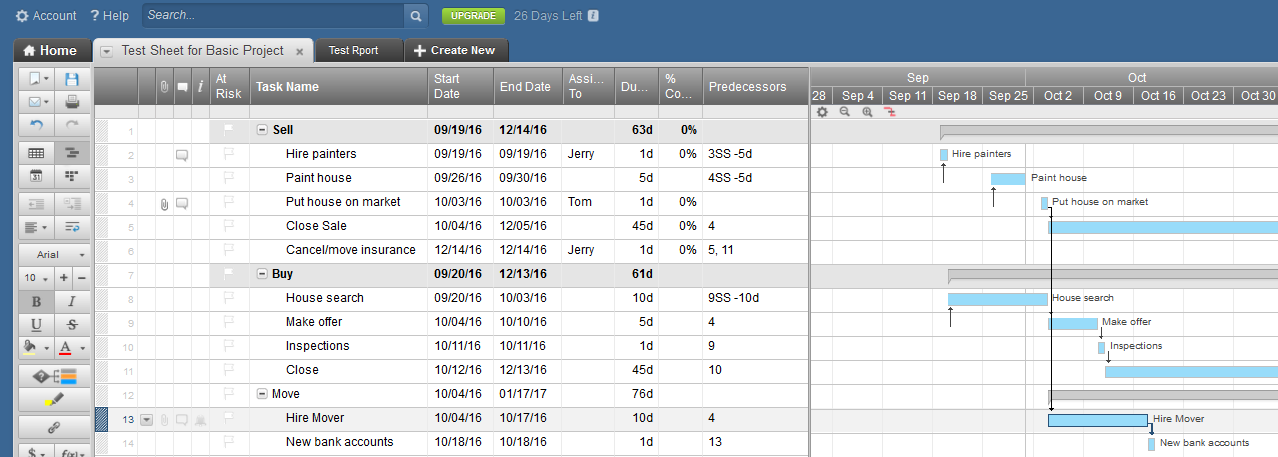
    Smartsheet organizes projects into “sheets”, using one of the Smartsheet templates or using the basic layout. In your sheet, you’ll enter tasks as rows. You can add files to any line on a sheet, uploading a file from your computer or connecting to cloud services such as Google Docs, Dropbox, Evernote, etc. You can add a discussion to any line on a sheet. You can also send one or more lines of a sheet to someone via email for updates. This person does not need to have a Smartsheet account – she or he will get a link to make the update and you will get a confirmation email after the update is made.

    Depending on which template you use, your columns can include Discussions, Start Date, End Date, Assign To, Duration, % Complete, Predecessors, Comments, etc. You can filter a column – to see just the tasks assigned to you, for example, or you can sort rows by a column value.

    You can view your sheet in grid view, Gannt chart, calendar, or card view.

    At the bottom of the sheet are options for sharing the sheet, adding alerts, attaching files to the sheet, adding discussions to the sheet, requesting updates, adding a Web Form (similar to Google Forms), and publishing a link to the sheet.

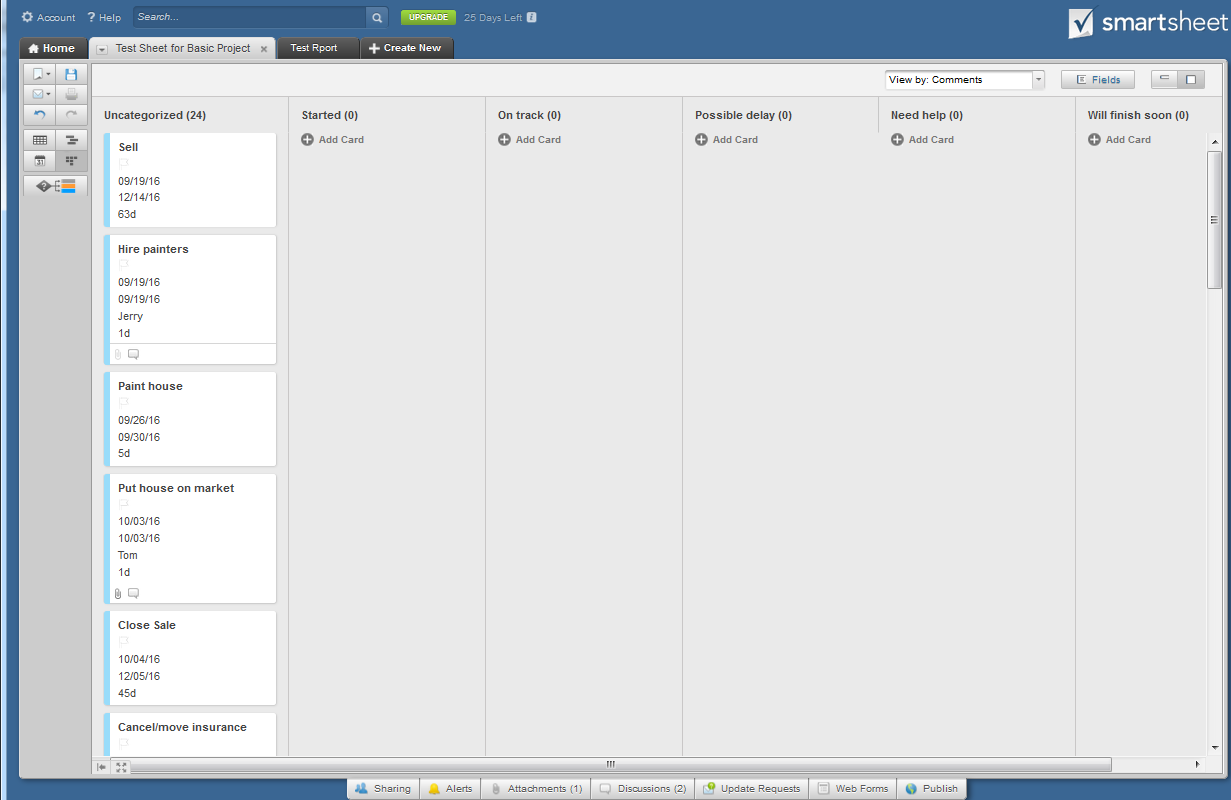
    In card view, you can move your tasks between columns.

    The card view columns are defined in a drop-down list in your grid view. In my example below, I defined the “Comments” column in the grid view as a drop-down list with selections for “Started”, “On Track”, “Possible delay”, “Need help”, and “Will finish soon”. In card view, I can move a task to any of these selections.

    Manage Projects Using Smartsheet Card View

    You can create custom reports across sheets for tasks assigned and you can create workspaces to organize projects and reports.

    Smartsheet’s mobile apps (available for Android and iOS) are also easy to use, and the sheets you create are easy to view on even the small screen of a smartphone—something that’s not always true of spreadsheets.

    Smartsheet is free for 30 days. After that, plans start at $14 per month and go up from there.

    SUBSCRIBE TO MY NEWSLETTER

    Get the “Controlling the Chaos” Newsletter and receive a free PDF download
    “Drowning in Email – A Lifeline for Communications Overload”

    * indicates required


  • Here Are Five Important Questions to Ask After a Completed Project

    Here Are Five Important Questions to Ask After a Completed Project

    A completed project review is called a postmortem

    A project postmortem is a completed project review session.

    A postmortem is essential to make sure that you’ve learned something from the process. And if you’re worked with others on your project, the postmortem is a great forum for knowledge sharing.

    The Dictionary of Corporate Bullshit defines the postmortem as:

     1. “a meeting held following the conclusion of a project to discuss its strengths and weaknesses 2. “billed as a constructive forum geared toward improving a process but really a meeting in which everyone sits around trying to blame someone else for anything that went wrong…”

    Unfortunately, the second is too often true. You can read here about how to hold a successful postmortem: How to Do a Post-Project Review.

    So what do you do with what you’ve learned from your completed project?

    Ideally, you will be adjusting your process for the project. Here are some things that you can examine: (You can review my post on project management here: How to Stay on Top of Your Project Management).

    1. Did your project meet expectations? How would adjust those expectations next time?
    2. Did you miss any tasks that should have been done?
    3. How were your task estimates?
      • If too optimistic, how will better estimate next time? Build in more buffer? Add more resources? Improve productivity?
      • If too generous, can you commit to an earlier deadline next time?
    4. How were your communications? Were they any surprises? Any negative feedback?
    5. How happy were you and/or your team with the project?

    That last question may be the most important one. This article explains how emotions are crucial to successful projects: Run a Successful Project.

    The SanDisk Rolling Stones card was a project that failedIn my corporate career, I worked on many projects that failed because of unrealistic expectations and/or poor estimating. This resulted in missed deadlines and missing the market window. You probably don’t remember this product that I worked on: SanDisk Rolling Stones Card. I still keep this one on my desk to remind me of good ideas poorly executed.

    The important lesson from a completed project is always to learn from your mistakes.

    Get the “Controlling the Chaos” Newsletter and receive a free PDF download
    “Drowning in Email – A Lifeline for Communications Overload”
    * indicates required


  • Here is a Free Project Management Cloud Tool That’s Easy to Use

    Here is a Free Project Management Cloud Tool That’s Easy to Use

    Use a project management tool

    Are you staying on top of your project management?

    A project management tool helps. A good tool will give you a visual view of dependencies, progress, and slips in schedule. You also want your project management tool to give you:

    • An overview of the project
    • Completed tasks
    • Tasks in progress
    • Assignments
    • A calendar.

    (Read my blog post here about project management: How to Stay on Top of Your Project Management.)

    I often recommend Insightly to my clients. It’s easy to use and it integrates well with Google Apps for scheduling, calendar, and reminders. It’s a cloud-based application that’s completely free if you don’t need their other CRM features.

    This is how Insightly describes their product:

    Built-in project management functions. Tasks, events, and milestones can be defined and scheduled, with corresponding email notifications triggered by changes or updates. Tasks can be associated with milestones to track projects and percentage of completion. Notes and comments can be added to just about anything, from contacts, to opportunities, to projects. It can deliver nine types of in-depth reports based on opportunities and activities. It also has built-in file sharing capabilities, integration with Google Drive, and versioning control, so team members will always have the latest documents.

    Insightly works with project pipelines, with activity sets for each pipeline stage. If you’re a designer, for example, you could have an activity set for the project initiation stage – with tasks for client proposal, review, sign-off, etc. – an activity set for the initial design stage, and an activity set for the design implementation stage.

    Insightly project management tool pipeline

    Start by defining activity sets in your System Settings. Then create a new pipeline, define your stages, and assign activity sets to the stages.

    You don’t have to use a project pipeline. You can also create a simple project with tasks. You can assign any task to someone else and you can add files to the project for history and for sharing.

    Get the “Controlling the Chaos” Newsletter and receive a free PDF download
    “Drowning in Email – A Lifeline for Communications Overload”

    * indicates required


  • How to Stay on Top of Your Project Management Milestones and Deadlines

    How to Stay on Top of Your Project Management Milestones and Deadlines

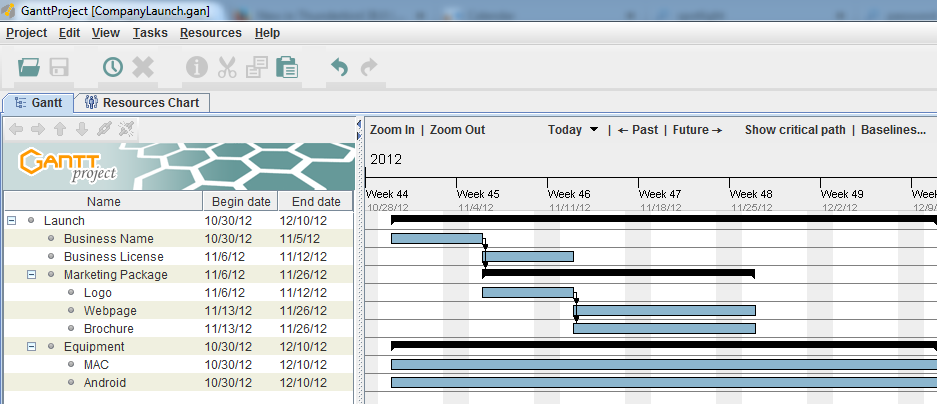
    Gantt Chart for Project Management

    Projects have defined start dates and end dates (even if that end date keeps moving!) and it’s important to stay on top of milestones and manage schedule risk. If you’re managing projects with milestones and resources, then you should be using project management software such as Microsoft Project, Insightly, or Asana. (Task management software, on the other hand, is less complex.)

    Here’s how to start the project management process:

    1. Determine your start date for the project and desired completion date.
    2. Define the tasks that make up the project. This is called a “Work Breakdown Structure”, or WBS.
    3. Determine the dependencies for each task. For example, task b cannot start until task a is complete.
    4. Estimate the time it will take to complete each task. You can use different methods to estimate, including past history and resource availability.

    You may think that your start date should be “right now” – after all, by defining the project you have already started it. But your actual start date may have a dependency – budget approval, for example, or resource availability, or client deposit.

    Your desired completion date is probably decided by a commitment to a client or to a customer. This is your deadline – your delivery or launch date.

    It’s your responsibility and your challenge to pick a project completion date that’s reachable and realistic.

    By breaking your project into tasks you can more easily identify where the bottlenecks are. A task that takes longer than estimated can “slip” your desired completion date. If that happens, you try to stay on schedule by examining the remaining tasks. See if you can complete them faster by adding resources or changing requirements.

    Once you launch your project, you have to stay on top of it to make sure that you’re on schedule.

    A project management tool helps by making it easier to visually track dependencies, progress, and slips in schedule. You also want your project management tool to give you an overview of the project, completed tasks, tasks in progress, assignments, and a calendar.

    I often recommend Insightly to my clients. It’s easy to use and it integrates well with Google Apps for scheduling, calendar, and reminders. It’s a cloud-based application that’s completely free if you don’t need their other CRM features.

    Insightly works with project pipelines, with activity sets for each pipeline stage. If you’re a designer, for example, you could have an activity set for the project initiation stage – with tasks for client proposal, review, sign-off, etc. – an activity set for the initial design stage, and an activity set for the design implementation stage.

    Using Insightly Pipelines for Project Management

    Start by defining activity sets in your System Settings. Then create a new pipeline, define your stages, and assign activity sets to the stages.

    You don’t have to use a project pipeline. You can also create a simple project with tasks in Insightly. You can assign any task to someone else and you can add files to the project for history and for sharing.

    For larger projects which require real-time communication, collaboration on tasks, and file sharing, Asana and Basecamp are both good cloud-based tools popular with teams.

    The project management workhorse with extensive features is Microsoft Project. However it’s expensive, hard to learn, and mostly used by large companies. Microsoft recently released an easier-to-use more visual tool for enterprise teams called Planner.

    Although I recommend using a project management tool, you can also manage smaller projects with an easy-to-use task management tool. See my blog post here: Task Management for the Super Efficient

    If you find yourself unable to stay on task and your estimates are way off, then you’re not working productively.

    Sometimes, no amount of technology can help. Read my blog post here on working productively: How to Remain Productive.

    SUBSCRIBE TO MY NEWSLETTER

    Get the “Controlling the Chaos” Newsletter and receive a free PDF download
    “Drowning in Email – A Lifeline for Communications Overload”
    * indicates required