Category: Password Management

  • How to Keep Your Internet Accounts Safe from Harmful Hacking

    How to Keep Your Internet Accounts Safe from Harmful Hacking

    Use 2-factor authentication to protect from hacking.

    Internet accounts are subject to hacking, putting your personal information at risk. I recommend using a password manager, as I write about here: How to Manage Your Passwords.

    But sometimes passwords alone are not enough to prevent hacking.

    There have been several high-profile breaches where personal information, including passwords, has been stolen. Yahoo, for example, and Google. So even if you use strong passwords and change them regularly, there are times when hackers could compromise your information.

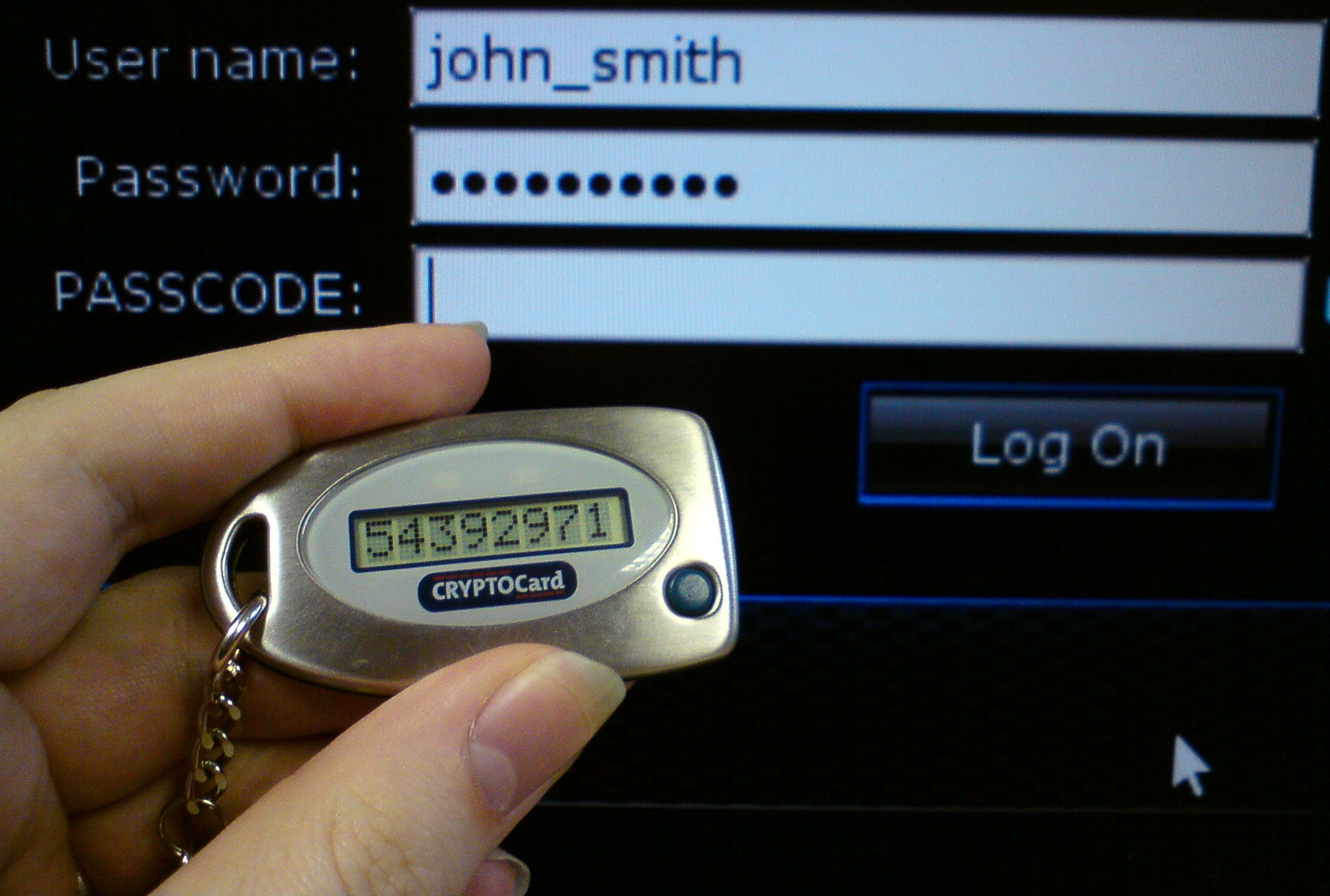
    Several online services are now offering 2-factor (or 2-step, or multi-factor) authentication (or verification). If you enable this optional step, then any new device cannot log into your account through a web interface without also entering a texted code.

    Here are the popular services that offer this:

      • Google (called 2-step verification)

        • Go to Sign-in and Security and sign into your account. Turn on “2-Step Verification”.
        • If you use an application such as Outlook or Thunderbird to access your Gmail, you’ll have to generate an app password. See this article: Sign in Using App Passwords.


      • Apple (used to be 2-step verification, now 2-factor authentication)

        • On your iPhone, iPad, or iPod touch:
          • Go to Settings and tap on your name.
          • Tap Password & Security.
          • Tap Turn on Two-Factor Authentication.
        • On your Mac with OS X El Capitan or later:
          • Go to Apple menu > System Preferences > iCloud > Account Details.
          • Click Security.
          • Click Turn on Two-Factor Authentication.


      • Amazon (called 2-step verification)

        • Go to “Your Account” > “Login and Security Settings” > “Advanced Security Settings”.


      • Dropbox (called 2-step verification)

        • Go to http://www.dropbox.com and sign in.
        • Click on your name and select “Settings”.
        • Click on the Security tab.
        • Click to enable two-step verification.


      • Facebook (called “2-factor authentication”)

        • Go to Settings > Security and Login.
        • Click Edit next to “Login Approvals”.


      • Evernote (called 2-step verification)


    • LastPass: (called multifactor authentication)

      • LastPass uses a mobile app to authenticate. Go to Account Settings at http://lastpass.com and then “Multifactor Options.” Click the pencil icon next to “LastPass Authenticator” and follow instructions.

    So why not enable 2-factor authentication for all services?

    It can be less convenient. If you have to log into a service from a different device – a new device, for example, or a friend’s computer, or a hotel’s computer – then you’ll have to have your cell phone with you and you’ll have to be able to receive a text. This could be a problem while traveling.

    Be sure to read this article before traveling out of the country: Traveling with Two Factor.

    SUBSCRIBE TO MY NEWSLETTER

    Get the “Controlling the Chaos” Newsletter and receive a free PDF download
    “Drowning in Email – A Lifeline for Communications Overload”

    * indicates required


  • How to Easily and Securely Share Passwords with Loved Ones

    How to Easily and Securely Share Passwords with Loved Ones

    Share Passwords

    There are all kinds of reasons that you may need to share passwords.

    For example, you may need to share passwords for joint bank accounts, or you need to co-administer a child’s health insurance. And the whole family may be using the same video streaming service.

    For security reasons, you don’t want to share passwords that you’ve simplified so that everyone can remember them. You should be changing them regularly anyway.

    So what’s the best way to share passwords and keep them up to date?

    One way could be to keep those shared passwords written down somewhere. But it’s not always very efficient to go looking for a password and also to make sure it’s the latest one.

    There’s also the issue of your legacy accounts after you’re gone. (Many, many years from now, I hope!). You can keep that entire list of your passwords locked up in a safe place your family knows about. But, again, it’s tough to keep the list up to date.

    I generally recommend using a password manager, as I write about here: How to Manage Your Passwords. Many of these cloud password managers have both sharing features and legacy features.

    Both LastPass and Dashlane allow you to share passwords with anyone else using the software.

    If you’re a LastPass Premium user, then you can also set up a “Shared Folder”. You invite other family members using LastPass and just add passwords to the folder.

    Both LastPass and Dashlane also offer “Emergency Access” to a designated person. That person can request access and will receive it after a waiting period that you define when you set it up.

    1Password has a family plan that, for a monthly fee, allows everyone in the family to install and use the software on their devices. Each family member has a “Personal” password vault available to only that family member and a “Shared” vault available to everyone on the plan.

    1Password does not offer emergency access. The company instead encourages users to download an “Emergency Kit” PDF file, print it out, and keep it in a safe place.

    Get the “Controlling the Chaos” Newsletter and receive a free PDF download
    “Drowning in Email – A Lifeline for Communications Overload”

    * indicates required


  • How to Manage Your Passwords and Keep Them Safe the Old-Fashioned Way

    How to Manage Your Passwords and Keep Them Safe the Old-Fashioned Way

    Manage Your Passwords the Old-Fashioned Way

    We have online accounts for so many things these days – email, social networking, cloud services, financial services, medical accounts, even the local library. Security experts tell us that passwords should be long, cryptic, and unique for each account, but if you follow their guidelines, how can you possibly manage your passwords and remember them all? You’re trading security for convenience and saying hello to digital frustration.

    I recommend handing over control to those security experts by signing up for a manage your passwords service.

    Download a password manager program to your computer and your mobile devices that will help you to generate passwords and securely save them. You can read about that here: How to Manage Your Passwords

    If you’re uncomfortable with handing over your passwords to a service, then the next best thing is to write down your passwords the old fashioned way – on a piece of paper. Keep it in a safe place in your home – don’t take it with you.

    You could even use a code that only you understand. For example, instead of writing down the password “ILuv99RedBaloons!”, you could write “IL..99RBs!”.

    You should be sure that you remember the password to log into your computer user account, especially if you have a laptop that you take with you, and perhaps a computer administrator password, if your computer is set up with one. You may also need to remember your Apple ID or Google ID and password to install apps on your phone.

    Use a strong password that you’ll remember for those. For everything else – for all of those Internet accounts – use a unique password for each service and go to your safely stored password list when you need those passwords. Here’s an article from Google on how to choose passwords: Creating a Strong Password.

    It may be inconvenient to have to go and look up that unique password, but it beats having to recover from a data breach!

    Need help with passwords?

    Contact Me


  • Which Password Manager is Right for My Devices and Digital Lifestyle?

    Which Password Manager is Right for My Devices and Digital Lifestyle?

    In my blog post here: How to Manage Your Passwords, I recommend using a password manager and I give a few suggestions for programs based on what my clients are using.

    Which password manager is best for you and what is the difference between them?

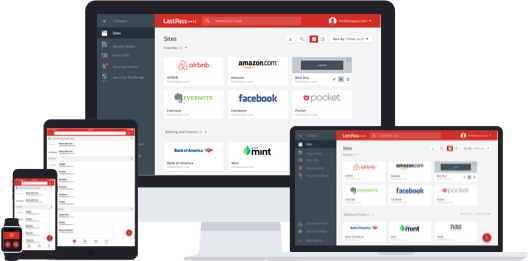
    LastPass Password ManagerI use LastPass because I have multiple types of device – Windows, Mac, Android, and iOS. Since LastPass is a browser plugin for Windows & Mac and an app for Android & iOS, I can use it on all of those devices and it syncs the password vault between them through the cloud. LastPass also has many advanced features such as online shopping profiles, form fill, password generation, and security checks.

    You may have a similar mix of devices, or a subset, or you may be all Apple. You may also not be a very savvy technology user and want something easier to use.

    iCloud Keychain Password ManagerFor my clients on Apple devices and Apple software only (Safari browser), I typically advise to just enable iCloud Keychain and not worry about another password manager (as long as they’re using a strong, unique iCloud password and change it regularly). Some prefer 1Password, which, after an initial investment in the software program, works pretty well for them.


    Dashlane Password Manager

    If you want a password manager just for your desktop computer, and you don’t care about syncing with other devices, then Dashlane has a nice user interface, may be easier to use for you, and it’s free for one device.


    If you watch Shark Tank, you may remember seeing a team pitching for funding for a program called Splikity. The software and service were developed to be easier to use for novices. If you’re struggling with your current password manager or if you’re just jumping in and you want something simple and basic, you may want to give it a try. Like LastPass, Splikity is a browser plugin and iOS app, but is not available on Android.

    LastPass is free for the browser plugin but $12/year to sync with the mobile apps. You’ll pay $49.99 for 1Password (only recommended for Apple devices, and you’ll need a Dropbox account for syncing). Splikity’s service is $4.99/month.

    Need help with passwords?

    Contact Me

  • How Do I Know if my Cloud Storage is Secure?

    How Do I Know if my Cloud Storage is Secure?

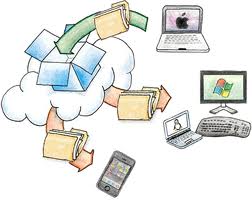
    cloud storageI am a big fan of cloud storage services. It’s magic to me, the way that the photos that I take with my cell phone appear on my PC when I get home, without having to plug anything in. And to have all of my work from my desktop PC available to me on my laptop.

    My data is available to me alone unless I choose to share it with someone. Most cloud services encrypt the data during transfer to/from the Internet (“SSL” encryption – you’ll know it’s encrypted because of the “s” in “https”), and then again when it’s stored on their servers. So if a hacker gets into their servers, unless they can crack the encryption, my data is still private.

    The main risk is if my password gets compromised. Then anyone with my user id and password could access all of my data. If you’re concerned about cloud security, then it’s important to have a strong password, and to change it often.

    strong passwordYou’ve probably heard that term before, but what does “strong” password mean? How long does it need to be? Do you need special characters? Numbers? How many? Do you need a different password for every cloud service? How do you remember all of those passwords?

    It’s a complex subject. And unfortunately, the recommendations for “strong” passwords keep changing, as the hackers become more sophisticated.

    I recommend using a password manager. Let the experts worry about it. A password manager is a plug-in for your web browser. You can use it to generate a password and it will indicate how “strong” that password is. Once you use that password to log into your cloud service through your web browser, then you can store that password in your “password vault” that the plug-in supplies.

    The password manager is itself a cloud service, so you need a password for it. But it’s the only password that you really need to remember for all of your cloud services. I start with a word that has some personal meaning to me, add a character between syllables, a few numbers at the end (that I’m sure that I’ll remember), and then use the word in a complete phrase.

    Password managers use a extra level of security for their cloud service. Your password vault gets encrypted locally, on your own computer, and then transferred and stored on the cloud server. When you log into the service through your web browser plugin, the reverse process happens – the password vault is transferred from the cloud down to your PC, and then decrypted.

    LastPass Logo

    I use LastPass as my password manager. Other people that I know have recommended OnePassword, which works similarly.

    I believe that you can relax about your cloud security if you use a password manager and if you change your passwords regularly. The convenience of using a cloud service far surpassing the slight risk of having your privacy compromised. However I do not use cloud services for financial data, nor do I store my passwords for financial sites in my password manager. I suspect that it would be fine to do so, but I’m just not quite willing to risk it…

    If you need help setting up your cloud service or password manager, Digital Chaos Control can help! Contact us today.