Category: Email Management

  • Here’s an Easy Way to Get Those Important Emails Texted to You

    Here’s an Easy Way to Get Those Important Emails Texted to You

    Get important emails by text


    It’s difficult to stay on top of email volume for anyone. The best method for dealing with too many emails may depend on your personality type as time management specialist Susan Tollefson writes about here: 4 Email Management Styles.

    You may or may not fall into one of those categories. You may also be someone who prefers other communication methods. After all, email management is something that you need time and a routine to deal with. Perhaps you’re someone who prefers to text or message people.

    The problem is that lots of people still use email. If you’re ignoring your inbox, you may be missing important emails.

    You can make the email routine less onerous by getting organized, as I write about here: 4 Ways to Becoming More Responsive. One of these organizational methods is automation through the use of email filters.

    Create filters for the most important emails from your VIP list.

    You could have those emails automatically go into a specific folder that you check religiously. Or you can have them flagged or starred.

    If you’d rather be getting those important emails on your phone, you can set up a filter that will automatically text them to you. Your network provider provides an email address for you to do that.

    If you’re on Verizon, for example, you can set up a filter to forward those emails to <your 10-digit phone number>@vtext.com. (For example, if the phone number is 555-123-4567, forward to 5551234567@vtext.com.)

    For AT&T, forward to <your 10-digit phone number>@txt.att.net.

    Depending on your provider and the length of the email, the message may be truncated or sent as multiple text messages. You will have to go into your email to see the entire message.

    Here’s how to set up those filters:

    Outlook: How to Set up Auto Forwarding in Outlook

    Mac Mail: Forward Messages

    Gmail: How to Forward Mails in Gmail


    Get the “Controlling the Chaos” Newsletter and receive a free PDF download
    “Drowning in Email – A Lifeline for Communications Overload”
    * indicates required


  • 6 Tips for Email Hoarders and Anyone Else with Too Many Emails

    6 Tips for Email Hoarders and Anyone Else with Too Many Emails

    Email hoarders

    How many emails do you have in your Inbox? A few? A few hundred? A few thousand?

    If the latter, then you may be one of those email hoarders.

    Perhaps you think that you may need to reference those old emails someday. Or perhaps you’re keeping many of them because you want to go back and deal with them when you have more time.

    It hasn’t been a problem so far. You’ve got old emails going back years and so what?

    What’s wrong with being one of those email hoarders?

    If you’re reading your email through a browser:

    You’re depending on Google or Yahoo or even AOL to keep all those emails safe for you. Their servers seem to have almost unlimited storage space and, every time that you log on, your emails are still there.

    You will probably continue to be OK, but any email service could develop a problem. At the very least, your account could get hacked and your emails wiped completely out.

    So I recommend that, at the very least, you forward your emails to another account – a backup account.

    If you’re downloading your emails and reading them on your computer through a program like Outlook or Mac Mail:

    You at least have a backup. (You are backing up your computer, right?) However, your immense Inbox is taking up space on your computer storage and slowing down syncing and searching.

    Here’s what I recommend to get a handle on your Inbox:

    1. Delete old emails from your “Sent” folder.
    2. Empty your trash.
    3. Declare bankruptcy. Unless you need to keep emails for legal reasons, you will never need those old emails again. Pick a date, say a year ago or two years, and delete all emails before that date.
    4. Sort your inbox by size. Delete those emails with large attachments, or at least detach the attachments and save separately to your computer.
    5. If you’ve set up filters, as I write about here: How to De-Clutter Your Inbox , go through your folders and delete old newsletters.
    6. If you have your own domain, set an email quota through your provider’s cPanel. You will start getting warning notifications as you approach your quota, which will remind you to clean things up.

    Get the “Controlling the Chaos” Newsletter and receive a free PDF download
    “Drowning in Email – A Lifeline for Communications Overload”
    * indicates required


  • How to Politely Follow up When You’re Not Getting an Email Response

    How to Politely Follow up When You’re Not Getting an Email Response

    Follow up on unanswered emails.


    Follow-up is important for business and for getting things done.

    I write here about integrating your follow-up routine with your daily tasks: 3 Simple Paths to a Powerful Follow-Up Routine.

    But what if you’re feeling shy about following up on an initial email that got no response?

    You’re wondering why that person didn’t respond to you. Are you bugging that person if you follow up?

    Lack of follow-up on your part can cause you to lose touch, resulting in a neglected relationship and perhaps loss of business. But it’s hard to be persistent if you’re an introvert – much easier to let it go.

    Remember that lack of an email response does not necessarily imply lack of interest in you or in your business.

    There are many reasons for not getting a response. Email overwhelm affects many people and they may not be good themselves with follow-up. There may also be generational differences. Many younger people do not bother much with email.

    So send that email again and word it a little differently. Keep it light and friendly. Assume that your first email wasn’t seen, so don’t complain or nag. Offer to meet in person for coffee.

    Set a reminder to follow up again if you still get no response.

    Some experts recommend sending five emails before giving up, but I would suggest another approach. After two emails with no response, try another contact method. Give that person a phone call, if you feel comfortable. Leave a short voicemail asking if she/he/they received your email and that you’re looking forward to a response or to getting together. Or send a text message.

    Phone calls and text messages are more intrusive than email, so use them used for short reminders.

    If the silence continues, then try to connect on social media, such as LinkedIn for a business contact, so that you’re at least on that person’s radar. Perhaps the timing wasn’t right, but she/he/they may want to respond sometime in the future. And if it’s someone that you do care about and want to stay connected with, send a nice handwritten card.


    Get the “Controlling the Chaos” Newsletter and receive a free PDF download
    “Drowning in Email – A Lifeline for Communications Overload”

    * indicates required


  • 4 Email Management Styles – by Susan Tollefson

    4 Email Management Styles – by Susan Tollefson

    Email Management Routine

    Did you know that everyone has their own personal email management style? Your style has a strong influence on your approach to managing your email. So it’s helpful to understand those influences and take them into consideration to maximize your productivity.

    There are 4 common email management styles. Find the one that best describes you to gain some insight on how you can get things done more efficiently.

    Style #1: Losing focus and trouble finishing your email management

    You like things to move quickly. You have a tendency to jump from one task to another, which decreases your focus and your productivity. Distractions and interruptions are a frequent occurrence as well.

    Solution: Consider blocking off as much time as possible first thing in the morning to work on your email management. Don’t allow yourself to focus on anything else during this time. Turn off the phone and incoming email notifications.

    Style #2: Difficulty making decisions

    When faced with choices, you have trouble making decisions and often put things off. You may be afraid that you are making the wrong decision or you aren’t clear about what you want.

    Solution: Keep an eye on your goals and your priorities. When you are clear about what you want, it becomes easier to make decisions. Also, asking for advice from others is an option. Paying attention to how you feel about your choices can help guide you as well.

    Style #3: Waiting until your email is out of control

    You are often motivated to get things done in high pressure situations. When you wait until your email is out of control, you may not be putting forth your best effort. You are also susceptible to a higher level of stress.

    Solution: Try breaking your email management down into smaller pieces. It’s also a good idea to assign some deadlines. Try setting a timer for 10 minutes. You can give yourself permission to stop after this time has elapsed. But there is a good chance that you will keep going.

    Style #4: Getting stuck in the details and doing things perfectly

    You have very high standards. You may be spending too much time perfecting your email management. This leads to the assumption that you will never have enough time to get through your email.

    Solution: Consider giving less energy to low priority emails. Instead take some time to figure out your top priorities. Dedicate your time to those emails that you know are the most important.

    About the Author: Susan Tollefson

    Susan Tollefson is a business consultant and coach. She has over 20 years of experience overseeing key projects for large corporations. She brings her background of corporate success and enthusiasm for helping entrepreneurs grow to business owners in the San Francisco Bay Area.

    Read more from Susan here: Inside Out Business Systems Blog.

    Get the “Controlling the Chaos” Newsletter and receive a free PDF download
    “Drowning in Email – A Lifeline for Communications Overload”
    * indicates required


  • Google Inbox User? How to Use Email Templates for Fast and Efficient Responses.

    Google Inbox User? How to Use Email Templates for Fast and Efficient Responses.

    Use Google Inbox templates for canned responses.

    It takes time to get through your daily emails. Even if you follow good email organization (see my blog post here: 4 Steps to Becoming More Responsive), it’s time-consuming to read and respond to emails.

    If you find yourself responding in a similar way to certain emails, then you can use Google Inbox canned responses or email templates for higher efficiency.

    Let’s say, for example, you get a lot of requests for information that you have to research. You may find yourself responding often with: “Thanks for your inquiry. I’ll look into that and get back to you by the end of the week.” For another example, you may get a lot of requests for one-on-one meetings and you’re responding with “Thanks, I’d love to meet with you. Could you please send me your availability for next week?”.

    Rather than take the time to type those email responses over and over, use Google Inbox smart features to be more efficient.

    Google Inbox has some canned responses (called “smart replies”) built in. You can see them at the bottom of some emails. Your canned response choices will depend on how Google’s artificial intelligence algorithms parse the original email. Read more here: How Google’s AI Auto-magically answers your emails.

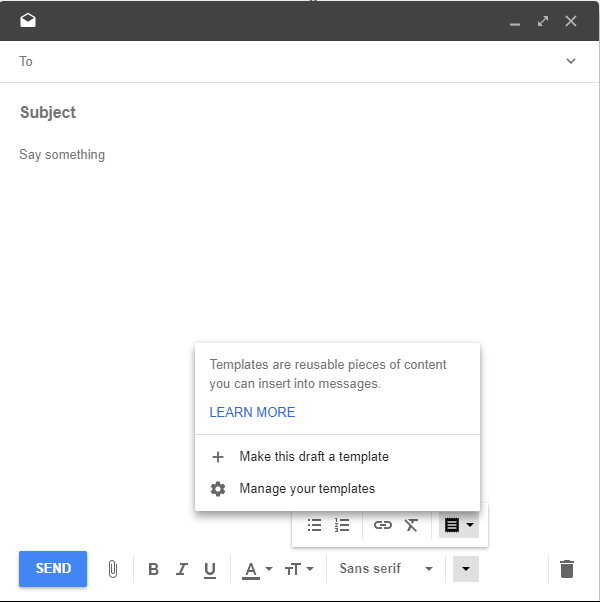
    You can also easily create a Google Inbox custom template. Here’s how: compose a new email with your template wording, click on the down arrow to the far right, click again on the down arrow to the far right, and select “Make this draft a template.” You’ll then be able to give your template a name. Once that’s done, close your original compose window.

    Google Inbox Template

    You can only use the template in a new email composition, so you’ll have to copy and paste for email replies. Here’s how: compose a new email, click on the down arrow to the far right, click again on the down arrow to the far right, and select your template. You can then copy and paste into your reply.

     
    Get the “Controlling the Chaos” Newsletter and receive a free PDF download
    “Drowning in Email – A Lifeline for Communications Overload”
    * indicates required


  • If You Snooze (Email), You Don’t Lose (Your Follow-up Tasks)

    If You Snooze (Email), You Don’t Lose (Your Follow-up Tasks)

    Snooze Email

    Staying on top of email chaos is not easy.

    Even after you’ve followed the steps to manage your email inbox (see my blog post here: 4 Steps to Becoming More Responsive), you still need to “deal with” those emails that need a follow-up task. How do you make sure that you get those done, and that they don’t get lost in the daily shuffle?

    There may be email invitations to meetings or events or lunch and you leave them in your Inbox to remember the date. There may be questions from clients whose emails you need to follow up on later. There may be business partners sending information that you’d like to read when you have time.

    Some email programs have a snooze email feature.

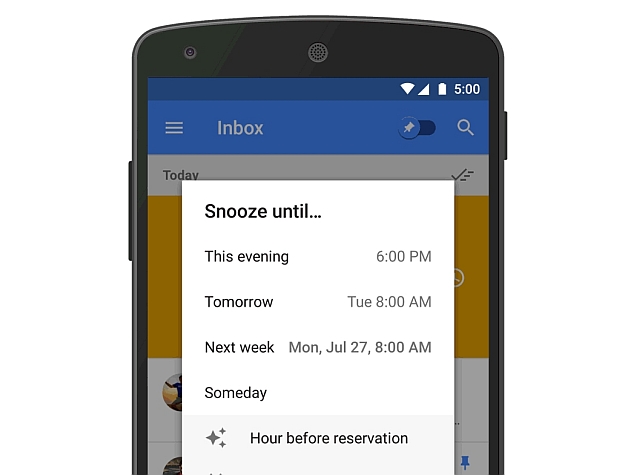
    When you snooze email, it leaves your inbox, and then come back to the top of your inbox at the specified time.

    A snoozed email is more likely to catch your eye because it’s at the top. If you’ve done a good job of scheduling it, then you’re now ready to act on it. It’s closer to the date of the event, or you now have the information that you need to follow up, or you now have the time to read it.

    Here’s how to take advantage of the snooze email feature:

    • Gmail – try switching to Google’s Inbox which has the snooze email feature. You can read more here: How to Easily Strike Off Tasks.
    • Apple Mail: Try the Spark application (review their privacy first: Spark App). Spark on the Mac is fairly new so it may be buggy. Or you can try the MailButler plugin (for Mac Mail only).
    • Outlook: For Outlook mobile, you swipe right on an email to snooze it. There is no snooze function for the desktop version.
    • Sanebox is a service that automatically prioritizes your Inbox and filters less important email into a folder, called “SaneLater”. The service has other features as well, such as reminders to follow-up on sent emails and the snooze email feature. Sanebox is $7/month for the basic plan with one optional feature, such as the SaneSnooze.

    Get the “Controlling the Chaos” Newsletter and receive a free PDF download
    “Drowning in Email – A Lifeline for Communications Overload”
    * indicates required


  • 4 Steps for a Stress-Free Email Management System

    4 Steps for a Stress-Free Email Management System

    Stress-free email managementIt can be stressful to see your Inbox growing out of control. There is also an increased risk of missing important email correspondence. It’s no longer possible to treat your inbox like it’s a to-do list that keeps growing and growing.

    The first step towards productive email management is to identify your goals.

    For most of us, it means:

    • Not missing important emails
    • Not having to spend hours of our time picking out the important emails
    • Quickly finding an email when we need it
    • Being able to scan the inbox for important items

    You can still scan your inbox at strategic times during the day. But you also need to make sure to schedule time daily for email management.

    Here is an email management system that I call “Yesterday First”.

    1. Decide on a stop time for your email management routine.
      Email management can be a real time-suck, so set a timer. I recommend not more than one hour. You can return to it later if you have more time.
    2.  

    3. Start with yesterday’s emails.
      This is to make sure that you’re not missing those important emails because, as your inbox is filling up, older emails are disappearing. Checking yesterday’s emails first ensures that you haven’t missed anything.
    4.  

    5. Deal with every email. Start with the earliest email from yesterday through the latest email from today.
       
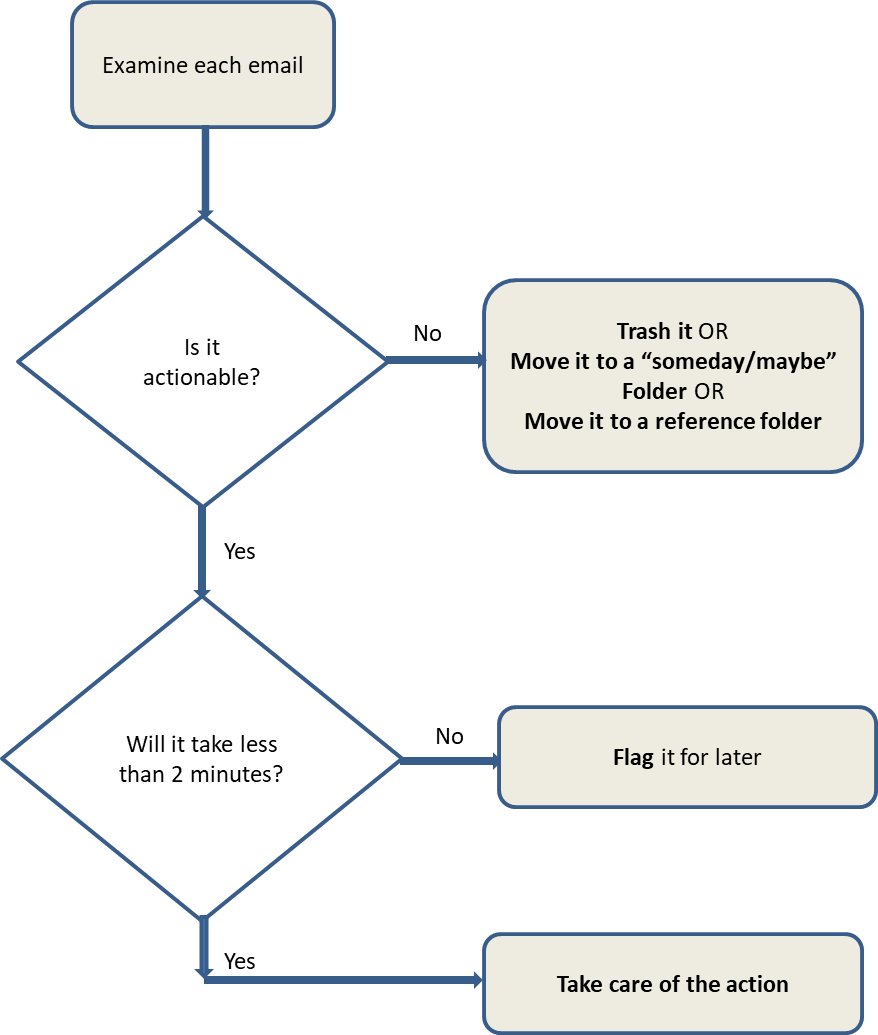
      The flow goes like this:
    6.  

      Email Managment Yesterday First Flow

    7. Look at your remaining time. You’ll have to divide the time between the following steps. (You will not finish each step, but you will make progress.)
    • Spend some time reviewing earlier emails in your inbox. Repeat Step #3.
    •  

    • Spend some time reviewing your “someday/maybe folder” and see if you can act on or trash any emails.
    •  

    • If you have set up any filters (See: How to De-Clutter Your Email Inbox), spend some time reviewing those folders and see it you can act on or trash any emails.
    •  

    • Spend some time reviewing your flagged emails and see if you can act on or trash any emails.

    Ideally, you have a set time every day for your Yesterday First system. If your schedule gets out of whack, then do it whenever you have a chance to sit down at your desk.

    Get the “Controlling the Chaos” Newsletter and receive a free PDF download
    “Drowning in Email – A Lifeline for Communications Overload”
    * indicates required


  • How to Prioritize Email and See What’s Most Important

    How to Prioritize Email and See What’s Most Important

    Prioritize Email

    If you practice good email organization, as I write about here: 4 Steps to Becoming More Responsive, you will have an Inbox with emails flagged by priority (more about flagging here: How to Use Email Flagging). Before you can even start with flagging, you need to understand how to prioritize email.

    You will prioritize email based on your unique goals.

    As a general rule, your top priority should be the emails that you need to act upon as soon as you can. I use red flags for my top priority emails.

    Prioritizing just the most important emails may still leave many in your Inbox that you need to act on.

    You can flag these emails as well with colors that have meaning to you. You could use yellow flags, for example, for emails that need a response within a few days. Emails waiting for a response from someone else could be flagged as purple. You could use blue flags for personal email that you will tackle on the weekend.

    Here’s an article about a method of prioritizing called the “Eisenhower” method, which uses these 4 categories:

    • Urgent and Important
    • Urgent (Not Important)
    • Important (Not Urgent)
    • Not Urgent, Not Important

    Decisive Email Sorting Solution

    If you are designating time each day to work on emails, then you should follow these steps:

    1. Start by reviewing and flagging new emails
    2. Sort your Inbox by flag
    3. Deal with those top priority emails first

    For lower priority emails, designate some time every week to deal with them.

    Here’s how to sort:

    • In Outlook, sort your email inbox by selecting “Arrange By: Flag” under the View menu, or click on the “Flag Status” column header.
    • Flagging an email in Apple mail actually puts it in a separate Mailbox under “Flagged” (as well as leaving it in your Inbox.) You can rename that Mailbox to whatever you want to help you to remember what your priorities are. For example, you can rename the “Red” Mailbox to “High Priority”, the “Yellow” Mailbox to “Follow Up This Week”, etc.
    • In Gmail, “starred” emails are in a single folder called Starred and automatically sorted by color.

    Get the “Controlling the Chaos” Newsletter and receive a free PDF download
    “Drowning in Email – A Lifeline for Communications Overload”
    * indicates required


  • 4 Ways to Make the De-Cluttering of Your Email Inbox Easy

    4 Ways to Make the De-Cluttering of Your Email Inbox Easy

      Cluttered Email Inbox

    Your email inbox can feel cluttered and overwhelming.

    Email filtering (see my blog post here: De-Clutter Your Email Inbox) automatically removes the less-important emails. Your email inbox can stay organized with less effort and you won’t miss important communication.

    Manually setting up filters in your email program provides the most control over your inbox. It can, however, seem intimidating to learn how to set filters up.

    If you don’t want to deal with setting up filters yourself then you may want to look into these programs that can automate the process:

    1. If you’re already not a Gmail user you may want to consider switching. Gmail automatically creates categories like “Promotions” and “Social”. The service then filters the relevant emails into those folders (called “labels” in Gmail). You need to make sure to use the Gmail app on your mobile device instead of the native email app or you won’t see the categories.
    1. As an alternative to the Gmail app, Google’s Inbox app adds additional categories (called “bundles”) like “Finance”, “Purchases”, and “Trips”. Here’s some more information on Inbox: How to Manage Your Gmail Inbox.
    1. Sanebox is a service that automatically prioritizes your Inbox and filters less important email into a folder, called “SaneLater”. The service has other features as well, such as reminders to follow-up on sent emails and a “snooze” feature. Sanebox is $7/month for the basic plan which includes filtering.
    1. Unroll.me is a free service that “rolls” newsletter into a daily digest.

    Be aware that most free services, including Gmail, use your information for marketing purposes. Read their privacy statements carefully before signing up.

    Also be aware that handing off your email filtering to a service means that important emails could end up filtered out of your Inbox, similar to the way that spam filters sometimes make mistakes. You’ll need to keep an eye on your automated categories, bundles, “SaneLater” folder, or daily digest.

    Get the “Controlling the Chaos” Newsletter and receive a free PDF download
    “Drowning in Email – A Lifeline for Communications Overload”
    * indicates required


  • 3 Steps to Easily Avoid “Back in the Office” Email Hell

    3 Steps to Easily Avoid “Back in the Office” Email Hell

    You can take steps to avoid email hell.

    You’re pretty consistent at staying on top of your email. But now you’re going on vacation, or on a business trip, or you know that you’re going to be too busy working on a project. Just the thought of all those unanswered emails piling up while you’re gone from the office is enough to give you a least a little bit of a sinking feeling.

    We all experience email hell from time to time. It can be difficult to stay on top of your Inbox even with a regular routine.

    If you’ve got good email organization (read my blog post here: 4 Steps to Becoming More Responsive), you already have the less important emails filtered out of your inbox. So when you return, you know that you have to deal with everything that’s landed in your inbox.

    If you follow the steps below, it can help you to relax when you’re away from the office. You’ll be able to get back on top of things when you return, easily avoiding email hell.

    1. Set up a filter for your most important people – your “VIPs”. That way, when you return, you can go to those folders first. See my blog post about filters here: How to De-Clutter Your Email Inbox.
    2. Set up a temporary filter for everything else, so that email goes into a “Catch up” folder. You’ll work on this folder as you have time. I suggest that you start dealing with the oldest email that came into your inbox after you left the office down to the newest.
    3. Set up an “out-of-office” auto-response, so that you’re not letting people wondering about your delayed reply.

    When you return, make sure to turn off your auto-response and delete the “Catch up” filter. You can also remove the VIP filters. Or, you can leave them in place if you know that you’ll remember to check those folders first thing every day.

    Get the “Controlling the Chaos” Newsletter and receive a free PDF download
    “Drowning in Email – A Lifeline for Communications Overload”
    * indicates required