Category: Digital Chaos Control

  • How to Implement a Better “Getting Things Done” for Email

    How to Implement a Better “Getting Things Done” for Email

    Digital Chaos Control

    What does “productive” mean to you?

    The first step towards productive email management may be to identify your goals. For most of us, it means a few things:

    • Not missing important emails
    • Not having to spend hours of our time picking out the important emails
    • Quickly finding an email when we need it
    • Being able to scan the inbox for important items

    One popular productivity method is called “Getting Things Done” (or GTD), first made popular by David Allen’s book in 2001.

    The GTD system requires that you empty your email inbox through utilizing an “action management system”. The flow goes like this:

    1. Examine each email
    2. Is it actionable?
    3. If not,
      • trash it, or
      • move it to a “someday/maybe” list, or
      • move it to a reference list.
    4. If it is actionable, determine if it will take less than 2 minutes. If yes, take care of the action. If not, delegate it or schedule it for later.

    Here’s what I see are the problems with the GTD system:

    • If you’re not on top of your inbox, it can grow out of control.
    • So you need to make sure to:
      • Schedule time to stay on top of your inbox
      • Schedule time to deal with the task list that results from deferred items so that it’s not getting too long
      • Schedule time for your “someday/maybe” list, or else you’ll never get to it

    Many people struggle with the GTD system because of the level of organization and time involved, so I advocate making a little tweak to this system.

    You do need to start with looking at each email first, or at least a good representation of your inbox, and that’s because you’ll determine how you will categorize your email. Read my blog post about categorization here: How to Become a Pro at Managing Email Chaos.

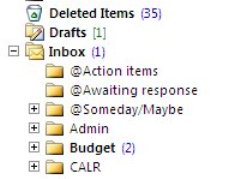
    Your “green” category emails are equivalent to David Allen’s “someday/maybe” emails, your “yellow” category emails his “schedule for later”, and your “red” category emails his “2 minute” emails.

    Once you’ve determined how your emails can be categorized, you’ll use filters to keep the green category (or “someday/maybe”) emails out of your inbox, simplifying your daily inbox management process. I’ll be writing more on email filters later, but read this post to get the basic idea: 4 Steps to Becoming More Responsive. And now that your green category emails are out of your inbox, you should ideally block out some time on your calendar on a weekly basis to review these emails.

    Your inbox is now smaller and easier to manage.

    You’ll still need a regular routine to read those yellow and red category incoming emails and deal with them. As you move the yellow category (or “schedule for later”) emails out of your inbox, David Allen advocates implementing a method for reminding yourself to act on those tasks. If you have an email program that supports it, you can “snooze” the email or flag it for follow-up, or you can integrate your email with a task manager. (I’ll be writing blog post soon on task management integration with reminders, so check back.) If you’re a Gmail user, here’s a great post at TechRepublic: How Google Steathily Built a “GTD” Suite of Apps.

    Your red category emails are your immediately actionable emails. However, you often cannot deal with these emails within two minutes or five minutes, and you may not have anyone to delegate to. So, these emails need to stay in your inbox, and they need to stay visible. The best way to keep them visible is to assign flags or stars to them, depending on your email program. Your daily routine should include sorting your inbox by flag and dealing with those high-priority emails that you had to defer because you needed more information, a response, or you just didn’t have a few minutes to deal with them.

    If you struggle with organization, or even if you are a highly organized person, the most productive way to find the email that you need is to search for it. Hopefully, you’ve signed up for my email list and received my paper on “How to Find What You Need When You Need it”. If not, shoot me an email and I’ll send it to you.



  • Drowning in Email: A Guide Back to Shore

    Drowning in Email: A Guide Back to Shore

    10-BITS-popup

    Dial back time (you’ll have to imagine if you’re too young) to 1980.

    Imagine your morning routine: you rise, shower, eat breakfast, get in the car (or not), and get to work. You sit down at your desk, and you’re looking at a pile of nearly 100 envelopes that have been delivered overnight, stacked in front of pile after pile of envelopes that you haven’t gotten to in the previous days. You start going through the pile, sorting by the return address according to importance. As you’re doing this, the office mail person keeps coming by and adding more envelopes to the pile. Then your boss sticks her nose in the door and asks, “Where’s that invoice from the marketing agency? They said that they sent it 2 weeks ago!”

    You would probably stand up and say, “I quit!” right? No one could be expected to work like that. You would need an assistant whose only job was to go through the constant stream of mail, file things where you can find them, and bring your attention to the important pieces of mail.

    You can still hire an assistant to take care of your email; many business owners do, hence the rise of virtual assistants. And corporate environments are moving away from email, using team chat and collaboration tools primarily. But email is a long way from obsolescence. Despite being overwhelming and inefficient, it’s still the best way to get your thoughts and questions down and send them to other departments or clients or vendors.

    You can work efficiently and productively with email even without the help of an assistant.

    Your sorting method needs to be automated through the use of filters; prioritizing can be done using flags, and follow-up can be done by integrating with a task manager. You can read further here: 4 Steps to Becoming More Responsive.

    Contact me if you’d like some one-on-one or group help with your email management.


  • How to Become a Pro at Managing Email Overload

    How to Become a Pro at Managing Email Overload

    Manage Email Overload by Categorizing into Priority FoldersThe average business worker sends and receives over 120 business emails per day and spends nearly 30 percent of the workweek managing email. Together with personal email, 205 billion emails are sent emails each day—a number expected to increase over 16 percent to 246 billion emails in 2019.

    Email overload can result in anxiety and feelings of guilt.

    It can be stressful to see your Inbox growing out of control and there is an increased risk of missing important email correspondence. Productivity drops when you have to spend too much time dealing with those emails, and distractions increase with those email notifications.

    Fortunately, there are solutions to email overload. To start with, we need to be able to categorize those emails that we receive so that we can move forward with organization and management techniques.

    Make Three Lists

    I recommend taking a look through your Inbox and making three lists. Keep those lists handy for the next steps.

    • Red Category
      • These are emails that you want to see in your Inbox, and that you don’t want to miss.
      • Example: Emails from clients, customers, co-workers, vendors, contractors, etc.
    • Yellow Category
      • Identify those emails that you don’t want to miss, but can wait until the end of the day or end of the week.
      • Example: Emails from friends and family, industry associations, school and church mail lists, etc.
    • Green Category
      • Identify those emails that you only want to deal with when you have the time.
      • Examples: Newsletters, social media notifications, etc.

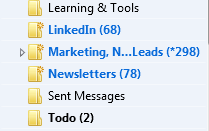
    Once you have your three lists, you can work on an organization strategy for those emails. You can create folders for those yellow and green category emails and set up email filters so that they will automatically be delivered to those folders instead of cluttering up your inbox.

    The folks at SaneBox, an email management app, have written a post here that you might find interesting: Email Triage, and you can read further advice from me here: 4 Step to Becoming More Responsive

    Need some one-on-one or group help with your email management?

    Contact Me


  • 6 Steps for a Photo Organization Routine

    You may or may not remember film photography – keeping exposed film in your fridge, dropping it off for developing, getting prints that you eagerly look through, picking out your favorites, and putting them in a photo album.

    Now we have an abundance of digital photographs, and most of us are not taking the time to look through them and organize them, which means that when you want to go back and find those special photos, you might find yourself in a time-consuming and frustrating search.

    Getting an organization system in place is something that you should start now for your future photos, and that you can implement for your past photos as you have time.

    Most photo management programs organize your photos by date. When you need to find a particular photo, this system works fine as long as you remember the event or date that you took that photo. A better system would be to go back to that old-fashioned concept of photo albums: create events, tag people, and add categories.

    Here are the steps to follow for a photo organization routine:

    1. Import using your photo management software. Your newly imported photos will be organized by date.
    2. If it doesn’t already exist,create a new album or folder for this year
    3. Under this year, create a new album or folder for the current quarter (ex: Q1, Q2, etc.)
    4. Under this quarter, create a new album or folder for each event.
    5. Move the newly imported photos to the relevant event or to the current quarter if there’s no associated event.
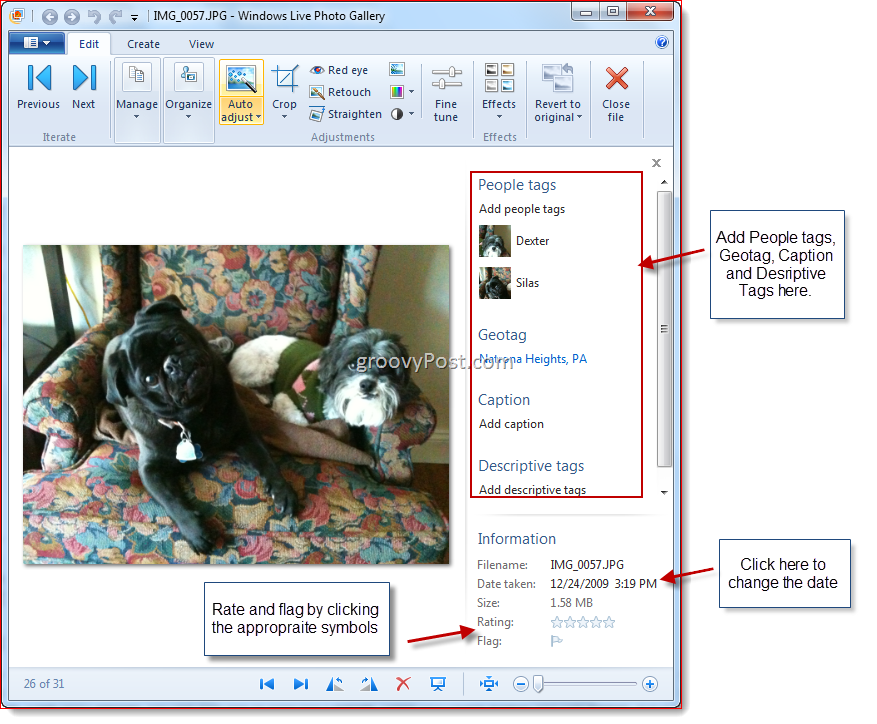
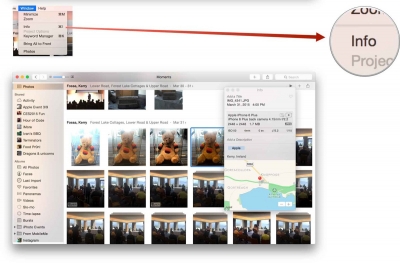
    6. Select the photos for that event and add tags or keywords describing the event, date, people, etc. (Depending on the photo management software you use, this is calling “tagging” or “assigning keywords”).


    Windows Photo Gallery
    Windows Photo Gallery: Adding Tags
    Apple Photos
    Photos: Assigning Keywords

    Organizing your photos by date and event allows you to easily browse through and find photos, and assigning keywords or tags allows you to easily search or sort by keyword.


    Did you find this post useful? The way that we work with information is changing and you can help spread the word by sharing with your social media.

    Do you have questions? Share them by commenting below or contact Patricia at 650.517.3142 or pat@digitalchaoscontrol.com for a complimentary consultation.

  • Do You Need a Technology Coach?

    Do You Need a Technology Coach?

    MagnoliaBudGoing it alone is not always a good idea and can stall your progress, so it sometimes makes sense to invest in a coach.

    I call myself a “productivity consultant” rather than a “coach” because I have years of expertise in technology, organization, management, and communication – all skills that I leverage to help my clients with their digital chaos. Coaches, such as business and life coaches, have expertise as well, but their skills are more centered on drawing out your strengths in order to achieve your goals.

    However, I’ve often thought that what I do for clients is a type of coaching. Coaching can often involve developing skills & abilities and boosting performance, which is all very relevant in navigating digital chaos. Coaching also helps deal with issues and challenges before they become major problems – like when you can’t find that client information that you need right now, or that photo for your daughter’s graduation ceremony.

    Another role of a coach is help clients to stay accountable to their goals. This often involves scheduled, regular sessions with the client. To this end, I am considering adding a service that will allow me to stay connected with my clients, to offer regular support, and to offer a community for getting questions answered. I believe that an ongoing technology coaching program can help my clients to venture out of their comfort zones and into new territory. A monthly subscription service would also help with budget planning.

    I’m doing some market research that will help me to formulate such a service offering. If you would be willing to help me out by filling out a short survey, I’d really appreciate it!

    In my coaching role, I act as a type of mentor – to help my clients think through their technology issues and to be more creative in solving them – through new techniques and/or new tools. I help them to find confidence in their potential to be more proficient and competent with technology. My coaching can convert a client who is reluctant to work with technology into an enthusiastic user.

    My clients are all smart, creative, and extremely competent in their professional or family roles. I believe that I not only teach and train them, but that I learn from them, and I often stand in awe of their competencies that differ from mine.

    By filling out the survey, you can sign up for a free, no sales pitch, coaching session, or you can do it completely anonymously – it’s up to you.

    The survey is here:

    http://tinyurl.com/p7u4brm

  • Photo Sharing

    CameraIn this age of digital photography, we generate tons of photos – our families, pets, vacations, school field trips, concerts, parties; the list goes on and on. The old days of getting our photos printed and into binders and scrapbooks are largely gone. It used to be fun to pull out the old photo albums and sit down with family and friends to laugh at crazy poses and faces, and to experience a shared emotion and memory of those who have passed on.

    We still have our photo albums, but they’re on our computers. And fortunately, there’s lot of ways to share our digital photo albums.

    The closest things that we have to our old binders that we can sit down and share are our portable devices – our smart phones, tablets, and laptops. It is possible to duplicate your entire photo library on a portable device if you have enough storage, but for most of us, there are just too many photos to fit. We have to manage our photo albums on our devices.

    When I travel to visit family, I go through my computer photo albums, and I pick which albums I want to bring with me. The next step to to sync those albums with my device. There are several ways to do this:

    1. Copy files – You can copy the files from the albums that you choose to your devices through USB, or to a memory card or flash drive that you move to the portable device. This is an easy option if you’re comfortable with computers and peripheral devices.

    2. USB Sync – You can use software to sync specific albums to your device. If you connect your iPhone or ipad, for example, through USB, you can use iTunes to select and sync albums. This is a great option if you use Apple devices and you’re familiar with iTunes.

    3. Cloud Sync – You can use a cloud sync service such as Dropbox or Sugar Sync to select and sync specific photo albums. These cloud services are very easy to use. You’ll have to have the software installed on both your computer and your portable device.

    4. Cloud Photo Sharing – You can use a cloud photo sharing service such as Flickr or Shutterfly to upload and share specific photo albums. Once you’ve created an account on Flickr, you can connect with it through iPhoto or Windows Live Photo Gallery and easily upload photos. You can install a Flickr app on your portable device and you’ll be able to view your albums and display slide shows whenever you have internet connectivity. You can also share the link with friends and family.

    5. Social Networks – You can use a social network such as Facebook or Google+ to upload and share specific photo albums. Your photos on Facebook won’t be full resolution, but this is a great option to show photos if you’re comfortable with Facebook and want to share only with your Facebook friends. You can also tag people in your photos.

    If you need help organizing and tagging photos, syncing with your devices, and/or setting up cloud services, Digital Chaos Control can help! Contact us today.