Category: Digital Chaos Control

  • How You Run Your Inbox Is How You Run Your Life – by Jenna Teague

    How You Run Your Inbox Is How You Run Your Life – by Jenna Teague

    How You Run Your Inbox

    Here’s a (potentially scary) question for you…

            What would someone learn about you if they took a peek inside your inbox?

            Would it give them an accurate picture of who you are?

    What if I told you that how you run your inbox reveals even more about you than what’s inside it?

    You may have heard this famous quote from Martha Beck:

            “The way we do anything is the way we do everything.”

    And the same goes for the way we do email.

    Like it or not, most of us spend a lot of time in our inboxes. But how exactly are we spending that time?

    According to psychologists, our external environments — the way we keep our homes, desks, and yes, our inboxes — are representations of our internal worlds.

    So, what inner landscape is your inbox revealing about you?

    Option #1: Overstuffed and Chaotic Inbox

    Does even looking at the number of unread messages in your inbox send you into a blind panic? Do you try to avoid your inbox at all costs?

    You’ve probably missed an important email (or 20) because your inbox is overflowing. You can never find the important stuff when you need it.

    How can you even begin to figure what’s important amidst the sea of random newsletters and marketing emails you never read yet never unsubscribe from.

    You probably feel like giving up on your inbox altogether. You’ll never get through the backlog of unread stuff.

    Maybe it’s time to select all → delete and get yourself a new Gmail account.

    But that wouldn’t solve the problem, would it? Because your inbox isn’t the only thing in your life that feels overwhelming and chaotic. And an email is probably not the only important thing you’ve missed.

    The Lesson

    It’s not all or nothing, in your inbox or your life. Start unsubscribing from mailing lists that don’t serve you. Start saying no to unnecessary commitments and activities. Practice paying attention to what’s important. Consciously commit to not trying to do everything.

    Option #2: Folder Queen

    Your inbox is the digital equivalent of living inside The Container Store. A place for every message and every message in its place.

    You’ve got more folders than a Lisa Frank Trapper Keeper. You love nothing more than dragging and dropping a message into its appointed spot. You’ve got the Tetris of inboxes!

    Chances are your inbox isn’t the only meticulously organized and over-controlled area of your life. Maybe you’re a little rigid in the way you keep your home, your desk, your calendar…?

    The Lesson

    Do you need all those folders? Are you spending more time organizing things than actually dealing with them?

    If you cut back on the structure a little bit, how would you feel? How would you choose to spend the time that you freed up by not dragging each metaphorical message into a different folder? What if your inbox — and your life — were a little bit messy and (gasp!) spontaneous?

    Option #3: Inbox Zero or Bust

    There is nothing more rewarding for you than the satisfaction of knowing you have no unread messages. Zip, zero, zilch. Inbox Zero is a way of life for you.

    You are (unhealthily?) obsessed with reading and responding to each message as soon as it arrives. Check, read, respond, file… Again and again in an endless loop for the rest of time.

    You love checking items off your to do list, and the Inbox Zero life gives you that in spades. Tiny little hits of accomplishment all day long.

    Your inbox is not the only place in your life where you’re ruled by tasks. You need to complete them quickly, efficiently, and perfectly to feel a sense of accomplishment.

    The Lesson

    You’ve got to get off the achievement hamster wheel! You are not your inbox or your to do list. You are so much more than that, and your life will not fall apart if you miss an email or task (or 10).

    At first, it might feel uncomfortable to know that you’ve got unread emails sitting in your inbox and unaccomplished tasks languishing on your to do list. That discomfort fades when you start to experience other ways to spend your time. You’ll find that you would never trade the freedom and flexibility that loosening that tie creates. You can still get things done without your inbox (or to do list) ruling over your time.

    The Insights

    So, were you surprised to learn what your relationship with your inbox says about you? Do some of your email habits reflect your larger life habits? Are there things about the ways you do email that you want to change?

    The bottom line:

    You are in charge of how how you manage things, in your inbox and all areas of your life and business. When you’re aware of your own habits, you’re in a much better position to know what’s working and to change what’s not.

    Here’s to making your inbox work for you and your unique personality.

    About the Author

    At her core, Jenna Teague is a healer. Jenna comes from over a decade of supporting clients’ healing in her psychotherapy practice and sparking business healing for coaches and entrepreneurs. Jenna co-creates with her clients game-changing shifts in their lives and businesses. She knows, deep down in her bones, that presence always trumps perfection. Building community is what lights her up most.

    If you want to see Jenna at her giddiest (and geekiest), invite her to your next creative brainstorming session. She lives for that. You can find her at Jenna Teague and Nourish Your Practice.

    Get the “Controlling the Chaos” Newsletter and receive a free PDF download
    “Drowning in Email – A Lifeline for Communications Overload”
    * indicates required


  • Managing your Browser Tabs: 4 Simple Ways for Multitaskers

    Managing your Browser Tabs: 4 Simple Ways for Multitaskers

    There are many styles and personality types when working with technology.

    Are you someone who composes emails but doesn’t send them right away? Do you have lots of applications running at the same time? Do you have lots of browser tabs open?

    You may be a multitasker.

    Apart from other reasons to rein in your multi-taking tendencies (read here for tips: Tricks That’ll Stop You from Multitasking), there is a technical reason that this style can be inefficient. That reason is: keeping multiple windows open and multiple tabs open in your browser can slow your computer down.

    Your computer has only so much memory. When there are too many demands on that memory, the computer has to spend time swapping out data its hard drive. Try to close an application every time that you open an application and try to close a browser tab every time that you open one.

    But if you’re multi-tasking, you may be keeping browser tabs open because you want to go back and finish something. If you find that you are consistently faced with too many tabs, there are things that can help.

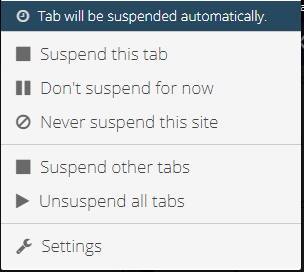
    For Safari, Chrome, or Firefox, use a browser tabs suspender extension. Suspend Brower Tabs Extension

    This will automatically close (“suspend”) those websites in your tabs, but still keep track of them in each tab. You can reload those websites when you go back to the tabs.


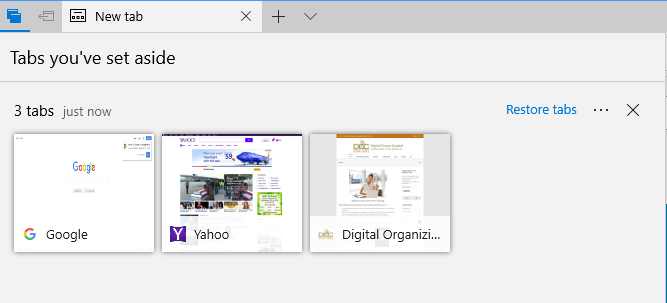
    For Microsoft Edge, use the “Set aside your tabs” feature.

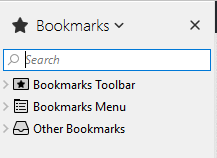
    Microsoft Edge help you to manage your browser tabs.Try bookmarking the websites and then closing the browser tabs. Save brower tabs as bookmarks.

    Keep a bookmarks sidebar in your browser for quick access.
     

    Try the Pocket extension.

    After you install the extension and sign up for a Pocket account, you can save websites for later access. Pocket is my personal favorite for those websites that I want to get back to and then check them off as “done” (read). If I want to save a website instead for regular access, I will use a bookmark.


    Get the “Controlling the Chaos” Newsletter and receive a free PDF download
    “Drowning in Email – A Lifeline for Communications Overload”
    * indicates required


  • How to Use an Ad Blocker for a Better Internet Browsing Experience

    How to Use an Ad Blocker for a Better Internet Browsing Experience

    Ad Blocker

    In the “early days” of the Internet, websites discovered pop-up ads.

    These ads were intrusive and annoying, and they were followed shortly by adware and malware pop-ups that posed as ads. Clicking on them at a minimum encouraged intrusive advertising. They could also possibly infect your computer with malware.

    Internet browsers responded by adding a pop-up ad blocker which mainly took care of the problem.

    Advertisers had to find another way. First, they came up with “pop-under” ads. These open up in another browser window under the one you’re using. You probably don’t see it until you close your browser window and then you wonder where it came from.

    Most ads now show up somewhere in the page that you’re reading – at the top, in the sidebar, or in the text. Many are not intrusive and are relevant to the page that you’re on. (If you’re surprised that you’re seeing ads for something that you’ve searched for on Google or on Facebook, then you may want to check to see if you’re still signed into your Google or Facebook account. Both companies will track your internet usage.)

    Some ads are still very intrusive and can slow your browsing experience down, particularly video ads that start playing when you visit the page. Although advertising is important if we want to continue to have a free internet, there are methods to block those annoying, intrusive ads.

    If you’re using Chrome, Safari, or Firefox, then you can install an ad blocker extension (even on Safari in iOS now, and Firefox & Opera for Android). The most popular one is called “Adblock Plus”. After you’ve installed it, it will block the most intrusive ads.

    The default setting in AdBlock Plus is to allow ads that are not intrusive (and it’s possible that it “whitelists” ads for a fee from advertisers). You may have to play with the blocking settings.

    Do you need help with your digital chaos and/or to understand your technology?

    Contact Me

  • Who Else Wants to Easily Find Photos When You Need Them?

    Who Else Wants to Easily Find Photos When You Need Them?

    Most of us have an abundance of digital photographs – so many that we are not taking the time to look through them and organize them. The problem is that when you want to go back and find photos, you might find yourself in a time-consuming and frustrating search.

    Find Photos by Tag

    I was recently looking at an old photo of my brothers, and it struck me that I had a recent photo of my brother and son that was strikingly similar. I had no idea when I had taken that photo, but I had to find it.

    Fortunately, it was a cinch for me to find photos since I had tagged them with both of their names and the location.

    Find Photos by Tag

    Brian Chen recently wrote an article in the NY Times about his search for the best software to use that could automate photo organization. Brian calls tagging systems “neurotic”, but also admits that “If you spend tons of time rummaging for a specific photo, then sorting photos may be worthwhile.”

    Brian has a point that most people don’t have the time or the inclination to do a lot of photo organizing, and I strongly believe that automating tasks as much as possible is the way to go, but I also believe that automation isn’t where it needs to be, not yet.

    You can read Brian’s article here: Zen and the Art of Managing Cell Phone Photos.

    Brian recommends using the Google Photos service because of its automated image recognition. When I uploaded my marketing photos to Google Photos and did a search for “computer”, it did quite well at finding photos of computers. But when I did a search on “umbrella”, it found a photo of a camping tent instead. The image recognition is pretty good, finding a photo of a deer correctly, and of a starfish, but missing most of my whale photos.

    Image recognition is bound to improve, and I’m looking forward to that, but in order to quickly find photos, I’m not willing to let go of my photo organization system yet.

    If you do use Google’s Photos service, I strongly disagree with Brian about deleting your photos after uploading them. You should not delete your photos from your phone until you’ve copied as well to your computer.

    You can read my blog post here about backup: Be Sure That Your Memories are Safe.

    Getting an organization system in place is something that you should start now for your future photos and that you can implement for your past photos as you have time.

    You can read my blog here about photo organization: 6 Steps for a Photo Organization Routine.

    Need help with photos?

    Contact Me


  • Office on Mac? What you ought to know…

    Office on Mac? What you ought to know…

    Office for the Mac

    Office on the Mac has always been an afterthought for Microsoft, and not as full-featured as its PC equivalent.

    Microsoft has a different development team working on Office for the Mac, and, over the years, people have wondered if the team was just a couple of engineers working in the Microsoft basement. (If you’re curious, here’s a video of the team from a couple of years ago: Office for Apple Team).

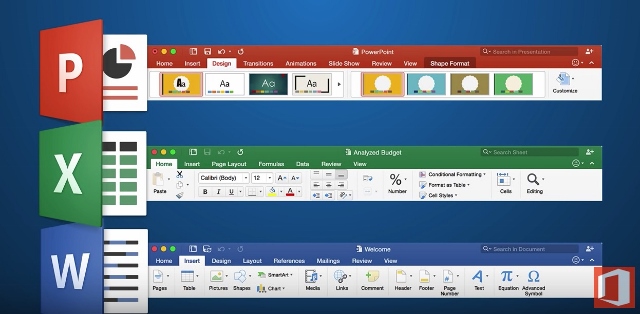
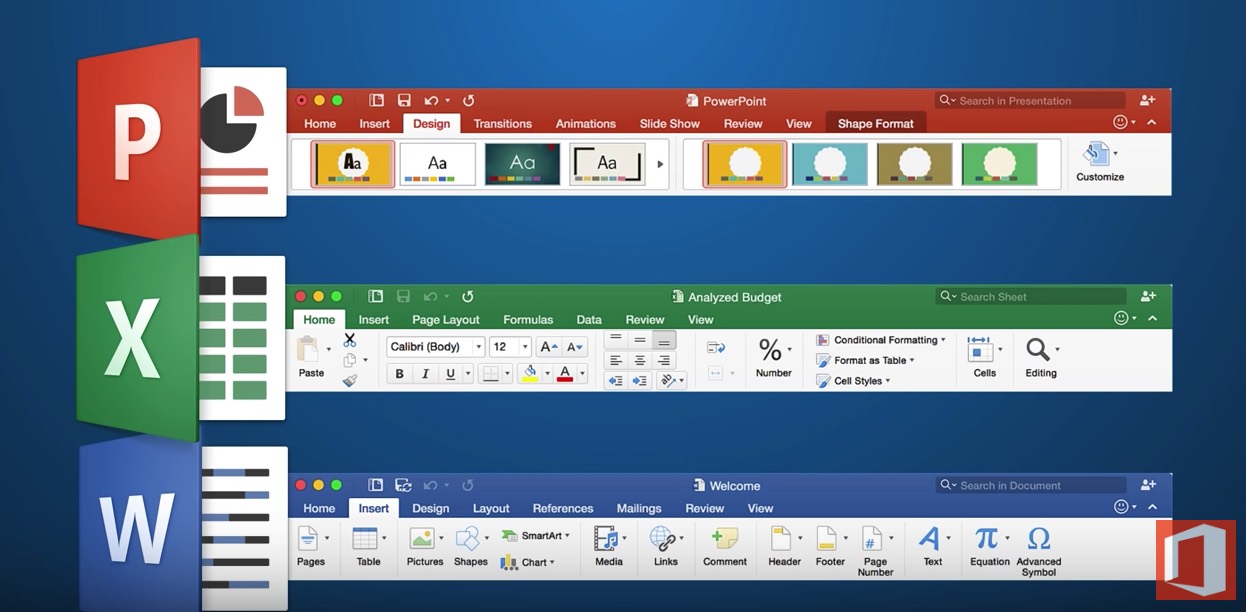
    Microsoft has made many improvements in its 2016 version for the Mac. If you’re used to the PC version, the Mac version now much more closely resembles it.

    Word, Excel, and PowerPoint all have improved features and interface.

    Excel for Mac has many new features but still does not support pivot charts, if that’s important to you. (Here’s an article from Microsoft about those: Overview of Pivot Tables and Pivot Charts). PowerPoint has many new templates and now has presentation mode, but does not allow you to record your presentation with a narration and save it as a movie.

    Here’s a more detailed article: Office for Mac 2016 Overview.

    Outlook 2016 for the Mac is also improved, at least for working with email. For example, you can now have different signatures for different email accounts. But if you’d like to access your contacts and/or calendar from your mobile device, there is no mechanism for sync with Outlook on the Mac. If that’s important to you, then you’ll have to use the Mac Address book and Calendar program instead.

    Make sure that you’re keeping your Office for Mac updated with the latest software releases and bug fixes. If you haven’t updated yet to El Capitan, it’s important to update your Office software first or you may run into trouble. And if you have updated to El Capitan, make sure that you have the latest version of the OS as Apple has improved compatibility with Office.

    Need help with Office for the Mac? Contact me.


  • What Everyone Ought to Know About Office Alternatives

    What Everyone Ought to Know About Office Alternatives

    Microsoft Office

    Microsoft Office has been a workhorse for years.

    Many of us first became accustomed to it in our corporate work. If you’re still working in a corporate setting or if you’re creating detailed documents, spreadsheets, or presentations on a PC, there’s still nothing that beats Office for standard and more advanced content creation.

    Office is not cheap.

    A single license of Office Home and Student costs $120, but we’re often working on multiple devices these days. If you want to install Office on your home computer, your office computer, and your iPad, you’re better off with Office 365, which costs $9.99/month. Other advantages to Office 365 include automatic updates and new downloads to new computers.

    Office on the Mac has always been an afterthought for Microsoft, and not as full-featured as its PC equivalent. (However, Microsoft made many improvements in its Office 2016 version for the Mac.) Fortunately, if you’re on a Mac, you’ve got a great alternative – Apple’s application suite – Pages, Keynote, and Numbers. (Just remember to convert to the Office document equivalent when sharing files so that PC users can open them.)

    If you don’t need the advanced options that Office provides, then Google Docs is worth checking out.

    Mac or PC, you’ve also got an alternative with Google Docs, Google Sheets, and Google Slides. These applications are completely free to use on the web and also via the Google Docs mobile apps. Advantages include 15 GB of cloud storage space, easy collaboration with other Google users, and conversion to Office files for sharing.

    Office OnlineAnother option, perhaps even a better one than Google Docs, is Office Online. You can use the online versions of Word, PowerPoint, and Excel free of charge, with 5 GB of cloud storage. The online versions don’t have all of the features as the paid versions, but that may be fine if you’re not a power user.

    Microsoft Office OutlookMicrosoft Office for Business also includes Outlook, which is a nice integrated email reader, contacts manager, calendar, and task manager. Outlook calendar and contacts can sync with your iOS device by installing the iCloud plug-in, but you’ll need to look at third-party apps for Android contacts sync, or sign up for a Google for Work account.

    Mac Mail Office AlternativeIf you’re a Mac user and you don’t have Outlook, or you don’t want to use the Mac version of Outlook, then Mac Mail is a fine program and integrates well with the Mac Address Book. You will have to launch the Mac Calendar and Mac Reminders separately. (If you’d like to know how to integrate Mac Mail with Mac Reminders, read my blog post here: How to Ingrate Email with Task Management). The Mac Calendar and Mac Address Book can sync with both iOS and Android (through your Google account).

    Windows has always had a basic email program as part of its Windows Essentials. In Windows 10, Microsoft released a new mail program with integrated calendar and contacts. (The jury is still out on this program as Microsoft works out the bugs.) With the release of Windows 10 Mail, Microsoft will no longer be updating Windows Live Mail, and will no longer support it for outlook.com email addresses. Unlike Outlook, Windows 10 Mail will sync with both iOS and Android contacts.

    Thunderbird Office AlternativeFor years, I’ve been using a free program from Mozilla called Thunderbird as my email reader on the PC. Thunderbird, like Outlook, is extensible with add-ons, so I have a calendar add-on called Lightning, and another add-on that syncs with my Google calendar. There are available add-ons for contacts sync as well. Thunderbird is a full-featured program that may be a bit difficult for many people to learn, and the search function is limited. However, if you’re on a PC, you don’t have Outlook, and you have multiple email addresses that you want to manage in one place, then Thunderbird is an excellent option.

    Need help with Office or your email program? Contact me.


  • Don’t Take My Post-it Notes Away

    Don’t Take My Post-it Notes Away

    Post-it Plus

    Are you someone who still uses post-it notes for to-dos?

    You’re not alone. For a visual person, it can be helpful to glance at those colorful notes to see what’s next in the queue. If you’ve read my post on task management here: How to Stay on Target with Your Goals, then you know that there are some visual task management systems. There are also project management systems that have returned to using post-it notes.

    One of the problems with post-it notes is that your system can get messy.

    If you’re very organized, then you have them on your white board in neat columns , but if you’re not, then they may be stuck all over the place. Also, you have to be in the room to see them.

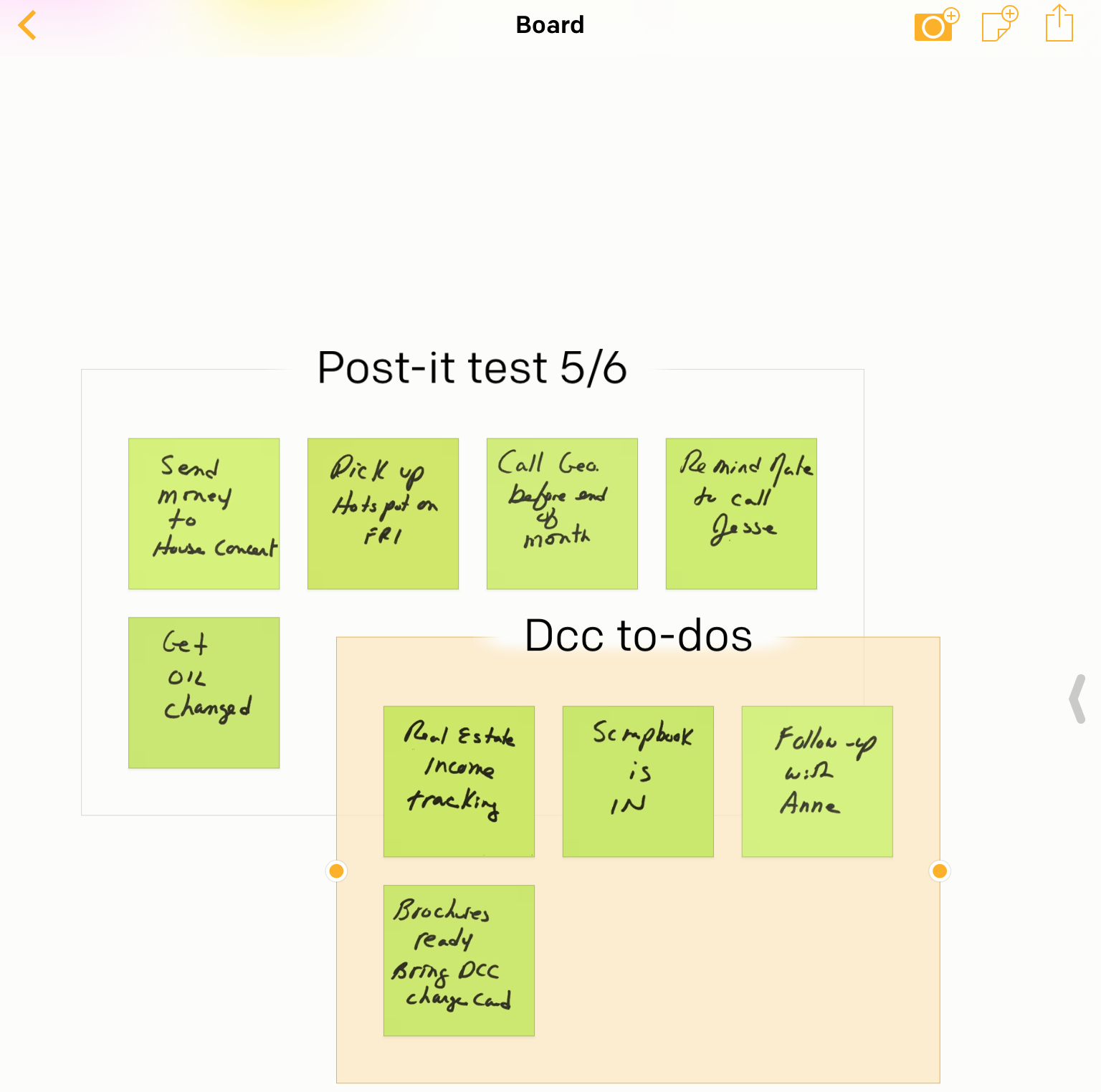
    If you don’t want to let go of your post-it habit, then there’s an iOS app for you, created by 3M, the maker of post-it notes. You can keep your notes and still go digital to organize them and bring them with you.

    The app is called “Post-it Plus App”. First, take a picture of your notes. The app will recognize individual notes, allow you to move them around, and also create new notes.

    In my screenshot example above, I started with my notes posted on a wall but not organized in any way. After I took the picture, I moved a note in the app to create a new “board”, and then organized other notes onto that board.

    Now I can see at a glance my personal to-dos board, and my work to-dos board.

    If you don’t work on an iOS device, or if you’d like a more efficient way to work with post-it notes, then consider using Evernote. Here’s a nice post about the Evernote post-it system: Evernote Post-it Notes. More information about Evernote here: Use Evernote For a New Level of Organization.

    Get the “Controlling the Chaos” Newsletter and receive a free PDF download
    “Drowning in Email – A Lifeline for Communications Overload”
    * indicates required


  • 3 Reasons to Stop Using Email as a To-do List

    3 Reasons to Stop Using Email as a To-do List

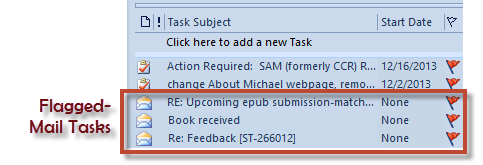
    Flagged Email Tasks

    Staying on top of email chaos is not easy.

    Even after you’ve followed the steps to manage your email inbox (see my blog post here: 4 Steps to Becoming More Responsive), you still need to deal with those emails that need a follow-up task. How do you make sure that you get those done, and that they don’t get lost in the daily shuffle?

    There may be event invitations that you leave in your Inbox to remember the date. There may be questions from clients whose emails you need to follow up on later. There may be business partners sending information that you’d like to read when you have time.

    The easiest way is to have a daily routine to review and act on those emails. If you flag the most important emails, you can review them daily. You can then delete them or archive them as you finish your follow-ups.

    But it’s easy to get behind with those email tasks.

    You may find yourself with a list of flagged emails that just keeps growing. They’re all important, but how do you find the time to get through them? Are they all equally important?

    Here are three good reasons to not leave those emails as to-dos in your Inbox:

    1. You may have to read the emails to see what they are. In a to-do list, you have clear task titles. You may even want to use the “action title” method that I mention in this blog post: I never finish anythin….
    2. It’s not easy to prioritize your email tasks. You can try using different color flags or stars, but then you have to take context into consideration. Are you mixing your personal and work emails? What about emails from clients mixed up with emails from vendors?
    3. While you’re working on your sorted, prioritized Inbox, you have emails coming in. You won’t see them until you change your sort order back to dated order.

    Have another look at my blog post here: How to Integrate Email with Task Management and think about installing a task manager instead.

    Get the “Controlling the Chaos” Newsletter and receive a free PDF download
    “Drowning in Email – A Lifeline for Communications Overload”
    * indicates required


  • How to Stay on Target with Your Goals

    How to Stay on Target with Your Goals

    Task Manager for Your Goals

    What is productivity?

    Productivity means performing on target according to your goals and deadlines. Let’s say your goal is to create a social media presence and have twenty followers. You’ll need to set a deadline to achieve that goal, break it down into achievable tasks, and assign a due date for each task.

    If you’re working unproductively, you won’t meet your goals by the deadline. This results in missed opportunities, loss of income, and perhaps a drop in confidence.

    There are many reasons for missing your deadlines, including unexpected obstacles, distractions, and unproductive employees. But you can mitigate the risk by making sure that you have good productivity tools in place.

    Start by setting up your system.

    You need:

    • Task management or project management software
    • Documented goals and deadlines
    • Activity sets for each goal
    • Due dates for each task with reminders

     
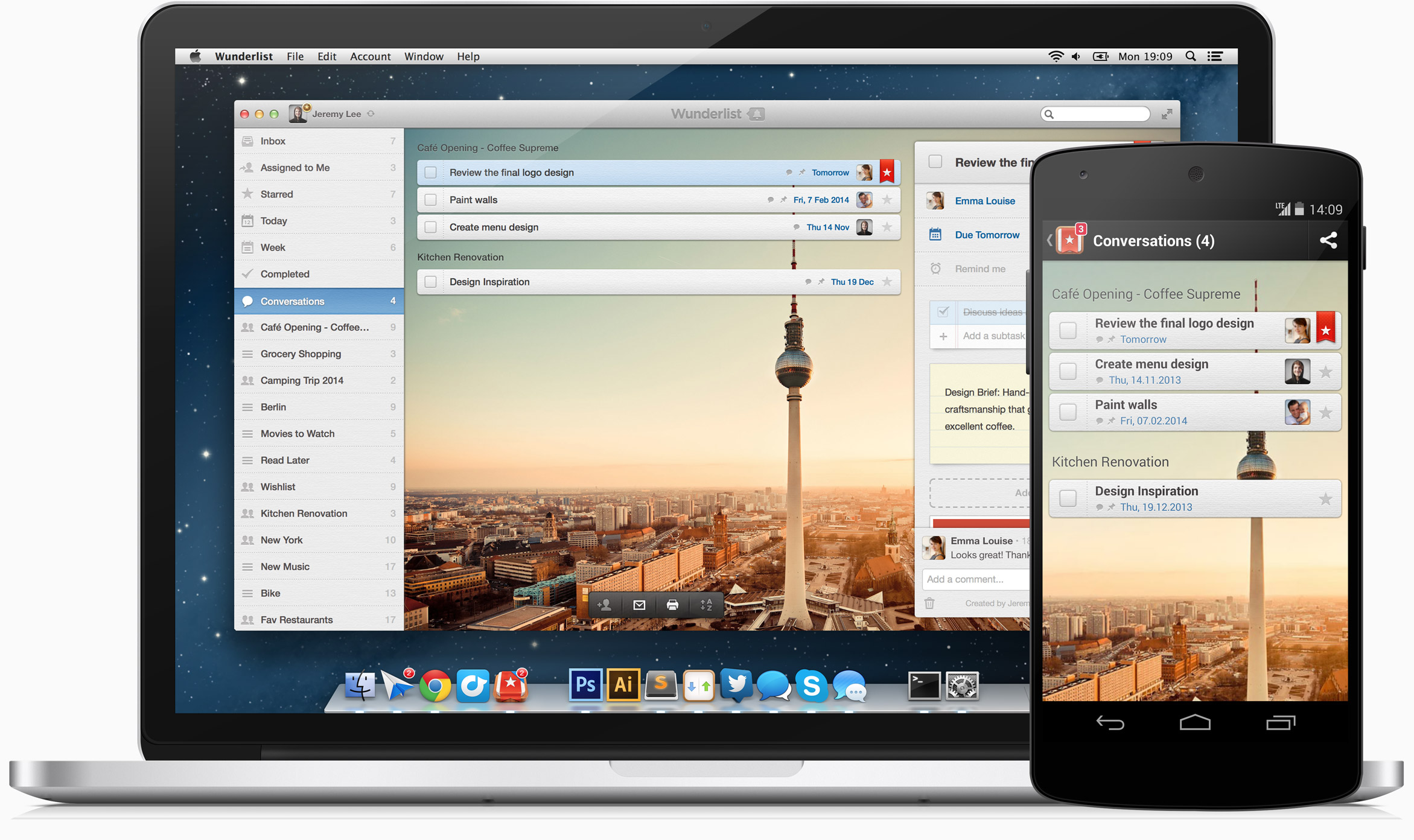
    Wunderlist goals and tasks manager


    Here’s my blog post on my preferred task manager called Wunderlist: Task Management for the Super Efficient. For project management, I like Insightly for ease of use, others prefer Asana or Basecamp.

    The next step after setting up your system is to determine your best method for working productively on a single task.

    This includes considering your work layout and your most productive time of day. Also consider limiting distractions during your work time by turning off notifications. Start by reading my blog post here about “perceived” productivity: How to Remain Productive.

    One productivity method is “Getting Things Done”. I’ve mentioned this in previous blog posts. Here’s a post about this and other methods for productivity: The Busy Human’s Guide to the Best Productivity Systems.

    As you’re working toward your goals, you will not only have to deal with distractions, you will also have to deal with shifting priorities.

    Let’s say, for example, that after reaching 10 followers on social media, all 10 are requesting a consultation or more information. These are new tasks that you have to integrate into your system.

    Do the following at least weekly:

    • Review your deadlines
    • Analyze your productivity and the factors affecting it
    • make adjustments


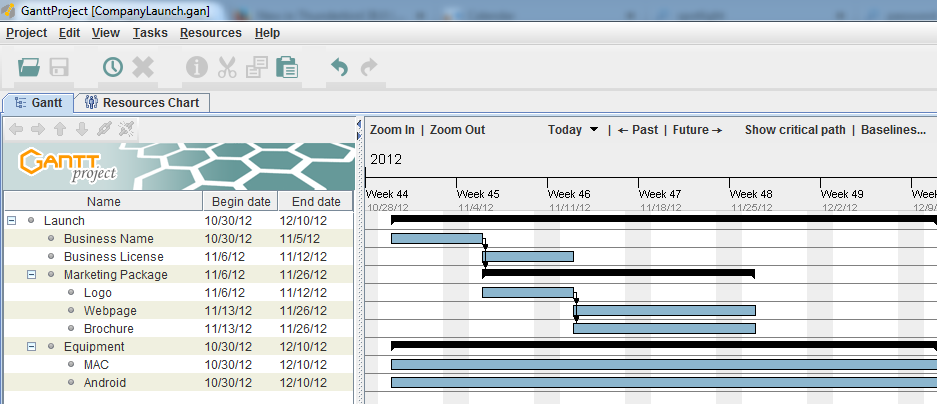
    Gantt Chart for Goals
     
    The white board is the traditional system for making a visual representation of a project. As we moved into digital tools for project management, the Gantt chart (a type of bar chart) became popular. It was sometimes printed out and displayed to show the project progress.

    These days, these methods have been replaced with methods that recognize the shifting priorities of projects.

    Teams have daily meetings run by project managers. They move post-it notes around that represent tasks.

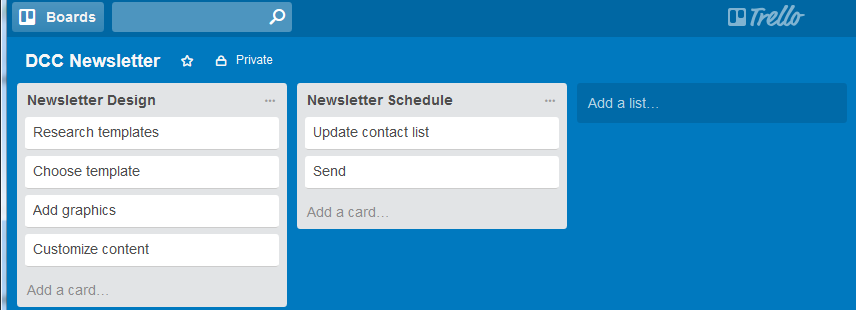
    Trello goals and tasks management

    There are now project management tools that use a more visual method. One example is Trello. Trello implements something called a “Kaban” board. It puts your task cards into columns so that you can arrange your tasks by lists.

    An example might be: Column one: “This week”, Column two: “Today”, Column three: “Done”. You can easily move task cards between columns.

    Whatever your working style is, once you’ve got the right systems and the right tools in place, you’ll be able to reach your goals consistently.

    Get the “Controlling the Chaos” Newsletter and receive a free PDF download
    “Drowning in Email – A Lifeline for Communications Overload”

    * indicates required


  • How to Manage Your Passwords

    How to Manage Your Passwords

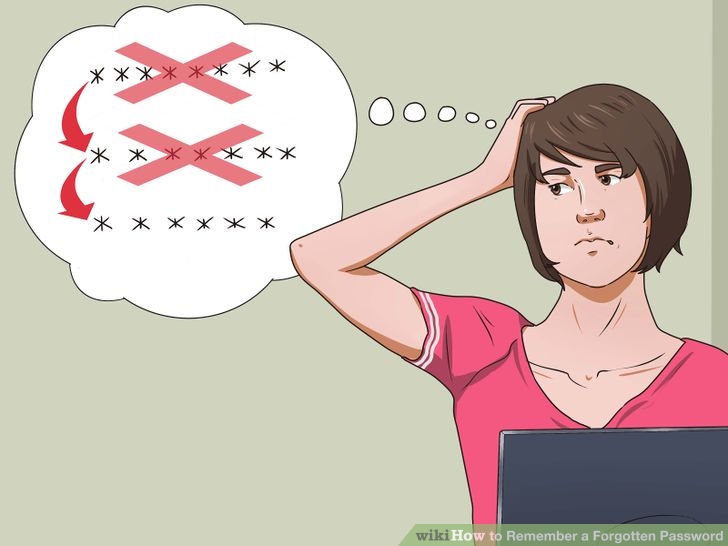
    Forgotten Passwords

    We have online accounts for so many things these days – email, social networking, cloud services, financial services, medical accounts, even the local library. Security experts tell us that passwords should be long, cryptic, and unique for each account, but if you follow their guidelines, how can you possibly remember all of your passwords?

    You’re trading security for convenience and saying hello to digital frustration.

    I recommend handing over control to those security experts by signing up for a password management service. You’ll then install a password manager program on your computer and your mobile devices that will help you to generate passwords and securely save them.

    You’ll need to set the program up with a master password, but you’ll only need to remember that one master password to let you into the password vault (write it down and put it in the safe!).

    Of course, you’ll still need to remember a couple of other passwords – the password to log into your computer user account for example, and perhaps a computer administrator password if your computer is set up with one. (You may also need to remember your Apple ID or Google ID and password to install the password manager program.)

    For my master password, I start with a word that has some personal meaning to me, add a character between syllables, a few numbers at the end (that I’m sure that I’ll remember), and then use the word in a complete phrase. For example, “Im#pala876ismyfavoritecar”.

    Some password managers use the cloud to sync your passwords with your other devices.

    For cloud sync, your password vault gets encrypted locally, on your own computer, and then transferred and stored unaltered on the cloud server. When you log into the service, the reverse process happens – the password vault is transferred from the cloud down to your device, and then decrypted.

    I use LastPass as my password manager. Some of my clients use 1Password or Dashlane. If you use all Apple devices, and you don’t care about a nice interface, you can use iCloud Keychain to save and automatically fill in passwords for Safari.

    Here’s a post at How-to Geek comparing password managers: Password Managers Compared.

    Get the “Controlling the Chaos” Newsletter and receive a free PDF download
    “Drowning in Email – A Lifeline for Communications Overload”
    * indicates required