Category: Computer Management

  • If a Mac User, Are You More Hip? If PC, More Practical?

    If a Mac User, Are You More Hip? If PC, More Practical?

    Trendy Mac, Practical PC

    Are you Mac or PC? What does that say about your personality?

    Let’s look at a little history to see how we got here with this question. The Apple II was the first personal computer, released in 1977 after Steve Jobs and Steve Wozniak founded the company – followed by the IBM PC in 1981, running Microsoft MS-DOS.

    Always one step ahead, Apple under Steve Jobs released the Macintosh in 1984 – its windows interface was a revelation at the time. Microsoft’s Bill Gates, no dummy to the potential of a graphical user interface, released Windows in 1985.

    Jobs accused Gates of stealing the idea, but Gates replied, “Well, Steve, I think there’s more than one way of looking at it. I think it’s more like we both had this rich neighbor named Xerox and I broke into his house to steal the TV set and found out that you had already stolen it.”

    Microsoft far outpaced Apple in market share throughout the ‘90s and 2000s, but after Jobs’ return to Apple in 1997, the release of the iPhone & iPad, and the trend toward more remote workers and consultants, the Macintosh has seen a resurgence in popularity.

    Bill Gates is generally considered a “nice” man – cutthroat in business, yes, but philanthropic and generally respectful of others. He’s a brilliant engineer as well as a brilliant businessman. Steve Jobs is brilliant in other ways – a visionary and creative marketer.

    So if you’re a PC user, does it mean that you’re more practical (like me!) and a “nice” person? (I’m not talking to you gamers. I know that you love your gaming PCs!) If you’re a Mac user, are you more visionary and creative? More hip? Or just wealthier?

    Here’s a survey that suggests that it may be true. You Mac users may be more like Steve Jobs than Bill Gates: Mac and PC Users

    There’s actually a third category of users. You may own a Chromebook, or you may be someone who has a Mac or PC but mostly uses Gmail and/or Google Docs through a web browser. What kind of person are you?

    If you’re like Larry Page and Sergey Brin, the founders of Google, you may be younger, less aware of the history of the Mac vs PC debate, and just focused on the best way to get the job done.

    I’m bilingual, so I can help you learn how to make better use of your Mac or your PC.

    Contact Me


  • 4 Ways to Add More Computer Storage Space

    4 Ways to Add More Computer Storage Space

    HDD SDD Storage

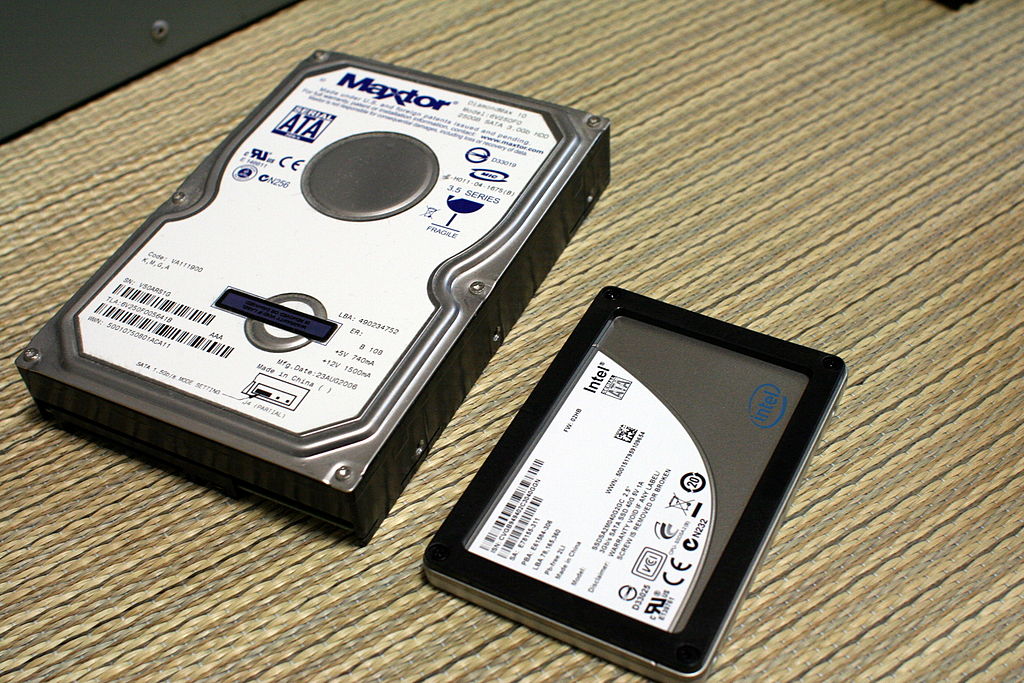
    One way that laptops are getting thinner and lighter is by replacing the hard disk drive with a solid-state drive (SSD). An SSD has no mechanical moving parts so it’s faster, lighter, and more robust. Sounds ideal for a portable device, right?

    Yes and no. SSDs are ideal functionally but they cost more per byte than hard drives. To keep the overall cost of the laptop down, you get less storage space. (Here’s a detailed article on SSDs and HDDs: How Much Storage Capacity Do I Need?)

    If you’re like me, you use a desktop computer for daily work and a laptop for working on the go. So then it’s not an issue. Your photos and videos are stored on your desktop computer. (And hopefully backed up – see my blog post on backups here: How to Backup Multiple Computers.)

    But if your laptop is your main computer and your storage space is limited, then you may need to manage that space.

    Don’t wait until you get the message that you’ve run out of space, make a plan now for more storage before you need it.

    Start by reading my blog post here: 6 Tips for Managing Your Computer Storage.

    Now that you know how to keep an eye on your storage space, here are some options for adding more.

    1. You can get a new laptop. A MacBook Air tops out currently at 256GB. You would have to upgrade to a MacBook or a MacBook Pro which goes up to 512GB. High-end PC laptops go up to 2TB.
    2. You can replace your SSD with a larger one. If your laptop is still under warranty, you will want to do this through the original manufacturer. If it’s out of warranty, then a local computer shop may be able to do this for you, depending on the laptop model. You’ll want them to duplicate your existing drive data to the new one first.
    3. You can add an external hard drive. A good way to split your data is to archive your old photos and videos to an external hard drive. (You’ll actually want 2 external drives – one that you can keep handy to access those photos, and one that’s another copy for a backup.)
    4. You can use a removable storage device if your laptop has an SD slot. This option would be more portable than an external hard drive. (Again, you should make another copy of your files on an external hard drive or USB drive.)

    As the price of SSDs come down, we’ll see the default storage for these laptops go up. But for the time being, we’re trading that space for portability and lower cost.

    Portability is a good thing, but make sure that you’re staying on top your of your storage needs.

    Get the “Controlling the Chaos” Newsletter and receive a free PDF download
    “Drowning in Email – A Lifeline for Communications Overload”

    * indicates required


  • How to Backup Multiple Computers

    How to Backup Multiple Computers

    NAS Drive for Backup

    We’ve got five computers in our household. We’re almost like a small business – we need regular maintenance and backup. Rather than set up a separate backup device for each computer, I elected to go with a network-attached storage (NAS) device.

    You connect the NAS device to your internet router. Your computer sees it as a network device that it can use for backup.

    It’s a great way to add storage for backup and also for shared media. You can even set up your NAS device to make your data available securely over the internet for when you need to access it outside of your home or office.

    NAS devices come in all sorts of configurations. The basic configuration is a device with one drive “bay”. (You need to buy the hard drive separately.) I opted for a device with two drive bays. I installed two hard drives and configured the device so that the second drive is “mirrored”, meaning that it’s an exact copy of the first drive. (So it’s a backup of the backup.)

    Here’s a device like the one that I have: Synology NAS Drive.

    On Windows computers, the drive needs to be “mounted”. Your device will typically come with software that will help you to configure that. Once you’ve mounted the device, you’ll be able to access it just like you would a local device.

    On Windows 8 and Windows 10, you can set up Windows File History to back up to the mounted drive. For Windows 7, it’s easiest to install backup software from the device vendor. On a Macintosh, you can select the network drive when setting up Time Machine. (You may need to configure your NAS device first – check the manufacturer instructions.)

    The household computers are all backing up to my NAS drive on a daily schedule. I don’t have to worry about data loss.

    It’s a nice solution if you have more than one computers.

    Get the “Controlling the Chaos” Newsletter and receive a free PDF download
    “Drowning in Email – A Lifeline for Communications Overload”

    * indicates required


  • 6 Tips for Managing Your Computer Storage

    6 Tips for Managing Your Computer Storage

    We may think that our computers come with massive amount of storage space.

    If you do have a very recent desktop computer, then it may be a very long time before you have to start paying attention to your storage space, but if you have an older desktop computer or if you have a laptop computer, particularly something ultra-portable like a Macintosh Air, then it is time to take a look.

    As your storage space fills up, it can slow your computer down as well as put you at risk of running out of storage space just when you need to save that important document. Although there are no hard and fast rules and computer speed is dependent on many other factors, I generally recommend to my clients to start looking at storage space management once the hard drive is more than 60% full.

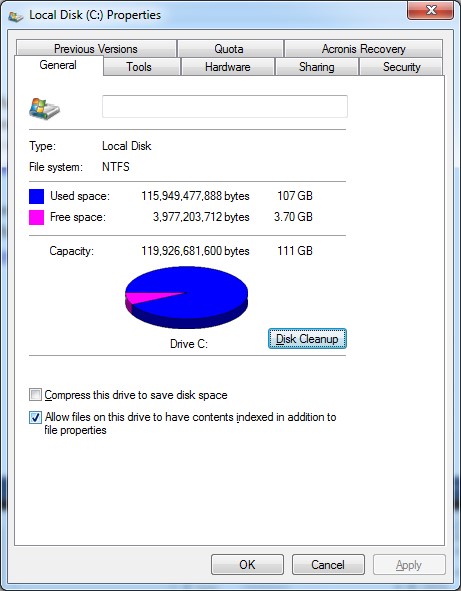
    To check your available space from Windows File Explorer, right click on the C: drive and select “Properties”.
     
    Windows Storage Space


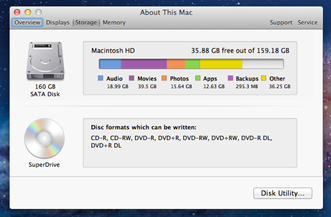
    In MacOS, select “About this Mac”, and then “Storage.
     
    Macintosh Storage Space


    Here are 6 ways to manage your storage space:

    1. Clean out your Downloads Folder.
    2. Delete unused apps: Use “Uninstall a Program” from Windows Control Panel. On a Mac, drag from your Applications folder to the trash can.
    3. Clean out iTunes: You can move music albums and movies that you haven’t enjoyed in quite some time to an external drive or delete them.
    4. Empty your trash: Right-click (Or control-click on the Mac) on the Recycle Bin or trash can icon and select “Empty”. (If you use iPhoto on the Mac, it has its own trash can that needs to be emptied from within the program.)
    5. Run Cleanup: On a PC, you may have noticed the “Disk Cleanup” button in your disk drive Properties window. This is a tool to help to remove downloads, temporary files, and your trash.
    6. Move photos to external storage: Photos and videos take up the most space on our computers. Split your photo library so that this year’s photos can stay on your internal drive and then move your older photos to an external drive.

    Be sure to make a copy of your media archive on flash drives or DVDs as well because external hard drives can fail. You could also use a cloud storage service for your archive backup.

    Did you find this post useful? The way that we work with information is changing and you can help spread the word by sharing with your social media.

    Get the “Controlling the Chaos” Newsletter and receive a free PDF download
    “Drowning in Email – A Lifeline for Communications Overload”

    * indicates required