Blog

  • Here’s a Quick Guide to Driving Social Engagement Using Facebook Ads

    Here’s a Quick Guide to Driving Social Engagement Using Facebook Ads

    Facebook Ads can help your reach

    Do you have a Facebook business page? (If not, and you’d like to, read my blog post here: How to Create a Facebook Business Page.)

    If you do have a Facebook business page, you may find you’re not getting enough engagement, and your “reach”, or the number of followers who see your posts, is in the single digits. So it may be time for paid Facebook ads.

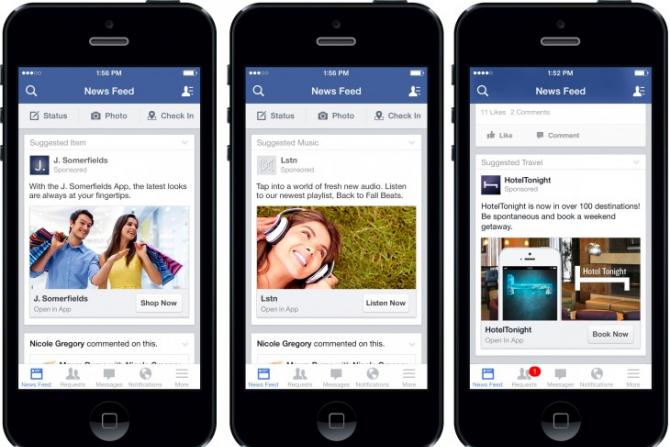
    There are basically two ways to increase your reach on Facebook. The first is to pay to “boost” a post. The other is to create Facebook ads. Both methods will display in the newsfeed of your targeted audience.

    Boosting a Facebook post is easy and can be inexpensive.

    Just create the post and then click on “Boost Post”. You’ll be able to select an audience target, a maximum budget, and duration. Try it out with different options and see how well it works for your business.

    Creating Facebook ads is more complex but can get better results.

    You’ll need a good graphic with a small amount of copy on it (Facebook limits how much copy you can have on an image), copy text, and text for a headline. Below is one that I created:
    Facebook Ads can help your reachHere are the Facebook criteria for ads:

    • Recommended image size: 1,200 x 628 pixels
    • Image ratio: 1.9:1
    • Text: 90 characters
    • Headline: 25 characters
    • Link description: 30 characters
    • Your image should include minimal text.

    Then go to this link: https://www.facebook.com/ads/manager/creation. Decide if your objective is to get more likes on your Facebook page or to send people to your website. You can get more insight on strategy at this article: What $5 per Day Will Buy You.

    Creating a Facebook ad over a boosted post gives you access to more demographics – to a specific industry, for example, or to a specific gender, interests, location, or household income.

    Here’s an article with more detail on boosting and creating ads: Boosting Vs Ads.

    SUBSCRIBE TO MY NEWSLETTER

    Get the “Controlling the Chaos” Newsletter and receive a free PDF download
    “Drowning in Email – A Lifeline for Communications Overload”
    * indicates required


  • How to Create a Facebook Business Page and Gain New Followers

    How to Create a Facebook Business Page and Gain New Followers

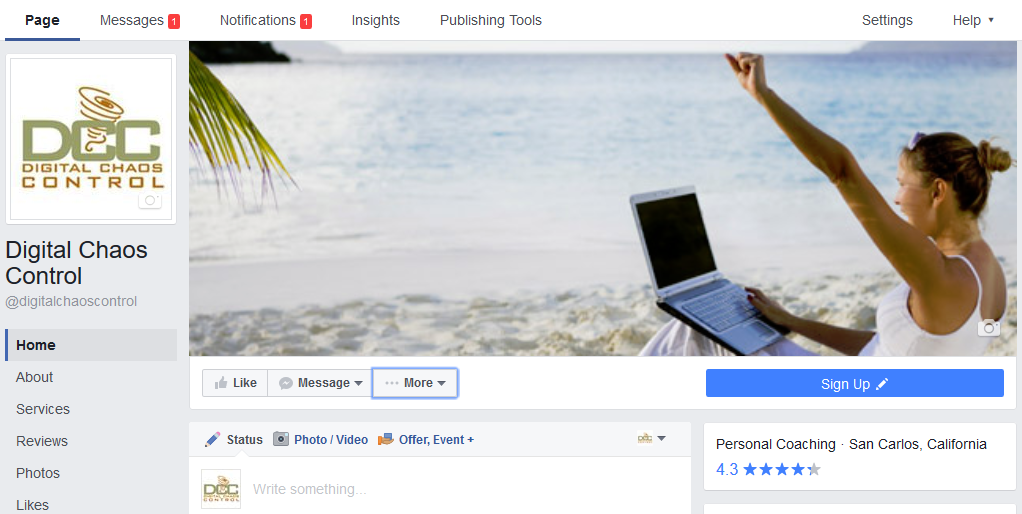
    Digital Chaos Control Facebook Business Page

    Should you have a Facebook business page?

    Facebook now has 2 billion active users. So, yes, you should have a Facebook business page.

    The problem has always been how to reach those users through your page. The old advice of posting consistently to show up on your follower’s news feeds seems to be dated now. According to this article, there’s no point in having a business page unless you’re going to pay to boost your posts: R.I.P Organic Reach on Facebook.

    Boosting a post can be inexpensive – you set the budget that you want to pay. And you can target your demographic.

    Start by creating your Facebook business page from your personal account.

    You can find “Create Page” under the down arrow at the top right of the toolbar. You’ll have to choose a category. Most businesses will fall under the “Company or Organization” category unless you have a brick & mortar storefront.

    Once you’ve created your business page, you can add your logo or head shot as a profile photo, an image of your business or profession as a cover photo, and fill in additional information about your business.

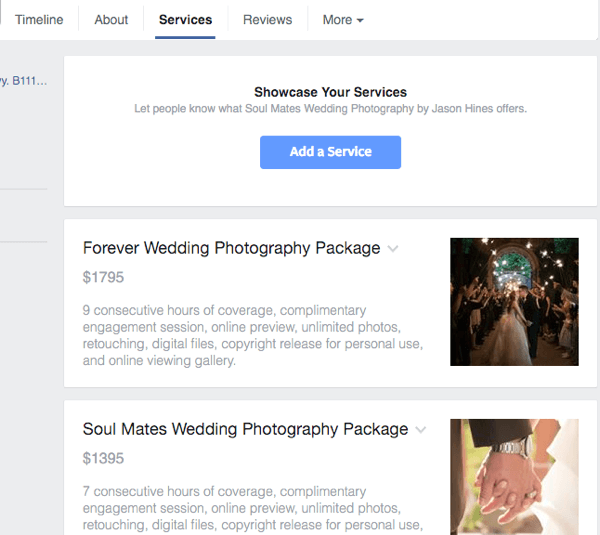
    Facebook now allows you to list services on your business page:

    “… the new Services section enables professional services businesses to showcase a list of their offerings at the top of their Page. So now, for example, a spa can add their services menu to their Page or highlight the line of products they sell, helping people get to know their business faster. And understanding the services and products a business offers is key to deciding to work with that business.”

    Facebook business page services

    Once you’ve completed your business page, here are the next steps:

    1. Invite people to like your page. Under “More”, select “Invite Friends”.
    2. Post consistently and try to use content that will engage your followers. Photos or links are a must. The more followers you get, the lower “reach” percentage you’ll get. As you get the hang of posting, you should consider paying to boost.
    3. Use hashtags in your posts so that people searching for those terms will find your page.
    4. Keep an eye on your insights and learn from the posts that get the most engagement.

    Here’s an article with more detail: How to Create a Facebook Business Page.

    SUBSCRIBE TO MY NEWSLETTER

    Get the “Controlling the Chaos” Newsletter and receive a free PDF download
    “Drowning in Email – A Lifeline for Communications Overload”
    * indicates required


  • Use Photo Sharing Services to Show off Your Photos on Your Mobile

    Use Photo Sharing Services to Show off Your Photos on Your Mobile

    Are you filling up your cell phone storage with photos and you don’t want to delete any because you want to be able to share them with people?

    A better way to share would be to use a cloud photo sharing service that will store your photos online. You can send links to your photos for sharing and you can use an app on your phone to show them off.

    Cloud photo sharing services have been around for a long time.

    The most popular at one time were Shutterfly, Snapfish, and Google’s Picasa web. Some people are now instead using general cloud sync services for their photos such as Dropbox. However, there are advantages to using the dedicated cloud photo sharing services.

    Google Photos is the newest kid on the block – replacing Google+ Photos and, before that, Picasa web. Google Photos is free as long as you’re storing photos taken with a camera with 16-megapixel resolution or less. Unless you’re a professional photographer, that should be fine for you.

    Google is working hard on implementing and enhancing an image recognition feature as part of its cloud photo sharing service.

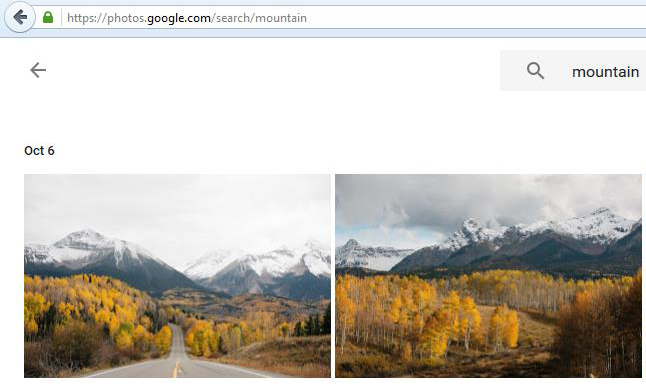
    We’ve had face recognition and geo-tagging for a while with photo applications. Google Photos can recognize other features in images as well. When I uploaded my marketing photos to the Google Photos service and did a search for “computer”, it did quite well at finding photos of computers. But when I did a search on “umbrella”, it found a photo of a camping tent instead. The search is pretty good, finding a photo of a deer correctly, and of a starfish, but missing most of my whale photos. It’s bound to improve, and I’m looking forward to that.

    Google Photos is the latest cloud photo sharing service.

    Apple is releasing an update to iOS and Mac OSX this fall which will also support image recognition on both platforms.

    Here an article from MacWorld that reviews the feature in detail: Hands On with the New Photos Features. Apple’s cloud photo service is called iCloud Photo Library, and you will need enough iCloud storage space to use it.

    Here’s a detailed article on the cloud photo services: Best Photo Sharing Sites. All of these services allow you to automatically upload photos from your mobile device if you have their application installed. Google and Flickr (if you’re a subscriber) have desktop applications as well for automatic upload. If you have your photos organized on your desktop in folders, Google Photos will not save that organization, so you’re better off with Flickr.

    On the Mac, Flickr and iCloud Photo Library will both work with your Photos organization scheme. Google Photos will not yet upload from your Apple Photos library (just iPhoto) so, again, you’re better off with Flickr or iCloud Photo Library.

    Do you still need to get your photos organized? You can read my blog about photo organization here: 6 Steps for a Photo Organization Routine.

    Need help with photos?

    Contact Me


  • Missing Out? Here’s a list of some of the most-followed on Twitter.

    Missing Out? Here’s a list of some of the most-followed on Twitter.

    Most-followed on Twitter

    Should you be paying attention to the most-followed on Twitter?

    Some people use Twitter to connect with family and friends, but for most us, that’s not the case. We’re more likely to use Facebook or Instagram for that.

    Most people use Twitter instead to get news, follow sports, follow celebrities, and follow brands. Most people don’t themselves do any “tweeting”.

    Celebrities like Justin Bieber and Katy Perry are among the most popular on Twitter. The most popular on Twitter for news sites are CNN, CNN Breaking news, SportsCenter, The New York Times, BBC News, BBC Breaking News, and the Economist.

    Barak Obama and Bill Gates are the most popular on Twitter for non-entertainment celebrities. Most popular Twitter organizations (non-sports) include NASA and TED Talks. Most popular Twitter companies are YouTube, Twitter itself, Instagram, Vine, Google, and Facebook.

    Here are some interesting sites and people to follow, by category:

    Some of the Most-Followed on Twitter for Tech:

    TechCrunch  – A San Francisco tech journal

    Wired  – An influential tech magazine

    Macworld  – An influential tech magazine focused on Apple products

    GeekPolice – A software company with funny, topical tweets

    Guardian Tech  – Tech news from London’s The Guardian

    Guy Kawasaki – Influential tech investor and former Apple evangelist

    Farhad Manjoo  – New York Time technology writer

    Aaron Levie – Tech CEO and tech humorist

    Some of the Most-Followed on Twitter for Politics:

    Donald Trump, of course. Anderson Cooper, Jake Tapper, and Christiane Amanpour from CNN

    The Heritage Foundation – Conservative think tank

    Institute for Policy Studies  – Liberal think tank

    Some of the Most-Followed Writers/Publications:

    Kendra Alvey – Freelance writer

    Neil Gaiman – Author

    Joanne Harris – British author

    New Yorker  – Influential publication

    Most-Followed on Twitter for Fashion:

    Chanel

    Most-Followed on Twitter for Photography:

    Earth Pics

    History in Pictures

    LIFE Magazine

    One of the Most-Followed Artists:

    Olafur Eliasson


    SUBSCRIBE TO MY NEWSLETTER

    Get the “Controlling the Chaos” Newsletter and receive a free PDF download
    “Drowning in Email – A Lifeline for Communications Overload”
    * indicates required


  • Use Instagram to Engage with Your Family, Friends, and/or Followers

    Use Instagram to Engage with Your Family, Friends, and/or Followers

    Have you ever tried Instagram?

    Instagram is an iOS or Android app for sharing photos and videos with “followers”. Those can be your Instagram followers or you can instantly post to Facebook, Flickr, Twitter, or Tumblr.

    Instagram has filters that you can use to change and improve the look of your photos.

    When you take a photo using the app, you’ll have a choice of filters to use. Here are some popular filters:

    • The most popular is “Clarendon” which brightens, highlights, and intensifies shadows for color that pops.
    • The “Gingham” filter is the opposite, giving you more an old-fashioned muted look.
    • The “Juno” filter brightens and warms while still looking authentic.
    • “X-Pro II” adds a vignette effect.
    • Valencia” warms without fading.

     Here’s a photo shot in Bolinas, CA.

    Here’s the photo using the “lo-fi” high-contrast filter.

    Here it is using the “Kelvin” filter. It adds a warm tone.


    Most users are under 35. If you have children or grandchildren, or you’d like to market to that age group, you should check it out.

    Instagram is owned by Facebook and is also supported by advertising. Engagement rates for Instagram advertising are similar to that of Facebook. If you’re already advertising on Facebook and you’re targeting the younger demographic, it makes sense to also advertise on Instagram.

     Without advertising, you can still gain followers by posting interesting photos.

    Be sure to use hashtags so that users can find you. Here’s a good article on Instagram engagement for beginners: Building Your Instagram Account

    Here’s how to get started: Getting Started.

    SUBSCRIBE TO MY NEWSLETTER

    Get the “Controlling the Chaos” Newsletter and receive a free PDF download
    “Drowning in Email – A Lifeline for Communications Overload”
    * indicates required


  • Choose Your Favorite Facebook Friends and Organize Everyone Else

    Choose Your Favorite Facebook Friends and Organize Everyone Else

    Facebook FriendsWhen I first started using Facebook, it was an exciting new way to connect with friends, especially friends whom I didn’t see very often.

    Over time, more and more people connected with me on Facebook – friends, co-workers, family, childhood acquaintances, other parents, etc. I found it easier to segment my news feed into Facebook friends lists so that I could view them separately and on my own schedule.

    The other advantage to keeping Facebook friends lists is that you can select one or more lists when you post. You can even select one list of Facebook friends to see your post while blocking someone on the list – to avoid offending that person, for example.

    See your Facebook friends lists by clicking on “Friend Lists” in your left sidebar. (In your mobile app, your lists are called “Feeds”. You can only create Facebook friends lists, or feeds, through your browser, not your mobile app.)

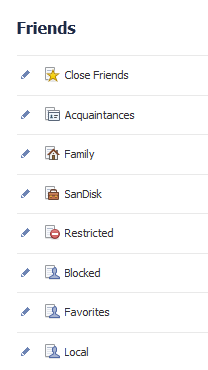
    Your default lists include a “Close Friends” list and an “Acquaintances” list. Adding friends to Close Friends tells Facebook that you want to see more from that person in your new feed. Adding friends to Acquaintances tells Facebook that you want to see less.Facebook Friends List

    Start by selecting these lists and adding friends. You can do this by typing names in the “+” box, or you can click on “See All” above “ON THIS LIST”, changing the drop down list from “On This List” to “Friends”, and then clicking on their photos.

    There are several friend lists that Facebook creates and automatically populates, such as “Family” and your current workplace. You don’t need to do anything to edit these lists unless you want to add people that Facebook missed.

    For your own custom list, click on “Create List.”

    Now when you click a Facebook friends list (or feed) you will only see the updates from your friends on that list.

    Here’s how to post just to certain lists:

    Sharing with Facebook Friends
    1. You can go to that list and share an update there. OR
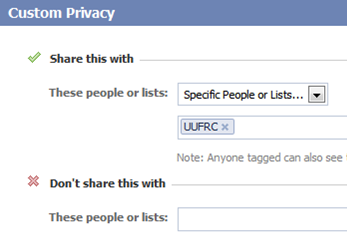
    2. From your home news feed, you can click on the drop down box and select your list. If you select “Custom”, you can share with a list and not share with some people on the list. You could put everyone in your current job on their own list for example, and share updates about your job search with all your friends except for those on that list.

    Need help with Facebook?

    Contact Me

  • Who Else is Shopping Online and Loving the Pricing and Convenience?

    Who Else is Shopping Online and Loving the Pricing and Convenience?

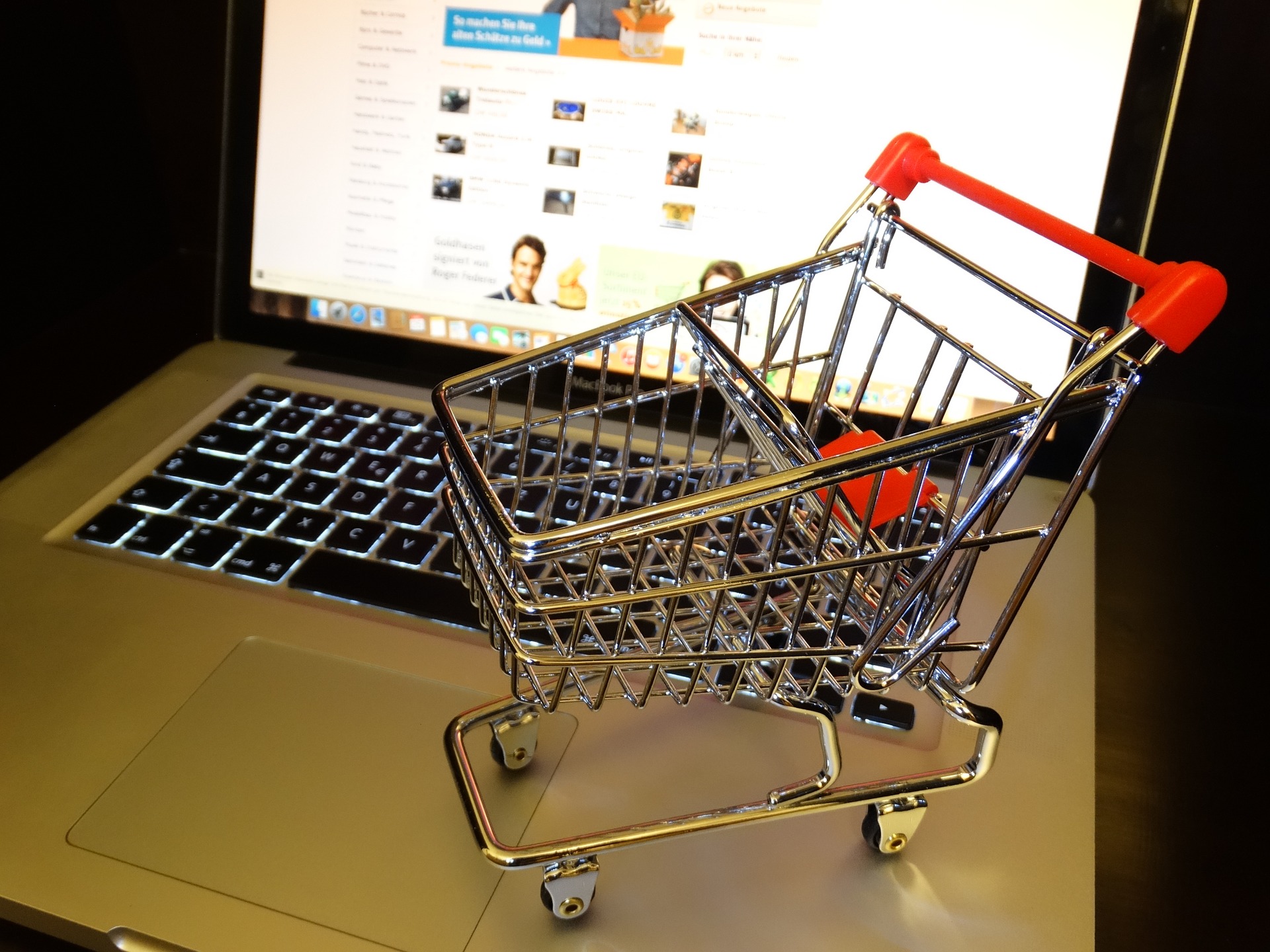
    Shopping online is more convenient

    Are you shopping online for almost everything?

    It probably depends somewhat on your age. Most of us are not yet shopping online for furniture, home repair & home decorations, and jewelry but we are for books, music, movies, and electronics. Many of us are increasingly shopping online for clothes. The younger you are, the more likely you are to be buying your groceries (and everything else) online. If you have a family, you’re probably not only shopping online, you’re setting up automatic re-ordering so that you don’t have to get out there and drag the kids along.

    Shopping online is very popular amongst millennials.

    Younger shoppers spend more time shopping on their mobile devices and even shopping from social media. This is particularly prevalent in Asian countries. Over half of young people shopping in Thailand, for example, use their mobile devices and shop through social media, mainly through Facebook.

    If you’re shopping online, particularly through your mobile device, make sure that you stay on top of your security. You can read my blog post here: How to Manage Your Passwords.

    We all know that shopping online has hurt brick-and-mortar businesses.

    With books, music, and videos especially, we have no other recourse in some localities now, apart from the local Redbox kiosk or the local library. (Hopefully you still have an independent book store where you live – I have to drive two towns away.) Many large clothing chains are now struggling to stay in business – The Gap, Sears, Macy’s, J. C. Penney, etc.

    Shopping in a physical store has its advantages – you’ll have the item immediately without having to wait for delivery and you don’t have to pay for a delivery charge. Those are the reasons why most of still do our grocery shopping in a physical store. We need our fresh good for tonight’s dinner and many of us don’t plan meals too far in advance.

    Personally, I like to do my clothes shopping in person so that I can try on the clothes and see how they look. And it’s easier to return items.

    If you can afford it, there are still local options, mainly in the form of pricey boutiques. If you can’t afford it, there are still stores like Walmart and Target, but you’ll have to battle full parking lots and long check-out lines. Given that alternative, I usually turn to Google Express.

    Do you want to know more about online shopping and your security and privacy?

    Contact Me


  • Manage Projects in the Cloud – Some Points That Everyone Ought to Know

    Manage Projects in the Cloud – Some Points That Everyone Ought to Know


    Manage Projects in a Scrum Meeting

    The old fashioned way to manage projects was for a project manager to keep the schedule. The project manager would hold review meetings to update it (thereby wasting everyone’s time), or visit cubicles/make phone calls for updates.

    The more modern way to manage projects is the Agile method. This typically involves a project manager holding short, daily, “scrum” (comes from a rugby term) meetings.

    Manage Projects in the CloudWith a cloud tool to manage projects, everyone on the projects can update daily, making the job of project manager much easier. There’s also online discussions for better communication, collaboration, and file sharing.

    With the possible exception of Insightly, you will have to pay for a cloud tool subscription.


    Your tool choice should offer the ability to backup your data locally and also to export. This is important to protect yourself from the cloud service going offline (or going out of business). It’s also important if you have a legal requirement to retain your data on-site for a number of years.

    You may be concerned about the security issues of giving your data over to a cloud service.

    Here’s a quote from an article addressing this concern by Smartsheet (Read about Smartsheet here: Here’s an Easy Way to Manage Projects.)

    As of this writing, nearly half of all enterprise project collaboration involves external users such as vendors, freelancers, and contractors, and this number is continually trending upwards.  This external involvement complicates interaction and often forces users to make the common “security versus convenience” tradeoff decision when using solutions deployed behind the firewall.

    So, in other words, when you’re not using a cloud service and you have to collaborate outside of the company, you or your co-workers will find a way to do it, and probably not securely. Turning security over to your cloud service provider is not a bad way to go, and the convenience and productivity gain is not to be argued with.

    You can read the full article here: Will the Cloud Change Project Management?.

    If you manage projects using a cloud service, you have to be online, which is not always guaranteed.

    Smartsheet has a great option of exporting your data to an Excel spreadsheet when you know that you’re going to be traveling and offline. You can import the updated data when you’re back online. Some services, like Asana through its Android app, allow you to work offline and will automatically sync when back online.

    Need help managing projects?

    Contact Me

  • Here is an Easy Way to Sync Information between Your Cloud Services

    Here is an Easy Way to Sync Information between Your Cloud Services

    Cloud Services Run in the Internet

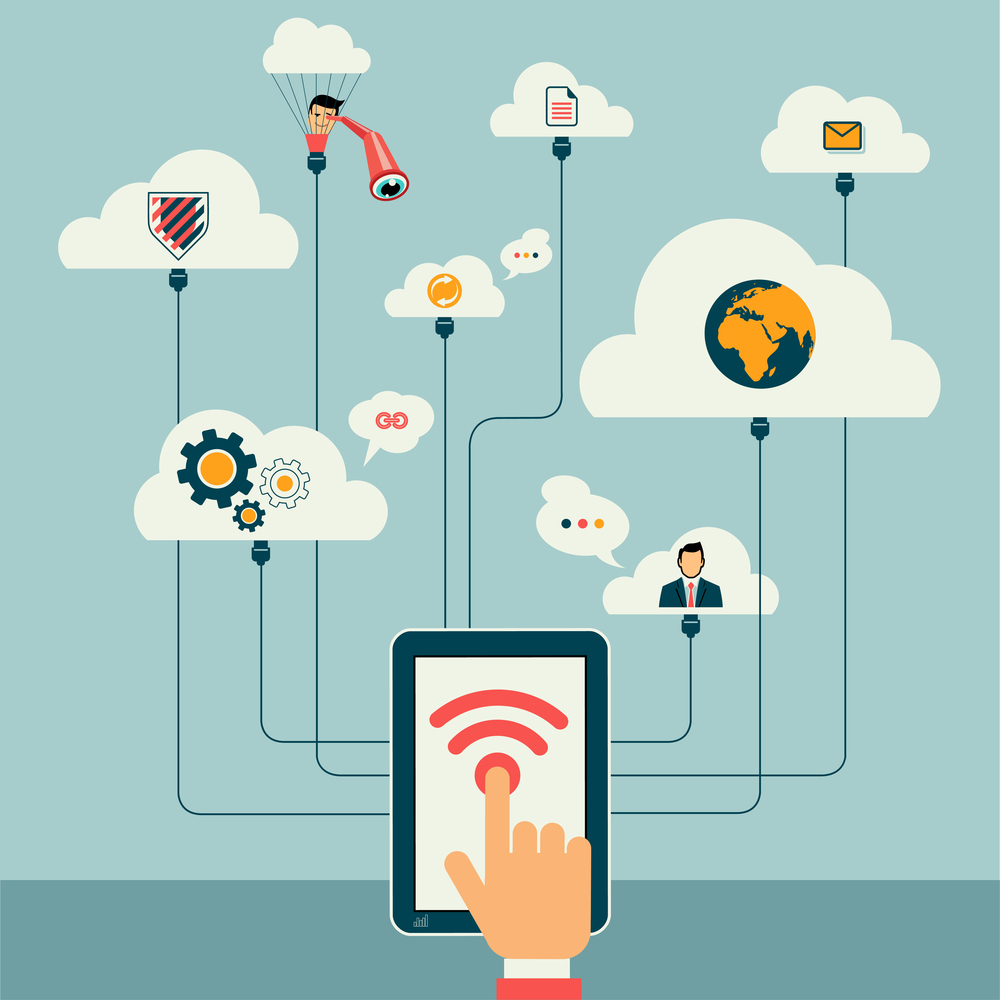
    You may have heard of “The Cloud”. It’s a term that basically just means the Internet.

    I am a big fan of cloud services. It’s magic to me, the way that the photos that I take with my cell phone appear on my PC when I get home, without having to connect any cables, and to have my work from my desktop PC instantly available to me on my laptop.

    Your email, for example, is a cloud service.

    Your email is stored on an email server, and delivered to your device(s) over the Internet. If your PC dies, or you lose your laptop, your email goes on accumulating on the server, and you can download those emails when you get back on-line.

    I’ve written in this blog space many times about cloud services for task management (How to Stay on Target with Your Goals), project management (How to Stay on Top of Your Project Management), and customer/client management (7 Tips to Manage Client Info). But what if you are using multiple cloud services? Are you getting tired of entering information in multiple places?

    Wouldn’t it be nice if those cloud services could work together?

    Cloud Services Should Communicate with Each OtherSome do – Google Apps, for example – where your email, calendar, contacts, and documents can all talk to each other. For your other cloud services – your project management, your CRM, and/or your email marketing program, you can use a service called Zapier.

    Go ahead and create a Zapier account for free and play around with it. Search for the cloud services that you use and see what they support for triggers and for actions.

    Here’s an example: Creating a new Google contact can be a trigger for Zapier to automatically create a contact in my CRM application & in my email marketing application, and also create a new note in Evernote


    Zapier is free for 5 “zaps” (cloud service connections) that run every five hours. For more frequent syncing, Zapier has paid plans.

    Get the “Controlling the Chaos” Newsletter and receive a free PDF download
    “Drowning in Email – A Lifeline for Communications Overload”
    * indicates required


  • How to Manage Your Passwords and Keep Them Safe the Old-Fashioned Way

    How to Manage Your Passwords and Keep Them Safe the Old-Fashioned Way

    Manage Your Passwords the Old-Fashioned Way

    We have online accounts for so many things these days – email, social networking, cloud services, financial services, medical accounts, even the local library. Security experts tell us that passwords should be long, cryptic, and unique for each account, but if you follow their guidelines, how can you possibly manage your passwords and remember them all? You’re trading security for convenience and saying hello to digital frustration.

    I recommend handing over control to those security experts by signing up for a manage your passwords service.

    Download a password manager program to your computer and your mobile devices that will help you to generate passwords and securely save them. You can read about that here: How to Manage Your Passwords

    If you’re uncomfortable with handing over your passwords to a service, then the next best thing is to write down your passwords the old fashioned way – on a piece of paper. Keep it in a safe place in your home – don’t take it with you.

    You could even use a code that only you understand. For example, instead of writing down the password “ILuv99RedBaloons!”, you could write “IL..99RBs!”.

    You should be sure that you remember the password to log into your computer user account, especially if you have a laptop that you take with you, and perhaps a computer administrator password, if your computer is set up with one. You may also need to remember your Apple ID or Google ID and password to install apps on your phone.

    Use a strong password that you’ll remember for those. For everything else – for all of those Internet accounts – use a unique password for each service and go to your safely stored password list when you need those passwords. Here’s an article from Google on how to choose passwords: Creating a Strong Password.

    It may be inconvenient to have to go and look up that unique password, but it beats having to recover from a data breach!

    Need help with passwords?

    Contact Me