Blog

  • How to Become Super-efficient with your Daily Task Management

    How to Become Super-efficient with your Daily Task Management

    Wunderlist goal and task management

    Do you believe that your task management process is running efficiently?

    Tasks are those often-reoccurring items that you need to complete on a timely basis before you forget or before they’re irrelevant. Often we not disciplined about scheduling time for these tasks or setting due dates.

    You may also have projects that you’re managing, but task management is not the same as project management. Projects have defined start dates and end dates (even if that end date keeps moving!) and it’s important to stay on top of project milestones and manage schedule risk.

    If you’re managing projects with milestones and resources, then you should be using project management software such as Microsoft Project, Insightly, or Asana. Task management software, on the other hand, is less complex.

    A good task manager will be easy to use.

    The program should also have features such as:

    • Multiple task lists
    • Categorization (or context)
    • Prioritization
    • Calendar & email integration
    • Reminders

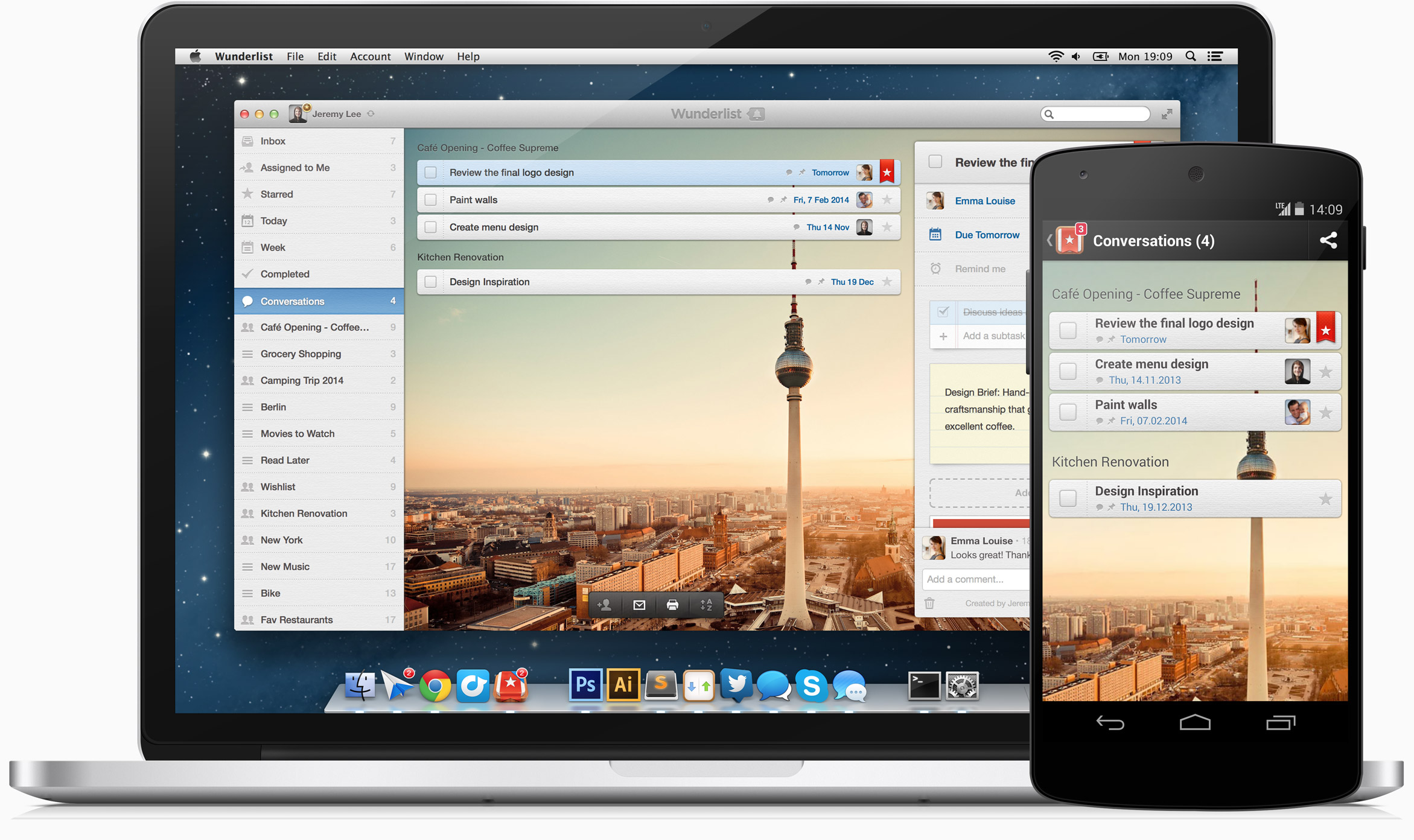
    Like most people, I have multiple devices – a desktop PC, a notebook PC, a laptop, and a smartphone. The best way to manage tasks with multiple devices is usually with a cloud-based solution. My task management solution now comes from a company called 6Wunderkinder. I have their Wunderlist application running on all my devices. I can also access my lists through a web browser.

    It’s easy to add a task to your Wunderlist “Inbox”.

    On an iPhone, you can dictate a note to your Wunderlist app. On an Android phone, you can have a Wunderlist widget to quickly add a to-do, or you can dictate a note using Google Now and it will add it to Wunderlist.


    Task Management App

    Here are some benefits that Wunderlist provides:

    • Wunderlist allows me to “star” important items and automatically puts those items in a separate list (called “Starred).
    • It allows me to set due dates and reminders.
    • You can subscribe to your Wunderlist calendar from Apple, Google, or Outlook.
    • When you sign up for a Wunderlist account, you are automatically assigned an email address. You can use this email address to forward emails to your task manager, thereby turning emails into tasks!
    • You can share task lists with anyone. They can view the task list through a browser interface.
    • You can assign tasks to another Wunderlist user.
    • You can access your task lists on any computer through a web browser.

    There are other to-do list apps, including Any.do, Remember The Milk, and Todoist. If you’re so inclined, try them all and see which one works best for YOU!

    Need help with task management?

    Contact Me


  • How to Easily and Securely Share Passwords with Loved Ones

    How to Easily and Securely Share Passwords with Loved Ones

    Share Passwords

    There are all kinds of reasons that you may need to share passwords.

    For example, you may need to share passwords for joint bank accounts, or you need to co-administer a child’s health insurance. And the whole family may be using the same video streaming service.

    For security reasons, you don’t want to share passwords that you’ve simplified so that everyone can remember them. You should be changing them regularly anyway.

    So what’s the best way to share passwords and keep them up to date?

    One way could be to keep those shared passwords written down somewhere. But it’s not always very efficient to go looking for a password and also to make sure it’s the latest one.

    There’s also the issue of your legacy accounts after you’re gone. (Many, many years from now, I hope!). You can keep that entire list of your passwords locked up in a safe place your family knows about. But, again, it’s tough to keep the list up to date.

    I generally recommend using a password manager, as I write about here: How to Manage Your Passwords. Many of these cloud password managers have both sharing features and legacy features.

    Both LastPass and Dashlane allow you to share passwords with anyone else using the software.

    If you’re a LastPass Premium user, then you can also set up a “Shared Folder”. You invite other family members using LastPass and just add passwords to the folder.

    Both LastPass and Dashlane also offer “Emergency Access” to a designated person. That person can request access and will receive it after a waiting period that you define when you set it up.

    1Password has a family plan that, for a monthly fee, allows everyone in the family to install and use the software on their devices. Each family member has a “Personal” password vault available to only that family member and a “Shared” vault available to everyone on the plan.

    1Password does not offer emergency access. The company instead encourages users to download an “Emergency Kit” PDF file, print it out, and keep it in a safe place.

    Get the “Controlling the Chaos” Newsletter and receive a free PDF download
    “Drowning in Email – A Lifeline for Communications Overload”

    * indicates required


  • iCloud Drive: Should You Trust Apple to Take Care of Your Storage?

    iCloud Drive: Should You Trust Apple to Take Care of Your Storage?

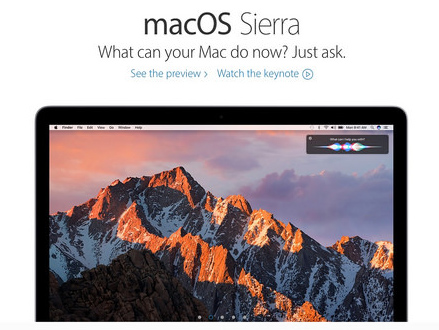
    MacOS Sierra iCloud Drive

    You’re all Apple – Mac, iPhone, iPad – and you want to be able to access your documents on multiple devices. You may already know that you can use iCloud Drive to do that.

    iCloud Drive is like Dropbox and Google Drive, with a dedicated folder on your Mac that syncs to the cloud. Until Apple’s Mac OS Sierra release, your only option to share files with your other devices was to save the files in that folder.

    Now, if you’re running Sierra or later, you can sync everything on your Desktop and in Documents to iCloud Drive. You can enable this in your iCloud Drive preferences (in System Preferences/iCloud).

    The question is: is it a good idea to move everything in Desktop and Documents to iCloud Drive?

    Let’s examine the pros and cons.

    Pros:

    • You no longer have to remember to save files in the iCloud Drive folder. And you’re less likely to end up with multiple copies of the same files.
    • You can access your PDFs and your Pages/Numbers/Keynote documents on any Apple device. Also Office documents if you have Office installed.

    Cons:

    • You need to have enough iCloud storage.
    • Syncing may slow down your computer.
    • If you enable this on multiple Macs – a desktop and a laptop for example – Apple will choose one as a primary device and put your documents from the second device in a subfolder.
    • It’s difficult to change your mind. You’ll have to manually move the files back from iCloud Drive to your Desktop and Documents folders.

    If you do opt in, make sure that your Time Machine backup is current.

    A Time Machine backup will ensure that you can recover the original Desktop/Documents if you need to.

    When you enable the iCloud Drive Desktop/Documents sync, you will also see an option to “Optimize Mac Storage”. If you check this option, and you run low on storage space on your Mac, then the OS will remove iCloud documents from your Mac storage. Those documents will get downloaded again when you open them.

    This is helpful if you’ve got storage issues on your Mac, but I don’t recommend it. It’s much less risky to increase your local storage space. (Read my blog post here: 4 Ways to Add More Computer Storage Space. What if you’ve got your laptop on the airplane and the wi-fi isn’t working? You won’t be able to get that optimized document.

    Apple would like to see us all working from the cloud and paying more for iCloud storage. The convenience may be worth it for you, but tread carefully!

    Get the “Controlling the Chaos” Newsletter and receive a free PDF download
    “Drowning in Email – A Lifeline for Communications Overload”

    * indicates required


  • Yes, You CAN Organize Those Google Drive Files – Here’s How

    Yes, You CAN Organize Those Google Drive Files – Here’s How

    Shared Google Drive FilesYou’re an organized person and like to keep your digital files in a folder structure. (Read my blog post here: 3 Ways to Keep Your Digital Life Organized). But now you’ve got several people sharing files with you via Google Drive.

    “Shared with me” in Google Drive is an unorganized, cluttered mess that’s frustrating to view. Plus it’s hard to find anything.

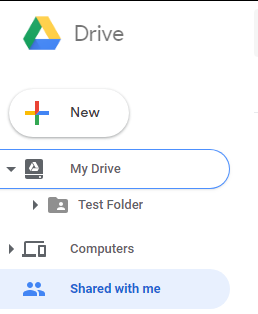
    When you log on to Google Drive Google Drive Sidebar, you’ll see a left sidebar with icons for “My Drive” and “Shared with me”. If you’ve already created folders in My Drive, then you’ll see an arrow next to that icon. Clicking on the arrow will reveal those sub-folders. You will not see a similar arrow next to “Shared with me”.


    You cannot create folders in “Shared with me.”

    But you can move those files to folders in My Drive.

    When you move a shared Google Drive file to My Drive, it doesn’t actually copy the file into your storage space. Think of “My Drive” and “Shared with me” as labels. When you move the file it keeps the “Shared with me” label and also adds the “My Drive” label.

    You can organize everything under your “My Drive” label into folders, including the shared files that you move to it.

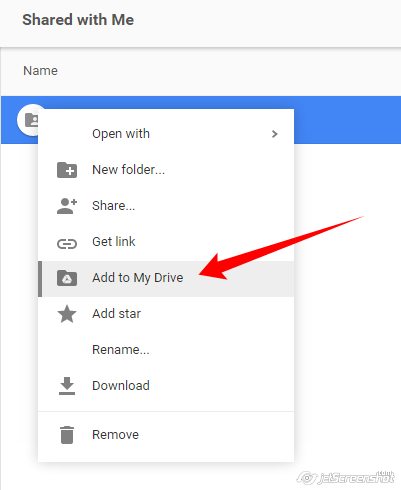
    You can move the shared files by clicking and dragging into “My Drive” or a My Drive sub-folder in the left sidebar. Or you can select the files and either right-click and select “Add to My Drive”, or click on the “Add to My Drive” icon at the top.

    Keep in mind that you’re not actually moving the shared Google files to your storage space. So if you’re running Google Drive Sync on your computer, you will not see those files in your Google Drive folder in Finder or Windows Explorer.

    Get the “Controlling the Chaos” Newsletter and receive a free PDF download
    “Drowning in Email – A Lifeline for Communications Overload”

    * indicates required


  • Here’s an Easy Way to Stay More Task-focused and Productive

    Here’s an Easy Way to Stay More Task-focused and Productive

    Use the Pomorodo method to stay task-focused

    You’ve read my blog post here about productivity: How to Remain Productive, and you’re working on your task list. Now you’ve managed to find some uninterrupted time to get things done.

    Uninterrupted time is a gift and you’re ready to get down to work, but, frustratingly, you may still be feeling restless and having trouble staying task-focused.

    Playing music can help. Try Noisli for background noise that helps you to work more productively.

    Having a place to work that’s cheerful, well-lit with natural light, and comfortable may help. (Personally, I work at a small desk with limited surface space for clutter. It forces me to clean up regularly if I want to make space for a coffee cup!)

    If it’s a matter of staying more task-focused, then you may want to try the Pomodoro method.

    You can research here about the Pomodoro method: Pomodoro Technique. It’s fairly straightforward – work for 25 minutes, then take a 5-minute break. It works because it forces you to stay task-focused for that 25 minutes and the frequent breaks keep you from feeling burnt-out. I suggest using that break to reward yourself – a stretch, maybe a snack?

    Don’t beat yourself up if you can’t go for 25 minutes without interruption as some environments aren’t amenable to it. Do your best to let people know that you need some space and turn off your phone and notifications if you can. If your boss walks in or the baby cries, pause your timer and try again as soon as you can.

    I like to use an app as a Pomodoro timer. Many apps have additional features, but at a basic level they automate the timing and provide notifications. They are also useful for keeping track of how well you do.

    Marinara Timer is a great website with a simple Pomodoro timer. It tracks your session times so that you can see how you did. If you prefer to use your mobile device for a timer, then Pomodoro Keeper for iOS works well; Clockwork Tomato or Simple Pomodoro for Android.

    Get the “Controlling the Chaos” Newsletter and receive a free PDF download
    “Drowning in Email – A Lifeline for Communications Overload”

    * indicates required


  • How to Easily Save Emails from Gmail to Evernote

    How to Easily Save Emails from Gmail to Evernote

    I like to use Evernote to organize my client information, including email correspondence. I detail this here: 7 Tips to Manage Client Info.

    Forwarding Gmail to Evernote requires a paid account.

    If you don’t have a paid Evernote account, you can still copy and paste an email into an Evernote note. But there are better ways if you’re a Gmail user.

    Use the Chrome Evernote Web Clipper extension.

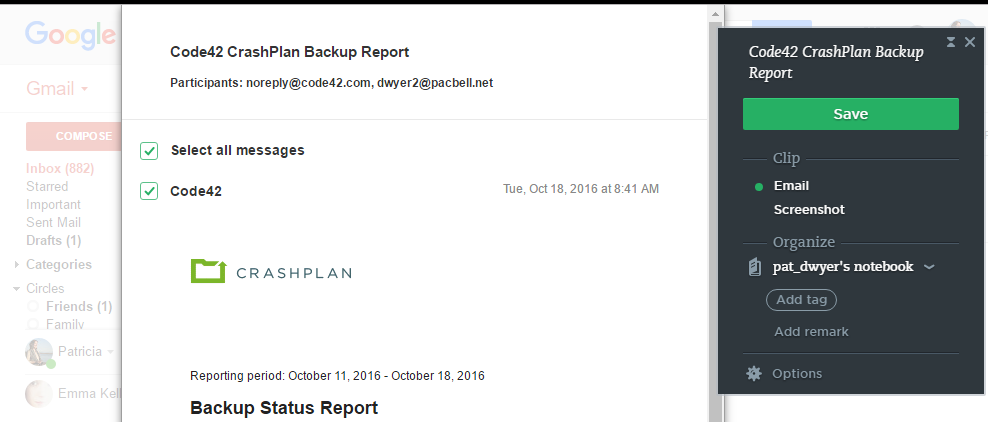
    Here’s how: open the email, click on the Web Clipper extension in your Chrome toolbar, then save the email to any Evernote notebook that you choose.

    Save Gmail to Evernote

    Use Zapier.

    Using this method you’ll be saving specific emails to a corresponding Evernote notebook automatically. You can read more about Zapier here: Easy Way to Sync Cloud Services.

    1. Start by going to this webpage: Evernote/Gmail Integration. Log into your Zapier account (or create one).
    2. Select the Gmail trigger. You can select from “New Mail Matching Search”, which I use as an example below, “New Labeled Email”, “New Starred Email”, etc.
    3. Next, select the Evernote action. I use “Create Note” in my example.

    You will have to connect your Gmail account. And then set up the parameters for a Gmail search (or choose a label, or other criteria). Then connect your Evernote account and choose options for notebook, title, note content, tag, etc.

    Use Zapier to save Gmail to Evernote

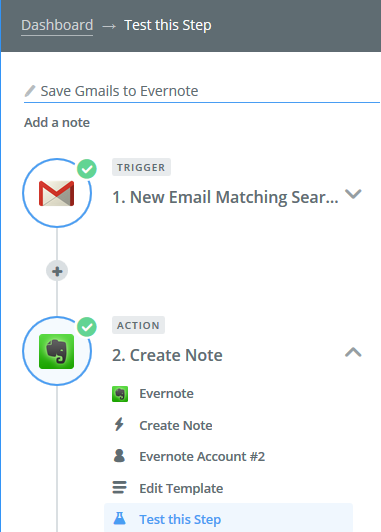
    This example sets up a “zap” to search for email from a specific customer/client, then save it to an Evernote notebook.

    1. Select the Gmail trigger: “New Email Matching Search” and the Evernote trigger: “Create Note”.
    2. After connecting your Gmail account, type “from:<customer name>” in the Search String.
    3. Select the Evernote application and then “Create Note”.
    4. After connecting your Evernote account, choose a notebook. (Select “Subject” under Title, and select “Body Plain” under Content.)


    Get the “Controlling the Chaos” Newsletter and receive a free PDF download
    “Drowning in Email – A Lifeline for Communications Overload”

    * indicates required


  • 3 Simple Paths to a Powerful Follow-up Routine

    Integrate with your calendar for a follow-up routine.

    One of the keys to maintaining and growing a business is a follow-up routine.

    Staying in touch with potential customers, past customers, and referral partners is key. There are many methods to do this, including social media and email marketing. Often, though, a business needs to make that personal contact.

    It’s important to follow-up on a regular basis before you fall off of someone’s radar.

    This means maintaining a follow-up list and a follow-up schedule. A good Customer Relationship Management (CRM) tool can help you to do this. You can read my blog post here about CRM systems: 3 Tools to Easily Follow Up.

    In a typical daily routine, you will start your day by checking your calendar, perhaps scanning your email, and checking your to-do list.

    The most efficient way to have a follow-up routine is to integrate with your regular tasks.

    Here are some ideas of how to do so:

    Integrate with your calendar

    Many CRM systems will integrate follow-up tasks with your Google or iCloud Calendar. Some will also integrate with an Exchange calendar.

    If you’re using Evernote as your CRM, as I write about here: 7 Steps to Manage Client Info, you can use a service called Cronofy to integrate Evernote reminders with your Google, Exchange, or iCloud calendar. The Cronofy service will create a calendar event on the date of the reminder using the title of the note.

    Move your emailed task reminders to a task list.

    I write about that here: How to Integrate Email with Task Management.

    Check your follow-ups tasks before you check your to-do list.

    This usually means logging into your CRM system and checking your dashboard or your reminders if you’re using Evernote. Having the CRM mobile apps installed makes this easy – just open the app and check your tasks/reminders for the day.

    Need help with your sales workflow?

    Contact Me

  • 3 Tools to Easily Follow Up with Prospects and Customers

    3 Tools to Easily Follow Up with Prospects and Customers

    Use the right tool to follow up.

    One of the keys to maintaining and growing a business is staying in touch with potential customers, past customers, and referral partners.

    There are many methods to do this, including social media and email marketing. Often, though, a business needs to make that personal contact.

    It’s important to follow up on a regular basis before you fall off of someone’s radar.

    This means maintaining a list and a schedule to follow up. A good Customer Relationship Management (CRM) tool can help you to do this.

    Here are some tools that I recommend:

    Insightly

    This is a cloud-based tool that is fairly easy to use for contact management.

    • In your contact record, you can keep notes, email correspondence, and files.
    • Search within contact records, notes, files, emails, and projects
    • Create a full opportunity pipeline or single tasks to follow up
    • You can connect Insightly to your Google calendar or to your Exchange calendar.
    • Insightly has a free plan which includes all of the above except for calendar sync. For that feature, you’ll need the Basic plan at $12/user per month.

    Evernote

    Evernote can be more than a note-taking app. Read my blog post here about using Evernote as a simple CRM: 7 Tips to Manage Client Info.

    • You can make Evernote even more like a CRM by using a tool like Transpose to create note templates. Here’s an article about that: Evernote for CRM (Note: KustomNote is now Transpose).
    • Evernote costs $69.99 for the Premium plan, which I recommend.

    Contactually

    This is the best tool for automating your follow-ups. You connect Contactually to your email so that your email contacts are automatically added. Your email correspondence is automatically part of your contact record.

    • You can search for a contact by name, organization, or tag. Notes are not currently searchable.
    • Contactually uses the concept of “buckets” for your contacts. Each type of bucket that you assign a contact to will generate an automatic follow-up reminder within a certain period of time.
    • You can create tasks to follow up and connect those tasks to your Google calendar.
    • Contactually costs $20/user per month for the Basic Plan

    Need help with follow-up?

    Contact Me

  • 3 Easy Steps for More Organized Evernote Notes

    3 Easy Steps for More Organized Evernote Notes

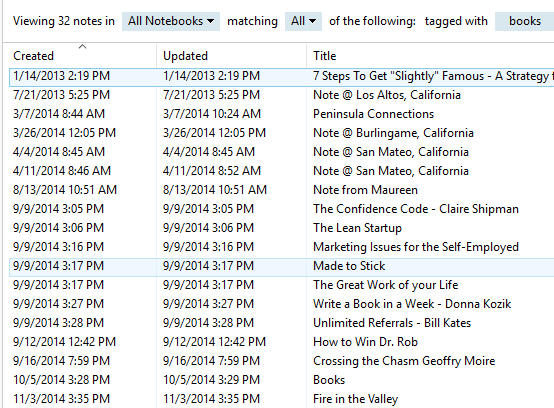
    If you’re an avid Evernote user like me, you may find yourself with so many notes that you’re not sure what to do with them. If you’ve read my post here: Use Evernote for a New Level of Organization, you know how to use notebooks and tags for organized Evernote notes. But even with good organization, it’s just too easy to take a note during a meeting, during a conversation, or whenever you have a thought, and then have trouble knowing how to find it later.

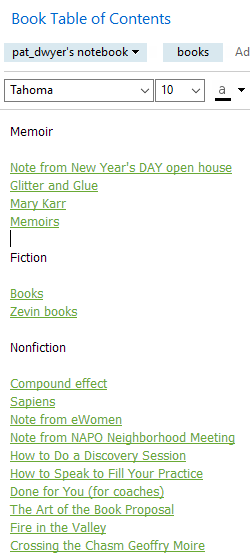
    My organized Evernote notes tagged "books"For example, whenever anyone recommends a book to me, I’ll make a note and I’ll tag it “books”. Makes sense, right? Whenever I’m looking for a new book to read, I can just open Evernote and look at everything tagged “books”. However, my list of “books” notes had gotten quite long, and I’m not consistent with titles. So when I looked at the list, I had to look at each note to see what kind of book it’s all about.

    I was not efficiently accessing my organized Evernote notes.

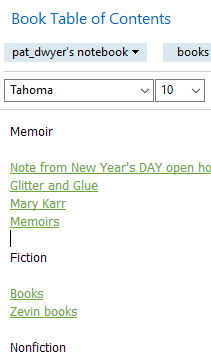
    Organized Evernote Notes Using Table of ContentsHere’s my solution:

    1. I created a new note that is a “Table of Contents” note. It contains links to all of my “books” notes.
    2. In my Book Table of Contacts note, I’ve added some simple organization in the form of  headers, “Memoirs”, “Fiction”, and “Non-fiction”.
    3. I’ve moved my notes links around to be under the corresponding headers.

    You can create an Evernote Table of Contents note a couple of different ways.

    The basic way is to create a new note, title it “XXX Table of Contents” and copy/paste the links of the relevant notes into it. (You can copy the link of a note by right-clicking the note and selecting “Copy Note Link”.)

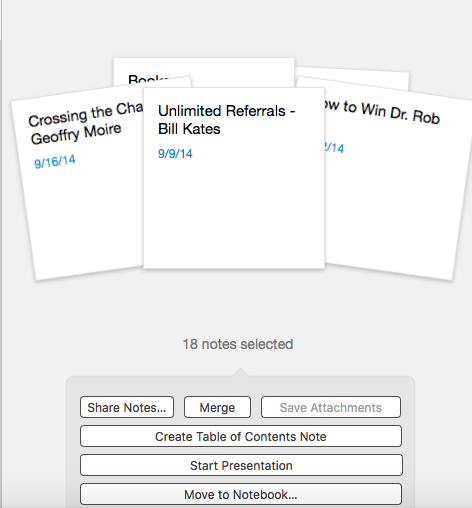
    A quick and easy way to create a new TOC note is to select the notes that you want to include. Evernote will then show you a couple of options when you do this, including “Create Table of Contents Note”.

    Organized Evernote Notes Using Table of Contents


    Rename the note, give it a tag, and edit it to add headers.

    Now you can see your organization at a glance and choose the note that you want to look at.

    Get the “Controlling the Chaos” Newsletter and receive a free PDF download
    “Drowning in Email – A Lifeline for Communications Overload”

    * indicates required


  • How to Simplify Daily Priorities Using Evernote

    How to Simplify Daily Priorities Using Evernote

    Daily Priorities Using the Eisenhower Matrix

    In my blog post here: How to Prioritize Email, I wrote about prioritization methods for your inbox.

    Use your email daily priorities method with your Evernote to-do list as well

    Organize your tasks separately from your reference notes/emails in Evernote. You can do this by using Evernote notebooks. (Read about notebooks here: How to Organize Using Evernote Notebooks.)

    “Getting Things Done” (or GTD) is a popular productivity method. This was first made popular by David Allen’s book in 2001. The GTD system requires that you process your information through utilizing an “action management system”. The flow goes like this:

    1. Examine each item
    2. Is it actionable?
    3. If not,
      • trash it, or
      • move it to a “someday/maybe” list, or
      • move it to a reference list.
    4. If it is actionable, determine if it will take less than 2 minutes. If yes, take care of the action. If not, delegate it or schedule it for later.

    Use Evernote notebooks for both actionable and non-actionable lists

    Create an Evernote notebook for “Someday/Maybe” items and another one for “Reference”. You can also create notebooks for your items that you delegated or scheduled for later. Name the notebooks something like “Next Actions” and “Waiting For”. Use reminders to help you to schedule your actions.

    Use Evernote tags for daily priorities

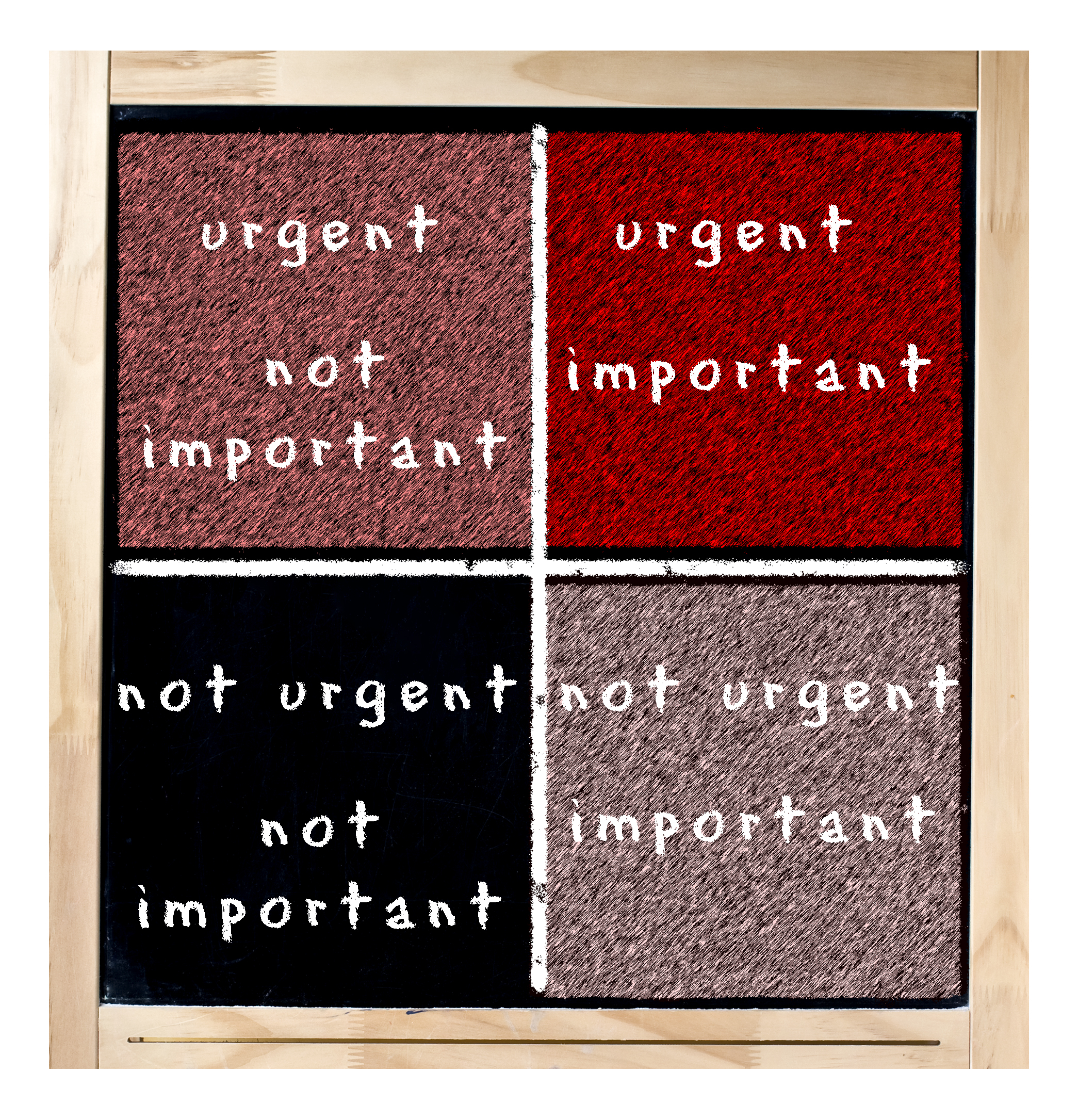
    The next level of organization for your tasks in your “Next Actions” notebook is to assign priority tags. If you’re using the Eisenhower method, for example, your tags can be “A.UI” (Urgent and Important), “B.UNI” (Urgent, Not Important), “C.INU” (Important, Not Urgent), and “D.NINU (Not Important, Not Urgent). Sort your notes and emails in the notebook by priority tag.

    I recommend that you integrate your email tasks with your Evernote to-do list. Integrating email with a task manager means that your daily priorities will then be in one place. If you have an Evernote Plus account, you can forward emails to one of your notebooks. You’ll do this by forwarding to your Evernote email address and appending “@<notebook name>” to the email title, followed by “#<priority tag>”.

    Have a routine

    Check your “Next Items” and “Waiting For” notebooks daily. Remove notes as you complete them, add new items, and update tags & reminders. You should also allocate time weekly to check your “Someday/Maybe” notebook.

    Get the “Controlling the Chaos” Newsletter and receive a free PDF download
    “Drowning in Email – A Lifeline for Communications Overload”

    * indicates required