Author: Patricia Dwyer

  • What Everyone Ought to Know About Using LinkedIn to Stay in Touch

    What Everyone Ought to Know About Using LinkedIn to Stay in Touch

    LinkedIn is a social networking site for professionals. (You are a professional if you have or have ever had a job or a business.) There are several reasons why you should be using it, including:

    • Staying in touch with your former co-workers
    • Keeping up with professionals and companies that you’ve done business with
    • Joining groups related to your profession
    • Sharing updates related to your business
    • Keeping updated contact information

    You need to have a LinkedIn profile for anyone looking for your business/skill set or to re-connect with you.

    There may be old friends or co-workers, for example, looking for your contact information. Or there may be recruiters trying to fill a job position.
     
    If you’re a business owner, your profile can be the one to stand out, particularly if you have recommendations. It’s OK to ask for recommendations from your former co-workers, clients, and customers. It’s even better to give recommendations.
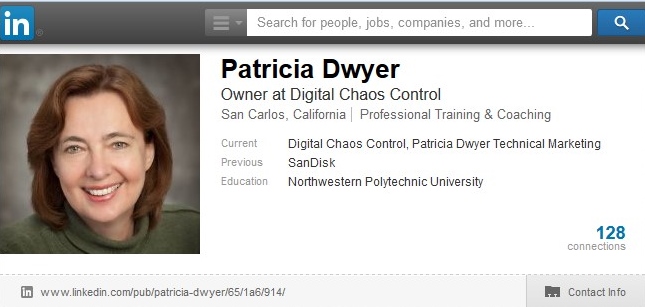
     

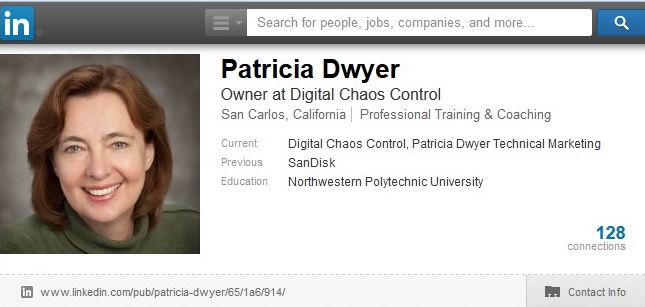
    LinkedInProfile

    Your LinkedIn profile should include:

    • A recent professional photo
    • A link to your website or blog
    • A summary of your experience or of your business 
    • Detail on your work & volunteer experience
    • A list of skills

    Once you have your profile set up, you should search for your connections and send a connection request. Make it a personalized request with a reminder of who you are / where you’ve met. Also search for groups affiliated with your industry or interests and join them.
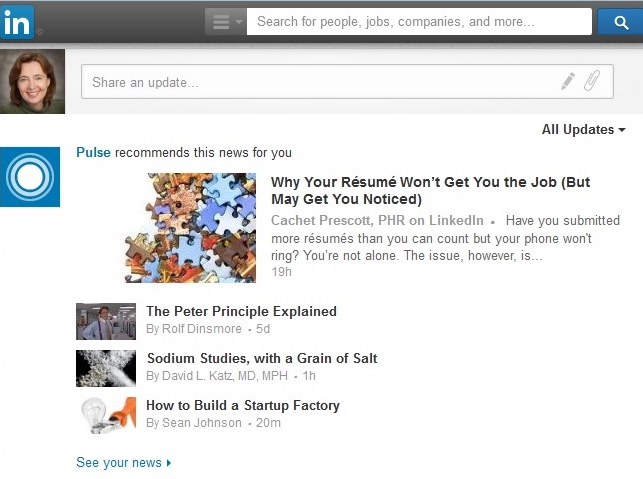
    LinkedInNewsfeed

    LinkedIn will fill your news feed with a mix of profile updates, status updates, comments, and sponsored ads. It’s useful to read your news feed on a regular basis to see what’s happening with your contacts. You can make status updates too. Let your contacts know what’s new with you, your professional accomplishments, links to articles that you’ve liked, and links to your blog posts.


    Plan on doing LinkedIn status updates monthly, if not weekly.

    You can also “follow” companies in your industry to see their updates.

    SUBSCRIBE TO MY NEWSLETTER

    Get the “Controlling the Chaos” Newsletter and receive a free PDF download
    “Drowning in Email – A Lifeline for Communications Overload”

    * indicates required


  • Are You Tired of Your Old Computer? Why Not Go PC-free?

    Are You Tired of Your Old Computer? Why Not Go PC-free?

    PC-FreeHave you ever wondered if you still need a computer? If you own both a smartphone and a tablet and find yourself using your computer less and less often, then it’s a valid question. Our mobile devices have evolved to become as powerful as some desktop computers. They are easier to use in many ways with their touch interfaces and dedicated apps and also easier to maintain. They are less vulnerable to hackers (thus far).

    So when the time inevitably comes that your computer has died or has gotten too old to be useful, why get a new one? Why not go PC-free?

    If you still use your computer to create a lot of content, then it’s probably not the right time to go free. Although you can have a keyboard for your mobile device and create content quite well using apps like Kingston Office or on-line tools like Google Docs, computers still shine with their full-featured content creation tools. Also, if you’re running a business or doing your own taxes, you will need a computer for the foreseeable future.

    The other main difference between a computer and a mobile device is the amount of storage for your content. You have hundreds of even thousands of gigabytes available to you on your computer, which allows you to store all of your photos, videos, & documents, back them up, and have instant access to them. Your mobile device on the other hand has only a few gigabytes of storage and can fill up very quickly if you use it for photos and videos. You should already have a plan to backup and archive your content, but going PC-free means makes it critical to do so.

    You can use external storage like SanDisk’s Connect Wireless Drive to add additional storage for your mobile device. You can also use cloud services like iCloud, Dropbox, SugarSync, Google Drive, Flickr (for photos), Google Music (for music), and iTunes Match (for music). I always suggest using both external storage and cloud storage as you want, ideally, three copies of your content.

    You will probably replace your mobile device a lot more often than you replace your computer. We’re all subject to losing or breaking these devices, so be sure that your content can be easily restored to your new device.

    Go PC-free and you’ll be on the cutting edge. We may all see the end of personal computers someday soon.


  • The Secret to Keeping Your Computer Speedy

    The Secret to Keeping Your Computer Speedy

    Slow Computer

    All computers slow down over time. As the months or years go by, and as more & more applications are installed and data fills the hard drive, you may find yourself looking at a spinning wheel more often than you’d like.

    If you’re running a software program such as Norton Utilities, or if you have a vendor-installed maintenance program, then you have a built-in, automated tool to keep your computer “tuned up”. But if you’re not running one of these software programs, then you need to have a regular maintenance routine for your computer. I suggest putting it on your calendar as a monthly task.

    Here are the steps to follow:

      1. Memory Usage: If you have less than 2GB of memory installed on your PC, then you don’t have enough. You need to see a computer repair technician to install more memory.

    Applications use memory to store data and run faster. When you install new applications, sometimes they are configured to run in the background every time that you re-start your computer. You can check this by doing the following:

        • Windows 7: You can look at which programs automatically run by typing “System Configuration” in the search bar from your Start Menu, and then clicking on the “Startup” tab. You will see a lot of applications that are associated with your computer hardware, but you may also see recently installed applications. You can uncheck the checkboxes beside those applications to stop them from running automatically.
        • Mac OS X: Go to “System Preferences” and select “User & Groups”. Click on “Login Items”. You can unselect installed applications here.
      1. Disk Usage: Your computer will slow down as your hard disc fills up with data. If your disc is more than 50% full, then you may want to look at data that you can delete or move to external storage. (Just make sure that you still maintain at least two, and preferably three, copies of your data on different media, for back-up.) Also be sure that you empty Trash regularly.

    Windows 7 has a utility called “Disk Cleanup” that you should run regularly.

    1. Disk Fragmentation: Your hard disk drive becomes “fragmented” over time. This means that files get broken up because of the way that they’re stored by the file system. It slows down your system to have to search for all of the pieces of a file.
      • On Windows 7, type “Disk Defragmenter” in the search bar and set up a regular schedule for the program to run.
      • On the Macintosh, open the “Disk Utilities” application, select “First Aid”, then “Verify Disk”, and follow the instructions if needed.
    2. Finally, make sure that you have a anti-virus program running.
  • Are you Dealing with Email Chaos? Here are 3 Ways to Help Manage Your Inbox.

    Are you Dealing with Email Chaos? Here are 3 Ways to Help Manage Your Inbox.

    It’s very common to procrastinate dealing with your email chaos. Does this sound familiar to you?

    Inbox

    • Email comes in and sits there until you have a chance to look at it.
    • The size of your inbox keeps increasing.
    • You have not just emails from your co-workers, clients, friends, and family, but also emails from school lists, notifications from social networks, and newsletters from retailers, vendors, and consultants (including mine! Sign up here).

    Unfortunately, it’s all too easy to miss important emails in all of the clutter. It’s no longer possible to treat your inbox like it’s a to-do list that keeps growing and growing…

    Here are my suggestions to get a handle on your email chaos:

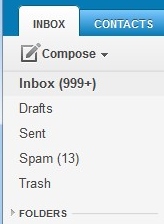
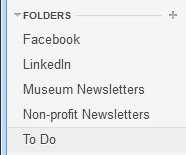
    InboxFolders

      1. The first thing to do is to create email folders. These are to serve as repositories for less important emails as they come in, so that those newsletters from your neighborhood grocery store aren’t taking up space in your inbox. You may want to read about these weeks specials when you have time, so don’t unsubscribe, manage your inbox instead.


    I suggest creating a folder for each email list that you’re a member of, a folder for social network notifications, a folder for each category of newsletter, and a folder for “deferred” items. The point is to keep your inbox sparse enough so that you’re not spending a lot of time daily going through looking for the important emails.

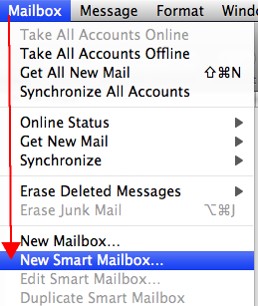
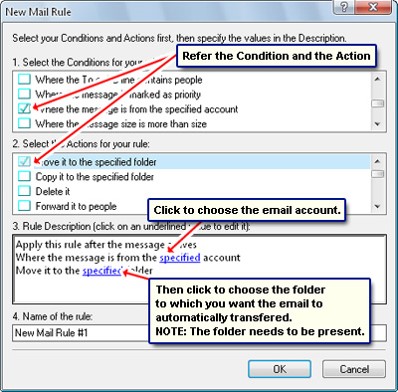
      1. After you’ve created folders, the next step is to create “filters” – automatic programs that run within your email reader. Filters search for specific criteria, which you define, as your email arrives and then perform a defined action based on that criteria. For example, your filter can search the “from” field for your grocery store name and then save the email to a specific folder that you’ve created in step 1.

    AppleSmartMailbox

    OutlookRules

    If you use Apple Mail, you create the filters using the “Smart Mailbox” feature. (Apple Mail also has a useful “VIP” feature that creates folders for your favorite people. When you open an email from a favorite, click on the star next to the “from” line.) If you use Outlook, filters are called “Rules.”

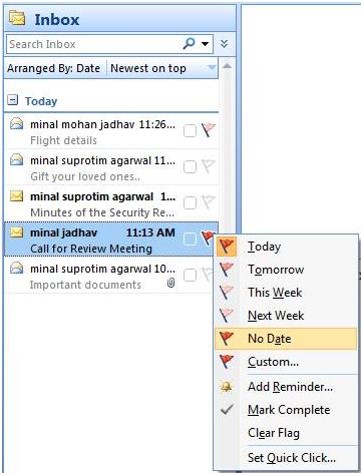
    OutlookFlags

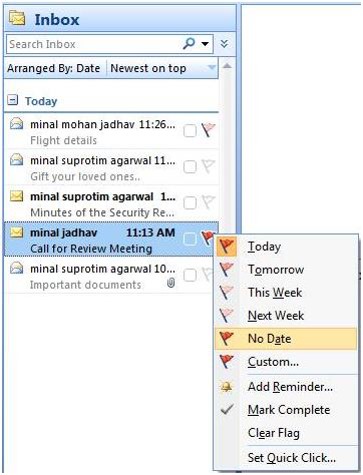
    1. Once you have your folders and filters set up, you should see a big improvement in your inbox. The next step is to flag your emails with priority levels (Gmail uses colored stars), and then to sort them by priority.

    If you have a consistent routine – dealing with the most important emails first and also setting aside some time daily or weekly to flag, sort, and organize your inbox, then you’ll find that you’ve become efficient and responsive with your email management. No more apologizing, “Sorry, I missed that email”!


    Digital Chaos Control

    If you need some help managing your inbox, Digital Chaos Control can help! Contact us today.


  • Here are 3 ways that I use Evernote for a productive digital life

    Here are 3 ways that I use Evernote for a productive digital life

    Use Evernote to work productively

    Have you heard of Evernote?

    It’s a note-taking application, but it’s got many uses:

    • Create notes that can be shared between your devices
    • Create to-do lists
    • Organize files into notebooks
    • Scan documents and make them searchable
    • “Clip” and save webpages

    The list goes on and on…

    There are tons of articles on how to use Evernote for productivity. There are even Evernote “ambassadors” who hold seminars on how to use it for your business.

    So I’ll jump in with my two cents. Here are the 3 ways that I use Evernote:

    Note-taking: I use Evernote to take notes on my smartphone

    If you’re comfortable typing on your smartphone keyboard, or if you’re using a tablet, then Evernote would work great for you too. It’s similar in use to Apple Notes, but Evernote supports not just iOS, but also Android. I do suggest using a Swype keyboard instead of typing.

    Evernote syncs with the cloud so that your notes are available on all of your devices. I have Evernote installed on my desktop PC, my notebook PC, my MacBook, and my smartphone. Notes that I take on my smartphone are synced with all of those devices.

    Client Management: I use Evernote to organize my client information.

    I create a notebook for each client. Into that notebook goes the notes, files, and emails related to that client.

    Webpages: I use Evernote to save interesting web pages that I come across.

    I tag these pages when I save them so that I can find them later. This is a great way to do research on the web, save your research, and organize it. You can also target notebooks for your web pages so that research is organized in the right place.


    If you want to know more about using Evernote to help your productivity, Digital Chaos Control can help!

    Contact Me

  • How Do I Know if my Cloud Storage is Secure?

    How Do I Know if my Cloud Storage is Secure?

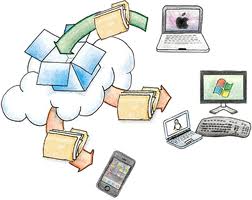
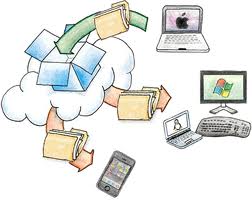
    cloud storageI am a big fan of cloud storage services. It’s magic to me, the way that the photos that I take with my cell phone appear on my PC when I get home, without having to plug anything in. And to have all of my work from my desktop PC available to me on my laptop.

    My data is available to me alone unless I choose to share it with someone. Most cloud services encrypt the data during transfer to/from the Internet (“SSL” encryption – you’ll know it’s encrypted because of the “s” in “https”), and then again when it’s stored on their servers. So if a hacker gets into their servers, unless they can crack the encryption, my data is still private.

    The main risk is if my password gets compromised. Then anyone with my user id and password could access all of my data. If you’re concerned about cloud security, then it’s important to have a strong password, and to change it often.

    strong passwordYou’ve probably heard that term before, but what does “strong” password mean? How long does it need to be? Do you need special characters? Numbers? How many? Do you need a different password for every cloud service? How do you remember all of those passwords?

    It’s a complex subject. And unfortunately, the recommendations for “strong” passwords keep changing, as the hackers become more sophisticated.

    I recommend using a password manager. Let the experts worry about it. A password manager is a plug-in for your web browser. You can use it to generate a password and it will indicate how “strong” that password is. Once you use that password to log into your cloud service through your web browser, then you can store that password in your “password vault” that the plug-in supplies.

    The password manager is itself a cloud service, so you need a password for it. But it’s the only password that you really need to remember for all of your cloud services. I start with a word that has some personal meaning to me, add a character between syllables, a few numbers at the end (that I’m sure that I’ll remember), and then use the word in a complete phrase.

    Password managers use a extra level of security for their cloud service. Your password vault gets encrypted locally, on your own computer, and then transferred and stored on the cloud server. When you log into the service through your web browser plugin, the reverse process happens – the password vault is transferred from the cloud down to your PC, and then decrypted.

    LastPass Logo

    I use LastPass as my password manager. Other people that I know have recommended OnePassword, which works similarly.

    I believe that you can relax about your cloud security if you use a password manager and if you change your passwords regularly. The convenience of using a cloud service far surpassing the slight risk of having your privacy compromised. However I do not use cloud services for financial data, nor do I store my passwords for financial sites in my password manager. I suspect that it would be fine to do so, but I’m just not quite willing to risk it…

    If you need help setting up your cloud service or password manager, Digital Chaos Control can help! Contact us today.

  • Is Your Facebook News Feed Out of Control? Here are 3 Steps to Help.

    Is Your Facebook News Feed Out of Control? Here are 3 Steps to Help.

    facebookmessagingiconsWhen I first started using the Facebook news feed, it was an exciting new way to connect with friends, especially friends whom I didn’t see very often.

    Over time, more and more people connected with me on Facebook – friends, co-workers, family, childhood acquaintances, other parents, etc. Some people are completely quiet, some update occasionally, some update every day, and even multiple times per day.

    Even as it became more and more difficult to follow my quieter friends, I lost control of my Facebook news feed. Facebook decides what I see based on secret methods, but reputedly based partly on how often I connect with someone and how many likes and comments my friends receive.

    So I needed to learn how to take back control of my Facebook news feed, as much as the service allows me to.

    Here are some methods that I use:

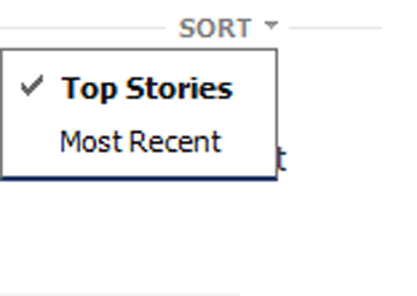
    1. Facebook news feed sortSort: This is really the only way to get around the Facebook controls. There are two ways to sort your Facebook news feed: “Top Stories”, which is the default, and “Most Recent”. You can find the Sort option by clicking on the arrow to your right of “News Feed” under “Favorites”.
       
      For the Facebook app, tap “More” (3 horizontal bars). On Android, scroll down to “Feeds”. In iOS, tap “See More” and scroll down to “Feeds”.
    2.  

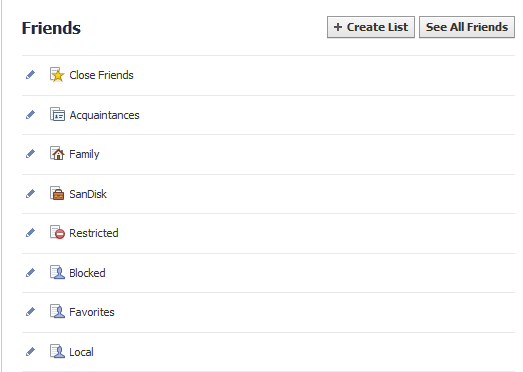
    3. View your Facebook news feed using friend listsFriend Lists: If you sort your friends into lists, then you can view those lists separately. See your lists by clicking on “Friend Lists” in your left sidebar.
       

      • Facebook creates a “Close Friends” list and an “Acquaintances” list. Adding friends to these lists helps Facebook to know who to emphasize in your news feed.
      • There are several friend lists that Facebook creates and automatically populates, such as “Family” and your current workplace.
      • You can create your own custom lists. Select “Create List.”
         
        When you view a friend list, you will only see the updates from your friends on that list.
    4.  

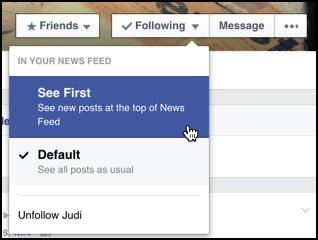
    5. facebook-see-first-newsfeed-4Controlling individuals: If you hover you cursor over an individual in your Facebook news feed, you’ll see some options. You can add that individual to a list, select “See First” to prioritize that person in your news feed, or “Unfollow”.
       
      On the Facebook app, tap on a friend’s name in your news feed to go to that person’s profile.

    SUBSCRIBE TO MY NEWSLETTER

    Get the “Controlling the Chaos” Newsletter and receive a free PDF download
    “Drowning in Email – A Lifeline for Communications Overload”

    * indicates required


  • What Everyone Ought to Know About Automatic Local and Cloud Backups

    What Everyone Ought to Know About Automatic Local and Cloud Backups

    Use a an external hard drive for local backupsYour digital data is crucially important to the quality of your life. Imagine losing all of the photos of your children, or your client information, or your financial information.

    Most of us know about backups and that we should be doing them regularly. Did you know that there continues to be new and easier ways to automate the process?

    I recommend three copies of your data:

    1. On your computer storage
    2. On external storage media
    3. In the cloud

    Use software to automate your backups.

    Software also allows you to restore your data to your computer should you ever need to. You can use “Time Machine” on the Mac, “Windows Backup and Restore” on Windows 7, “File History” on Windows 8/10, or the software that comes with your backup device. You should have external media, such as an external hard drive, connected to your computer at the times of your scheduled backups.

    Backups keep your important memories safeYou can archive your important memories to save space on your computer. Move your photo library to external storage or cloud storage. Make a second copy in a different location for backup. Then create a new photo library on your computer that you’re updating with your recent photos.

    If you use a cloud sync service such as iCloud Drive or Dropbox, keep in mind that if you delete files from one device, then you are also deleting them from your other devices.

    There are backup services that specialize in scheduled, automated backups to the cloud.

    These services tend to be more reasonably priced than the cloud sync services mentioned above for large amounts of data. Also, if you have data stored only on external media, then a cloud backup service can support automatic backups of those devices.

    Here are some cloud backup services:

    Carbonite Cloud Backups


    Price: $72/year for unlimited storage for one computer, including attached thumb drives, $112/year if you’re including an external hard drive.

    Zipcloud Cloud Backups


    Price depends on the amount of storage space. Supports external hard drives at an additional cost.

    Backblaze Cloud Backups

    Price: $60/year for unlimited storage. Supports external hard drives and thumb drives.

    Get the “Controlling the Chaos” Newsletter and receive a free PDF download
    “Drowning in Email – A Lifeline for Communications Overload”

    * indicates required


  • How to Stream Music That You’ve Ripped to Your Mobile Device

    How to Stream Music That You’ve Ripped to Your Mobile Device

    Stream music from your library

    If you have a collection of CDs that you’ve ripped into digital form, then you’re probably enjoying the music on your PC. But do you know how to also stream music that you’ve ripped on your smartphone or MP3 player?

    You may be using Windows Media Player or iTunes to manually sync some playlists to your portable device. There is a way to stream music from your entire library anywhere that you are, as long as you’re connected to a wireless network.

    iTunes Match and Google Music are cloud storage services that allow you to stream music. (I’ve summarized these services below.)

    After you sign up for a service and install the application on your PC, you start by “matching” your music library with the available tracks offered by the service. The application will upload only the tracks that don’t match to the cloud storage.

    The next step is to install the mobile app on your device and log into the service. Now you’ll be able to “stream” music from your entire library to your device!

    Here are some details on the services:

    iTunes MatchiTunes Match: $25/year; no storage limit; up to 100,000 songs can be matched

     

    Google Music, music streamingGoogle Music: free; 50,000 song maximum


    If you need help managing your music library, Digital Chaos Control can help!

    Contact Me

  • Photo Sharing

    CameraIn this age of digital photography, we generate tons of photos – our families, pets, vacations, school field trips, concerts, parties; the list goes on and on. The old days of getting our photos printed and into binders and scrapbooks are largely gone. It used to be fun to pull out the old photo albums and sit down with family and friends to laugh at crazy poses and faces, and to experience a shared emotion and memory of those who have passed on.

    We still have our photo albums, but they’re on our computers. And fortunately, there’s lot of ways to share our digital photo albums.

    The closest things that we have to our old binders that we can sit down and share are our portable devices – our smart phones, tablets, and laptops. It is possible to duplicate your entire photo library on a portable device if you have enough storage, but for most of us, there are just too many photos to fit. We have to manage our photo albums on our devices.

    When I travel to visit family, I go through my computer photo albums, and I pick which albums I want to bring with me. The next step to to sync those albums with my device. There are several ways to do this:

    1. Copy files – You can copy the files from the albums that you choose to your devices through USB, or to a memory card or flash drive that you move to the portable device. This is an easy option if you’re comfortable with computers and peripheral devices.

    2. USB Sync – You can use software to sync specific albums to your device. If you connect your iPhone or ipad, for example, through USB, you can use iTunes to select and sync albums. This is a great option if you use Apple devices and you’re familiar with iTunes.

    3. Cloud Sync – You can use a cloud sync service such as Dropbox or Sugar Sync to select and sync specific photo albums. These cloud services are very easy to use. You’ll have to have the software installed on both your computer and your portable device.

    4. Cloud Photo Sharing – You can use a cloud photo sharing service such as Flickr or Shutterfly to upload and share specific photo albums. Once you’ve created an account on Flickr, you can connect with it through iPhoto or Windows Live Photo Gallery and easily upload photos. You can install a Flickr app on your portable device and you’ll be able to view your albums and display slide shows whenever you have internet connectivity. You can also share the link with friends and family.

    5. Social Networks – You can use a social network such as Facebook or Google+ to upload and share specific photo albums. Your photos on Facebook won’t be full resolution, but this is a great option to show photos if you’re comfortable with Facebook and want to share only with your Facebook friends. You can also tag people in your photos.

    If you need help organizing and tagging photos, syncing with your devices, and/or setting up cloud services, Digital Chaos Control can help! Contact us today.