Tag: social

  • Here’s a Quick Guide to Driving Social Engagement Using Facebook Ads

    Here’s a Quick Guide to Driving Social Engagement Using Facebook Ads

    Facebook Ads can help your reach

    Do you have a Facebook business page? (If not, and you’d like to, read my blog post here: How to Create a Facebook Business Page.)

    If you do have a Facebook business page, you may find you’re not getting enough engagement, and your “reach”, or the number of followers who see your posts, is in the single digits. So it may be time for paid Facebook ads.

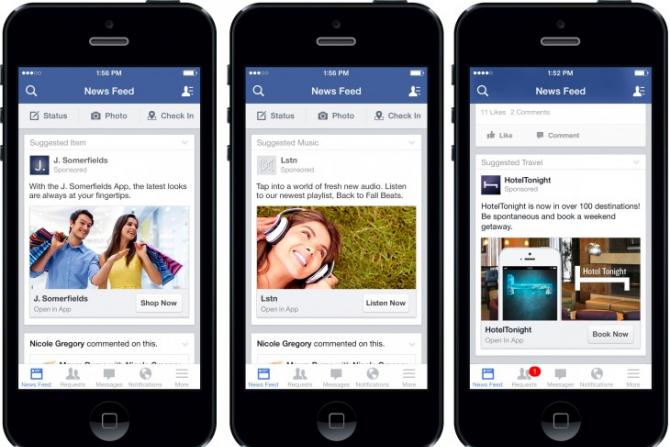
    There are basically two ways to increase your reach on Facebook. The first is to pay to “boost” a post. The other is to create Facebook ads. Both methods will display in the newsfeed of your targeted audience.

    Boosting a Facebook post is easy and can be inexpensive.

    Just create the post and then click on “Boost Post”. You’ll be able to select an audience target, a maximum budget, and duration. Try it out with different options and see how well it works for your business.

    Creating Facebook ads is more complex but can get better results.

    You’ll need a good graphic with a small amount of copy on it (Facebook limits how much copy you can have on an image), copy text, and text for a headline. Below is one that I created:
    Facebook Ads can help your reachHere are the Facebook criteria for ads:

    • Recommended image size: 1,200 x 628 pixels
    • Image ratio: 1.9:1
    • Text: 90 characters
    • Headline: 25 characters
    • Link description: 30 characters
    • Your image should include minimal text.

    Then go to this link: https://www.facebook.com/ads/manager/creation. Decide if your objective is to get more likes on your Facebook page or to send people to your website. You can get more insight on strategy at this article: What $5 per Day Will Buy You.

    Creating a Facebook ad over a boosted post gives you access to more demographics – to a specific industry, for example, or to a specific gender, interests, location, or household income.

    Here’s an article with more detail on boosting and creating ads: Boosting Vs Ads.

    SUBSCRIBE TO MY NEWSLETTER

    Get the “Controlling the Chaos” Newsletter and receive a free PDF download
    “Drowning in Email – A Lifeline for Communications Overload”
    * indicates required


  • How to Manage Those Social Media Notifications

    How to Manage Those Social Media Notifications

    Social Media NotificationsFacebook, LinkedIn, and other social networks have transformed our lives and businesses. They have opened up our worlds. They connect us with those whom we’ve lost touch with and they expand our networks of connections.

    Unfortunately, it comes at a cost. Expanding our connections and networks leads to more information and contributes to our digital chaos.

    One of the factors leading to digital chaos is the increase in emails.

    We are inundated with social media notifications.

    There are two ways to manage notifications:

    1. Reduce the number of notifications that you’re receiving. You can manage this through your social media settings:

      • Facebook:  Go to “Settings”, then “Notifications”
      • LinkedIn: Go to “Settings & Privacy” , “Communications”, “Email frequency”
      • Twitter:  Go to “Notifications” at the top.
    2.  

    3. Filter notifications in your email reader.

      • Apple Mail:
        • Create a new Mailbox called “Notifications”.
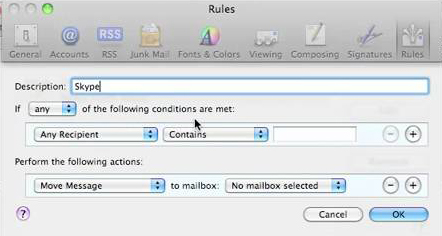
        • Go to “Preferences”, then “Rules”.
        • Create a new rule that moves your notification emails into your “Notifications” Mailbox.

         
        AppleMailRules

      •  

        OutlookRules

      • Outlook:
        • Create a new Folder called “Notifications”.
        • Right-click on a notification email. Select “Rules” and then “Always move messages from …”
        • Select the “Notifications” folder.


    Social media notifications serve a useful purpose, as most of us don’t have time to check our news feeds all the time.

    Make sure that you take the time to review your Notifications folder on a regular basis.

    SUBSCRIBE TO MY NEWSLETTER

    Get the “Controlling the Chaos” Newsletter and receive a free PDF download
    “Drowning in Email – A Lifeline for Communications Overload”

    * indicates required


  • Is Your Facebook News Feed Out of Control? Here are 3 Steps to Help.

    Is Your Facebook News Feed Out of Control? Here are 3 Steps to Help.

    facebookmessagingiconsWhen I first started using the Facebook news feed, it was an exciting new way to connect with friends, especially friends whom I didn’t see very often.

    Over time, more and more people connected with me on Facebook – friends, co-workers, family, childhood acquaintances, other parents, etc. Some people are completely quiet, some update occasionally, some update every day, and even multiple times per day.

    Even as it became more and more difficult to follow my quieter friends, I lost control of my Facebook news feed. Facebook decides what I see based on secret methods, but reputedly based partly on how often I connect with someone and how many likes and comments my friends receive.

    So I needed to learn how to take back control of my Facebook news feed, as much as the service allows me to.

    Here are some methods that I use:

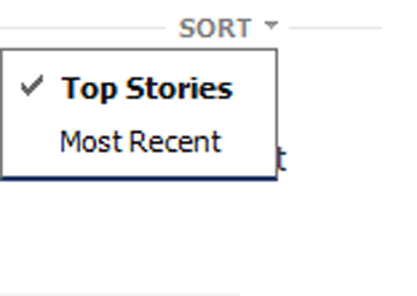
    1. Facebook news feed sortSort: This is really the only way to get around the Facebook controls. There are two ways to sort your Facebook news feed: “Top Stories”, which is the default, and “Most Recent”. You can find the Sort option by clicking on the arrow to your right of “News Feed” under “Favorites”.
       
      For the Facebook app, tap “More” (3 horizontal bars). On Android, scroll down to “Feeds”. In iOS, tap “See More” and scroll down to “Feeds”.
    2.  

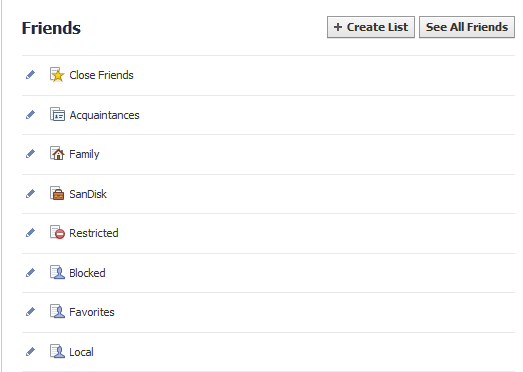
    3. View your Facebook news feed using friend listsFriend Lists: If you sort your friends into lists, then you can view those lists separately. See your lists by clicking on “Friend Lists” in your left sidebar.
       

      • Facebook creates a “Close Friends” list and an “Acquaintances” list. Adding friends to these lists helps Facebook to know who to emphasize in your news feed.
      • There are several friend lists that Facebook creates and automatically populates, such as “Family” and your current workplace.
      • You can create your own custom lists. Select “Create List.”
         
        When you view a friend list, you will only see the updates from your friends on that list.
    4.  

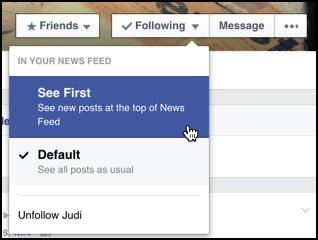
    5. facebook-see-first-newsfeed-4Controlling individuals: If you hover you cursor over an individual in your Facebook news feed, you’ll see some options. You can add that individual to a list, select “See First” to prioritize that person in your news feed, or “Unfollow”.
       
      On the Facebook app, tap on a friend’s name in your news feed to go to that person’s profile.

    SUBSCRIBE TO MY NEWSLETTER

    Get the “Controlling the Chaos” Newsletter and receive a free PDF download
    “Drowning in Email – A Lifeline for Communications Overload”

    * indicates required