Tag: projects

  • Here’s an easy way to manage projects using a spreadsheet-based tool

    Here’s an easy way to manage projects using a spreadsheet-based tool

    Manage Projects using Smartsheet

    If you’ve read my post on how to manage projects here: How to Stay on Top of Your Project Management, then you know that a good tool can help you:

    • Collaborate
    • Stay on top of tasks
    • Reach your goals and deadlines within your expectations.

    If you use spreadsheets to manage projects (or even if you haven’t but you’re familiar with Excel or Google Sheets), then you might want to check out Smartsheet. Smartsheet is a full project management tool with an interface similar to that of Excel or Google Sheets. Smartsheet has recently added card view as well for visual thinkers (see my blog post here: How to Use a Visual Task Management System.)

    Smartsheet starts with the concept of a simple spreadsheet, then adds:

    • Strong reporting
    • Auto-notifications
    • Row by row task assignment
    • Per project or per task/row dialog
    • Attachments.

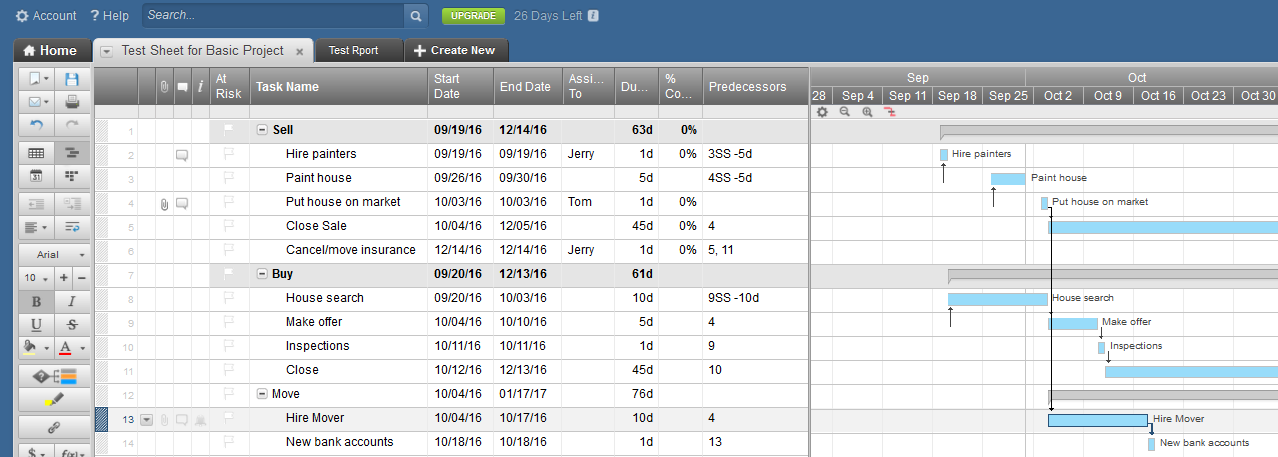
    Smartsheet organizes projects into “sheets”, using one of the Smartsheet templates or using the basic layout. In your sheet, you’ll enter tasks as rows. You can add files to any line on a sheet, uploading a file from your computer or connecting to cloud services such as Google Docs, Dropbox, Evernote, etc. You can add a discussion to any line on a sheet. You can also send one or more lines of a sheet to someone via email for updates. This person does not need to have a Smartsheet account – she or he will get a link to make the update and you will get a confirmation email after the update is made.

    Depending on which template you use, your columns can include Discussions, Start Date, End Date, Assign To, Duration, % Complete, Predecessors, Comments, etc. You can filter a column – to see just the tasks assigned to you, for example, or you can sort rows by a column value.

    You can view your sheet in grid view, Gannt chart, calendar, or card view.

    At the bottom of the sheet are options for sharing the sheet, adding alerts, attaching files to the sheet, adding discussions to the sheet, requesting updates, adding a Web Form (similar to Google Forms), and publishing a link to the sheet.

    In card view, you can move your tasks between columns.

    The card view columns are defined in a drop-down list in your grid view. In my example below, I defined the “Comments” column in the grid view as a drop-down list with selections for “Started”, “On Track”, “Possible delay”, “Need help”, and “Will finish soon”. In card view, I can move a task to any of these selections.
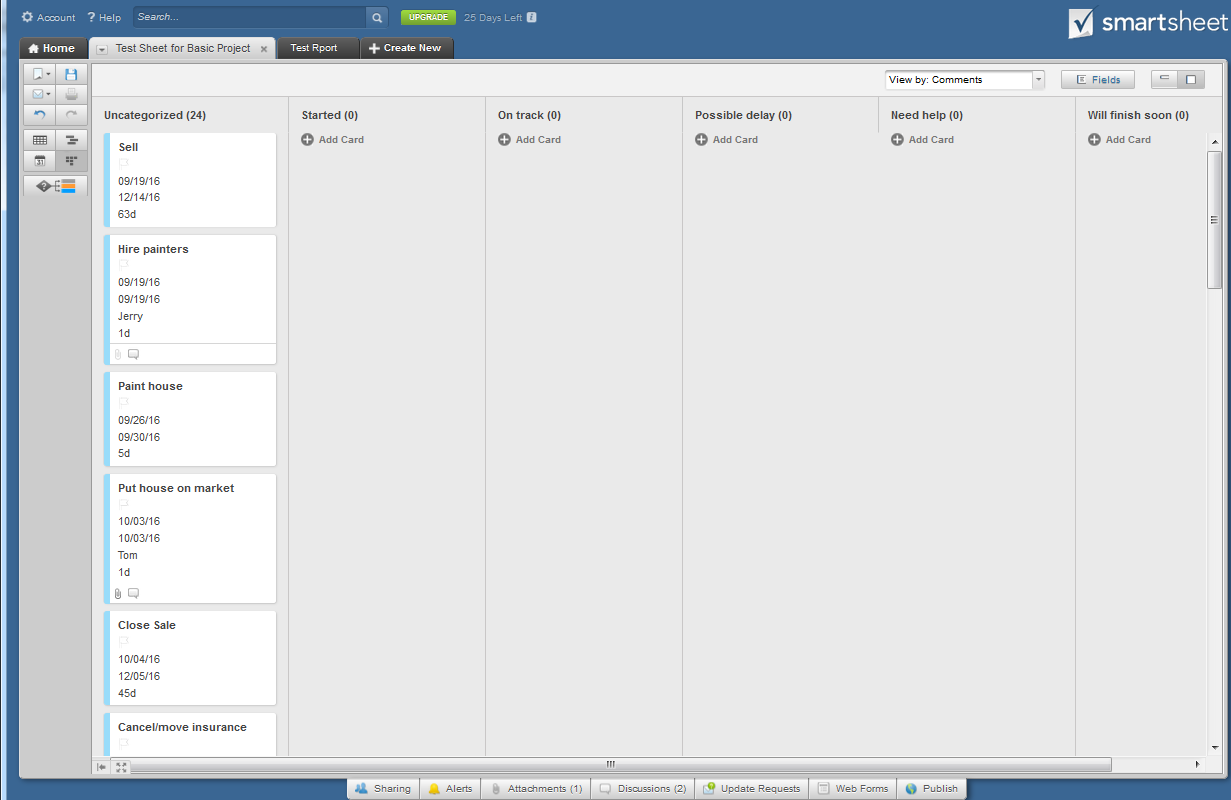
    Manage Projects Using Smartsheet Card View

    You can create custom reports across sheets for tasks assigned and you can create workspaces to organize projects and reports.

    Smartsheet’s mobile apps (available for Android and iOS) are also easy to use, and the sheets you create are easy to view on even the small screen of a smartphone—something that’s not always true of spreadsheets.

    Smartsheet is free for 30 days. After that, plans start at $14 per month and go up from there.

    SUBSCRIBE TO MY NEWSLETTER

    Get the “Controlling the Chaos” Newsletter and receive a free PDF download
    “Drowning in Email – A Lifeline for Communications Overload”
    * indicates required


  • Use Evernote For a New Level of Organization

    Use Evernote For a New Level of Organization

    Evernote

    Have you heard of Evernote?

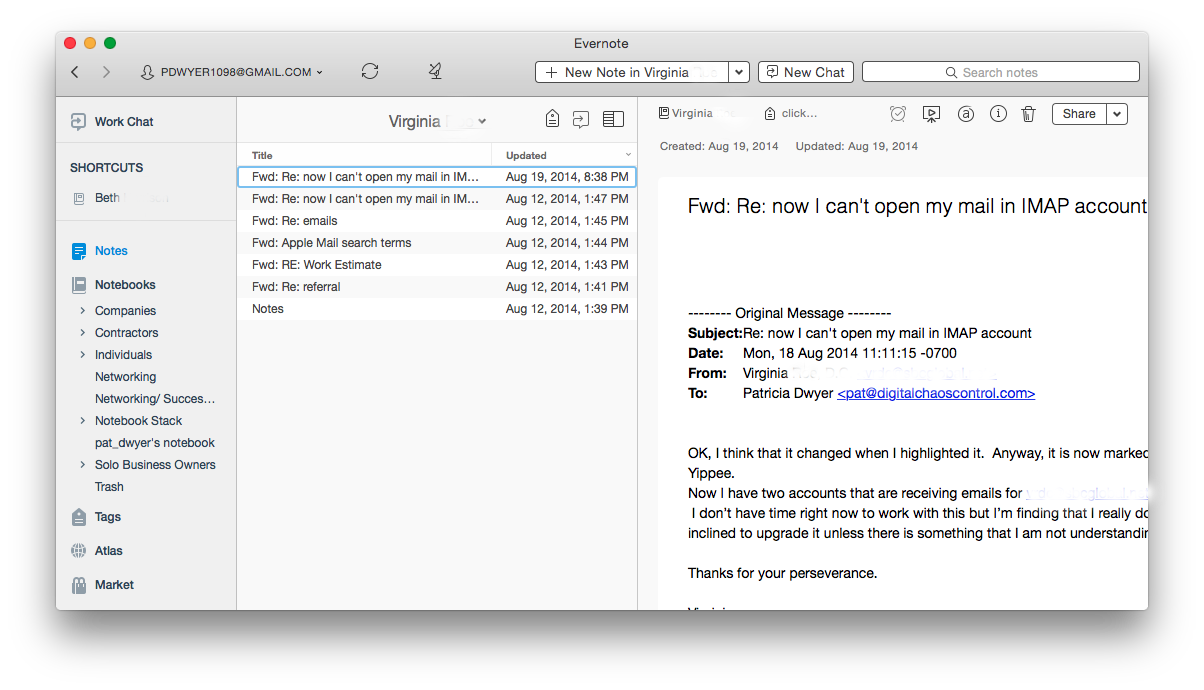
    It’s hard to tell you what it is in one sentence. It’s a note-taking application, you can use it to create to-do lists, you can use it to organize files into notebooks, you can use it to scan documents and make them searchable, you can use it to “clip” and save web pages, etc. The list goes on and on…

    Whether you’re someone who likes to keep digital information organized or whether you’re someone that is organizationally challenged, then Evernote may be the tool for you. You can keep almost anything organized with Evernote – by keeping related items in one place.

    If you’re working with projects, you can use Evernote to organize, share, and collaborate on your projects. If your business involves working with clients, and you’d like a new way to manage those clients, you can use Evernote to keep your client information in one place and to write yourself memos, checklists, and reminders about that client.

    Here’s how to use Evernote for organization:

    1. For each new project or client, create a new notebook.
       
      A note of caution: Keep in mind that Evernote is a cloud application. Anything on the Internet is only as secure as your password, so be sure to use strong passwords and to update them regularly.
    2.  

    3. Share the notebook with collaborators and/or clients.
    4.  

    5. As you work with the project or client, update notes or add new notes. For documentation and or photos, add it to the note as an attachment.
       
      Depending on how you work, you may find that you’re looking at web pages and that you want to save them for reference. Don’t use bookmarks. Install the Evernote Web Clipper extension into your browser. This will allow you to “clip” the page, or an article on the page, and save it to your project or client notebook.
    6.  

    7. Email correspondence goes into the notebook. When you sign up for an Evernote Plus account, you get an associated email address (something like username.XXX@m.evernote.com). This means that you can CC: your Evernote account on your client email correspondence, or you can forward the email later.
       
      If you add “@<notebook name>” to the email subject line, then Evernote will even put the email into the specified notebook.
    8.  

    9. Use tags to help find things. When you tag a note, you can search for all notes with the same tag. For example: If you want to know how your clients found you, you could tag your client notes with a “referred by:<>” tag, and then you can search for all client that have the “referred by: website” tag.
       
      You don’t have to use search to find tags; Evernote conveniently lists all of your tags on the sidebar, so you can just click on it. Here’s a blog post with more information on using tags: Using Evernote the Right Way.

    Now you can have all of your project or client information – notes, files, photos, websites, emails in one place!

    Wait, it gets better – Evernote has great search and is continuing to improve it. You can search within your notes & emails and, if you are a Premium user, then you can search within documents.

    You can search on titles, keywords, or tags, of course, but Evernote supports more advanced search as well.

    • You can search by date – use the format “created:yyyymmdd” or “updated:yyyymmdd”. Even better, search for a date range: use the format “created:day-x” or “updated:day-x”.
    •  
      For example, if you want to search for all notes that you created about infant formula in the last month, enter the following in the search bar: “infant formula” created:day-30.
       

    • If you want to see the notes that you created using your smartphone, enter the following in the search bar: source:mobile.*.
    •  

    • If you want to see just the webpages that you’ve clipped using the Evernote Web Clipper, enter source:web.clip.
    •  

    • If you’re using the Evernote Macintosh app, you can use plain English for your search. For example “Notes about infant formula in the last month”.

    Evernote is just one tool for information organization, but it’s an increasingly popular one and it continues to evolve.

    Try it out and let me know how it works for you! Contact me

    Get the “Controlling the Chaos” Newsletter and receive a free PDF download
    “Drowning in Email – A Lifeline for Communications Overload”
    * indicates required