Microsoft Office has been a workhorse for years.
Many of us first became accustomed to it in our corporate work. If you’re still working in a corporate setting or if you’re creating detailed documents, spreadsheets, or presentations on a PC, there’s still nothing that beats Office for standard and more advanced content creation.
Office is not cheap.
A single license of Office Home and Student costs $120, but we’re often working on multiple devices these days. If you want to install Office on your home computer, your office computer, and your iPad, you’re better off with Office 365, which costs $9.99/month. Other advantages to Office 365 include automatic updates and new downloads to new computers.
Office on the Mac has always been an afterthought for Microsoft, and not as full-featured as its PC equivalent. (However, Microsoft made many improvements in its Office 2016 version for the Mac.) Fortunately, if you’re on a Mac, you’ve got a great alternative – Apple’s application suite – Pages, Keynote, and Numbers. (Just remember to convert to the Office document equivalent when sharing files so that PC users can open them.)
If you don’t need the advanced options that Office provides, then Google Docs is worth checking out.
Mac or PC, you’ve also got an alternative with Google Docs, Google Sheets, and Google Slides. These applications are completely free to use on the web and also via the Google Docs mobile apps. Advantages include 15 GB of cloud storage space, easy collaboration with other Google users, and conversion to Office files for sharing.
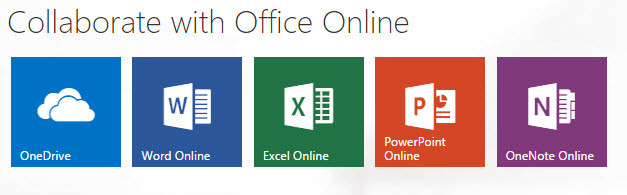 Another option, perhaps even a better one than Google Docs, is Office Online. You can use the online versions of Word, PowerPoint, and Excel free of charge, with 5 GB of cloud storage. The online versions don’t have all of the features as the paid versions, but that may be fine if you’re not a power user.
 Microsoft Office for Business also includes Outlook, which is a nice integrated email reader, contacts manager, calendar, and task manager. Outlook calendar and contacts can sync with your iOS device by installing the iCloud plug-in, but you’ll need to look at third-party apps for Android contacts sync, or sign up for a Google for Work account.
 If you’re a Mac user and you don’t have Outlook, or you don’t want to use the Mac version of Outlook, then Mac Mail is a fine program and integrates well with the Mac Address Book. You will have to launch the Mac Calendar and Mac Reminders separately. (If you’d like to know how to integrate Mac Mail with Mac Reminders, read my blog post here: How to Ingrate Email with Task Management). The Mac Calendar and Mac Address Book can sync with both iOS and Android (through your Google account).
Windows has always had a basic email program as part of its Windows Essentials. In Windows 10, Microsoft released a new mail program with integrated calendar and contacts. (The jury is still out on this program as Microsoft works out the bugs.) With the release of Windows 10 Mail, Microsoft will no longer be updating Windows Live Mail, and will no longer support it for outlook.com email addresses. Unlike Outlook, Windows 10 Mail will sync with both iOS and Android contacts.
:max_bytes(150000):strip_icc()/10689516_849154308438637_7441446593458499686_n-5b3247c8c9e77c001ad967be.png) For years, I’ve been using a free program from Mozilla called Thunderbird as my email reader on the PC. Thunderbird, like Outlook, is extensible with add-ons, so I have a calendar add-on called Lightning, and another add-on that syncs with my Google calendar. There are available add-ons for contacts sync as well. Thunderbird is a full-featured program that may be a bit difficult for many people to learn, and the search function is limited. However, if you’re on a PC, you don’t have Outlook, and you have multiple email addresses that you want to manage in one place, then Thunderbird is an excellent option.
For years, I’ve been using a free program from Mozilla called Thunderbird as my email reader on the PC. Thunderbird, like Outlook, is extensible with add-ons, so I have a calendar add-on called Lightning, and another add-on that syncs with my Google calendar. There are available add-ons for contacts sync as well. Thunderbird is a full-featured program that may be a bit difficult for many people to learn, and the search function is limited. However, if you’re on a PC, you don’t have Outlook, and you have multiple email addresses that you want to manage in one place, then Thunderbird is an excellent option.
Need help with Office or your email program? Contact me.