Tag: flags

  • 3 Reasons to Stop Using Email as a To-do List

    3 Reasons to Stop Using Email as a To-do List

    Flagged Email Tasks

    Staying on top of email chaos is not easy.

    Even after you’ve followed the steps to manage your email inbox (see my blog post here: 4 Steps to Becoming More Responsive), you still need to deal with those emails that need a follow-up task. How do you make sure that you get those done, and that they don’t get lost in the daily shuffle?

    There may be event invitations that you leave in your Inbox to remember the date. There may be questions from clients whose emails you need to follow up on later. There may be business partners sending information that you’d like to read when you have time.

    The easiest way is to have a daily routine to review and act on those emails. If you flag the most important emails, you can review them daily. You can then delete them or archive them as you finish your follow-ups.

    But it’s easy to get behind with those email tasks.

    You may find yourself with a list of flagged emails that just keeps growing. They’re all important, but how do you find the time to get through them? Are they all equally important?

    Here are three good reasons to not leave those emails as to-dos in your Inbox:

    1. You may have to read the emails to see what they are. In a to-do list, you have clear task titles. You may even want to use the “action title” method that I mention in this blog post: I never finish anythin….
    2. It’s not easy to prioritize your email tasks. You can try using different color flags or stars, but then you have to take context into consideration. Are you mixing your personal and work emails? What about emails from clients mixed up with emails from vendors?
    3. While you’re working on your sorted, prioritized Inbox, you have emails coming in. You won’t see them until you change your sort order back to dated order.

    Have another look at my blog post here: How to Integrate Email with Task Management and think about installing a task manager instead.

    Get the “Controlling the Chaos” Newsletter and receive a free PDF download
    “Drowning in Email – A Lifeline for Communications Overload”
    * indicates required


  • How to Use Email Flagging to Prioritize

    How to Use Email Flagging to Prioritize

    If you’ve gone through the process of email organization (see my blog post here: 4 Steps to Becoming More Responsive), then you should have a streamlined inbox with just the most important emails. You also should have a daily routine of dealing with those emails that consists of:

    1. Evaluating and Categorizing
    2. Acting On, Filing, or Flagging by Priority

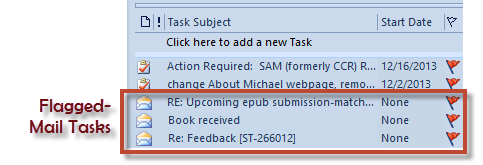
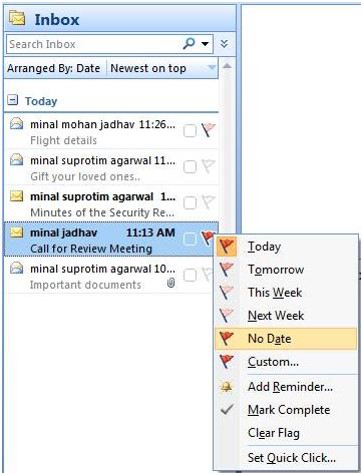
    Flagging an email in Outlook actually assigns a follow-up task.

    Outlook email flaggingIf your email account is a POP account, this is pretty straightforward: open the email and select a flag for Today, Tomorrow, Next Week, etc.  If your email account is an IMAP account, you have only the option of a flag with no follow-up date. You can then sort your inbox by selecting “Arrange By: Flag”. (You can also look at these flagged emails in your task list.)

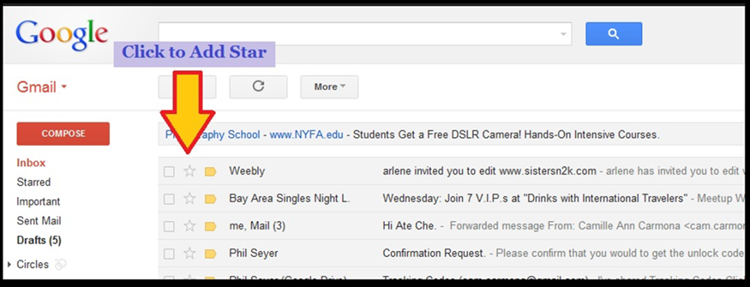
    Gmail uses a star system to flag emails.

    If you go to your Settings in Gmail, you can see which color stars you have to choose from. To assign a colored start to an email, keep clicking on the star icon next to the mail until you have the color that you want. You will have to remember what each means in terms of priority; red is typically used for highest-priority emails, then yellow, then whatever color you like. Your starred emails are groups by color under “Starred”.

    Gmail Stars

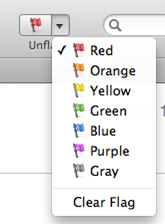
    Apple mail uses color-coded flags.Apple Mail Flagging

    You can flag an email by selecting it and then selecting a color flag from the top menu. Flagging an email in Apple mail actually puts it in a separate Mailbox under “Flagged” (as well as leaving it in your Inbox.) You can rename that Mailbox to whatever you want to help you to remember what your priorities are. For example, you can rename the “Red” Mailbox to “High Priority”, the “Yellow” Mailbox to “Follow Up This Week”, etc.

    Do you need help managing email? Contact me.