Tag: clutter

  • Are you a desktop piler or closet piler?

    Are you a desktop piler or closet piler?

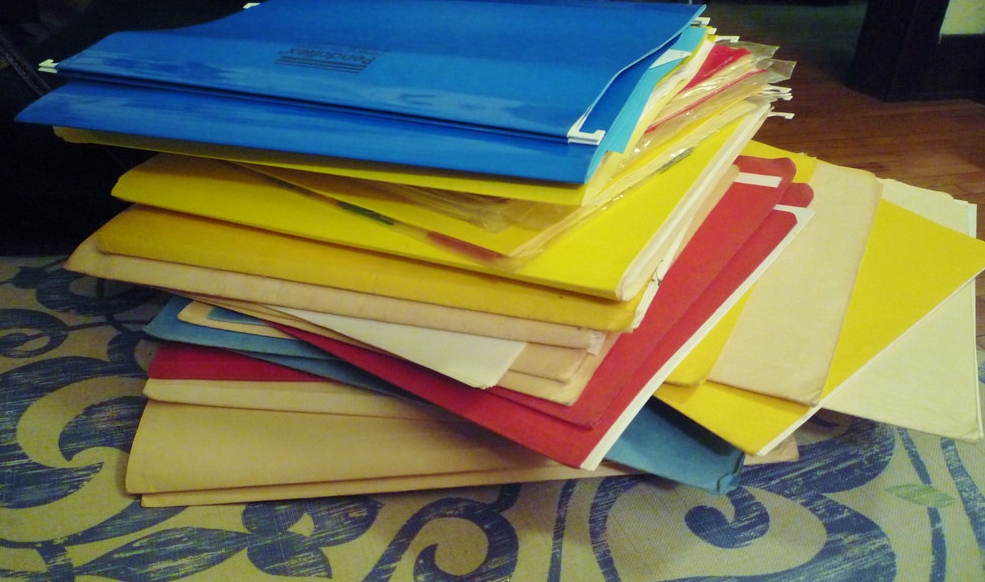
    Pile of Files

    If you don’t keep your digital files organized, chances are you are not as productive and efficient as you could be.

    Are you a desktop piler?

    Then you may also be someone who automatically saves files to the desktop.  This means that you have icons all over the place. Your computer desktop is much less visible than your actual desk desktop, so it may not bother you at all, except when you need to find something.

    Are you a closet piler?

    You may save documents to the application’s default location (usually “Documents” on the Macintosh and “My Documents” on the PC). When you browse to that location on your computer, you will see a long list of documents.

    When you know what to search for, file organization is not really an issue. But you can’t always remember the name of the file that you need. A combination of search techniques and good organization is what serves us best. Use search when you know that right terms. Browsing can be faster if you have good organization.

    Start first with defining the best organization method for you.

    If you work with projects, you might want to start with top-level project folders. Use sub-folders for each type of document. An example for a house remodeling contractor would be a top-level folder named “221 Main St.”, with sub-folders for each sub-contractor. If you’re a consultant, you might want to start with top-level client folders.

    Your organization system might consist instead of document types. For example, you might have a top-level “Marketing” folder, with sub-folders for “Presentations”, “Flyers”, “Brochures”, “Blog Posts”., etc.

    The best organization system for you will depend on how you look for things. The important thing is to start with a system, use it consistently, and to adjust it as needed.

    Here’s a nice post from Seagate, the disk drive company, on file organization: Organizing Your Digital Files.

    Get the “Controlling the Chaos” Newsletter and receive a free PDF download
    “Drowning in Email – A Lifeline for Communications Overload”

    * indicates required


  • Four Steps to Recover from Missed Email

    Four Steps to Recover from Missed Email

    Digital Chaos Control

    Well, it finally happened. Your client, or customer, or boss, or best friend feels put out or confused. That’s because you never responded to his or her email.

    Why? Because you missed it. Perhaps you’re still working on your inbox organization. Or maybe you haven’t gotten around to getting organized yet. Even if you do have a handle on your inbox most of the time, there are always those times when you fall behind.

    The first thing to do is to find that email and to follow up on any action.

    Use the built-in search tool for your email program. You can search by sender or subject.

    The next thing to do is to apologize.

    Here’s a great website to help you to formulate that apology: Perfect Apology.

    Hopefully, you’ve been forgiven now and you can patch things up. If it’s a client or a customer, you may have to follow up with a special offer or discount on your services. Take on some extra work if it’s your boss. If it’s a friend or family member, there’s always the old throwback of flowers and/or chocolates. Perhaps stand her or him a drink sometime.

    The third step may be to make sure that important people can reach you in other ways.

    We’ve all experienced times when an email never got answered. A lot of people are dealing with inbox chaos. I usually follow up with another email. If that goes unanswered within a day or two, I’ll call or text. Some prominent people who can’t stay on top of their inbox volume set up a regular Skype chat or Google Hangout with their followers.

    Check out my blog post here on alternative communication methods: Communicate Like You’re a Millennial.

    The last step is to get back on top of your inbox.

    Be sure to read my blog post here on email management if you haven’t already: 4 Steps to Becoming More Responsive.

    Get the “Controlling the Chaos” Newsletter and receive a free PDF download
    “Drowning in Email – A Lifeline for Communications Overload”
    * indicates required


  • How to De-Clutter Your Email Inbox

    If you’re like most people, you’re getting too many emails in your inbox.

    An overflowing inbox can create stress and cause you worry that you’re missing important emails.

    One way to reduce the number of emails going into your inbox is to unsubscribe to as many automatic emails as possible, such as the ones from shopping sites that add you to their newsletter or promotions list. However, there still may be automatic emails that you would like to receive and read when you have time. Those emails can be filtered so that they’re being saved automatically to folders that you’ve created but not cluttering up your inbox.

    Filters are automatic programs that run within your email reader.

    As your email arrives, the filters search for specific criteria, defined by you, and then perform a defined action based on those criteria. For example, your filter can search the “from” field for your grocery store name and then save the email to a folder that you’ve created.

    I suggest creating filters for:

    • Your social media notifications
    • Any mail lists that you’re a member of (school, church, community organization, etc.)
    • Any newsletters that you’re subscribed to.

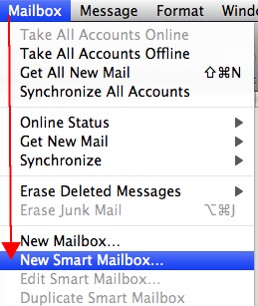
    Apple SmartMailboxIf you use Apple Mail, you create the filters using “Rules” under “Preferences” or using the “Smart Mailbox” feature.

    A Smart Mailbox is a filter/mailbox combination (Apple calls folders “mailboxes”). However, a Smart Mailbox doesn’t move the original emails out of the Inbox, so it’s more like a saved search.

    Apple Mail also has a useful “VIP” feature that creates Smart Mailboxes for your favorite people. To create a VIP when you open an email from a favorite person, click on the star next to the “from” line in that email.


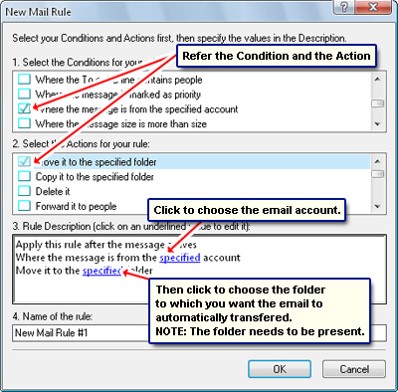
    If you use Outlook, filters are called “Rules.”Outlook Inbox Rules


    Gmail Inbox FIlter


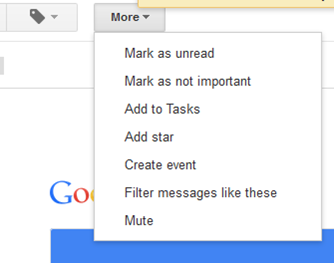
    In Gmail, open the email that you’d like to filter, click on “More”, and select “Filter Messages Like These” from the drop-down list.

    You can also create an email filter from the search box. Click on the down arrow at the right end of the search box, enter your filtering criteria, and then click on “Create filter with this search”.

    Need some help with your email management? Contact me.