Tag: apple

  • If a Mac User, Are You More Hip? If PC, More Practical?

    If a Mac User, Are You More Hip? If PC, More Practical?

    Trendy Mac, Practical PC

    Are you Mac or PC? What does that say about your personality?

    Let’s look at a little history to see how we got here with this question. The Apple II was the first personal computer, released in 1977 after Steve Jobs and Steve Wozniak founded the company – followed by the IBM PC in 1981, running Microsoft MS-DOS.

    Always one step ahead, Apple under Steve Jobs released the Macintosh in 1984 – its windows interface was a revelation at the time. Microsoft’s Bill Gates, no dummy to the potential of a graphical user interface, released Windows in 1985.

    Jobs accused Gates of stealing the idea, but Gates replied, “Well, Steve, I think there’s more than one way of looking at it. I think it’s more like we both had this rich neighbor named Xerox and I broke into his house to steal the TV set and found out that you had already stolen it.”

    Microsoft far outpaced Apple in market share throughout the ‘90s and 2000s, but after Jobs’ return to Apple in 1997, the release of the iPhone & iPad, and the trend toward more remote workers and consultants, the Macintosh has seen a resurgence in popularity.

    Bill Gates is generally considered a “nice” man – cutthroat in business, yes, but philanthropic and generally respectful of others. He’s a brilliant engineer as well as a brilliant businessman. Steve Jobs is brilliant in other ways – a visionary and creative marketer.

    So if you’re a PC user, does it mean that you’re more practical (like me!) and a “nice” person? (I’m not talking to you gamers. I know that you love your gaming PCs!) If you’re a Mac user, are you more visionary and creative? More hip? Or just wealthier?

    Here’s a survey that suggests that it may be true. You Mac users may be more like Steve Jobs than Bill Gates: Mac and PC Users

    There’s actually a third category of users. You may own a Chromebook, or you may be someone who has a Mac or PC but mostly uses Gmail and/or Google Docs through a web browser. What kind of person are you?

    If you’re like Larry Page and Sergey Brin, the founders of Google, you may be younger, less aware of the history of the Mac vs PC debate, and just focused on the best way to get the job done.

    I’m bilingual, so I can help you learn how to make better use of your Mac or your PC.

    Contact Me


  • Office on Mac? What you ought to know…

    Office on Mac? What you ought to know…

    Office for the Mac

    Office on the Mac has always been an afterthought for Microsoft, and not as full-featured as its PC equivalent.

    Microsoft has a different development team working on Office for the Mac, and, over the years, people have wondered if the team was just a couple of engineers working in the Microsoft basement. (If you’re curious, here’s a video of the team from a couple of years ago: Office for Apple Team).

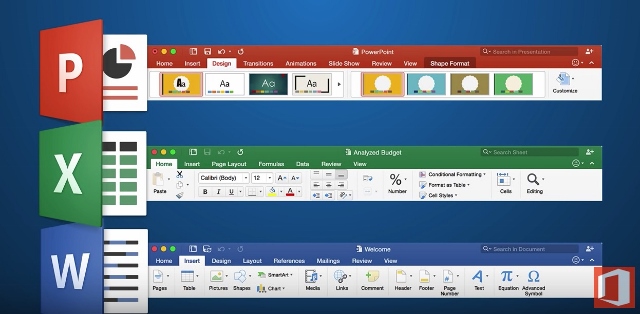
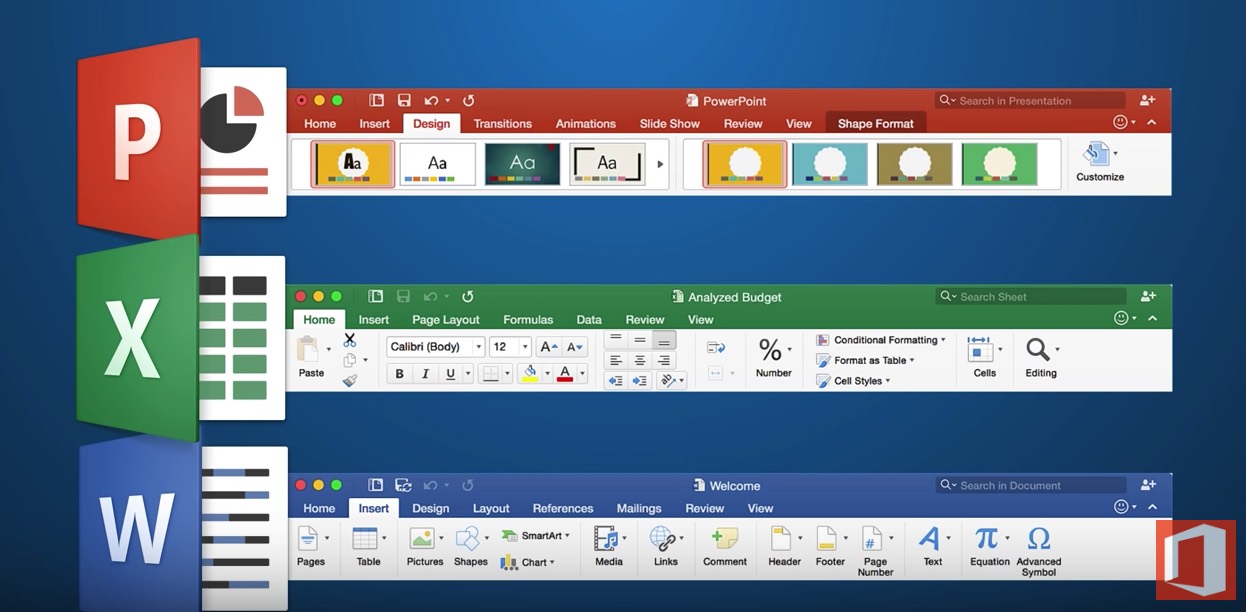
    Microsoft has made many improvements in its 2016 version for the Mac. If you’re used to the PC version, the Mac version now much more closely resembles it.

    Word, Excel, and PowerPoint all have improved features and interface.

    Excel for Mac has many new features but still does not support pivot charts, if that’s important to you. (Here’s an article from Microsoft about those: Overview of Pivot Tables and Pivot Charts). PowerPoint has many new templates and now has presentation mode, but does not allow you to record your presentation with a narration and save it as a movie.

    Here’s a more detailed article: Office for Mac 2016 Overview.

    Outlook 2016 for the Mac is also improved, at least for working with email. For example, you can now have different signatures for different email accounts. But if you’d like to access your contacts and/or calendar from your mobile device, there is no mechanism for sync with Outlook on the Mac. If that’s important to you, then you’ll have to use the Mac Address book and Calendar program instead.

    Make sure that you’re keeping your Office for Mac updated with the latest software releases and bug fixes. If you haven’t updated yet to El Capitan, it’s important to update your Office software first or you may run into trouble. And if you have updated to El Capitan, make sure that you have the latest version of the OS as Apple has improved compatibility with Office.

    Need help with Office for the Mac? Contact me.


  • Do You Swipe?

    Do You Swipe?

    If you have a smartphone, you probably do. Apple’s iOS first popularized the use of swipe gestures such as swiping between app screens. In later iOS updates, Apple added more swipe gestures, such as swiping down to see notifications. Now, smartphone applications are adding their own swipe gestures, which are similar to clicking on something in a computer application and then selecting an action. But swiping is so much simpler, isn’t it?

    When you think about all of the actions that you can take with an email – reply to it, forward it, delete it, archive it, move it, flag it, etc., have you ever wondered if there’s a more efficient way?

    Swipe Gestures for Apple Mail

    Apple, Microsoft, and lots of other application developers have been thinking about it too. Here’s what you can do now with Apple mail on your iOS 9 device:

    • You can swipe on an email from left to right and mark the email as “Unread”.iOs Mail Swipe
    • As you swipe slowly from right to left, you can select “Archive”, “Flag”, or “More…”. From “More..”, you can select “Reply All”, “Forward”, “Mark..”, “Notify Me…”, “Move Message”.
    • Swiping quickly from right to left will delete the message.

    If you don’t like these gestures, you can go to your Mail settings and change them.


    On your Macintosh, you can swipe left on an email to delete it, or swipe right to mark it as read.

    Other Applications are Going Further

    Some application developers are going further. Here are a couple of examples:

    Google Inbox Swipe

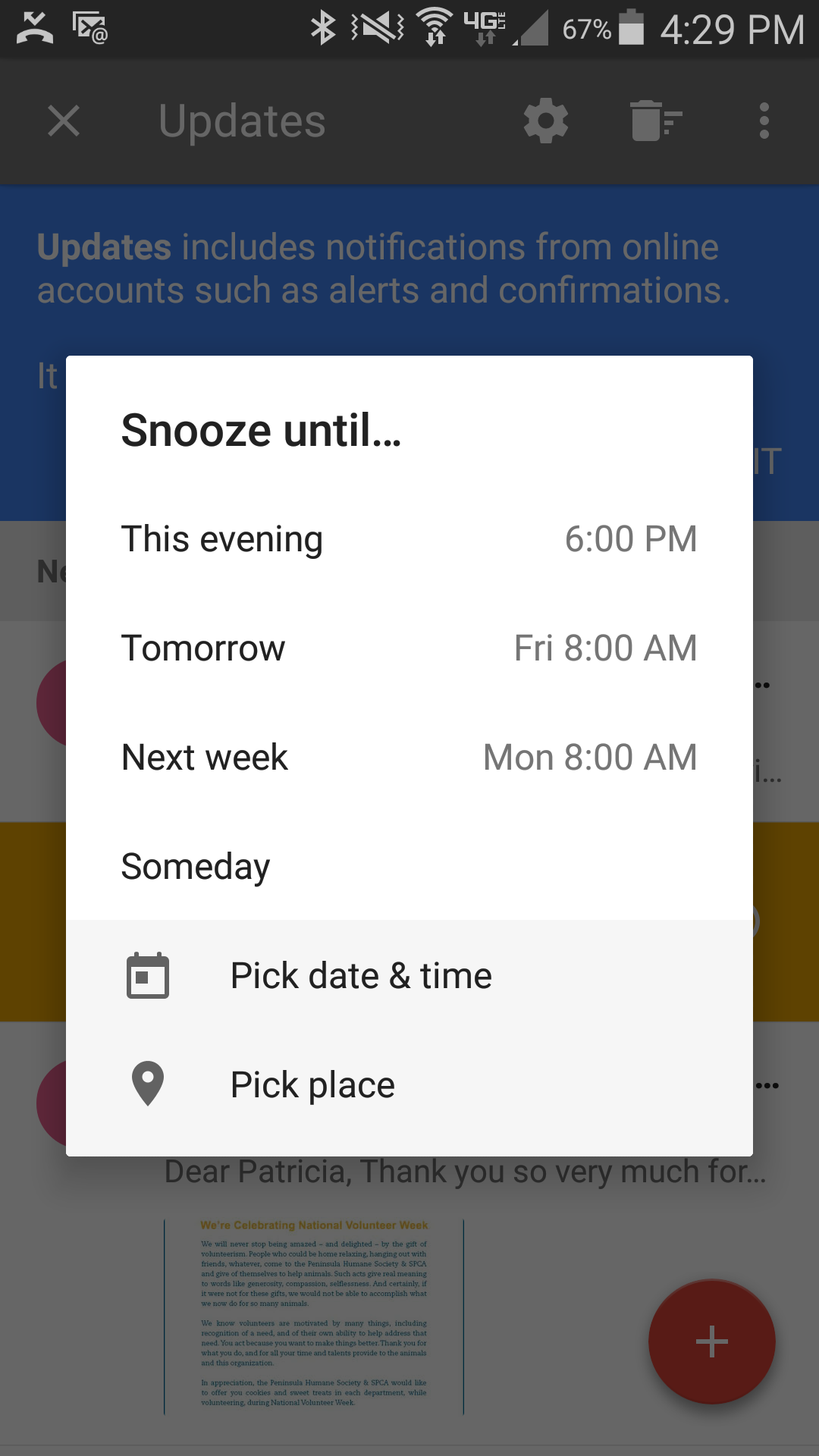
    • Outlook for iOS adds the ability to swipe to schedule an email. This is like a “snooze” feature for an email that you don’t have time to deal with right now.
    • In Google’s Inbox app, swiping right marks the email as “Done.” Swiping left will “snooze” it, similar to Outlook’s “swipe to schedule”. Swiping down or up will close the email.

    One of the biggest breakthroughs in technology was the mouse and the ability to move a cursor around the screen, click to select, and click to perform an action. In the mobile-centric 21st century, we are moving rapidly toward an all-touchscreen world. Knowing the swipe gestures and other kinds of gestures for your favorite applications will keep you working efficiently.

    Confused about how to swipe? Contact me.


  • What You Need to Know About the New Apple Photos

    What You Need to Know About the New Apple Photos

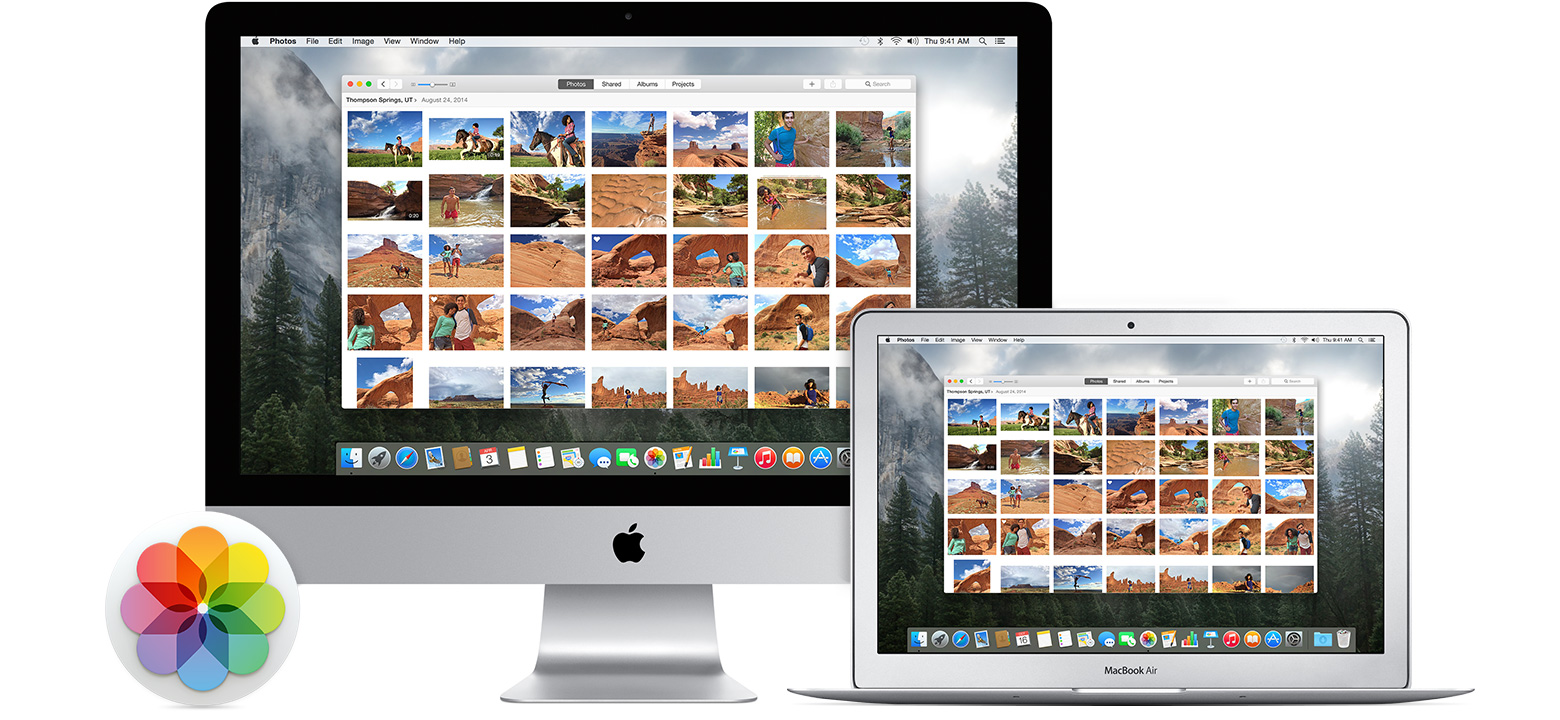
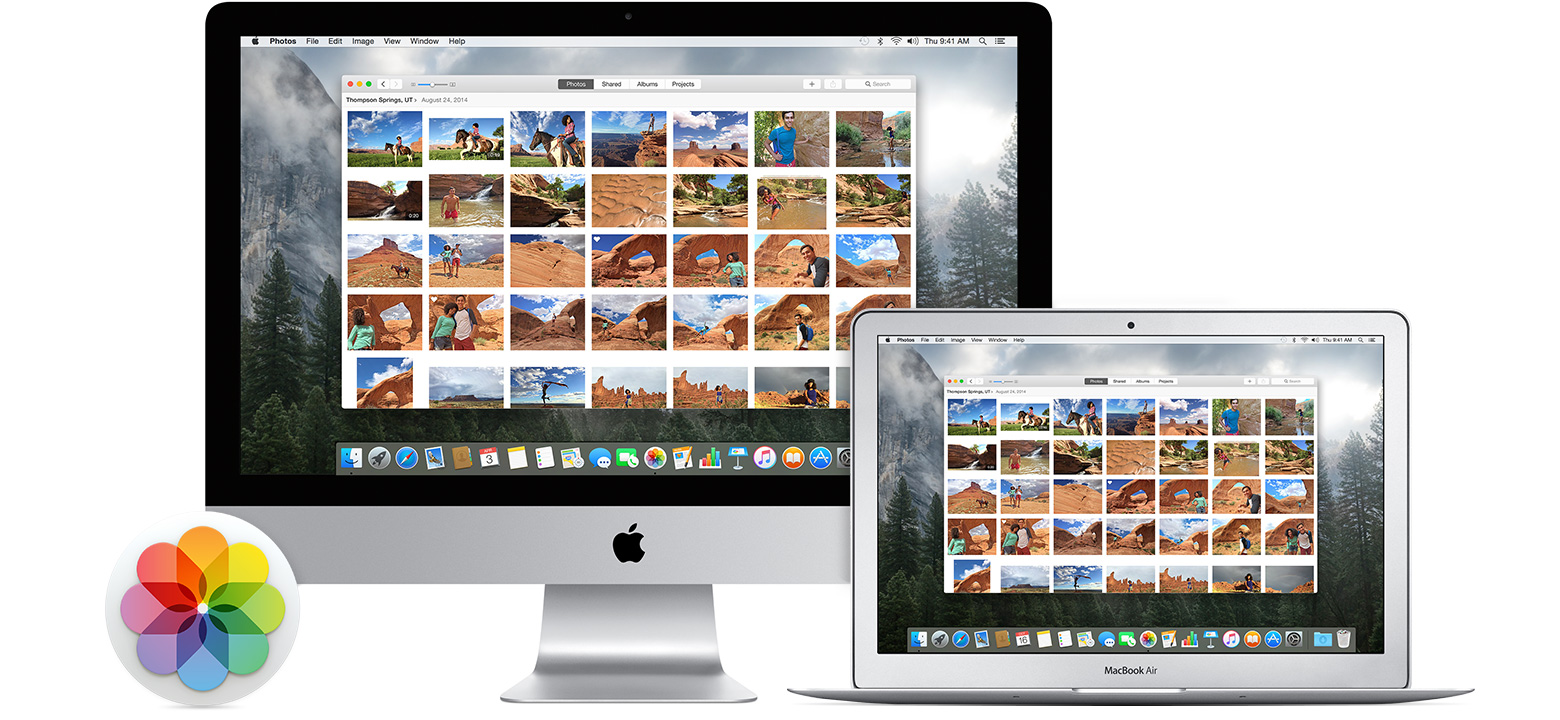
    Did you know that Apple has replaced their both their iPhoto and Aperture applications with a single new application called just “Photos”?

    Apple released Photos with the latest Mac OS X Yosemite update (OS X 10.10.3). To upgrade, just go to Software Update on your Mac and choose the OS update. Once the update is installed, then Photos will automatically import your iPhoto or Aperture library.

    Photos works a lot like your iOS 8 iPad or iPhone photo app. You’ll see your photos organized into thumbnails by date, you can save photos into photo albums, and you can share on sites like Twitter, Facebook, and Flickr.

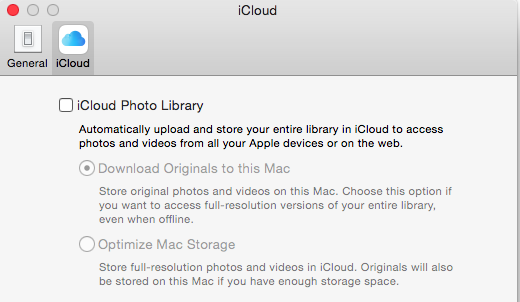
    iCloud Photo LibraryThe update includes support for iCloud Photo Library. If you enable this option in Preferences, then all of your photos (it’s all or none) will be stored in iCloud and synced to any of your devices that have the option enabled under iCloud settings. That means that you can access your entire photo library on your mobile devices, and that any photo edits get synced as well. And the good news is that your mobile device will store only the thumbnail, not the full photo unless you choose to download it.

    “But I’ve always had my photos in the iCloud”, you say? Well, no you haven’t. If you had Photos enabled in your iCloud settings, then your photos were going to Apple’s Photostream, which is not the iCloud.

    Photostream is a mechanism for syncing your photos to your Mac over the Internet. Your photos were stored in Photostream for only 30 days (or the last 1000 photos). Photostream didn’t count toward your iCloud storage space, but iCloud Photo Library does. So if you plan on taking advantage of iCloud Photo Library, you’ll need to look at how much space your photos take up, and upgrade your iCloud plan accordingly.

    FlickrAn alternative to iCloud Photo Library is Flickr. Flickr is not a cloud sync system, so photos saved to Flickr are copies in the cloud. If you delete a photo in your iCloud Photo Library on your iPhone, for example, then the photo will be deleted everywhere – in the cloud, on your Mac, etc. But since photos on Flickr are copies, they will be stored on Flickr until they’re deleted from Flickr. Flickr offers a whopping 1TB of free photo storage, and it has both iOS and Android apps.


    Did you find this post useful? The way that we work with information is changing and you can help spread the word by sharing with your social media. Do you have questions? Share them by commenting below or contact Patricia at pat@digitalchaoscontrol.com for a complimentary consultation.