If you’re dealing with Gmail overload, then you have options to get organized and efficient. (If you haven’t yet read my blog post on email organization, then you may want to read it and come back: 4 Step to Becoming More Responsive). Google calls folders “labels”. Google starts you off with your email organization by automatically creating labels for “Promotions” & “Social” and filtering emails into those labels.
Here are three options for your Gmail organization:
Read your Gmail using any mail reader, such as Mac mail or Outlook. You can take advantage of the organization features built into those programs.
Manage your inbox through Google’s web interface. From that interface, you can create labels & filters, and also star important emails.
Manage your inbox on your mobile device using Google’s Inbox app.
Google based their Inbox interface on the idea thatmost of us use our email inbox as a to-do list.
Through the app’s interface, you “check off” an email item by swiping right to move it to “done”. You can also “snooze” an email, which allows you to select a time that the email will get moved back to the top of your inbox.
Filters are called “bundles” in the Google Inbox app. You can create new labels with rules. You turn filtering for each label off and on by selecting the label under the menu and disabling or enabling the bundle. If you have an email in a bundle that you want to follow up on, you can pin it so that it shows up as an individual email in your inbox. Then you can snooze it or create a reminder.
Here’s a great post on TechRepublic about creating Google Inbox bundles: Create Your Own Bundles
Your Google reminders are also part of Inbox. You can create new reminders or look at your reminder list and check things off.
Do you need some one-on-one or group help with your email management?
The average business worker sends and receives over 120 business emails per day and spends nearly 30 percent of the workweek managing email. Together with personal email, 205 billion emails are sent emails each day—a number expected to increase over 16 percent to 246 billion emails in 2019.
Email overload can result in anxiety and feelings of guilt.
It can be stressful to see your Inbox growing out of control and there is an increased risk of missing important email correspondence. Productivity drops when you have to spend too much time dealing with those emails, and distractions increase with those email notifications.
Fortunately, there are solutions to email overload. To start with, we need to be able to categorize those emails that we receive so that we can move forward with organization and management techniques.
Make Three Lists
I recommend taking a look through your Inbox and making three lists. Keep those lists handy for the next steps.
Red Category
These are emails that you want to see in your Inbox, and that you don’t want to miss.
Example: Emails from clients, customers, co-workers, vendors, contractors, etc.
Yellow Category
Identify those emails that you don’t want to miss, but can wait until the end of the day or end of the week.
Example: Emails from friends and family, industry associations, school and church mail lists, etc.
Green Category
Identify those emails that you only want to deal with when you have the time.
Examples: Newsletters, social media notifications, etc.
Once you have your three lists, you can work on an organization strategy for those emails. You can create folders for those yellow and green category emails and set up email filters so that they will automatically be delivered to those folders instead of cluttering up your inbox.
The folks at SaneBox, an email management app, have written a post here that you might find interesting: Email Triage, and you can read further advice from me here: 4 Step to Becoming More Responsive
Need some one-on-one or group help with your email management?
It’s very common to procrastinate on dealing with your chaotic email inbox.
Does this sound familiar to you?
You dread sitting down at your desk to look at email and feel guilty and anxious at the sight of your overflowing email inbox
You stay at your desk longer every day to try to stay on top of your email inbox.
The size of your email inbox keeps increasing.
You have not just emails from your co-workers, clients, friends, and family, but also emails from school lists, notifications from social networks, and newsletters from retailers, vendors, and consultants (including mine! Sign up here: http://www.digitalchaoscontrol.com).
You have missed important emails.
Unfortunately, it’s all too easy to miss important emails in the clutter.
Email is still an important communication tool but email volume continues to increase every year. It’s no longer possible to treat your email inbox like it’s a to-do list that keeps growing and growing.
How do we turn things around? There are differing opinions and advice on this. One well-known tactic is called “Inbox zero”, which is a technique that encourages you to take the time to look at each and every email and make a decision on it: delete, delegate, respond, defer or do. This is a great technique if you have the time and discipline to go through your email innbox every day, but most of us don’t have enough free time to prioritize email management. You may think that you’ll have some time later when things are less busy, but the truth is that your future self will probably be just as busy.
The first thing to do is to relax.
The size of your email inbox doesn’t matter. What does matter is that you’re not missing important emails or losing track of them, you’re responsive to your clients and co-workers, and that you can find the email that you need when you need it.
Don’t worry about getting to Inbox zero. There are other more productive and efficient ways to deal with email. Read this blog post: 4 Steps to Becoming More Responsive for some tips, and contact me for some one-on-one or group expert help.
It’s very common to procrastinate on dealing with your email chaos.
Does this sound familiar to you?
You dread sitting down at your desk to look at email.
You stay at your desk longer every day to try to stay on top of your inbox.
The size of your inbox keeps increasing.
You have not just emails from your co-workers, clients, friends, and family, but also emails from school lists, notifications from social networks, and newsletters from retailers, vendors, and consultants (including mine! Sign up on the right sidebar).
Unfortunately, it’s all too easy to miss important communication due to email chaos.
Email is still an important communication tool but email chaos continues to increase every year. It’s no longer possible to treat your inbox like it’s a to-do list that keeps growing and growing…
Many of us use an email reader like Microsoft Outlook, but in recent years webmail has become more common, particularly Gmail. There are ways to manage your email chaos whether you’re using Outlook, Apple Mail, or Gmail.
Here are my suggestions to get a handle on your email chaos:
The first thing to do is to create email folders.
These are to serve as repositories for less important emails as they come in. You don’t want those newsletters from your neighborhood grocery store taking up space in your inbox. You may want to read about this week’s specials when you have time, so don’t unsubscribe, manage your inbox instead.
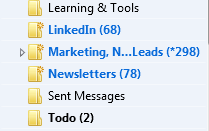
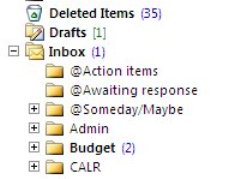
I suggest creating a folder for each email list that you’re a member of, a folder for social network notifications, a folder for each category of newsletter, and a folder for “deferred” items. The point is to keep your inbox sparse enough so that you’re not spending a lot of time daily going through looking for the important emails. (And go ahead: unsubscribe from any newsletters or marketing emails that you don’t care about).
In Apple Mail, folders are called “Mailboxes”. In Gmail, they’re called “Labels”.
After you’ve created folders,the next step is to create “filters” – automatic programs that run within your email reader.
Filters search for specific criteria, which you define, as your email arrives and then perform a defined action based on those criteria. For example, your filter can search the “from” field for your grocery store name and then save the email to a specific folder that you’ve created in step one.
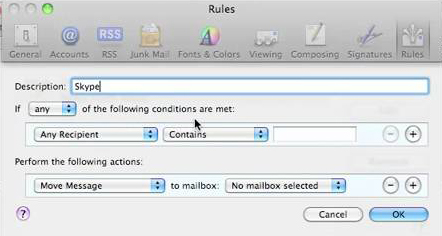
If you use Apple Mail, you create the filters using “Rules” under “Preferences” or using the “Smart Mailbox” feature. (Creating a Smart Mailbox creates a “mailbox” for emails that fit the rules but doesn’t move the original emails out of the Inbox). Apple Mail also has a useful “VIP” feature that creates folders for your favorite people – when you open an email from a favorite person, click on the star next to the “from” line.
If you use Outlook, filters are called “Rules.”
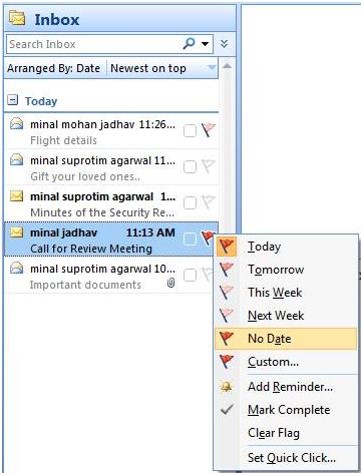
Once you have your folders and filters set up, you should see a big improvement with your email chaos. The next step for Inbox management is to flag your emails with priority levels (Gmail uses colored stars), and then to sort your Inbox by priority, so that you can deal with your most important emails first.
This is not as easy as it sounds. How do you “deal with” those important emails, since some of the emails just require a response, but often they require creating a follow-up task?
There are ways to integrate your email system with a task management system, and I will address that in a later blog post. Stay posted!
Finally, you need to set up your email management routine, preferably by adding time into your calendar.
I suggest blocking out some time every day to:
Priorize and flag your emails
Deal with the most important emails, or create follow-up tasks
Move less important emails to a “Later” folder.
I also suggest blocking out some time every week to deal with the “Later” emails and to do clean-out of your other folders.
If you have a consistent routine, then you’ll find that you’ve become efficient and responsive with your email management. No more apologizing: “I’m so sorry, I didn’t see your email”!
SUBSCRIBE TO MY NEWSLETTER
Get the “Controlling the Chaos” Newsletter and receive a free PDF download “Drowning in Email – A Lifeline for Communications Overload”
Facebook, LinkedIn, and other social networks have transformed our lives and businesses. They have opened up our worlds. They connect us with those whom we’ve lost touch with and they expand our networks of connections.
Unfortunately, it comes at a cost. Expanding our connections and networks leads to more information and contributes to our digital chaos.
One of the factors leading to digital chaos is the increase in emails.
We are inundated with social media notifications.
There are two ways to manage notifications:
Reduce the number of notifications that you’re receiving. You can manage this through your social media settings:
Facebook: Go to “Settings”, then “Notifications”
LinkedIn: Go to “Settings & Privacy” , “Communications”, “Email frequency”
Twitter: Go to “Notifications” at the top.
Filter notifications in your email reader.
Apple Mail:
Create a new Mailbox called “Notifications”.
Go to “Preferences”, then “Rules”.
Create a new rule that moves your notification emails into your “Notifications” Mailbox.
Outlook:
Create a new Folder called “Notifications”.
Right-click on a notification email. Select “Rules” and then “Always move messages from …”
Select the “Notifications” folder.
Social media notifications serve a useful purpose, as most of us don’t have time to check our news feeds all the time.
Make sure that you take the time to review your Notifications folder on a regular basis.
SUBSCRIBE TO MY NEWSLETTER
Get the “Controlling the Chaos” Newsletter and receive a free PDF download “Drowning in Email – A Lifeline for Communications Overload”
It’s very common to procrastinate dealing with your email chaos. Does this sound familiar to you?
Email comes in and sits there until you have a chance to look at it.
The size of your inbox keeps increasing.
You have not just emails from your co-workers, clients, friends, and family, but also emails from school lists, notifications from social networks, and newsletters from retailers, vendors, and consultants (including mine! Sign up here).
Unfortunately, it’s all too easy to miss important emails in all of the clutter. It’s no longer possible to treat your inbox like it’s a to-do list that keeps growing and growing…
Here are my suggestions to get a handle on your email chaos:
The first thing to do is to create email folders. These are to serve as repositories for less important emails as they come in, so that those newsletters from your neighborhood grocery store aren’t taking up space in your inbox. You may want to read about these weeks specials when you have time, so don’t unsubscribe, manage your inbox instead.
I suggest creating a folder for each email list that you’re a member of, a folder for social network notifications, a folder for each category of newsletter, and a folder for “deferred” items. The point is to keep your inbox sparse enough so that you’re not spending a lot of time daily going through looking for the important emails.
After you’ve created folders, the next step is to create “filters” – automatic programs that run within your email reader. Filters search for specific criteria, which you define, as your email arrives and then perform a defined action based on that criteria. For example, your filter can search the “from” field for your grocery store name and then save the email to a specific folder that you’ve created in step 1.
If you use Apple Mail, you create the filters using the “Smart Mailbox” feature. (Apple Mail also has a useful “VIP” feature that creates folders for your favorite people. When you open an email from a favorite, click on the star next to the “from” line.) If you use Outlook, filters are called “Rules.”
Once you have your folders and filters set up, you should see a big improvement in your inbox. The next step is to flag your emails with priority levels (Gmail uses colored stars), and then to sort them by priority.
If you have a consistent routine – dealing with the most important emails first and also setting aside some time daily or weekly to flag, sort, and organize your inbox, then you’ll find that you’ve become efficient and responsive with your email management. No more apologizing, “Sorry, I missed that email”!
If you need some help managing your inbox, Digital Chaos Control can help! Contact us today.

 If you’re dealing with Gmail overload, then you have options to get organized and efficient. (If you haven’t yet read my blog post on email organization, then you may want to read it and come back: 4 Step to Becoming More Responsive). Google calls folders “labels”. Google starts you off with your email organization by automatically creating labels for “Promotions” & “Social” and filtering emails into those labels.
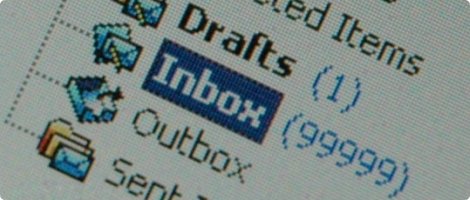
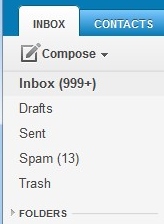 It’s very common to procrastinate on dealing with your email chaos.
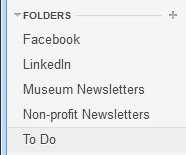 The first thing to do is to create email folders.
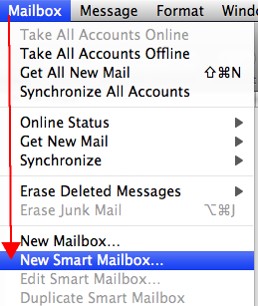 If you use Apple Mail, you create the filters using “Rules” under “Preferences” or using the “Smart Mailbox” feature. (Creating a Smart Mailbox creates a “mailbox” for emails that fit the rules but doesn’t move the original emails out of the Inbox). Apple Mail also has a useful “VIP” feature that creates folders for your favorite people – when you open an email from a favorite person, click on the star next to the “from” line.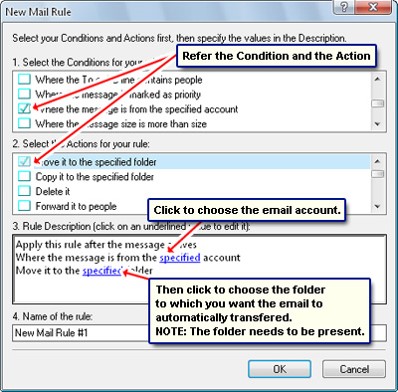
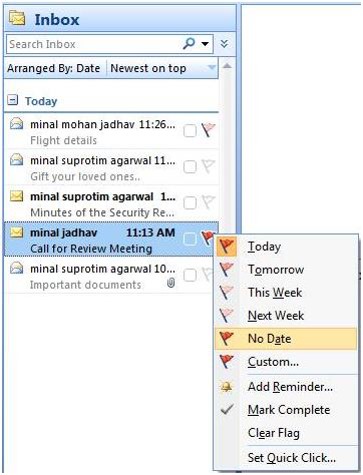 Once you have your folders and filters set up, you should see a big improvement with your email chaos. The next step for Inbox management is to flag your emails with priority levels (Gmail uses colored stars), and then to sort your Inbox by priority, so that you can deal with your most important emails first.
 Facebook, LinkedIn, and other social networks have transformed our lives and businesses. They have opened up our worlds. They connect us with those whom we’ve lost touch with and they expand our networks of connections.